
With the rise of dual-SIM iPhones—especially since the introduction of eSIM technology—Apple users are increasingly managing two phone numbers on a single device. Whether it’s for separating personal and work life or simply having better international roaming options, many people now run both a physical nano-SIM and an eSIM simultaneously. But when setting up your iPhone, you might have noticed labels like “Primary” and “Business.” What do they mean? Which one are you actually using right now? And more importantly: does it matter?
The short answer is yes—but not in the way most assume. These labels aren’t just arbitrary; they influence call routing, data usage, and even how contacts see your number. However, Apple’s interface doesn’t always make this clear, leading to confusion among everyday users.
Understanding iPhone Dual-SIM Setup
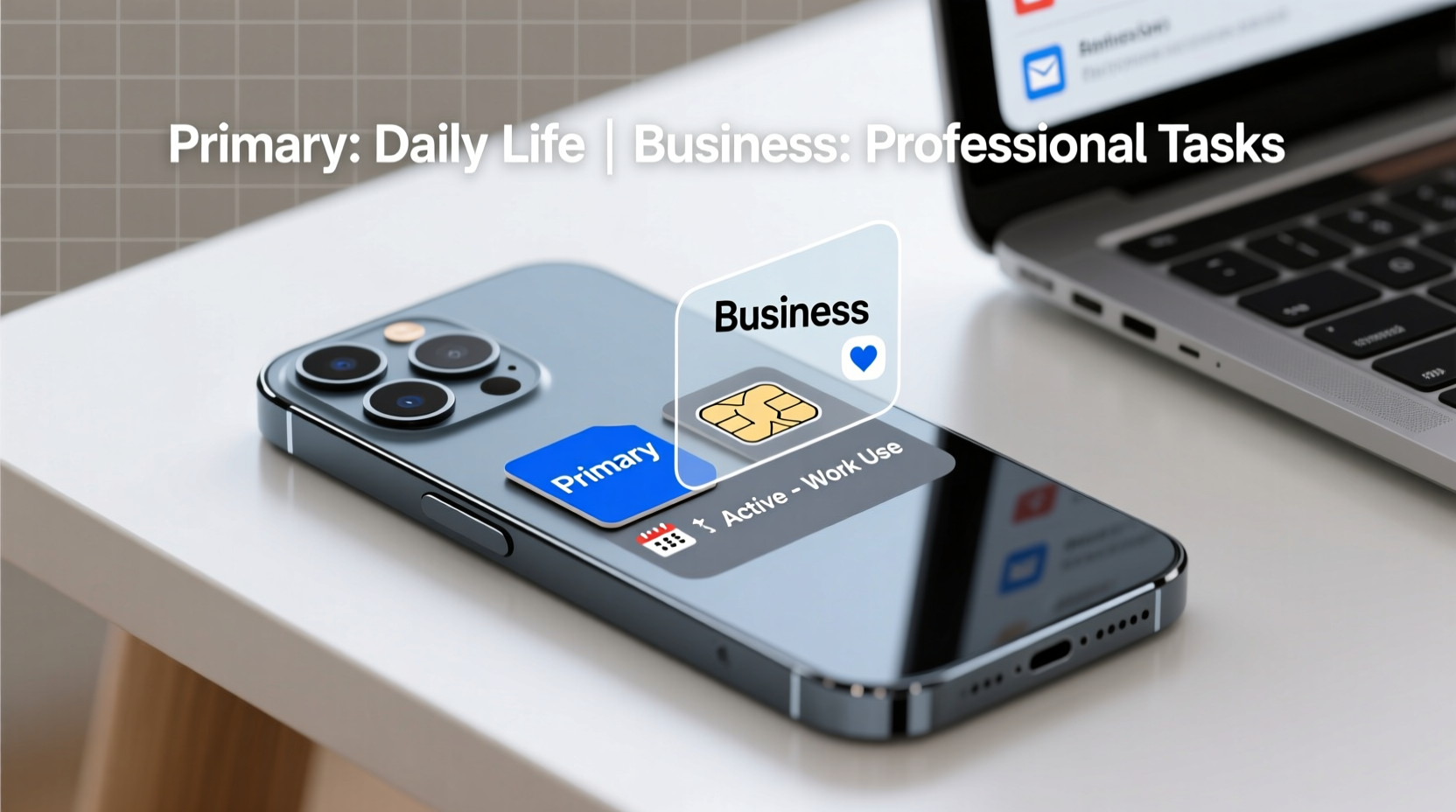
iPhones from the iPhone XS, XR, and later models support dual-SIM functionality using a combination of a physical nano-SIM and an embedded eSIM (except in mainland China, where two physical SIMs are used). This allows you to maintain two separate phone numbers on one device without carrying multiple phones.
When you activate dual SIM, iOS prompts you to assign labels to each line: typically “Primary” and “Secondary,” though some carriers or regions may refer to them as “Personal” and “Business.” These labels are user-defined during setup but come with default behaviors that affect how calls, messages, and mobile data are handled.
It's important to note: “Primary” doesn’t necessarily mean “mainly used”. Instead, it often refers to the default line for voice calls and cellular data unless otherwise specified.
How to Check Which SIM You’re Currently Using
To determine which SIM is active for specific functions:
- Open the Settings app.
- Tap Cellular (or Mobile Data).
- Select Cellular Plans.
- You’ll see both lines listed with their assigned labels (e.g., “Primary” and “Business”).
- Look for indicators:
- Data icon (4G/LTE/5G) next to a number = that line is providing internet.
- Call audio routing: During a call, check the top bar—the active number will briefly appear.
- Sending SMS/MMS: Open Messages, start a new message—the default number shown indicates your outgoing line.
Differences Between Primary and Business SIM Labels
While “Primary” and “Business” sound functionally distinct, they are primarily labeling conventions, not technical designations. The actual behavior depends on how you configure defaults—not the label itself.
| Function | Default Behavior (Typical) | Can Be Changed? |
|---|---|---|
| Voice Calls (Outgoing) | Uses Primary by default | Yes – per contact or globally |
| SMS/MMS Sending | Uses Primary unless set otherwise | Yes – adjustable in Messages settings |
| Mobile Data | Only one line can provide data at a time; usually labeled “Primary” | Yes – changeable under Cellular Data Options |
| Incoming Calls | Both rings simultaneously if enabled | Yes – toggle per line |
| iMessage/FaceTime | Built around Apple ID, not SIM label | Limited control via Apple ID settings |
So while the “Business” label suggests professional use, it functions identically to any other secondary line unless manually configured otherwise.
Does It Actually Matter Which Is Primary?
In practical terms, yes—it affects your daily experience. But only because of default behaviors, not inherent limitations.
If your personal number is labeled “Primary,” but you want all work-related communication routed through your business line, you’ll need to manually override defaults every time—or reassign roles entirely.
For example, if you travel frequently and use a local eSIM for data while keeping your home number as “Primary,” you could end up paying high roaming fees if data isn’t explicitly assigned to the local plan.
“We’ve seen users unknowingly run up massive bills because their ‘Primary’ SIM was tied to a foreign carrier, and data fallback wasn’t disabled.” — Jordan Lee, Senior Support Engineer at TelcoCare Solutions
Real Example: Sarah’s Cross-Border Work Routine
Sarah is a freelance designer based in Canada but works primarily with clients in the UK. She uses her Canadian number (on a physical SIM) as “Primary” and added a UK eSIM labeled “Business” for client calls.
Initially, she assumed that labeling the UK line as “Business” would make it the default for calls and texts with UK contacts. It didn’t. Every time she called a client, her Canadian number appeared unless she manually selected the UK line.
After realizing this, she changed her UK eSIM to be the default for voice calls and messaging. She also switched her mobile data to the UK eSIM when abroad to avoid roaming charges. A small adjustment—but it saved her time, preserved professionalism, and reduced costs.
Step-by-Step: Optimizing Your SIM Configuration
Follow this sequence to ensure your iPhone uses the correct SIM for the right purpose:
- Review current setup: Go to Settings > Cellular > Cellular Plans. Note labels and carriers.
- Assign meaningful labels: Tap each number and rename them clearly (e.g., “Work – AT&T” or “Travel – Germany eSIM”).
- Set default voice line: Settings > Phone > Default Line → Choose preferred number for outgoing calls.
- Adjust message defaults: Settings > Messages > Send & Receive → Under “Start New Conversations From,” pick your preferred number.
- Designate data line: Settings > Cellular > Cellular Data → Select which plan provides internet.
- Disable auto-switching (optional): Under Cellular Data Options > Data Roaming, turn off “Allow Multiple Lines” if you want strict control.
- Test configuration: Make a test call, send a message, and check your IP location to confirm data source.
Frequently Asked Questions
Can I rename my SIM labels to something more intuitive?
Yes. In Settings > Cellular > Cellular Plans, tap either number and select “Label.” You can enter custom names such as “Personal,” “Work,” “US Number,” or “Backup.” This won’t change functionality but improves clarity.
Is the “Primary” SIM the only one that can use mobile data?
Yes—with a caveat. Only one SIM can provide cellular data at a time. By default, the system assigns data to the line labeled “Primary,” but you can manually switch it to the other line anytime. No functional difference exists between the two in terms of speed or capability.
Do apps know which SIM I’m using?
No. Third-party apps cannot detect or differentiate between your SIM cards. They rely solely on the device’s active internet connection (Wi-Fi or cellular data) and have no access to SIM identity beyond carrier name displayed by iOS.
Final Checklist: Mastering Your Dual-SIM iPhone
- ✅ Identify which number is currently labeled “Primary” and “Business”
- ✅ Verify which SIM is providing mobile data
- ✅ Set your preferred default for calls and messages
- ✅ Rename SIMs with clear, descriptive labels
- ✅ Disable unwanted roaming or automatic switching
- ✅ Test outgoing calls and messages to confirm correct number display
- ✅ Update contact entries with correct numbers to avoid mix-ups
Conclusion
The distinction between “Primary” and “Business” on your iPhone isn’t about technical superiority—it’s about intentionality. How you label and configure your SIMs shapes your communication efficiency, cost management, and personal branding. Taking five minutes to review and optimize your setup can prevent misunderstandings, reduce roaming fees, and keep your personal and professional lives neatly separated.
Don’t let default settings dictate your experience. Reclaim control over your dual-SIM iPhone by auditing your configuration today. Whether you're a remote worker, frequent traveler, or just trying to stay organized, a well-tuned SIM setup makes all the difference.




 浙公网安备
33010002000092号
浙公网安备
33010002000092号 浙B2-20120091-4
Comments
No comments yet. Why don't you start the discussion?