
When managing an iPhone, users often face the decision to either reset or erase their device. While these terms are sometimes used interchangeably, they refer to fundamentally different processes with distinct outcomes. Understanding the nuances between a reset and a full erase is crucial—especially when selling, repairing, or troubleshooting your device. The wrong choice could mean losing irreplaceable photos, exposing personal data, or failing to resolve persistent software issues.
This guide breaks down exactly what happens during each operation, which data is truly removed, and how to make the right choice based on your needs.
Understanding Reset vs Erase: Key Differences
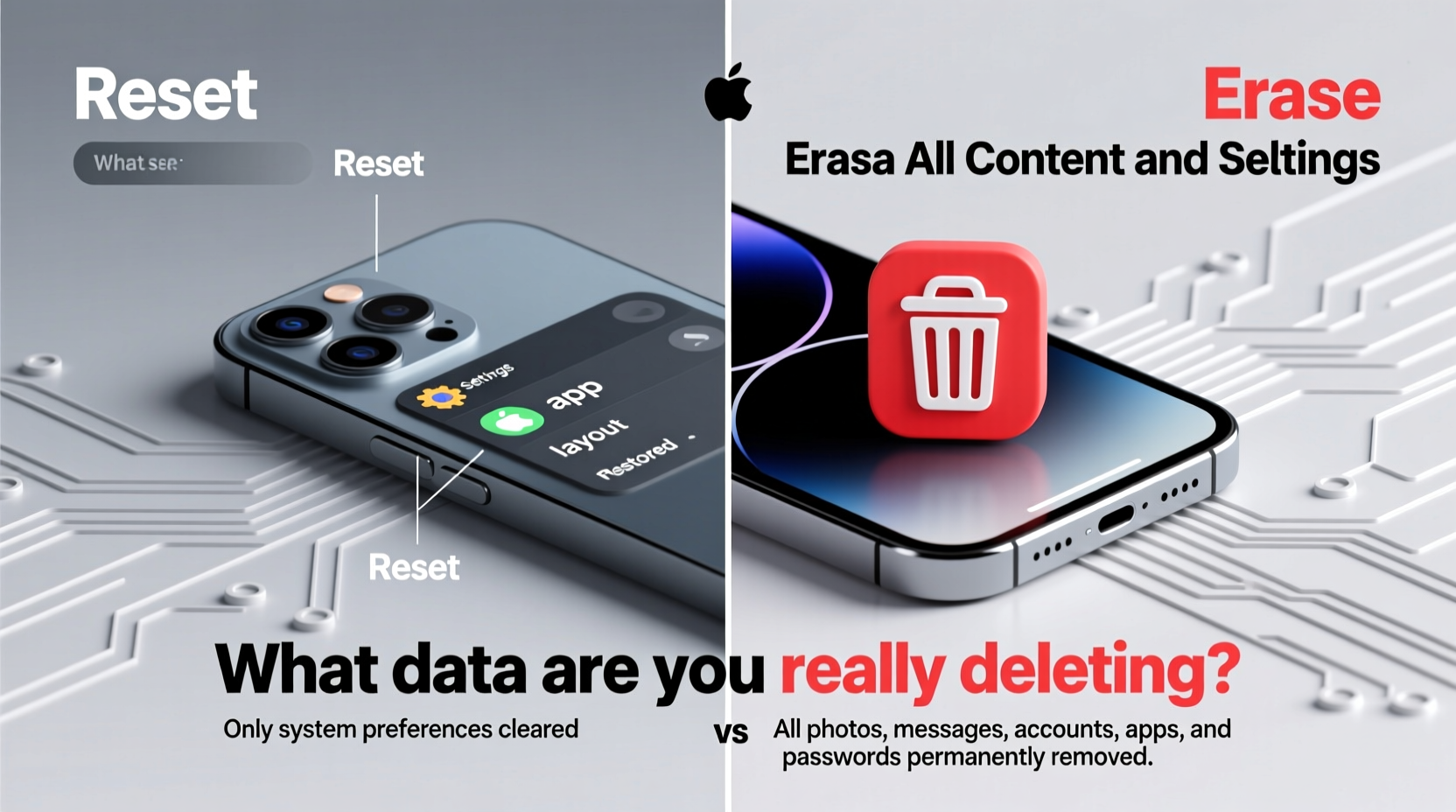
The confusion between \"reset\" and \"erase\" stems from Apple's terminology in the Settings app. Both actions involve resetting components of the device, but only one removes all user data permanently.
- Reset: Refers to restoring specific settings or configurations without deleting personal content like apps, messages, or media.
- Erase: Involves wiping the entire device, removing all accounts, apps, files, and settings—returning it to factory condition.
A reset might fix performance issues or network glitches. An erase is necessary when transferring ownership or dealing with severe system corruption.
Data Impact: What Gets Deleted (And What Doesn’t)
To clarify the real consequences of each option, here’s a breakdown of common reset types and their effects:
| Reset Option | Data Affected | Data Preserved |
|---|---|---|
| Reset All Settings | Wi-Fi passwords, display brightness, privacy settings, keyboard dictionary | Apps, photos, messages, Apple ID |
| Reset Network Settings | Saved Wi-Fi networks, cellular settings, VPN and APN configurations | Contacts, media, installed apps |
| Reset Home Screen Layout | App arrangement on home screen, folder organization | All content and settings |
| Erase All Content and Settings | Everything: Photos, messages, apps, health data, saved passwords, Face ID data | Nothing—device returns to out-of-box state |
Note that none of the “Reset” options under General > Transfer or Reset iPhone delete your personal files unless explicitly stated. Only “Erase All Content and Settings” performs a complete wipe.
Encryption and Data Removal: What Happens Behind the Scenes
iPhones use hardware-level encryption to protect user data. When you choose “Erase All Content and Settings,” iOS doesn’t simply delete files—it invalidates the encryption key used to unlock the data. This renders the information inaccessible, even via forensic tools.
“From a security standpoint, erasing an iPhone using the built-in option is effectively permanent. The data remains on the storage chip but cannot be decrypted.” — Dr. Lena Torres, Mobile Security Researcher at SecureDevice Lab
This method is faster than overwriting every byte and is considered secure by cybersecurity standards. However, for maximum assurance—especially in high-risk environments—Apple recommends enabling iCloud Backup encryption and signing out of iCloud before erasing.
Step-by-Step: How to Safely Erase Your iPhone
If you're preparing to sell, donate, or trade in your iPhone, follow this sequence to ensure no data remains accessible:
- Back up your iPhone using iCloud or Finder/iTunes.
- Go to Settings > [Your Name] > iCloud and sign out. Enter your Apple ID password when prompted.
- Navigate to Settings > General > Transfer or Reset iPhone.
- Select Erase All Content and Settings.
- Enter your passcode if required.
- Confirm the action. The device will reboot and begin wiping data.
- Wait for the process to complete—this may take several minutes.
- Once finished, the iPhone will restart to the initial setup screen.
After erasure, avoid setting up the phone again unless necessary. If someone else will use it, let them complete the activation process to associate the device with their Apple ID.
Real-World Scenario: Selling Your iPhone Without Regret
Jamal decided to upgrade his iPhone 12 to the latest model. He backed up his data to iCloud, then went into Settings and selected “Reset All Settings” thinking it would clear his personal information. When the buyer powered on the device, all of Jamal’s photos, messages, and even saved passwords were still intact.
It wasn’t until the buyer contacted him that Jamal realized he had only reset preferences—not erased content. He remotely erased the phone via iCloud.com, but the incident highlighted a common misunderstanding. A proper “Erase All Content and Settings” performed locally would have prevented the oversight.
This case underscores why knowing the difference isn’t just technical—it’s essential for digital privacy.
Checklist: Before You Reset or Erase
Use this checklist to prepare your iPhone safely:
- ✅ Back up data to iCloud or computer
- ✅ Disable Find My iPhone (requires Apple ID password)
- ✅ Sign out of iCloud and iTunes & App Store
- ✅ Remove SIM card (if applicable)
- ✅ Ensure device is charged above 50% or connected to power
- ✅ Verify backup completion before proceeding
- ✅ Confirm whether you need full erase or partial reset
Frequently Asked Questions
Does resetting my iPhone remove my Apple ID?
No. Resetting settings does not sign you out of your Apple ID. Even after erasing all content, the device may still be linked to your account via Activation Lock unless you manually sign out first.
Can deleted data be recovered after an erase?
Not through standard means. Once the encryption key is destroyed during erasure, data recovery requires advanced forensic tools—and even then, success is unlikely on modern iPhones (iPhone 3GS and later) due to secure enclave protection.
Is there a difference between erasing via Settings vs. Recovery Mode?
Functionally, both erase all user data. However, erasing via Recovery Mode (using a computer) is more thorough and often required if the device is unresponsive or stuck in a loop. It also ensures the latest iOS version is reinstalled.
Conclusion: Make the Right Choice for Your Situation
Choosing between resetting and erasing your iPhone isn't just about fixing a glitch or clearing space—it's about understanding the implications for your data, privacy, and device functionality. A simple reset can refresh settings without disrupting your digital life. A full erase is a point of no return, necessary for secure handover or deep troubleshooting.
By knowing what each option truly deletes—and backing up accordingly—you maintain control over your information and ensure your iPhone remains a trusted tool, whether you're keeping it or passing it on.




 浙公网安备
33010002000092号
浙公网安备
33010002000092号 浙B2-20120091-4
Comments
No comments yet. Why don't you start the discussion?