
It’s frustrating when an iPhone that once felt lightning-fast begins to lag, freeze, or take forever to open apps. Whether you’ve had your device for a year or three, performance degradation is common—but not inevitable. The good news: most slowdowns stem from fixable software issues, storage overload, or outdated settings, not hardware failure. Understanding the root causes and applying targeted solutions can restore responsiveness and extend your iPhone’s useful life significantly.
Why Your iPhone Slows Down Over Time
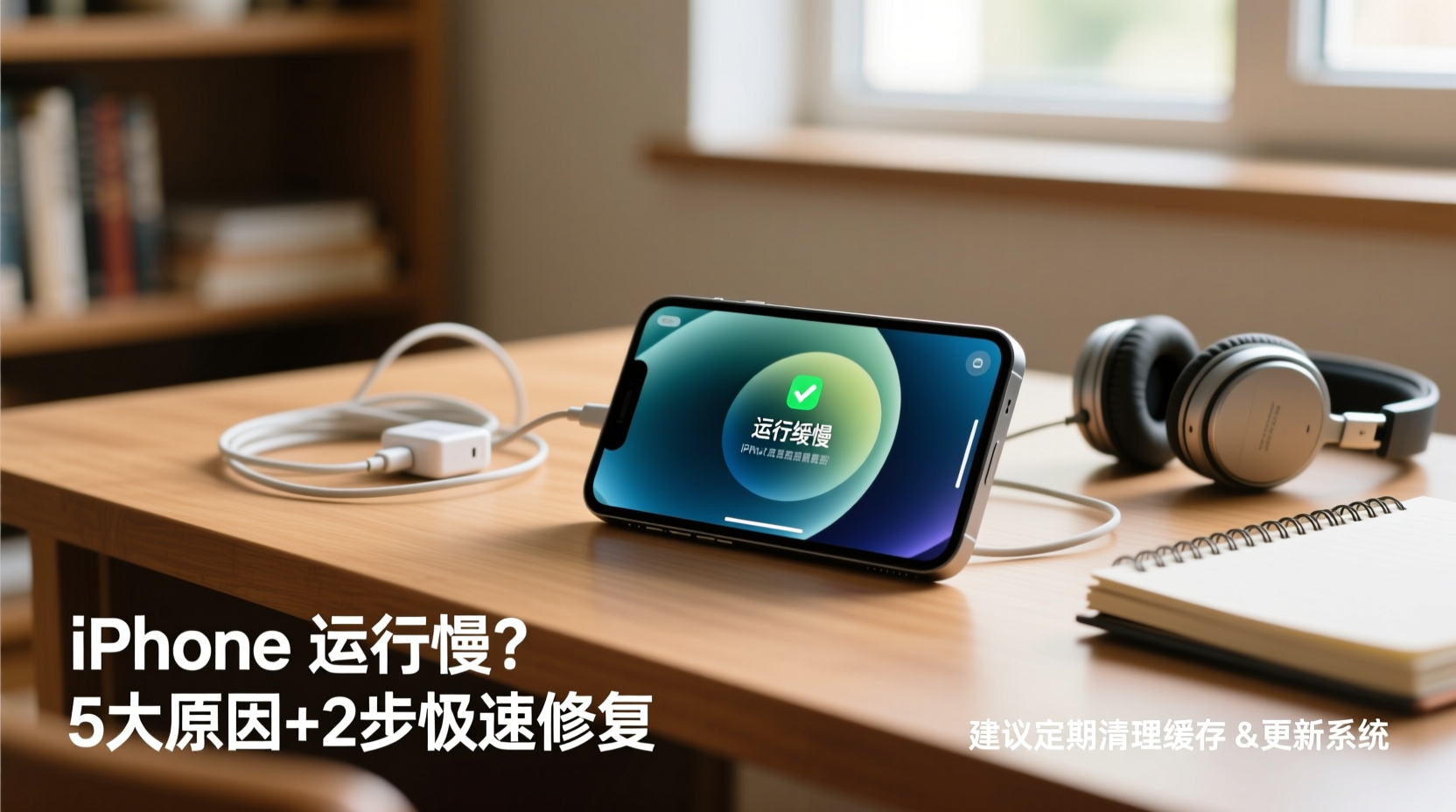
iPhones are built with tight integration between hardware and software, but even the best engineering can’t prevent gradual slowdowns. As iOS updates roll out, they often include more features, security layers, and background processes that demand more from older processors and memory. Meanwhile, app developers optimize for newer models, sometimes leaving older devices struggling to keep up.
Beyond software bloat, user behavior plays a major role. Accumulated cache files, excessive background app refresh, too many widgets, and nearly full storage all contribute to sluggish performance. Apple has also acknowledged in the past that battery health can trigger performance throttling—a feature designed to prevent unexpected shutdowns on aging batteries.
“Performance isn’t just about processor speed. Background activity, storage pressure, and thermal conditions all influence real-world responsiveness.” — David Liu, Mobile Systems Engineer at TechInsight Labs
Common Causes of iPhone Lag (and How to Diagnose Them)
Before jumping into fixes, identify what’s actually slowing your phone. Here are the most frequent culprits:
- Low storage space: When your iPhone is above 80–90% capacity, system operations slow down due to limited room for temporary files and caching.
- Outdated iOS version: Running an old OS can cause compatibility issues, while skipping updates may mean missing critical performance patches.
- Background App Refresh: Apps constantly updating in the background consume CPU and battery, affecting overall responsiveness.
- Poor battery health: iPhones with batteries below 80% capacity may automatically reduce performance to avoid shutdowns.
- Too many animations and visual effects: Features like parallax, transparency, and live wallpapers use GPU resources unnecessarily.
- Corrupted app data or cache: Misbehaving apps can hog memory or crash repeatedly, dragging down the entire system.
Step-by-Step Guide to Speed Up Your iPhone
Follow this sequence of actions to systematically improve performance. Start with the least invasive steps and move toward deeper optimizations.
- Restart your iPhone regularly. A simple reboot clears RAM, stops frozen processes, and resets network connections. Do this weekly.
- Update iOS and all apps. Go to Settings > General > Software Update. Updated versions often include performance improvements and bug fixes.
- Reduce motion and visual effects. Navigate to Settings > Accessibility > Motion > Reduce Motion. Toggle it on. Also disable “Prefer Cross-Fade Transitions” for smoother navigation.
- Limit Background App Refresh. Go to Settings > General > Background App Refresh. Turn it off entirely or restrict it to Wi-Fi only and select only essential apps.
- Clear Safari cache and website data. Settings > Safari > Clear History and Website Data. This frees memory and improves browser speed.
- Offload unused apps. In Settings > General > iPhone Storage, enable “Offload Unused Apps.” This removes app data but keeps documents and settings.
- Reset all settings. If problems persist, go to Settings > General > Transfer or Reset iPhone > Reset > Reset All Settings. This won’t delete data but will clear network, display, and privacy configurations.
Storage Optimization Checklist
Freeing up space is one of the fastest ways to boost performance. Use this checklist to clean your iPhone efficiently.
- ✅ Delete duplicate photos and videos (use iCloud Photos to review)
- ✅ Remove large message attachments (Settings > Messages > Keep Messages > set to 30 days)
- ✅ Uninstall heavy games and media apps you no longer use
- ✅ Clear podcast, music, and video caches from streaming apps
- ✅ Move files to cloud storage (iCloud, Google Drive, Dropbox)
- ✅ Review “Recommendations” in iPhone Storage for quick cleanup options
Real Example: Reviving a Two-Year-Old iPhone 12
Sarah, a freelance designer, noticed her iPhone 12 taking over 10 seconds to open her design app and frequently freezing during multitasking. Her storage was at 97%, she hadn’t restarted the phone in months, and several apps were outdated. After following the step-by-step guide:
- She freed 12 GB by offloading unused apps and deleting old messages.
- Updated iOS to the latest version.
- Enabled Reduce Motion and disabled Background App Refresh for non-essential apps.
- Restarted the device twice during the process.
Result: App launch times dropped by 60%, and general navigation became noticeably smoother. Sarah reported that her phone “feels like new again” without needing a replacement.
Do’s and Don’ts: Best Practices for iPhone Performance
| Do’s | Don’ts |
|---|---|
| Keep at least 3–5 GB of free storage | Fill your iPhone beyond 90% capacity |
| Restart your iPhone weekly | Leave it running for weeks without a reboot |
| Update iOS and apps promptly | Skip multiple OS updates |
| Use iCloud or external storage for backups | Rely solely on local storage for everything |
| Monitor battery health monthly | Ignore low battery health warnings |
Frequently Asked Questions
Will resetting my iPhone erase my photos and messages?
No—resetting settings (Settings > General > Reset > Reset All Settings) does not delete personal data like photos, messages, or contacts. However, a full factory reset (Erase All Content and Settings) will. Always back up first using iCloud or iTunes if performing a full reset.
Can a bad battery really slow down my iPhone?
Yes. Starting with iOS 10.2.1, Apple introduced dynamic performance management for iPhones with degraded batteries (typically below 80% health). This prevents unexpected shutdowns by reducing CPU performance. You can check battery health in Settings > Battery > Battery Health & Charging. If maximum capacity is below 80%, consider a battery replacement.
Is it worth upgrading to a new iPhone if mine is slow?
Not necessarily. Many users extend their iPhone’s life by 1–2 years with proper maintenance. Try the optimization steps above before deciding to upgrade. If your device still lags after thorough troubleshooting and has poor battery health, then a hardware refresh may be justified.
Conclusion: Take Control of Your iPhone’s Speed
An iPhone doesn’t have to feel slow just because it’s aging. Most performance issues are rooted in manageable factors: cluttered storage, outdated software, unnecessary background tasks, and overlooked settings. By applying consistent maintenance—regular restarts, smart storage management, and timely updates—you can preserve speed and usability far longer than expected.




 浙公网安备
33010002000092号
浙公网安备
33010002000092号 浙B2-20120091-4
Comments
No comments yet. Why don't you start the discussion?