
One of the most frustrating alerts iPhone users encounter is the “Liquid Detected in Charging Port” message. It appears unexpectedly when you plug in your charger, halting charging and raising concerns about device safety. While Apple’s moisture detection system is designed to protect your phone from potential damage, false or lingering alerts can be misleading and disruptive. Understanding why this happens—and how to fix it—is essential for maintaining your iPhone’s performance and longevity.
This guide walks through the science behind the alert, practical steps to resolve it, and long-term prevention strategies backed by technical insights and real-world experience.
How the Liquid Detection System Works
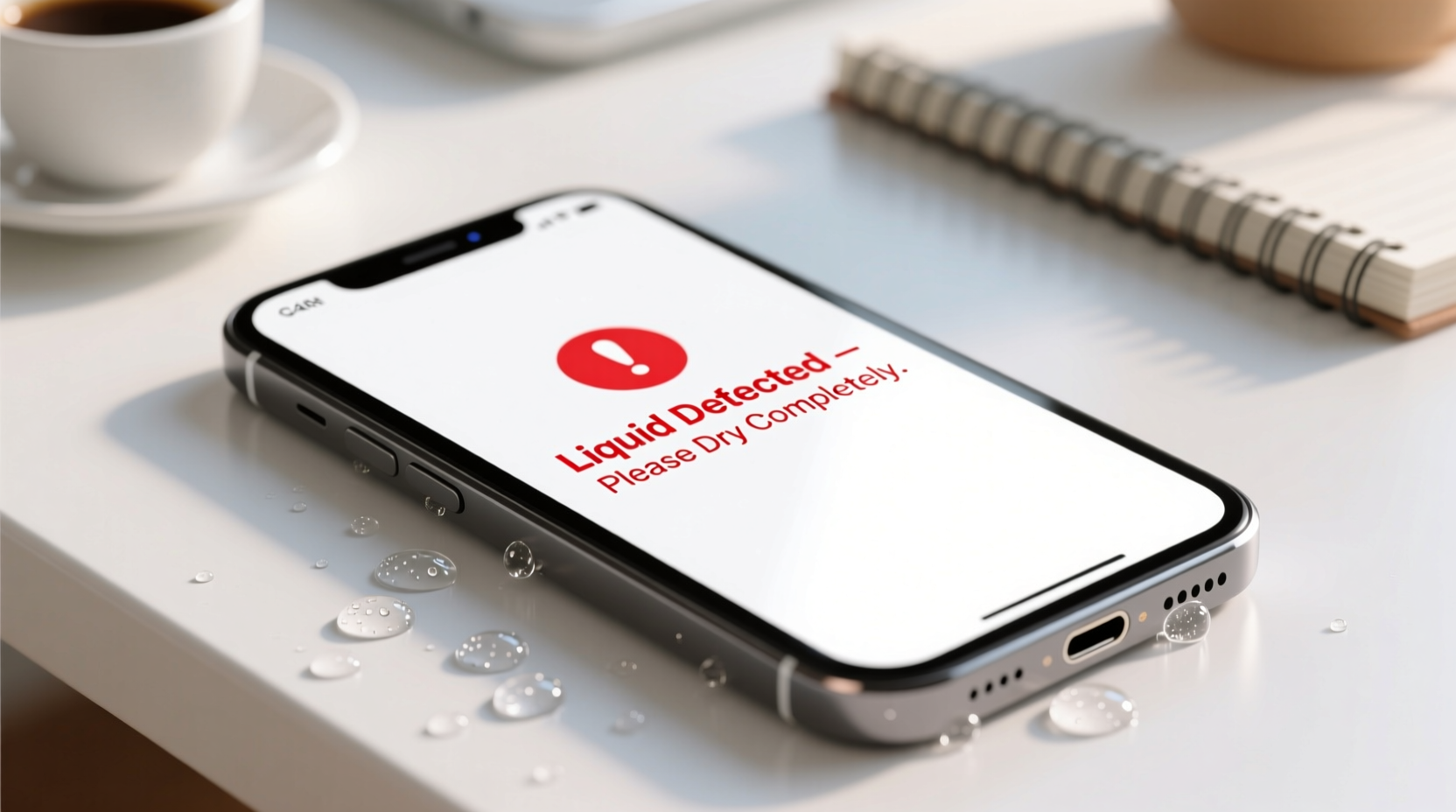
Starting with the iPhone 7, Apple introduced a Liquid Contact Indicator (LCI) and later enhanced it with software-based moisture detection in newer models. The system uses sensors near the Lightning port to detect changes in electrical conductivity. When moisture alters this conductivity, the iOS software triggers the alert to prevent short circuits during charging.
It's important to note: the sensor doesn’t distinguish between water, sweat, humidity, or other liquids. Even high ambient humidity after a shower or rain exposure can set it off. In some cases, residue from cleaning products or salt buildup from ocean air may also trigger false positives.
“Apple’s liquid detection is a safety-first feature, but environmental factors often cause false alarms—especially in coastal or humid climates.” — Rajiv Mehta, Senior Mobile Technician at iFixMobile Labs
Step-by-Step Troubleshooting Guide
When your iPhone displays the liquid detected alert, follow this structured approach to diagnose and resolve the issue safely.
- Disconnect the Charger Immediately
Do not attempt to force charge. Unplug the cable to prevent any risk of electrical damage. - Power Off the Device (Optional)
If the phone feels damp or was recently exposed to liquid, power it down to reduce internal current flow. - Inspect the Charging Port Visually
Use a flashlight to check for visible moisture, lint, or debris. Do not insert metal objects. - Dry the Port Naturally
Hold the iPhone with the port facing downward. Allow it to sit in a dry, well-ventilated area for at least 30 minutes to several hours. - Avoid Heat Sources
Do not use hairdryers, microwaves, or ovens. Excessive heat can warp components or damage sensors. - Try a Different Cable or Charger
Faulty accessories can mimic liquid detection errors. Use Apple-certified (MFi) cables. - Restart the iPhone
After drying, restart the device. Sometimes a software refresh clears a phantom alert. - Test Charging Again
Plug in slowly. If the alert persists, repeat drying or proceed to advanced fixes.
Advanced Fixes and Common Mistakes
If basic drying doesn’t resolve the alert, consider these deeper solutions—while avoiding common pitfalls that could worsen the issue.
| Action | Recommended? | Why / Why Not |
|---|---|---|
| Using silica gel packets | Yes | Highly effective at absorbing residual moisture over 24–48 hours. |
| Rice method | No | Rice is inefficient and may leave starchy dust in the port, worsening connectivity. |
| Compressed air (low pressure) | Yes (with caution) | Can remove lint and moisture; avoid high pressure to prevent sensor damage. |
| Blowing into the port | No | Moisture from breath introduces more humidity and salts, potentially triggering the sensor again. |
| Cleaning with a soft brush | Yes | Use a dry toothbrush or anti-static brush to gently remove lint buildup. |
Real Example: Coastal User with Recurring Alerts
Sarah, a photographer living in Miami, frequently encountered the liquid detected alert despite never submerging her iPhone 13. After ruling out spills, she realized the pattern: alerts appeared after beach shoots or rainy commutes. A technician confirmed salt residue and humidity were triggering the sensor. By storing her phone in a sealed container with silica gel overnight and using a protective case, the alerts stopped entirely. This case highlights how environmental exposure—even without direct contact with water—can activate moisture sensors.
Prevention Checklist
To minimize future alerts, adopt these proactive habits:
- Keep your iPhone away from sinks, bathtubs, and swimming pools.
- Wipe the charging port occasionally with a dry, lint-free cloth.
- Use a waterproof case if you’re often in wet environments.
- Store the phone in a dry place, especially in humid climates.
- Avoid charging immediately after being outdoors in rain or snow.
- Replace frayed or non-MFi cables that may cause electrical interference.
- Enable Airplane Mode when exposing the phone to heavy moisture (e.g., saunas, steam rooms).
When to Seek Professional Help
If the liquid detected alert persists after 24 hours of thorough drying and cleaning, there may be underlying hardware issues. These include:
- Corrosion in the charging port due to past liquid exposure
- Faulty moisture sensor or LCI malfunction
- Internal condensation from temperature shifts (e.g., moving from cold outdoors to warm indoors)
In such cases, visit an Apple Store or authorized service provider. Technicians can use diagnostic tools like AST (Apple Service Toolkit) to verify sensor status and perform safe internal drying or component replacement if needed.
“About 30% of ‘liquid detected’ cases we see are false alarms caused by lint or humidity. But ignoring persistent alerts can lead to long-term corrosion.” — Lisa Tran, Apple-Certified Field Support Specialist
FAQ
Can I charge my iPhone wirelessly if the liquid detection alert appears?
Yes. The alert only affects the Lightning port. Wireless charging remains safe and functional as long as the back glass is dry and undamaged.
Does the liquid detection alert mean my iPhone is no longer waterproof?
No. iPhones have an IP67 or IP68 rating, meaning they’re resistant to water under specific conditions. However, water resistance diminishes over time and isn’t covered under warranty. The alert is a precaution, not proof of compromised sealing.
How long does it take for the moisture to evaporate naturally?
Under normal indoor conditions, moisture typically evaporates within 30 minutes to 2 hours. High humidity or trapped droplets may require up to 24 hours. Silica gel can accelerate this process.
Conclusion
The “liquid detected” alert on your iPhone is a safeguard, not a sentence. With careful handling, proper drying techniques, and preventive care, most instances can be resolved quickly and safely. Avoid outdated remedies like rice, prioritize certified accessories, and stay mindful of environmental exposure. Your iPhone’s longevity depends not just on its build quality, but on how you respond when warnings appear.




 浙公网安备
33010002000092号
浙公网安备
33010002000092号 浙B2-20120091-4
Comments
No comments yet. Why don't you start the discussion?