
Screen mirroring allows you to project your iPhone’s display onto a larger screen—whether it’s an Apple TV, smart TV, or projector. It’s essential for presentations, streaming videos, or sharing photos with family. But when screen mirroring fails, it can disrupt your workflow or ruin a planned viewing session. The good news is that most issues are fixable with the right steps. This guide walks you through proven solutions to diagnose and resolve iPhone screen mirroring problems efficiently.
Understanding How iPhone Screen Mirroring Works
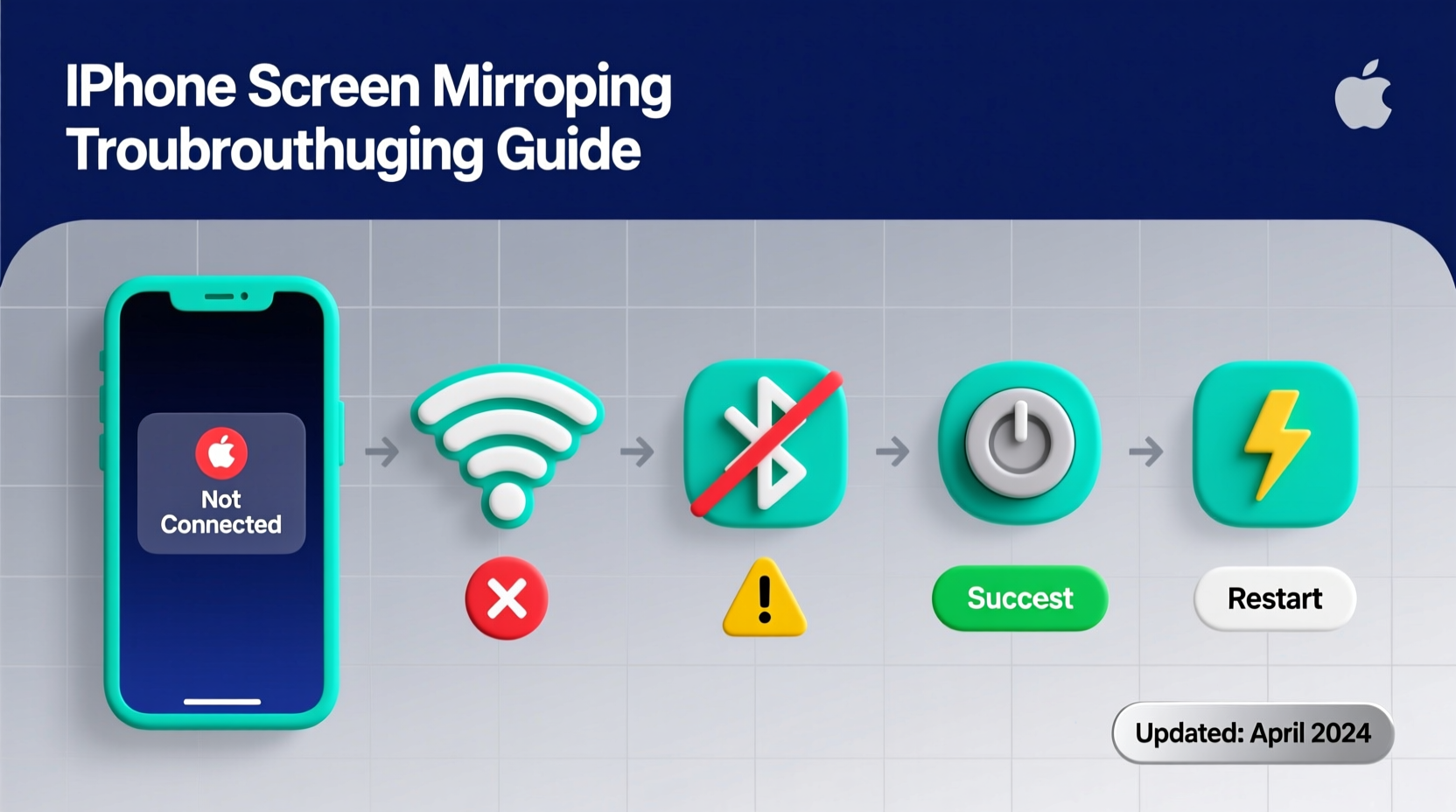
iOS uses AirPlay as its proprietary wireless technology to mirror your screen. For successful mirroring, both your iPhone and the receiving device (like Apple TV or a compatible smart TV) must be on the same Wi-Fi network, support AirPlay, and have Bluetooth enabled. Unlike wired connections, screen mirroring relies on stable wireless communication, which means interference, outdated firmware, or incorrect settings can easily interrupt the process.
Apple recommends using 5GHz Wi-Fi networks for better performance, as they offer faster speeds and less congestion than 2.4GHz bands. However, many users overlook this detail, leading to inconsistent connections even when all devices appear to be functioning correctly.
“AirPlay depends on a tight ecosystem of hardware, software, and network stability. One weak link can break the entire chain.” — Jordan Lee, Senior iOS Support Engineer at Apple Authorized Service Provider
Step-by-Step Troubleshooting Process
When screen mirroring fails, follow this structured approach to identify and fix the root cause. Start with the simplest checks before moving to more advanced fixes.
- Verify Device Compatibility: Ensure your iPhone runs iOS 12 or later and your receiver supports AirPlay. For third-party TVs, check if they have AirPlay 2 built-in or require an external dongle like an Apple TV 4K.
- Check Network Connection: Both devices must be connected to the same Wi-Fi network. Go to Settings > Wi-Fi on your iPhone and confirm the network name matches the one used by your TV or Apple TV.
- Enable AirPlay on Receiver: On your TV or Apple TV, go to Settings > AirPlay and make sure “Allow Access” is set to “Everyone” or “Anyone on the Same Network.”
- Restart All Devices: Power cycle your iPhone, router, and receiving device. A simple reboot often resolves temporary glitches in wireless services.
- Update Software: Install the latest iOS update on your iPhone and ensure your Apple TV or smart TV has the most recent firmware.
Common Causes and Their Fixes
Different symptoms point to different underlying causes. Use the table below to match your issue with the appropriate solution.
| Issue | Possible Cause | Solution |
|---|---|---|
| Receiver not showing in list | Wi-Fi mismatch or disabled AirPlay | Ensure both devices are on same 5GHz network; enable AirPlay on TV |
| Mirroring starts but disconnects immediately | Network congestion or weak signal | Move closer to router; reduce bandwidth-heavy activities (e.g., downloads) |
| No sound during mirroring | Audio routing misconfiguration | Open Control Center > Audio Output > Select correct device |
| Laggy or frozen video | Router limitations or interference | Use Ethernet for Apple TV; avoid microwave or cordless phone interference |
| “Connection Failed” error | Firmware incompatibility | Update iOS and TV firmware; restart all equipment |
Real Example: Fixing a Stubborn Office Setup
A marketing manager in Seattle reported that her iPhone 14 would not mirror to a conference room Apple TV. Despite being on the same network, the device never appeared in the Screen Mirroring menu. After checking settings, she discovered the office Wi-Fi was split into two SSIDs—one for 2.4GHz and another for 5GHz. Her iPhone had auto-connected to the 2.4GHz band, while the Apple TV used 5GHz. By manually switching her phone to the 5GHz network and restarting the Apple TV, mirroring worked instantly. This case highlights how subtle network configurations can silently block functionality.
Advanced Fixes When Basic Steps Fail
If standard troubleshooting doesn’t work, consider these deeper interventions:
- Reset Network Settings: Go to Settings > General > Transfer or Reset iPhone > Reset > Reset Network Settings. This clears saved Wi-Fi passwords and reinitializes Bluetooth and AirPlay configurations. Note: You’ll need to reconnect to Wi-Fi networks afterward.
- Disable VPN or Firewall Temporarily: Some corporate or third-party VPNs block AirPlay traffic. Turn off the VPN and test again.
- Use a Different Apple ID: In rare cases, iCloud sync issues tied to an Apple ID can interfere with device discovery. Try signing out and back in under Settings > [Your Name].
- Check Router Multicast Settings: Advanced users should verify that multicast DNS (mDNS) and IGMP snooping are enabled on the router. These protocols allow AirPlay devices to discover each other.
Essential Checklist Before Every Mirroring Session
To prevent last-minute failures, run through this quick checklist every time you plan to mirror:
- ✅ iPhone and receiver on same Wi-Fi network
- ✅ Wi-Fi signal strength is strong (at least 3 bars)
- ✅ AirPlay enabled on the receiving device
- ✅ No active VPN or firewall blocking connections
- ✅ Bluetooth is turned on (required for initial pairing)
- ✅ Devices updated to latest software versions
- ✅ Restarted router and receiver within the past week
Frequently Asked Questions
Why won’t my Samsung TV show up for screen mirroring?
Your Samsung TV must support AirPlay 2. Check under Settings > General > Apple AirPlay Settings. If unavailable, your model may not support it. Alternatively, use Smart View, Samsung’s native mirroring feature, though it’s not compatible with AirPlay.
Can I mirror without Wi-Fi?
Not officially. AirPlay requires a shared Wi-Fi network. While some third-party apps claim to offer offline mirroring via hotspot, they’re unreliable and not recommended for critical use.
Does screen mirroring drain battery quickly?
Yes. Wireless transmission, especially video, consumes significant power. Keep your iPhone charged or connected to a power source during extended mirroring sessions.
Final Thoughts and Action Plan
Screen mirroring should be seamless, but wireless ecosystems are complex. Most issues stem from overlooked settings, outdated software, or network segmentation. By methodically verifying compatibility, network alignment, and configuration, you can resolve nearly any mirroring problem. Don’t accept “it just doesn’t work” as an answer—most failures have clear, fixable causes.
Start applying these strategies today. Bookmark this guide for quick reference during meetings or family movie nights. If you’ve encountered a unique mirroring challenge or found a workaround that works, share your experience below. Your insight could help others overcome the same hurdle.




 浙公网安备
33010002000092号
浙公网安备
33010002000092号 浙B2-20120091-4
Comments
No comments yet. Why don't you start the discussion?