
Receiving a call labeled “No Caller ID” or “Unknown Caller” can be unsettling—especially when you're trying to decide whether to answer. While these terms might seem interchangeable, they actually represent distinct scenarios in how caller information is transmitted (or withheld) by the calling party and interpreted by your iPhone. Understanding the difference isn’t just about curiosity; it can help you identify potential spam, avoid scams, and troubleshoot if your phone appears to be misbehaving.
iPhones running modern versions of iOS display incoming call labels based on data received from carriers and third-party services. However, confusion arises because Apple doesn't officially define every variation in its user interface documentation. As a result, users often assume their device is malfunctioning when they see inconsistent labels. The reality is usually more nuanced than a software glitch.
What Does “No Caller ID” Mean?
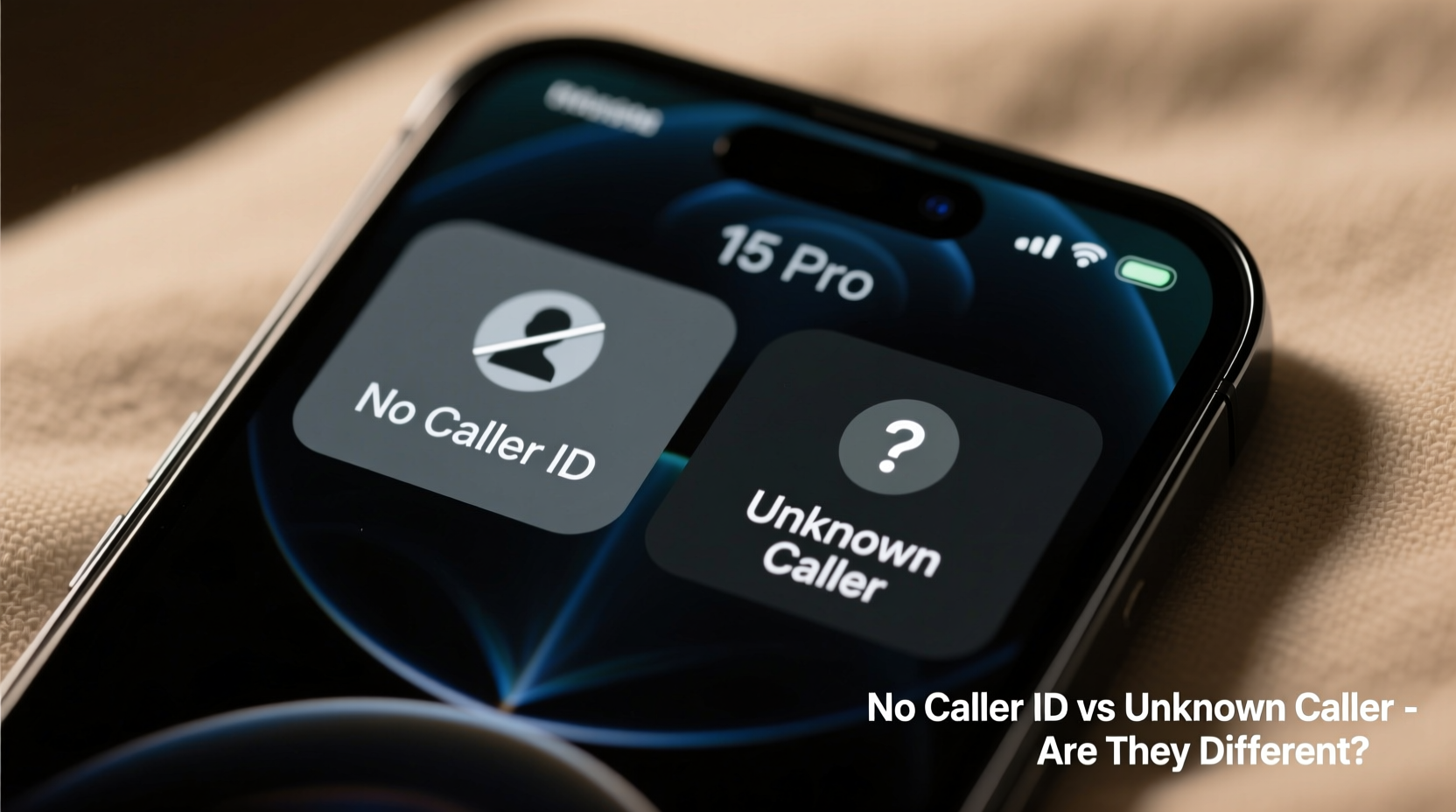
When your iPhone displays “No Caller ID,” it means the caller has intentionally blocked their number from being transmitted. This is typically done using a carrier-level feature such as dialing *67 before the number (in North America), or through settings within VoIP apps like WhatsApp or FaceTime.
The blocking occurs at the source—the originating network suppresses the caller’s number before it reaches your device. Because no identifying information is sent, your iPhone receives only the voice signal without metadata, hence the label “No Caller ID.”
This status is consistent across most smartphones and landlines. It's a standardized telecommunication behavior, not an iPhone-specific quirk.
What About “Unknown Caller”?
“Unknown Caller” is slightly different. Your iPhone uses this label when it receives a caller’s number, but that number isn’t saved in your contacts and isn’t recognized by iOS’s built-in identification systems. Unlike “No Caller ID,” where no number is sent, “Unknown Caller” implies a number was transmitted—but your phone couldn’t match it to any known identity.
This commonly happens with:
- New businesses or service providers whose numbers aren’t in public directories
- International callers with non-standard formatting
- Voice over IP (VoIP) services that use unverified or rotating numbers
- Carriers that fail to properly transmit CNAM (Caller Name) data
In some cases, even legitimate callers may appear as “Unknown” simply because their carrier hasn’t updated reverse lookup databases.
Key Differences Between No Caller ID and Unknown Caller
| Feature | No Caller ID | Unknown Caller |
|---|---|---|
| Caller Number Transmitted? | No — explicitly blocked | Yes — but not identified |
| Can You Return the Call? | No — number not available | Possible — number may appear in recent calls |
| Common Source | Intentional blocking (*67), private lines | Unlisted businesses, VoIP, spoofed numbers |
| Spam Likelihood | Moderate to high | High — especially with robocalls |
| iOS Behavior | Label shown immediately | May briefly show number before labeling “Unknown” |
“The distinction between ‘No Caller ID’ and ‘Unknown Caller’ reflects fundamental differences in signaling protocols and carrier practices—not iPhone errors.” — Dr. Alan Reyes, Telecommunications Systems Analyst
Is Your iPhone Glitching? Common Misinterpretations
Many users suspect a software bug when they notice variations in how calls are labeled. However, true glitches related to caller ID are rare. More often, perceived inconsistencies stem from:
- Carrier delays in transmitting CNAM data: Sometimes, the name pops up a second after the call connects, making it seem like the label changed unexpectedly.
- Third-party app interference: Apps like Truecaller or Hiya can override default labels, causing confusion if disabled or out of sync.
- Network switching during calls: Moving between Wi-Fi Calling and cellular networks mid-call can disrupt metadata flow.
- Software updates altering UI logic: iOS updates occasionally tweak how unidentified numbers are displayed, leading to new phrasing like “Restricted” or “Private.”
If both “No Caller ID” and “Unknown Caller” appear randomly for similar types of calls, check whether you’re using call-blocking apps or have recently switched carriers. These factors influence labeling far more than system bugs.
Step-by-Step: How to Diagnose Caller ID Issues
- Review recent calls: Check if numbers appear in your Recents list under “Unknown Caller.” If yes, the number was transmitted—so it’s not “No Caller ID.”
- Disable third-party caller ID apps: Temporarily turn off apps like Truecaller to see if native iOS behavior stabilizes.
- Toggle Airplane Mode: Turn on Airplane Mode for 10 seconds, then disable it to refresh network registration and carrier settings.
- Check for carrier updates: Go to Settings > General > About. If an update is available, install it—it may include improved caller ID handling.
- Test with another device: Have someone call your number from a landline or work phone known to transmit caller ID. See how your iPhone responds.
Real-World Example: Sarah’s Confusing Calls
Sarah, a small business owner in Portland, started noticing frequent calls labeled “Unknown Caller” despite having her number publicly listed. She worried clients were seeing “No Caller ID” when calling her back, potentially hurting response rates.
After testing, she discovered her VoIP-based office line wasn’t sending CNAM data to major carriers. While recipients saw her actual number, iOS couldn’t pull a name, so it defaulted to “Unknown Caller.” She contacted her provider, who enabled proper caller ID registration. Within 48 hours, her calls began appearing correctly on iPhones—even if not saved in contacts.
This case illustrates that “Unknown Caller” isn’t always about the receiving phone—it can reflect upstream configuration issues beyond user control.
Best Practices for Managing Unidentified Calls
You can’t control how others set up their phones, but you can manage how your iPhone handles ambiguous incoming calls:
- Enable Silence Unknown Callers (Settings > Phone) to send unrecognized numbers directly to voicemail.
- Add trusted business numbers manually to Contacts, even if they sometimes show as “Unknown.”
- Use Do Not Disturb during focused hours to minimize interruptions from suspicious labels.
- Report persistent scam calls via the “Report Junk Caller” option in recent call logs (if available).
Frequently Asked Questions
Can “No Caller ID” ever become “Unknown Caller” later?
No. “No Caller ID” means no number was transmitted. “Unknown Caller” requires a number to exist. They are mutually exclusive states based on technical signal availability.
Why do some “Unknown Caller” numbers show up in my call log with digits?
Because the number was transmitted, but not matched to a contact or recognized by iOS. The digits appear in the log, but the caller remains “unknown” until manually identified.
Does turning off Wi-Fi Calling fix caller ID problems?
Not usually. Wi-Fi Calling transmits caller ID the same way as cellular networks. However, poor Wi-Fi quality might delay name resolution, creating a brief “Unknown” appearance.
Take Control of Your Calling Experience
Your iPhone isn’t glitching—it’s accurately reflecting the complex ecosystem of modern telephony. “No Caller ID” and “Unknown Caller” serve different purposes and originate from distinct technical conditions. By understanding these distinctions, you gain better insight into who’s contacting you and why.
Instead of assuming a malfunction, approach unexpected caller labels as clues. Use them to refine your call management settings, protect your privacy, and even improve how your own calls appear to others. With the right knowledge, you’re no longer guessing—you’re in control.




 浙公网安备
33010002000092号
浙公网安备
33010002000092号 浙B2-20120091-4
Comments
No comments yet. Why don't you start the discussion?