
If your iPhone suddenly stops recognizing your SIM card, displays “No Service,” or shows a red exclamation mark in the status bar, you're not alone. SIM-related connectivity issues are more common than most users realize and can stem from hardware, software, carrier settings, or even physical damage. The good news is that many of these problems can be resolved without visiting a service center. This guide walks you through systematic fixes—ranging from simple resets to advanced diagnostics—to get your iPhone back online.
Common Signs of a SIM Card Problem
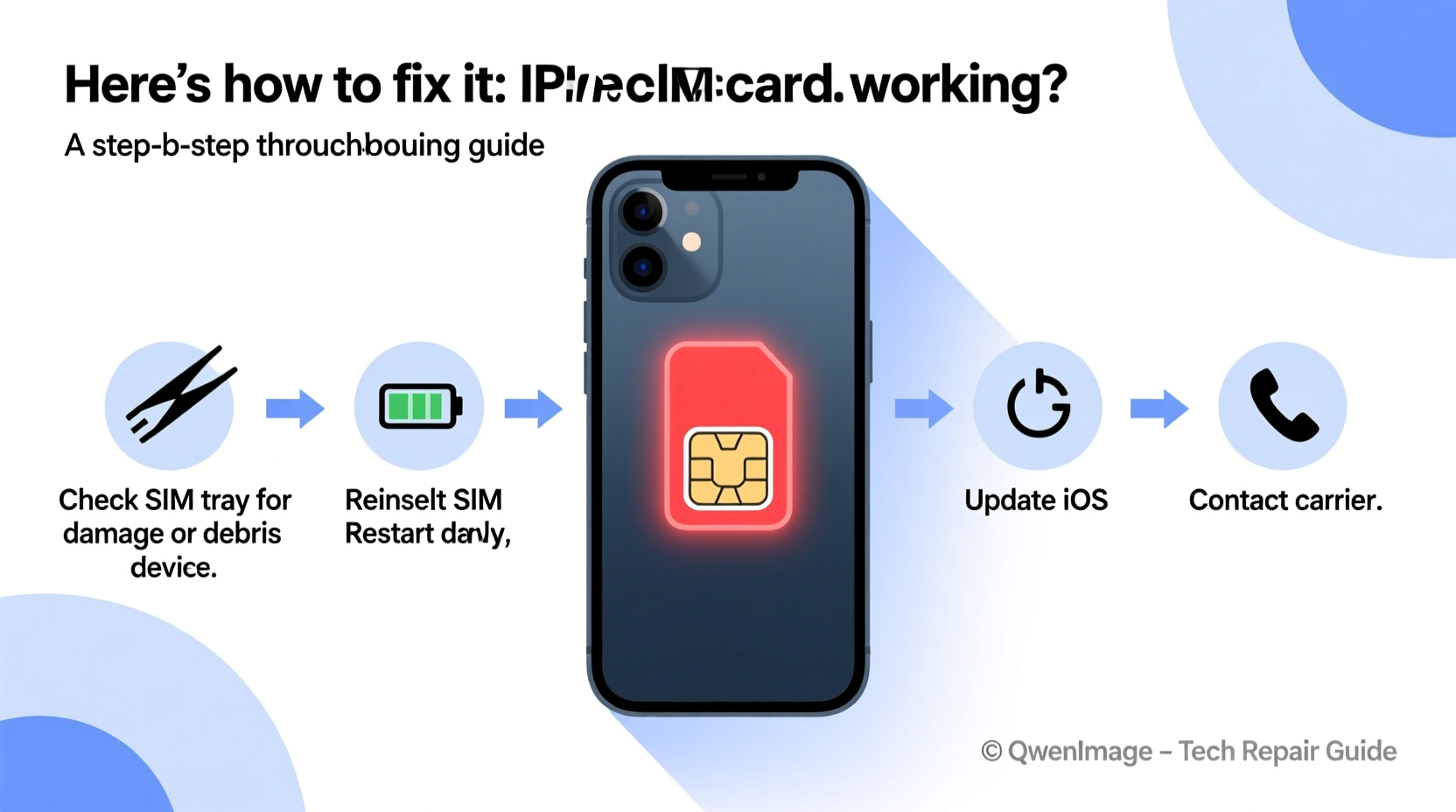
Before diving into solutions, it's important to recognize the symptoms. A malfunctioning SIM card may cause one or more of the following:
- \"No Service\" or \"Searching\" displayed in the status bar
- Inability to make or receive calls and texts
- Emergency calls only mode
- SIM card not recognized error message
- Invalid SIM alert despite correct insertion
- Network settings reset loop after restart
These signs don’t always mean the SIM itself is faulty—sometimes the issue lies in the phone’s software or carrier configuration. Identifying the root cause early saves time and prevents unnecessary replacements.
Step-by-Step Troubleshooting Guide
Follow this logical sequence to isolate and resolve the issue efficiently. Start with basic checks before moving to advanced solutions.
- Restart Your iPhone: A soft reboot clears temporary system errors. Press and hold the side button and either volume button until the slider appears, then slide to power off. Wait 30 seconds and turn it back on.
- Check Physical SIM Placement: Power off the phone, remove the SIM tray using the eject tool, and inspect whether the SIM is properly seated. Reinsert it firmly and ensure it’s not upside down.
- Clean the SIM and Tray: Dust, lint, or corrosion can interfere with connectivity. Gently wipe the metal contacts of the SIM with a dry, lint-free cloth. Avoid alcohol or liquids unless absolutely necessary.
- Test the SIM in Another Device: Insert your SIM into a different compatible phone. If it fails there too, the problem likely lies with the SIM or carrier account.
- Try a Different SIM: Borrow a working SIM (from a friend or backup device) and insert it into your iPhone. If it works, your original SIM may be damaged.
- Update Carrier Settings: Go to Settings > General > About. If an update is available, a prompt will appear. Carrier updates often fix network compatibility bugs.
- Reset Network Settings: Navigate to Settings > General > Transfer or Reset iPhone > Reset > Reset Network Settings. This clears saved Wi-Fi passwords and cellular configurations but often resolves deep-seated connection issues.
- Check for iOS Updates: Outdated software can cause hardware recognition failures. Go to Settings > General > Software Update and install any pending updates.
- Contact Your Carrier: Request a replacement SIM if all else fails. Most carriers offer free replacements delivered within days or available at retail locations.
Do’s and Don’ts When Handling SIM Issues
| Do’s | Don’ts |
|---|---|
| Power off the iPhone before removing the SIM tray | Use excessive force when inserting the SIM |
| Keep spare SIM cards for emergencies | Touch the gold contacts with bare fingers frequently |
| Back up data before resetting network settings | Ignore repeated “Invalid SIM” warnings |
| Verify carrier support for your iPhone model | Attempt DIY repairs on the SIM slot |
Real-World Example: Recovering From a Water-Damaged SIM
Lena, a freelance photographer in Portland, dropped her iPhone 13 in a puddle during an outdoor shoot. After drying it with rice (a method she now regrets), her phone booted normally—but showed “No SIM.” She followed standard troubleshooting: restarted, reseated the SIM, checked for updates. Nothing worked.
She visited her carrier store, where a technician inspected the SIM under magnification and found minor corrosion on the contacts. After cleaning it with isopropyl alcohol and replacing the tray, the SIM was restored. The lesson? Moisture—even minimal exposure—can degrade electrical connections over time. Immediate professional assessment prevented permanent damage.
“Many SIM failures aren't due to the card itself, but environmental factors like moisture, heat, or physical stress on the tray mechanism.” — Raj Mehta, Senior Mobile Technician at iFixMobile Labs
Tips for Preventing Future SIM Problems
Prevention is far easier than repair. These habits reduce the risk of future disruptions:
- Always power down before changing SIM cards
- Carry a spare SIM provided by your carrier
- Avoid exposing your phone to extreme temperatures or humidity
- Use protective cases that shield the SIM tray from debris
- Regularly check for carrier and iOS updates
When to Replace the SIM vs. Repair the iPhone
Distinguishing between a bad SIM and a faulty iPhone is crucial. Here’s how to decide:
If the SIM works in another phone, the issue is likely with your iPhone’s SIM reader or logic board. In such cases, Apple Support or an authorized repair shop should inspect the device. Frequent dropping or liquid exposure increases the chance of internal damage to the SIM connector.
Conversely, if the SIM fails across multiple devices, request a replacement from your carrier immediately. Most major providers—including Verizon, AT&T, T-Mobile, and international equivalents—issue new SIMs at no cost. The process typically takes 24–72 hours for delivery.
eSIM users should note that while digital SIMs eliminate physical wear, they depend on proper carrier provisioning. If your eSIM disappears after an update, contact your provider to re-activate it using your phone number and ICCID.
Frequently Asked Questions
Why does my iPhone say ‘Invalid SIM’?
This message usually indicates that the phone cannot authenticate the SIM. Causes include carrier lock mismatch, outdated carrier settings, physical damage to the SIM, or software corruption. Try resetting network settings or testing the SIM in another phone to confirm.
Can a SIM card get corrupted?
Yes. While rare, SIM cards can become corrupted due to power surges during transmission, prolonged exposure to magnetic fields, or failed carrier updates. Corruption may result in partial functionality (e.g., calls work but not data). Replacement is the only reliable fix.
Will resetting all settings delete my photos?
No. Resetting network settings or all settings does not erase personal data like photos, messages, or apps. However, you’ll need to re-enter Wi-Fi passwords and reconfigure preferences. For full confidence, back up to iCloud or iTunes first.
Conclusion: Take Action Before Losing Connectivity
A non-working SIM card disrupts communication, navigation, and access to essential services. But with methodical troubleshooting—from checking the tray alignment to resetting network configurations—most issues can be resolved quickly. Don’t ignore early warning signs like intermittent signal loss or delayed texts. Address them proactively to avoid complete disconnection.




 浙公网安备
33010002000092号
浙公网安备
33010002000092号 浙B2-20120091-4
Comments
No comments yet. Why don't you start the discussion?