
For many iPhone users, a good night’s rest begins with minimizing digital distractions. Apple offers two tools designed to help: Sleep Mode and Do Not Disturb (DND). While they appear similar—both dim the screen and limit interruptions—their functionality, integration, and impact on notifications differ significantly. Understanding these differences is essential if your goal is to silence alerts during nighttime hours without missing critical messages.
Sleep Mode, introduced with iOS 17, is part of Apple’s broader focus on health and wellness. It works in tandem with the Health app to promote consistent sleep schedules. Do Not Disturb, available for over a decade, remains a standalone feature focused purely on muting calls, alerts, and notifications. But which one actually stops notifications from disrupting your sleep?
How Sleep Mode Works
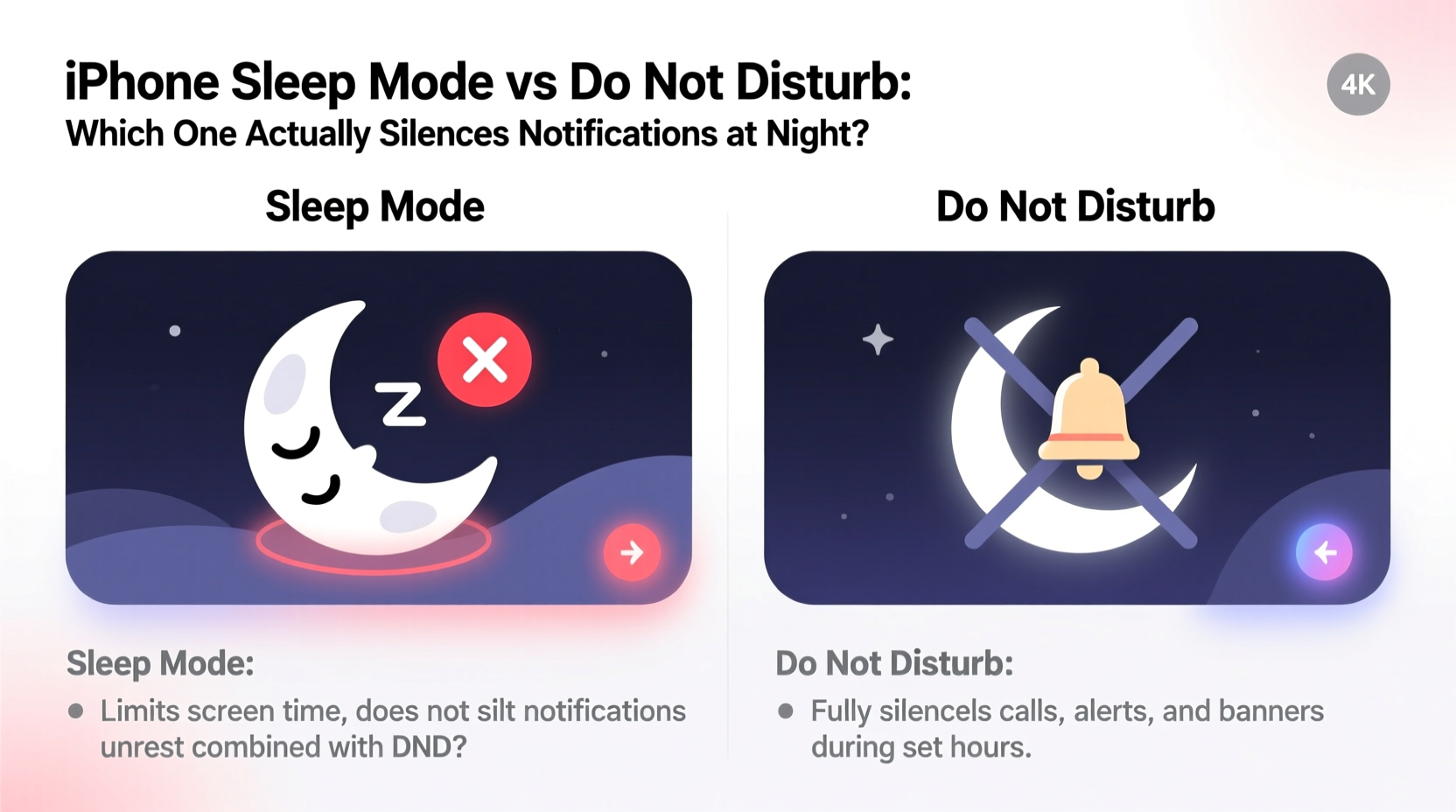
Sleep Mode is not just about silencing your phone—it's about creating a holistic bedtime routine. When activated, it dims the Lock Screen, hides notification previews, and enables Do Not Disturb automatically. This means Sleep Mode doesn’t silence notifications on its own; instead, it triggers DND as part of its operation.
To set up Sleep Mode, you use the Health app. You define a sleep schedule—say, 10:30 PM to 6:30 AM—and choose whether you want an alarm. Once enabled, your iPhone enters Sleep Mode at your scheduled bedtime. The Lock Screen changes to a calming design, and all non-essential notifications are suppressed.
The key here is integration. Sleep Mode leverages DND but adds structure through automation and visual cues. It also syncs across your Apple ecosystem via iCloud, so if you have an Apple Watch, it can prompt you to start winding down based on your sleep goal.
Do Not Disturb: The Classic Notification Blocker
Do Not Disturb has long been Apple’s solution for muting interruptions. When active, it silences calls, alerts, and notifications, allowing your phone to remain quiet while still receiving data in the background. Unlike Sleep Mode, DND operates independently of health tracking and can be scheduled manually or triggered by specific conditions like driving or Focus modes.
You can activate DND instantly from Control Center or set a recurring schedule under Settings > Focus > Do Not Disturb. During active periods, your iPhone won’t light up, play sounds, or vibrate for most incoming alerts—unless you’ve allowed exceptions.
One major advantage of DND is granular control. You can allow calls from specific contacts (e.g., family), repeat callers (in case of emergencies), or even permit notifications from certain apps like alarms or health monitors. This makes DND more flexible than Sleep Mode for users who need selective access during quiet hours.
“Do Not Disturb remains the most reliable way to silence notifications, especially when customized with contact exceptions and app permissions.” — David Lin, Mobile Usability Analyst
Key Differences: Sleep Mode vs Do Not Disturb
While both features suppress notifications, their approach and scope vary. The following table summarizes their core distinctions:
| Feature | Sleep Mode | Do Not Disturb |
|---|---|---|
| Primary Purpose | Promote healthy sleep habits | Mute interruptions |
| Activation Method | Health app + scheduled time | Settings, Control Center, or automation |
| Notification Handling | Enables DND automatically | Directly silences alerts |
| Lock Screen Appearance | Dimmed, simplified view | Normal (unless modified) |
| Customization Options | Limited to sleep schedule and wind-down | High—exceptions, app filters, location triggers |
| Cross-Device Sync | Yes (via iCloud & Health) | Limited (depends on Focus settings) |
| Alarm Behavior | Alarms still ring unless disabled | Alarms bypass DND by default |
Which One Actually Silences Notifications?
The short answer: **Do Not Disturb** is the actual mechanism that silences notifications. Sleep Mode enhances this function by automating DND activation based on your bedtime routine, but it does not replace it.
If you only enable Sleep Mode without ensuring DND is properly configured, you may still receive alerts—especially if DND settings have been overridden elsewhere. Conversely, using DND alone gives you full control over what gets silenced and when, without requiring a sleep schedule.
For maximum effectiveness, combine both. Use Sleep Mode to automate DND at night, then fine-tune DND settings to allow emergency calls or critical app alerts. This hybrid approach ensures peace of mind without sacrificing accessibility.
Step-by-Step: Setting Up Silent Nights with Both Features
- Open the Health app and navigate to the Sleep section.
- Set your desired bedtime and wake-up time.
- Toggle on Sleep Schedule and ensure “Enable During This Time” includes Do Not Disturb.
- Tap “Options” to customize Wind Down behavior, such as enabling grayscale or hiding notifications.
- Go to Settings > Focus > Do Not Disturb to review and adjust exceptions.
- Add trusted contacts who can reach you during silent hours.
- Test the setup by sending yourself a message after bedtime to confirm notifications are hidden and silenced.
Real-World Example: Sarah’s Nighttime Routine
Sarah, a project manager in Chicago, used to wake up multiple times a night checking Slack or email alerts. After learning about Sleep Mode, she set a bedtime of 10:30 PM and enabled DND through her sleep schedule. She allowed calls from her partner and parents to come through, knowing her toddler might need attention.
Within a week, she reported falling asleep faster and waking up less frequently. The visual cue of the dimmed Lock Screen helped her resist checking her phone out of habit. Most importantly, non-urgent work messages stopped appearing until morning, improving her mental boundaries.
“I didn’t realize how much anxiety those late-night pings caused,” she said. “Now I know nothing will buzz unless it’s truly urgent.”
Essential Checklist for Nighttime Notification Control
- ✅ Set a consistent sleep schedule in the Health app
- ✅ Confirm Sleep Mode activates Do Not Disturb automatically
- ✅ Customize DND exceptions for emergency contacts
- ✅ Disable “Repeated Calls” if false alarms are a concern
- ✅ Turn off notification previews on Lock Screen
- ✅ Test the configuration with a friend after bedtime
- ✅ Sync settings across devices if using Apple Watch or iPad
Frequently Asked Questions
Does Sleep Mode block all notifications?
No. Sleep Mode itself doesn’t block notifications—it activates Do Not Disturb, which does. However, some apps (like alarms, timers, or medical alerts) may still trigger sounds depending on your settings. Always verify DND exceptions to ensure full silencing.
Can I use Do Not Disturb without Sleep Mode?
Absolutely. Do Not Disturb functions independently and can be scheduled or turned on manually anytime. Many users prefer this flexibility, especially if they don’t follow a fixed sleep routine or don’t use the Health app.
Why am I still getting notifications at night even with Sleep Mode on?
This usually happens if Do Not Disturb isn’t properly linked to Sleep Mode, or if certain apps or contacts are whitelisted. Check Settings > Focus > Do Not Disturb > Allow Notifications From to review permitted sources. Also, ensure no other Focus modes (like Work or Personal) are overriding your nighttime settings.
Final Thoughts: Choose Clarity Over Convenience
Sleep Mode brings elegance and intentionality to nighttime device management, but Do Not Disturb remains the engine behind true notification silence. Relying solely on Sleep Mode without understanding its dependency on DND can lead to unexpected disruptions.
The most effective strategy is intentional layering: use Sleep Mode to automate healthy routines and leverage Do Not Disturb’s robust controls to define exactly what reaches you—and what waits until morning.




 浙公网安备
33010002000092号
浙公网安备
33010002000092号 浙B2-20120091-4
Comments
No comments yet. Why don't you start the discussion?