
Seeing \"SOS Only\" on your iPhone can be alarming. It means your device is disconnected from your carrier’s network and can only access emergency services. While this doesn’t always signal a serious hardware issue, it does mean you can't make calls, send texts, or use mobile data under normal conditions. The good news: in most cases, the problem is fixable without visiting a technician. This guide breaks down why “SOS Only” appears, how to diagnose the root cause, and practical steps to restore full connectivity.
What Does “SOS Only” Mean?
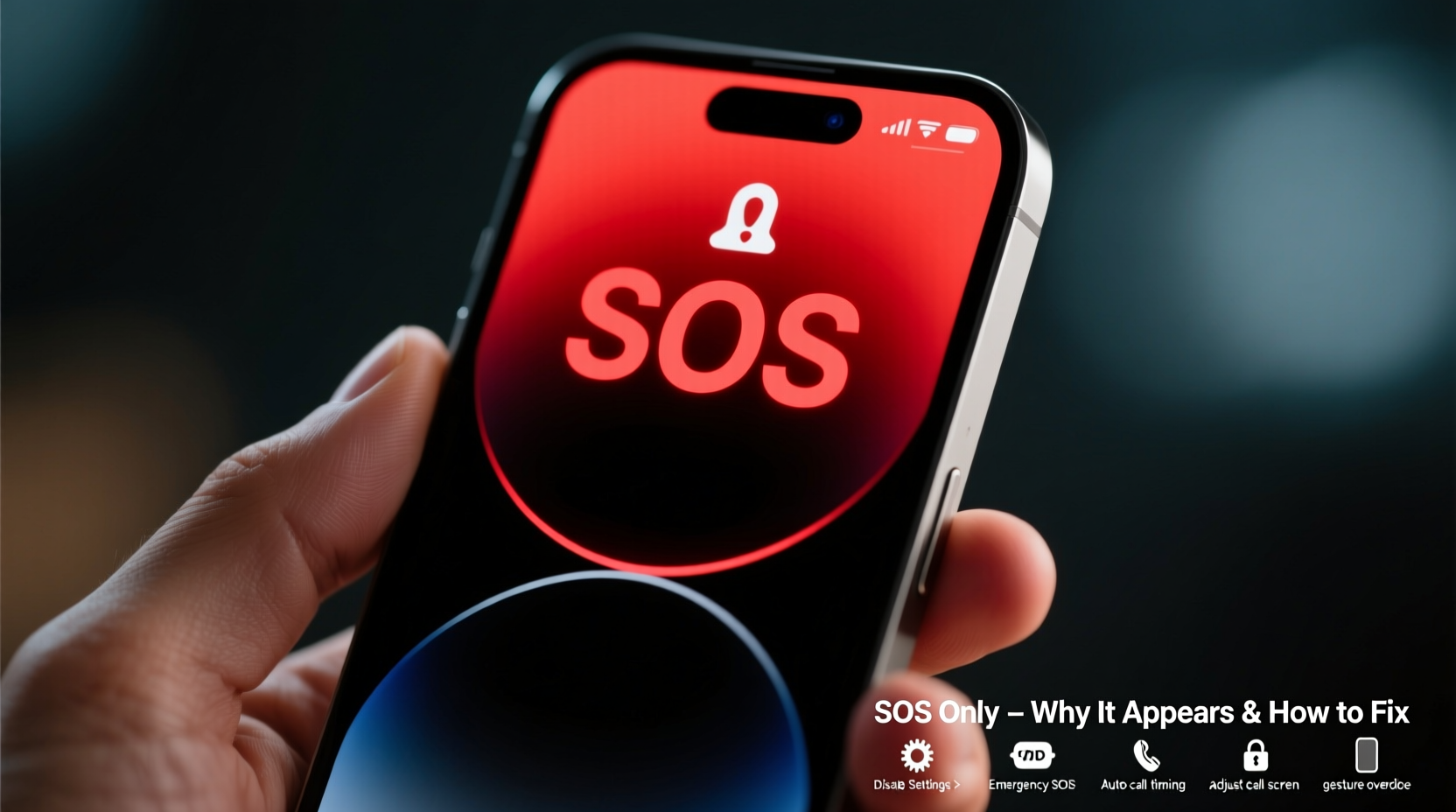
When your iPhone displays “SOS Only” in the status bar instead of your carrier’s name, it indicates that the phone has lost regular network access. You can still dial emergency numbers like 911, but all other cellular functions are disabled. This message typically appears due to one of several reasons:
- No active carrier signal in your location
- Carrier settings misconfiguration
- Software glitches after an iOS update
- Damaged or improperly inserted SIM card
- Network lock (e.g., iPhone tied to another carrier)
- Hardware failure in the cellular module
Understanding the context in which the message appeared helps narrow down the solution. For example, if you just traveled internationally, the issue may relate to roaming settings. If it started after dropping your phone, physical damage could be involved.
Step-by-Step Guide to Fix SOS Only
Follow this structured troubleshooting process to systematically eliminate possible causes and restore normal service.
- Check Network Coverage
Move to an area with known strong signal strength. Use Apple’s Coverage Map to verify your carrier’s service availability. If nearby devices on the same network work fine, the issue is likely with your iPhone. - Restart Your iPhone
Press and hold the side button and either volume button until the power slider appears. Slide to power off, wait 30 seconds, then turn it back on. This clears temporary software conflicts affecting cellular connectivity. - Check SIM Card Status
Power off the device, remove the SIM tray using the eject tool, inspect the nano-SIM for damage or corrosion, then reinsert firmly. Ensure it's seated correctly and not loose. - Enable and Disable Airplane Mode
Swipe down Control Center, tap the airplane icon to enable Airplane Mode for 15 seconds, then disable it. This forces the phone to re-scan for networks. - Update Carrier Settings
Go to Settings > General > About. If a carrier update is available, a prompt will appear. These updates often resolve compatibility issues after iOS upgrades. - Reset Network Settings
Navigate to Settings > General > Transfer or Reset iPhone > Reset > Reset Network Settings. This erases saved Wi-Fi passwords and Bluetooth pairings but reinstates default cellular configurations. - Check for iOS Updates
Outdated software can cause communication errors between your iPhone and the carrier. Go to Settings > General > Software Update and install any pending updates. - Remove and Reinsert eSIM (if applicable)
If your iPhone uses an eSIM, go to Settings > Cellular > [Your Plan] > Remove Cellular Plan, then contact your carrier to reactivate it.
Do’s and Don’ts When Facing SOS Only
| Do’s | Don’ts |
|---|---|
| Restart your iPhone regularly when issues arise | Ignore persistent SOS warnings—don’t assume it will fix itself |
| Verify SIM card condition and placement | Use third-party SIM adapters that may interfere with connection |
| Contact your carrier to confirm account status and line activation | Perform factory reset before exhausting simpler fixes |
| Test with another SIM card if possible | Expose the phone to moisture or extreme temperatures during diagnosis |
Real Example: Traveler Regains Service Abroad
Sarah, a business consultant based in Chicago, flew to rural Scotland for a client meeting. Upon landing, her iPhone 14 Pro displayed “SOS Only.” She couldn’t access email or navigation apps critical for her schedule. After trying a restart with no success, she checked her carrier settings and realized international roaming was disabled by default. She contacted her U.S.-based carrier via Wi-Fi, activated global roaming, and within minutes, full service resumed. Her case highlights how carrier policies—not hardware—often trigger SOS mode, especially overseas.
“Many ‘SOS Only’ cases stem from overlooked account-level restrictions rather than device faults. Always verify service status with your provider before assuming technical failure.” — Marcus Tran, Senior Support Engineer at T-Mobile
Troubleshooting Persistent SOS Issues
If basic steps fail, consider these advanced diagnostics:
- Test with Another SIM: Borrow a working SIM from a friend on the same carrier. If service returns, your original SIM may be damaged or deactivated.
- Check IMEI Status: Dial
*#06#to view your IMEI number. Visit your carrier’s website or Apple’s Check Coverage page to ensure the device isn’t blacklisted or reported lost. - DFU Restore via Computer: As a last resort before hardware repair, perform a Device Firmware Update (DFU) restore using Finder (macOS) or iTunes (Windows). This reinstalls iOS completely and can resolve deep-seated software corruption.
Frequently Asked Questions
Why does my iPhone say SOS Only even with full bars?
This contradiction usually points to a carrier authentication issue. Even if signal strength appears strong, the network may not recognize your device due to expired credentials, outdated carrier settings, or account suspension. Contact your carrier to verify line status.
Can a cracked screen cause SOS Only?
Not directly. However, if the crack resulted from a significant impact, internal components like the antenna or logic board could be damaged. Also, water ingress through screen fractures can corrode connectors. Physical trauma should be evaluated by an authorized technician.
Will resetting all settings fix SOS Only?
Resetting all settings (Settings > General > Reset > Reset All Settings) includes network preferences and may help. However, it won’t delete personal data unlike a full erase. Try this before considering a complete wipe.
Final Checklist: Regain Full Service
- ✅ Confirm you're in a coverage area
- ✅ Restart the iPhone
- ✅ Toggle Airplane Mode on/off
- ✅ Inspect and reseat the SIM card
- ✅ Check for carrier or iOS updates
- ✅ Reset network settings
- ✅ Test with another SIM or eSIM plan
- ✅ Call your carrier to confirm line status
- ✅ Consider DFU restore or Apple Store visit if unresolved
Conclusion: Take Action Before Losing Connectivity
“SOS Only” is more than a nuisance—it compromises safety, productivity, and peace of mind. Most causes are preventable or easily corrected with methodical troubleshooting. By understanding what triggers the message and knowing how to respond, you maintain control over your device’s reliability. Whether you’re commuting, traveling, or simply relying on daily connectivity, don’t ignore early signs of network instability. Apply these steps promptly, keep your software updated, and verify carrier settings periodically. Your iPhone is designed to stay connected—help it do its job.




 浙公网安备
33010002000092号
浙公网安备
33010002000092号 浙B2-20120091-4
Comments
No comments yet. Why don't you start the discussion?