
Sudden silence from your iPhone—whether during a call, video, or music playback—can be more than frustrating. Audio issues disrupt communication, entertainment, and productivity. While it might seem like a hardware failure, most sound problems stem from software glitches, settings misconfigurations, or environmental factors. This guide walks you through systematic, step-by-step methods to diagnose and resolve iPhone sound issues effectively.
1. Verify Basic Settings and Physical Conditions
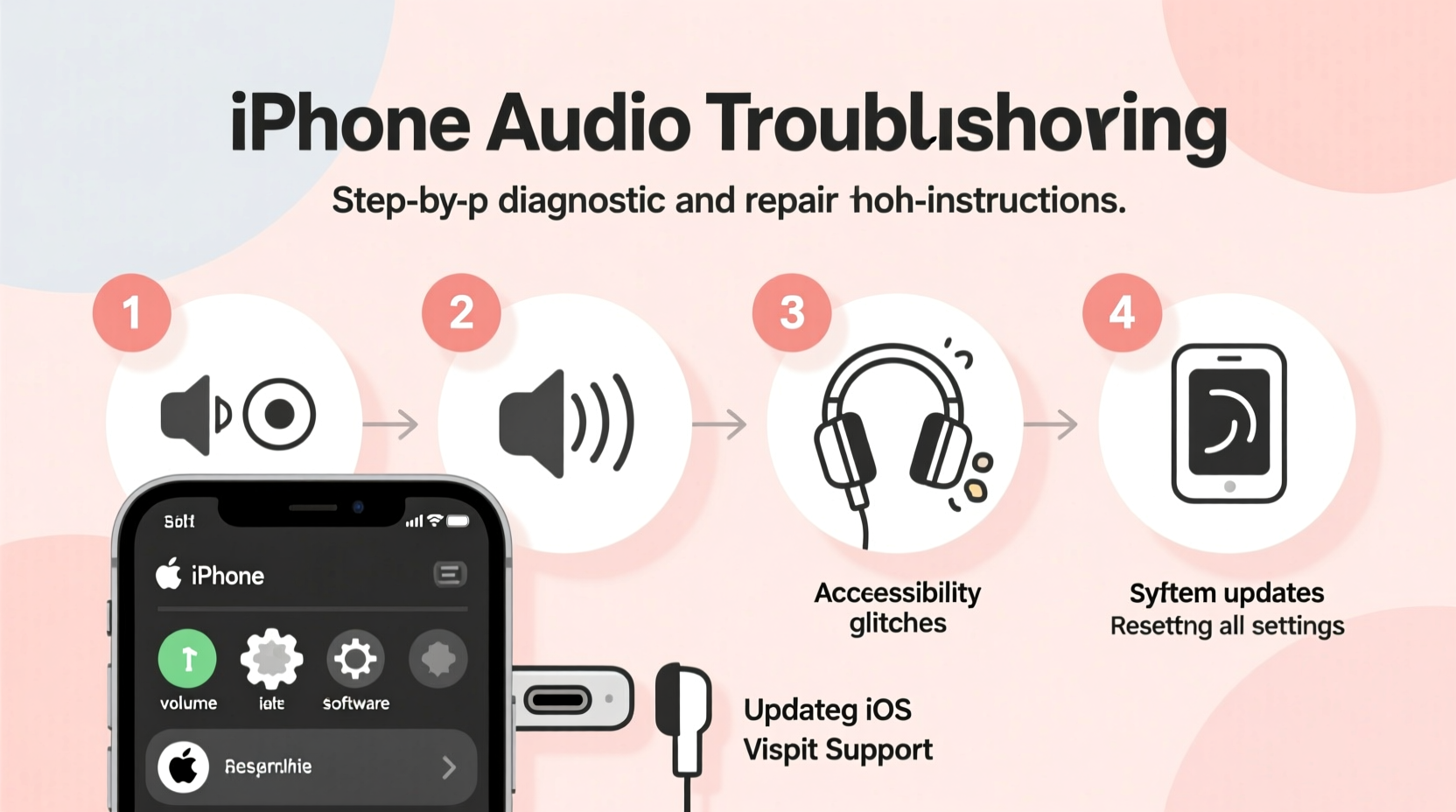
Before diving into complex fixes, confirm the fundamentals. Many users overlook simple causes that are easy to correct.
- Check volume levels: Press the side buttons to ensure the volume isn’t muted or set too low.
- Disable Silent Mode: Slide the physical switch on the left side of the iPhone. If you see an orange line, the phone is in silent mode.
- Inspect for obstructions: Dust, lint, or debris in the speaker grilles (especially at the bottom) can muffle or block sound.
- Remove case or cover: Some third-party cases press against the speakers or microphones, dampening output.
2. Isolate the Problem: Which Audio Output Is Affected?
Different iPhone components handle different types of audio. Identifying which one fails helps narrow down the solution.
| Audio Type | Location | Common Symptoms | Possible Causes |
|---|---|---|---|
| Ringer & Media Sound | Bottom speaker grille | No sound from videos, music, alerts | Mute, software bug, blocked speaker |
| Ear Speaker (Call Audio) | Top front near earpiece | Can't hear caller, but they hear you | Dust, moisture, hardware fault |
| Microphone | Bottom, back, and front | Others can't hear you; voice memos fail | Blocked mic hole, app permission issue |
| Bluetooth Audio | Connected device (e.g., headphones) | No sound via AirPods or car system | Connection error, Bluetooth glitch |
“Over 70% of reported audio issues on iPhones are resolved without repair by addressing software settings or cleaning ports.” — James Lin, Senior Apple Support Technician
3. Step-by-Step Troubleshooting Process
Follow this logical sequence to identify and fix the root cause efficiently.
- Restart your iPhone: A reboot clears temporary software glitches. Hold the side button and either volume button, then slide to power off. Wait 30 seconds and restart.
- Check Do Not Disturb and Focus Modes: Go to Settings > Focus > Do Not Disturb. Ensure it’s not active. Also check other Focus modes that may suppress audio alerts.
- Test sound across apps: Play audio in multiple apps (Music, YouTube, Podcasts). If only one app fails, the issue is app-specific.
- Update iOS: Outdated software can cause bugs. Go to Settings > General > Software Update to install the latest version.
- Reset all settings: This restores network, sound, and privacy settings without deleting data. Navigate to Settings > General > Transfer or Reset iPhone > Reset > Reset All Settings.
- Check audio routing: Swipe down Control Center. Tap the audio output icon (top-right corner). Ensure the device isn’t accidentally routed to AirPlay or Bluetooth.
4. Real-World Example: Recovering from a Muffled Call Issue
Mark, a sales executive, noticed his clients couldn’t hear him clearly during calls. His iPhone 13 had been exposed to light rain the previous week. He initially assumed water damage, but instead of rushing to Apple Store, he followed a structured approach.
He first cleaned the microphone (small hole on the bottom edge) with a dry cotton swab. Then he tested voice memos—still muffled. After restarting, he checked Settings > Privacy & Security > Microphone and found that some permissions were restricted. Re-enabling access didn’t help immediately, so he reset all settings. Post-reset, his microphone function returned to normal. The issue was a combination of partial obstruction and corrupted settings after moisture exposure.
This case highlights how environmental exposure can trigger software-level anomalies—even without full water damage.
5. Advanced Fixes and When to Seek Help
If basic steps fail, consider deeper interventions.
Safe Mode Test via Recovery Mode
Boot into recovery mode (via Finder on Mac or iTunes on PC) and restore iOS. This replaces system files without touching user data unless “Erase” is selected. Always back up first via iCloud or computer.
Check for Water Damage
iPhones have Liquid Contact Indicators (LCIs) near the SIM tray and charging port. If red or pink, moisture may have affected internal components. Even if the phone survived a spill, residual corrosion can degrade speaker performance over time.
Hardware Diagnostics
Apple uses internal diagnostics tools unavailable to users. If all else fails, schedule a Genius Bar appointment or use Apple’s online support to run remote diagnostics.
“Don’t assume silence means dead speakers. Often, it’s firmware corruption or a stuck driver. We’ve revived dozens of ‘dead’ audio systems with a simple OS reflash.” — Lisa Tran, Apple Authorized Service Provider
FAQ
Why does my iPhone make no sound even when the volume is up?
This can result from being in silent mode, audio routed to a Bluetooth device, a software bug, or physical blockage in the speaker. First, check the ring switch and Control Center audio output. Restart the phone and test in multiple apps.
Can I fix a broken iPhone speaker myself?
While third-party repair kits exist, DIY speaker replacement risks damaging internal components or voiding warranty. For iPhones with IP68 ratings, improper resealing can compromise water resistance. Professional repair is strongly advised.
Why does sound work on speakerphone but not during regular calls?
The earpiece speaker and bottom speaker are separate. If one works and the other doesn’t, the inactive speaker may be blocked, damaged, or disabled via software. Clean the earpiece grill gently and reset settings before assuming hardware failure.
Troubleshooting Checklist
- ✅ Check physical mute switch
- ✅ Increase volume using side buttons
- ✅ Restart the iPhone
- ✅ Clean speaker and microphone grills
- ✅ Test sound in multiple apps
- ✅ Disable Do Not Disturb and Focus modes
- ✅ Confirm audio output is not routed to Bluetooth
- ✅ Update to the latest iOS version
- ✅ Reset all settings (Settings > General > Reset)
- ✅ Back up and restore via Finder/iTunes if needed
Conclusion
iPhone sound issues are rarely permanent. Most can be resolved with methodical troubleshooting that balances software checks, environmental considerations, and cautious cleaning. Understanding the anatomy of iPhone audio—how ringer, earpiece, microphone, and Bluetooth interact—empowers you to diagnose faster and avoid unnecessary repairs. Whether you're dealing with muffled calls, silent videos, or erratic Bluetooth behavior, applying these strategies restores functionality and confidence in your device.




 浙公网安备
33010002000092号
浙公网安备
33010002000092号 浙B2-20120091-4
Comments
No comments yet. Why don't you start the discussion?