
If your iPhone is suddenly taking photos every five seconds without your input, you're not imagining things—and you're definitely not alone. This glitch can be alarming, especially when it drains your battery, fills up storage, or captures private moments unintentionally. The good news: in most cases, this behavior has a logical explanation and a clear fix. Whether it's a misconfigured setting, a third-party app gone rogue, or an accessibility feature turned on by accident, understanding the root cause is the first step toward regaining control of your device.
Why Is My iPhone Taking Pictures Every 5 Seconds?
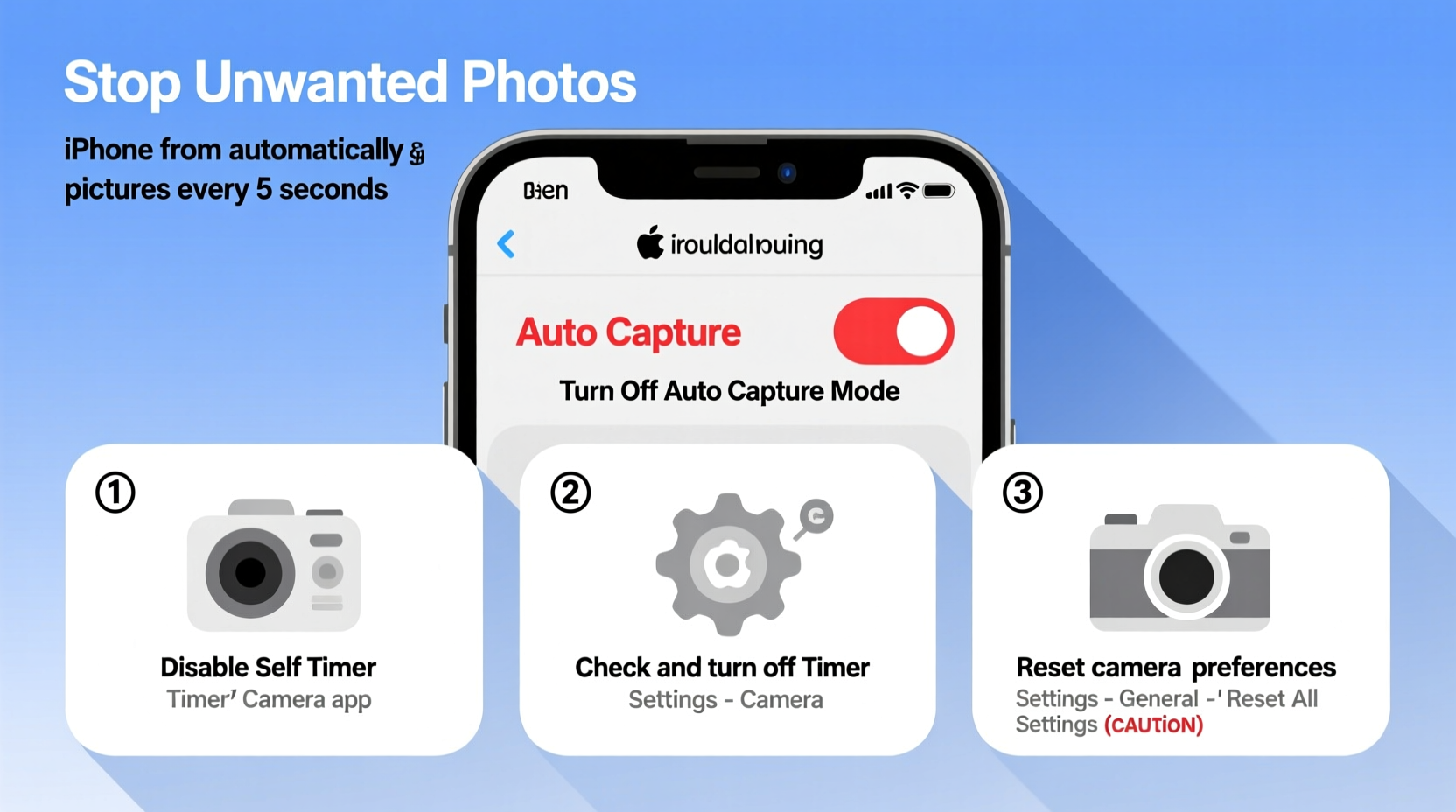
The automatic photo capture issue typically stems from software settings rather than hardware failure. Apple does not design iPhones to take photos autonomously, so when this happens, it’s almost always due to user-enabled features or apps running in the background. The most common culprits include:
- Burst Mode activation via rapid button presses or stuck volume keys.
- Accessibility shortcuts, particularly VoiceOver or Switch Control, triggering unintended camera actions.
- Third-party camera or automation apps set to auto-capture at intervals.
- Stuck or damaged hardware buttons causing continuous shutter triggers.
- Short circuits or moisture damage affecting internal sensors.
While rare, firmware bugs after iOS updates have also been reported to cause erratic camera behavior. However, these are usually resolved quickly with patches.
Step-by-Step Guide to Stop Automatic Photo Capture
Follow this structured troubleshooting process to identify and eliminate the cause of unwanted photo-taking.
- Force Quit the Camera App
Double-press the Home button (or swipe up from the bottom on Face ID models) to open the app switcher. Locate the Camera app preview and swipe it upward to close it completely. - Check for Stuck Hardware Buttons
Inspect the volume up/down and side buttons. Press each firmly several times. If one feels sticky or doesn’t spring back, debris may be trapped underneath. Turn off the phone and gently clean around the buttons with a dry toothbrush. - Disable Accessibility Shortcuts
Go to Settings > Accessibility > Touch > Back Tap. If “Camera” is selected under either Double Tap or Triple Tap, change it to “Off.” Also check Switch Control and VoiceOver under Accessibility—ensure they are disabled unless actively used. - Review Recently Installed Apps
Uninstall any camera, time-lapse, security, or automation apps installed just before the issue began. Some apps like Auto Clicker, IntervalCam, or surveillance tools run background services that trigger the camera on timers. - Restart Your iPhone
A simple reboot clears temporary glitches. Press and hold the side button plus either volume button until the power slider appears. Slide to power off, wait 30 seconds, then turn it back on. - Update or Reinstall iOS
Outdated software can cause instability. Navigate to Settings > General > Software Update and install any available updates. If the problem persists, consider backing up and restoring via iTunes or Finder.
Do’s and Don’ts When Dealing With Unwanted Camera Activation
| Do’s | Don’ts |
|---|---|
| Regularly inspect physical buttons for debris or damage | Ignore persistent camera behavior—it could compromise privacy |
| Review app permissions under Settings > Privacy > Camera | Leave unknown automation apps running in the background |
| Use official Apple support if hardware issues are suspected | Try disassembling the phone yourself to fix button issues |
| Enable Screen Time to monitor which apps access the camera | Assume it’s a virus—iOS doesn’t allow malware in the traditional sense |
Real Example: How One User Fixed the Issue in 10 Minutes
Sarah, a teacher from Portland, noticed her iPhone SE was snapping photos nonstop during a parent-teacher meeting. She initially thought someone had hacked her device. After discreetly checking her phone, she found no active app on screen—but the camera roll kept growing. She followed basic steps: first, she force-quit the Camera app. That stopped the immediate capture. Then, recalling she’d recently enabled “Back Tap” to take screenshots, she checked Settings > Accessibility > Touch > Back Tap. To her surprise, “Double Tap” was set to “Camera.” Every time she placed her phone face-up on the table, the motion triggered a tap event. She changed the setting to “No Action,” and the issue ended instantly.
This case illustrates how powerful—and sometimes misleading—Apple’s accessibility features can be when configured without full awareness.
“Many automatic behaviors on iPhones stem from overlooked accessibility settings. Users often enable them accidentally and only notice later when odd glitches appear.” — David Lin, Apple Support Specialist with 8 years of field experience
Checklist: How to Fully Resolve iPhone Camera Firing Automatically
- ✅ Force quit the Camera app from the app switcher
- ✅ Inspect and clean volume and power buttons
- ✅ Disable Back Tap actions linked to the camera
- ✅ Turn off Switch Control and VoiceOver in Accessibility settings
- ✅ Review and delete suspicious third-party camera or automation apps
- ✅ Restart the device after making changes
- ✅ Check for and install pending iOS updates
- ✅ Monitor the camera roll for 24 hours post-fix
Frequently Asked Questions
Can a virus make my iPhone take pictures by itself?
No. iOS has robust sandboxing and app isolation that prevent true viruses from spreading or controlling hardware like the camera without explicit permission. What seems like a virus is usually a misconfigured setting or a poorly designed app. However, jailbroken devices are vulnerable to such exploits.
Does leaving the Camera app open drain the battery?
Yes. An active camera uses significant processing power, especially if recording video or using AI features like scene detection. Even if not visibly capturing, a frozen camera interface can continue running background processes that reduce battery life rapidly.
How do I know if an app is secretly using my camera?
iOS shows a small green dot in the status bar whenever the camera is active. A yellow dot indicates microphone use. If you see the green dot without opening the camera, check recently used apps. You can also go to Settings > Privacy > Camera to see which apps have access and revoke permissions as needed.
Conclusion: Regain Control of Your iPhone Camera
Your iPhone should respond to your commands—not act on its own. When it starts taking pictures every five seconds, it’s a signal to pause and investigate. In nearly all cases, the solution lies in reviewing settings, cleaning hardware, or removing problematic apps. By understanding how features like Back Tap or automation tools interact with the camera, you can prevent future surprises. Don’t ignore the signs; proactive maintenance protects both your device performance and personal privacy.




 浙公网安备
33010002000092号
浙公网安备
33010002000092号 浙B2-20120091-4
Comments
No comments yet. Why don't you start the discussion?