
If you’ve ever tapped “Send” on a text message only to see it stuck with a red exclamation mark or simply refuse to deliver, you’re not alone. Many iPhone users encounter the frustrating issue of texts not sending—whether through SMS, MMS, or iMessage. The problem can stem from network settings, software glitches, carrier issues, or even simple misconfigurations. The good news: most of these problems are fixable without visiting a service center. This guide walks you through comprehensive, step-by-step solutions to diagnose and resolve iPhone texting failures.
Check Your Network Connection First
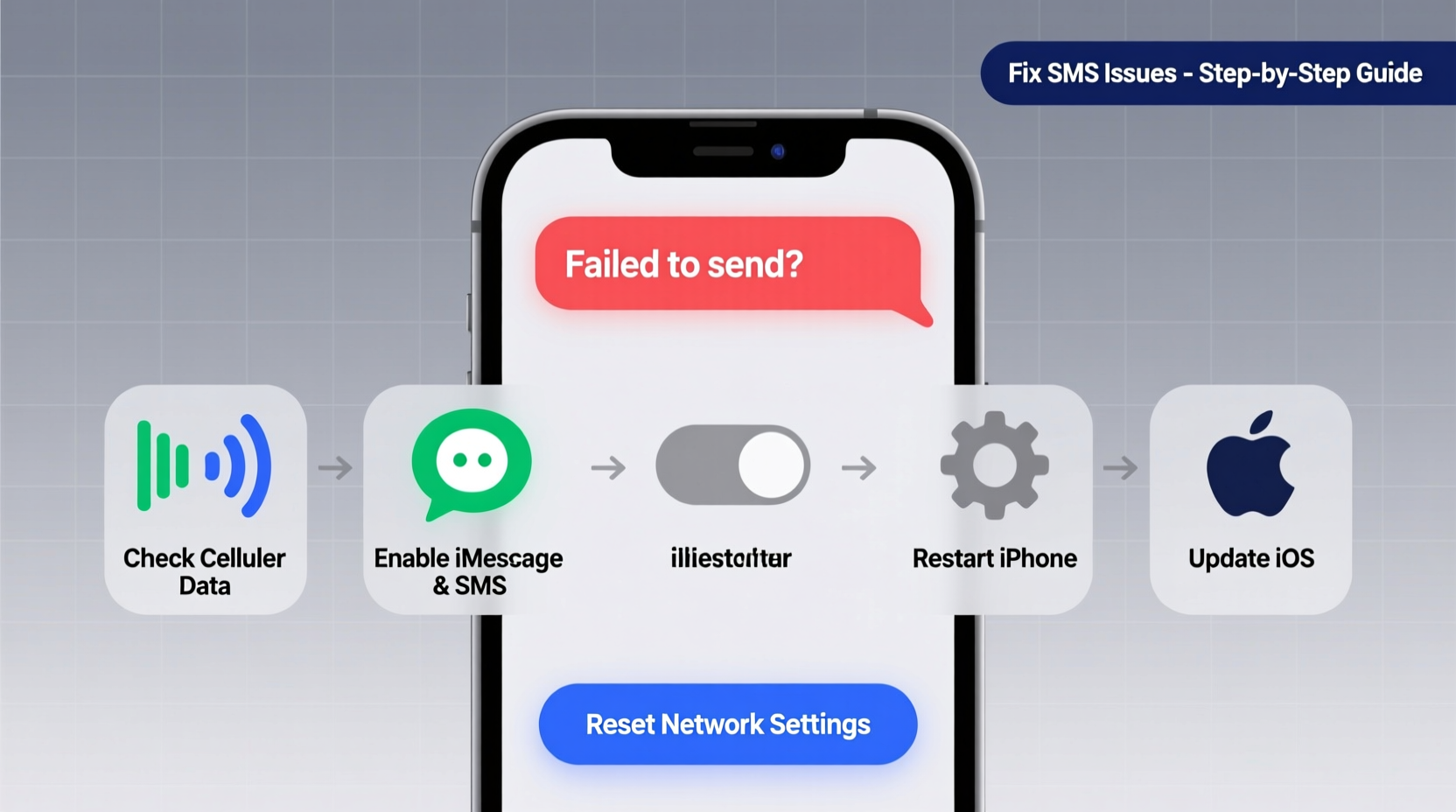
Before diving into complex fixes, confirm that your iPhone has a stable connection. Texts rely on either cellular data (for SMS/MMS) or Wi-Fi/data (for iMessage). Without connectivity, no message will go through.
- Ensure you have cellular signal (check the status bar for signal bars).
- If using iMessage, verify Wi-Fi is connected or cellular data is enabled.
- Try loading a webpage in Safari to test internet access.
Verify iMessage and SMS Settings
iMessage and SMS operate differently. iMessage uses Apple’s internet-based system (blue bubbles), while SMS relies on your carrier’s network (green bubbles). Misconfigured settings can prevent either from working.
- Go to Settings > Messages.
- Ensure Send as SMS is turned on. If iMessage fails, this allows fallback to SMS.
- Confirm iMessage is toggled on. Wait up to a minute for activation if just enabling.
- Tap Send & Receive and ensure your phone number and Apple ID are selected under “You can be reached by iMessage at.”
If your number isn’t appearing, tap “Use your Apple ID for iMessage” and sign in again. Sometimes, Apple’s servers deauthorize devices during updates or restores.
Step-by-Step: Reset Network Settings
Corrupted network configurations are a common cause of messaging failures. Resetting network settings clears saved Wi-Fi passwords, cellular settings, and VPNs—but often resolves deep-seated issues.
- Navigate to Settings > General > Transfer or Reset iPhone > Reset.
- Select Reset Network Settings.
- Enter your device passcode when prompted.
- Wait for the iPhone to restart automatically.
- Reconnect to Wi-Fi and test sending a message.
This process typically takes under two minutes and addresses APN (Access Point Name) errors that carriers use to route SMS and data.
Check Carrier Settings and SMS Support
Your carrier must support SMS/MMS and have proper settings configured on your line. Outdated carrier bundles can break messaging.
To check for updates:
- Go to Settings > General > About.
- If an update is available, a prompt will appear to install the latest carrier settings.
Contact your carrier directly if:
- You recently switched carriers or plans.
- You're traveling internationally (roaming may disable SMS).
- Your account has restrictions or is suspended.
“Over 60% of ‘text not sending’ cases we see are due to outdated carrier settings or accidental SMS disabling on the account.” — Jordan Lee, Senior Support Technician at T-Mobile
Troubleshooting Table: Common Causes and Fixes
| Issue | Possible Cause | Solution |
|---|---|---|
| Texts stuck with red exclamation mark | No network, disabled SMS, or blocked contact | Check signal, enable SMS, verify recipient isn’t blocked |
| iMessage not activating | Apple ID sign-in issue or server downtime | Sign out of iMessage, restart, sign back in |
| MMS not sending (photos, videos) | MMS Messaging disabled or data off | Enable MMS in Settings > Messages |
| Messages send but fail to deliver | Recipient's device issue or carrier block | Test with another contact; ask recipient to check their phone |
| Only iMessage works, no SMS | Carrier SMS not supported or line issue | Contact carrier to verify SMS is active on your plan |
Mini Case Study: Resolving Persistent SMS Failures
Sarah, a freelance designer in Austin, couldn’t send texts to clients after updating her iPhone 13 to iOS 17. iMessages worked, but SMS showed red exclamation marks. She tried restarting, checking settings, and even reinstalled apps—nothing worked.
After reviewing this guide, she checked Settings > Messages and noticed “Send as SMS” was off. She turned it on, but SMS still failed. Next, she reset network settings. Upon reboot, her carrier settings updated automatically. Within minutes, both iMessage and SMS were functional. The root cause? A failed carrier bundle update during the iOS upgrade.
Sarah’s case highlights how multiple layers—software, settings, and carrier—can interact to disrupt basic functions.
Do’s and Don’ts When Fixing Texting Issues
| Do | Don't |
|---|---|
| Restart your iPhone regularly | Ignore carrier notifications about service changes |
| Keep iOS and carrier settings updated | Assume the recipient’s phone is broken without testing |
| Toggle Airplane Mode to refresh connection | Disable iMessage and SMS simultaneously |
| Contact your carrier if SMS isn’t working | Factory reset without trying simpler fixes first |
Expert Checklist: Fix iPhone Texts Not Sending
Follow this sequence in order—it’s designed to escalate from simple to advanced fixes:
- Restart your iPhone. Often resolves temporary glitches.
- Check for network signal (Wi-Fi or cellular).
- Verify iMessage and SMS are enabled in Settings > Messages.
- Ensure Send as SMS is ON for iMessage fallback.
- Toggle Airplane Mode on/off to refresh connections.
- Check for carrier settings updates in Settings > General > About.
- Reset network settings if messages still fail.
- Contact your carrier to confirm SMS service is active.
- Update iOS to the latest version via Settings > General > Software Update.
- Sign out of iMessage, restart, then sign back in if iMessage won’t activate.
Frequently Asked Questions
Why are my texts green instead of blue?
Green bubbles mean the message was sent as SMS via your carrier, not iMessage. This happens when the recipient doesn’t have an Apple device, iMessage is off, or your internet connection is down. It’s normal, but if SMS isn’t delivering, there may be a carrier or settings issue.
Can a full message inbox prevent new texts from sending?
While rare, extremely low storage can interfere with app performance, including Messages. If your iPhone storage is below 1GB, delete old messages or media to free up space. Go to Settings > General > iPhone Storage to manage files.
What does a red exclamation mark mean in Messages?
A red exclamation mark indicates the message failed to send. Tap it to see options like “Try Again” or “Send as Text Message.” This usually points to connectivity issues, blocked numbers, or disabled SMS.
Conclusion: Take Control of Your iPhone Messaging
Texting is one of the most essential functions of a smartphone, and when it breaks, it disrupts work, relationships, and daily coordination. The key to fixing iPhone texts not sending lies in systematic troubleshooting—starting with the simplest explanations like connectivity and settings, then progressing to deeper resets and carrier checks. Most issues can be resolved in under 15 minutes with the right approach.




 浙公网安备
33010002000092号
浙公网安备
33010002000092号 浙B2-20120091-4
Comments
No comments yet. Why don't you start the discussion?