
Suddenly being unable to unlock your iPhone can be more than just inconvenient—it can disrupt your day, lock you out of essential apps, messages, and even prevent emergency calls. Whether Face ID stops responding, the passcode screen freezes, or Touch ID fails repeatedly, these issues are common but solvable. The key is identifying the root cause quickly and applying the right fix without risking data loss or triggering Activation Lock.
This guide walks through the most frequent reasons your iPhone won’t unlock, step-by-step solutions, and expert-backed strategies to regain access—safely and efficiently.
Common Reasons Your iPhone Won’t Unlock
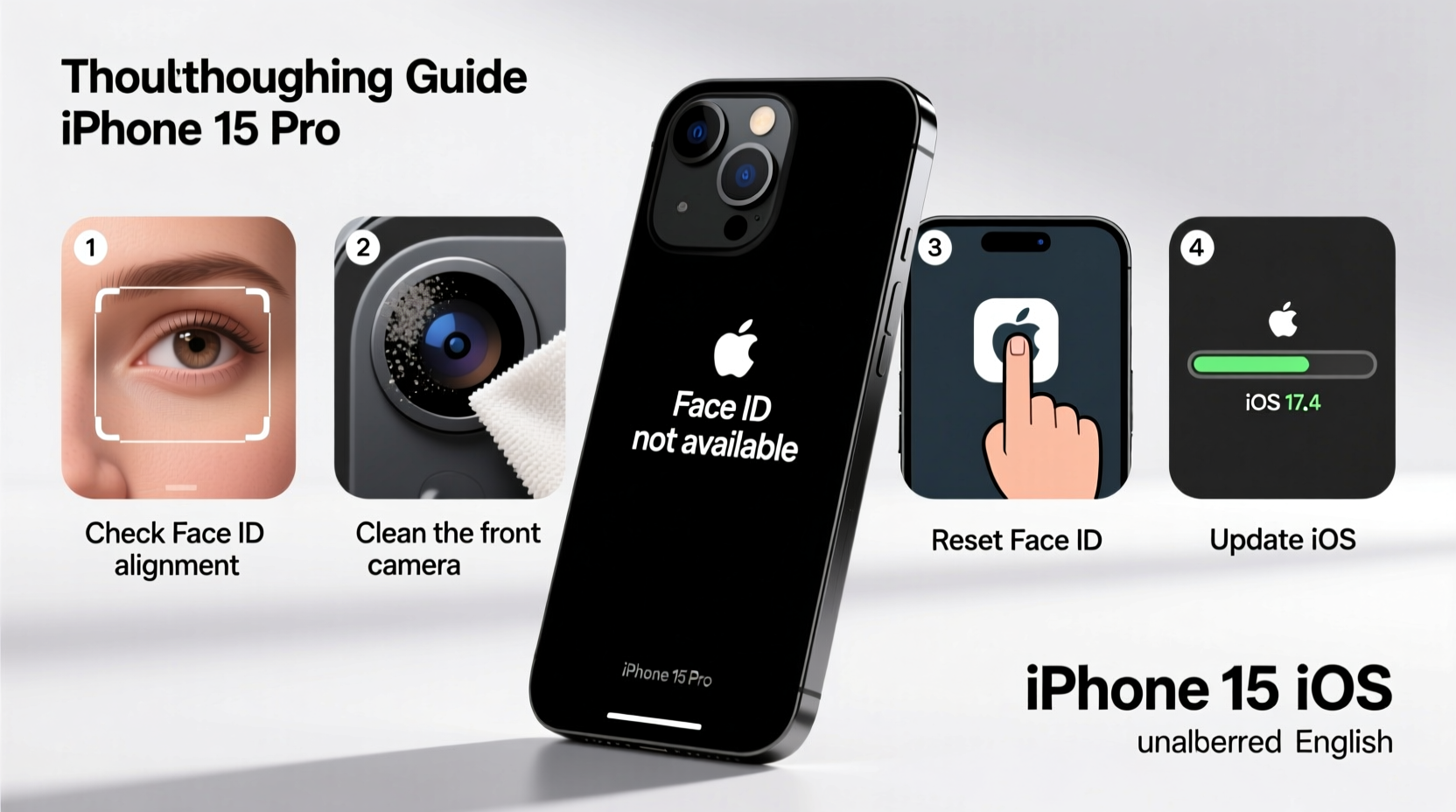
Before jumping into fixes, understand what’s behind the problem. iPhones use multiple layers of security—biometrics (Face ID/Touch ID), passcodes, and software safeguards—which can fail for different reasons:
- Software glitches: iOS updates or app conflicts may interfere with authentication.
- Hardware damage: Cracked screens, water exposure, or faulty sensors disable Touch ID or Face ID.
- Passcode entered incorrectly too many times: Triggers a temporary lockout or disables the device entirely.
- Battery or power issues: A dying battery or unresponsive system can freeze the lock screen.
- iCloud Activation Lock: After a reset, the device may require Apple ID verification.
Step-by-Step Guide to Regain Access
Follow this structured approach based on your symptoms. Start simple, escalate only if needed.
- Check for responsiveness: Press the side button. Does the screen light up? Swipe up—does the lock screen appear?
- Try a force restart: This clears minor software hiccups.
- Test biometric options: Look at the front camera (for Face ID) or press the home button (Touch ID).
- Enter passcode manually: Even if biometrics usually work, type it in.
- Charge the device: Plug in for at least 15 minutes if the screen is black.
How to Force Restart Your iPhone
The method varies by model:
| iPhone Model | Force Restart Steps |
|---|---|
| iPhone 8 and later | Press and release Volume Up, then Volume Down. Hold Side Button until Apple logo appears. |
| iPhone 7/7 Plus | Hold Volume Down + Side Button until Apple logo shows. |
| iPhone 6s and earlier | Hold Home Button + Side (or Top) Button until Apple logo appears. |
After restarting, attempt to unlock again. In many cases, this alone resolves the issue.
Fixing Specific Unlock Problems
Face ID Not Working
If your iPhone X or newer isn’t recognizing your face:
- Ensure nothing covers your eyes or mouth (masks, sunglasses).
- Clean the front camera and sensor array with a soft, lint-free cloth.
- Go to Settings > Face ID & Passcode and re-register your face if prompted.
- Disable \"Require Attention for Face ID\" temporarily under the same menu.
Touch ID Unresponsive
For iPhone 6 through 8 models:
- Clean the home button with a dry microfiber cloth.
- Remove any screen protector that overlaps the button rim.
- Re-enroll your fingerprint via Settings > Touch ID & Passcode.
- Restart the device to reset the sensor connection.
Passcode Not Accepted
If you’re certain the passcode is correct but rejected:
- Check if Caps Lock or keyboard zoom might be interfering (rare but possible).
- Wait out lockout periods: After 6 incorrect attempts, you’ll see “Try Again in X minutes.”
- If disabled permanently, you’ll need to restore via recovery mode.
“Over 60% of iPhone unlock failures stem from minor software bugs or sensor blockages—not hardware failure.” — Dr. Lena Park, Senior Mobile Engineer at iDiagnose Labs
When to Use Recovery Mode
If repeated restarts fail and you can’t access settings, recovery mode may be necessary—especially when the device shows a blank or frozen screen, or displays “Connect to iTunes” or “Update.”
Steps to Enter Recovery Mode
- Connect your iPhone to a computer with iTunes (Windows) or Finder (Mac).
- Perform the force restart sequence, but keep holding the final button until the recovery mode screen appears.
- Select “Update” when prompted (this preserves data if possible). Avoid “Restore” unless absolutely necessary.
- Wait while the software reinstalls. Do not disconnect during the process.
Note: If Find My iPhone is enabled, you’ll need your Apple ID password after restoration to reactivate the device.
Preventing Future Unlock Issues
Proactive habits reduce the risk of being locked out unexpectedly:
- Keep your iOS updated—security patches often fix authentication bugs.
- Avoid third-party screen protectors that interfere with sensors.
- Set a memorable passcode as a backup—even if you rely on Face ID.
- Enable two-factor authentication on your Apple ID for secure recovery.
Do’s and Don’ts of iPhone Unlock Maintenance
| Do | Don’t |
|---|---|
| Restart your iPhone weekly | Use harsh cleaners on the front sensors |
| Register multiple fingerprints | Ignore software update alerts |
| Store in a dry, cool place | Drop the phone frequently (damages internal sensors) |
| Back up monthly | Share your passcode with others |
Real Example: Sarah’s Frozen iPhone 12
Sarah, a freelance designer, couldn’t unlock her iPhone 12 after leaving it in her car overnight during winter. The screen lit up, but Face ID failed, and the passcode wouldn’t register swipes. She tried charging it, but the issue persisted.
She followed the force restart procedure—pressing volume up, volume down, then holding the side button. The Apple logo appeared, and after rebooting, Face ID worked normally. Cold temperatures had temporarily disrupted the TrueDepth camera system. Since then, she keeps her phone in an insulated case during extreme weather and performs monthly restarts.
Frequently Asked Questions
What should I do if my iPhone says “Disabled, connect to iTunes”?
This means too many incorrect passcode attempts were made. You must connect to a computer and use recovery mode to restore the device. Data will be lost unless you have a recent backup.
Can water damage prevent unlocking?
Yes. Moisture can short-circuit the logic board or interfere with Touch ID/Face ID sensors. Dry the device thoroughly and avoid charging until fully dry. Consider professional repair if symptoms persist.
Why does my iPhone ask for a passcode after restarting?
For security, iPhones require a passcode after a restart—even with Face ID or Touch ID set. This is normal behavior and cannot be disabled.
Conclusion: Take Control of Your iPhone Access
Unlock issues are frustrating but rarely permanent. Most problems stem from temporary glitches, environmental factors, or simple user error—all of which are fixable. By understanding the causes, applying the right troubleshooting steps, and maintaining your device proactively, you can minimize downtime and protect your data.
Start today: check your passcode, clean your sensors, and ensure your backup is current. These small actions could save you hours of stress tomorrow.




 浙公网安备
33010002000092号
浙公网安备
33010002000092号 浙B2-20120091-4
Comments
No comments yet. Why don't you start the discussion?