
Losing voice memos on your iPhone can be more than just inconvenient—it can mean losing important interviews, meeting notes, song ideas, or heartfelt messages. Unlike photos or contacts, voice recordings often go unnoticed until they're gone. The good news is that most of the time, these files haven’t vanished permanently. Whether you accidentally deleted a memo, updated your iOS, or synced incorrectly, there are multiple ways to locate missing recordings and safeguard future ones.
This guide walks through every possible recovery method, explains why voice memos disappear in the first place, and provides a clear strategy to protect your audio content long-term.
Why Voice Memos Disappear: Common Causes
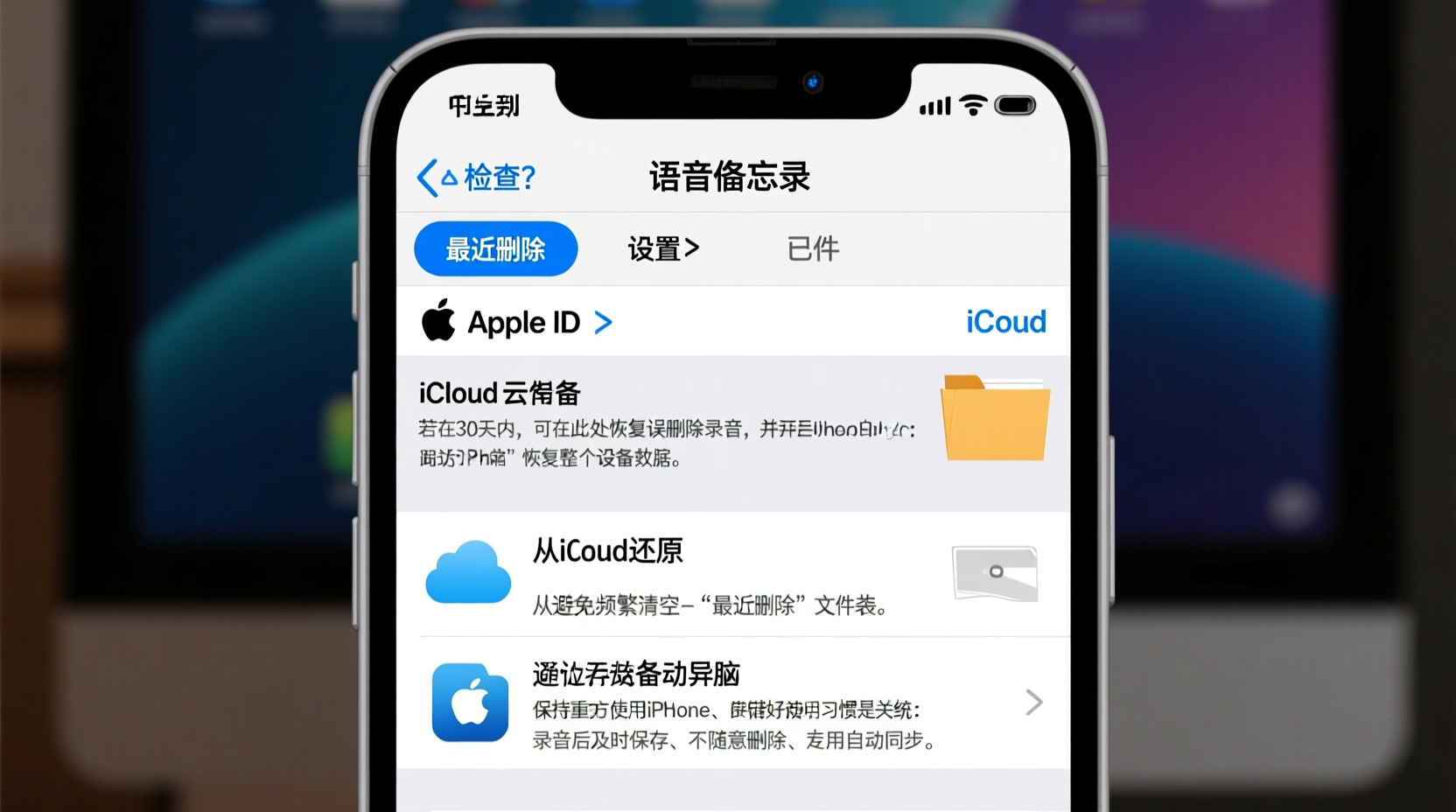
Before diving into recovery, it helps to understand what might have caused your voice memos to go missing. Identifying the root cause determines which recovery path to take and how to avoid repeats.
- Accidental deletion: A swipe or tap in the Voice Memos app can delete a recording without confirmation.
- iCloud sync issues: If iCloud Voice Memos is enabled but not syncing properly, recordings may appear on one device but not another—or vanish entirely during transition.
- Software updates: Major iOS updates occasionally disrupt app data, especially if backup wasn't completed beforehand.
- Disabled Voice Memos in iCloud: Turning off iCloud sync for Voice Memos removes cloud-stored recordings from devices not actively storing them locally.
- Restoring from an old backup: Restoring your iPhone from a backup made before a memo was recorded will erase any newer memos.
- App bugs or glitches: Rarely, a software bug corrupts the Voice Memos database, making files invisible even though they’re still present.
Where to Find Missing Voice Memos: Step-by-Step Recovery
Start with the simplest solutions and progress toward deeper recovery methods. Most users regain access by following these steps.
1. Check the “Recently Deleted” Folder
The first place to look is within the Voice Memos app itself. When you delete a recording, it moves to a temporary folder and stays there for 30 days.
- Open the Voice Memos app.
- Tap Browse (if not already selected).
- Navigate to the Recently Deleted folder.
- Review the list of recordings. You’ll see when each was deleted.
- Select the memo you want to recover and tap Recover.
Recovered memos return to your main list immediately.
2. Verify iCloud Sync Settings
If you use multiple Apple devices, your voice memo might simply be on another device or stuck in iCloud limbo.
To check sync status:
- Go to Settings > [Your Name] > iCloud.
- Scroll down and ensure Voice Memos is toggled on.
- Return to the Voice Memos app and wait a few minutes for sync to complete.
- Check all folders, including shared ones if applicable.
If iCloud was turned off recently, re-enabling it may restore access—but only to recordings saved in iCloud before it was disabled.
3. Search Across Devices
Sometimes, a memo was recorded on an iPad or Mac but never synced to your iPhone. Log in to the same iCloud account on other Apple devices and open their Voice Memos apps.
Look for:
- Recordings with similar timestamps.
- Folders labeled with device names (e.g., “From MacBook Pro”).
- Shared memos if you’ve used the sharing feature.
4. Restore from an iCloud Backup
If no individual recovery works, restoring your entire iPhone from a recent iCloud backup may bring back missing memos—provided the backup includes them.
Note: This method erases current data on your phone, so proceed only if you’ve backed up recent work elsewhere.
- Back up your current data via iCloud or computer.
- Go to Settings > [Your Name] > iCloud > iCloud Backup.
- Check the date and size of available backups.
- If a pre-loss backup exists, go to Settings > General > Transfer or Reset iPhone > Erase All Content and Settings.
- During setup, choose Restore from iCloud Backup and select the correct backup.
This process can take hours depending on backup size and internet speed.
5. Use iTunes/Finder to Restore from Computer Backup
If you regularly sync your iPhone with a Mac or PC, a local backup may contain your lost memos—even if iCloud doesn’t.
On macOS Catalina or later:
- Connect your iPhone to your Mac.
- Open Finder, then select your device.
- Under the General tab, click Restore Backup….
- Select the most recent backup before the memos went missing.
- Confirm and wait for restoration.
On Windows or older macOS versions, use iTunes with the same steps.
“Many users don’t realize that local iTunes backups often preserve app data more completely than iCloud, especially for media-heavy apps like Voice Memos.” — Jordan Lee, Data Recovery Specialist at Apple Support Partners
Preventing Future Loss: A Proactive Strategy
Recovery isn’t always guaranteed. The best approach is prevention. Implementing a few habits now can save hours of stress later.
Enable iCloud Sync Consistently
Turn on iCloud for Voice Memos and keep it active across all devices. This ensures recordings automatically back up and stay accessible.
To enable:
- Settings > [Your Name] > iCloud > toggle on Voice Memos.
- Wait for existing memos to upload (check Wi-Fi connection).
Once enabled, new recordings upload in the background.
Label and Organize Memos Immediately
Use descriptive titles instead of default timestamps. Rename memos right after recording:
- Open the memo in the Voice Memos app.
- Tap the three dots (•••) or Edit button.
- Select Rename and enter a meaningful title (e.g., “Client Call – May 12” or “Song Idea – Chorus Draft”).
Well-named memos are easier to search and less likely to be accidentally deleted.
Create Manual Backups to Cloud Services
For critical recordings, export them to third-party cloud storage like Google Drive, Dropbox, or OneDrive.
- In Voice Memos, open the recording.
- Tap the share icon (box with arrow).
- Choose Save to Files or directly share to your preferred cloud app.
This adds redundancy beyond Apple’s ecosystem.
Do’s and Don’ts: Voice Memo Management Checklist
| Do’s | Don’ts |
|---|---|
| ✅ Enable iCloud sync for automatic backup across devices. | ❌ Disable iCloud Voice Memos without backing up locally first. |
| ✅ Rename memos with clear, searchable titles. | ❌ Rely solely on default timestamps that make identification hard. |
| ✅ Export critical memos to external cloud storage. | ❌ Assume deletion is permanent—always check Recently Deleted first. |
| ✅ Regularly review backups to confirm memos are included. | ❌ Skip device backups before major iOS updates or resets. |
| ✅ Use strong Wi-Fi when uploading large recordings to iCloud. | ❌ Delete recordings immediately after recording—wait 24 hours to verify sync. |
Real Example: Recovering a Lost Interview Recording
Sarah, a freelance journalist, recorded a 45-minute interview with a source using her iPhone. After transferring notes to her laptop, she reviewed her Voice Memos app the next day and found the recording missing. Panic set in—she hadn’t backed it up externally.
She followed these steps:
- Checked “Recently Deleted”—empty.
- Verified iCloud settings: Voice Memos was enabled.
- Opened Voice Memos on her iPad—there it was, labeled with the default timestamp.
The memo had synced to her iPad but failed to appear on her iPhone due to a brief connectivity issue during upload. She played it on the iPad and shared it to Google Drive for safekeeping. From then on, she began naming recordings immediately and exporting key ones within an hour of capture.
Sarah’s experience highlights how sync delays—not data loss—are often the culprit.
Frequently Asked Questions
Can I recover a voice memo after 30 days in Recently Deleted?
No. After 30 days, items in the Recently Deleted folder are permanently erased from your device and iCloud unless manually recovered. Your only hope beyond that point is a full-device backup containing the memo.
Why are my voice memos not syncing across devices?
This usually happens when iCloud Voice Memos is disabled on one device, or when devices aren’t connected to Wi-Fi. Ensure all devices are signed into the same Apple ID, have iCloud sync enabled for Voice Memos, and are online. Restarting the app or device can also trigger stalled syncs.
Does deleting a voice memo from one device delete it everywhere?
If iCloud sync is enabled, yes—deletion propagates across all devices. However, the memo remains in Recently Deleted for 30 days on each device, allowing recovery. If iCloud is off, deletion only affects the local device.
Conclusion: Protect What Matters Before It’s Gone
Losing voice memos doesn’t have to mean losing memories or critical information. With the right habits, most recordings can be recovered—and future losses prevented altogether. Start by checking the Recently Deleted folder, verifying iCloud settings, and reviewing backups. If needed, restore from a prior backup to reclaim what’s missing.
But don’t stop at recovery. Make proactive backup part of your routine. Enable iCloud sync, rename important memos, and export high-value recordings to secondary storage. These small actions build a resilient system that protects your voice data no matter what happens to your device.




 浙公网安备
33010002000092号
浙公网安备
33010002000092号 浙B2-20120091-4
Comments
No comments yet. Why don't you start the discussion?