
If you’ve ever started a voice memo on your iPhone, stopped recording, and then couldn’t find it—only to discover it’s missing or never saved—you’re not alone. Voice Memos are one of the most frequently used but quietly misunderstood tools on iOS. Whether you're capturing a sudden idea, recording a meeting, or saving a personal note, losing that audio can be frustrating, even costly. The confusion deepens when users wonder: if a voice memo disappears, where does it actually go? Is it gone forever? And more importantly, can it be recovered?
This guide dives into the mechanics behind iPhone voice memos, explains why they might not save, reveals what happens when recordings are deleted, and provides actionable steps to recover lost files and protect future ones.
Why Voice Memos Might Not Save Automatically
The Voice Memos app on iPhone is designed to be simple: press record, speak, stop, and the file saves. But under certain conditions, this process fails silently. Understanding the reasons behind failed saves is the first step toward preventing them.
- Insufficient Storage: If your iPhone is nearly full, the system may block new recordings from being written to storage.
- App Crashes or System Glitches: Background processes or iOS bugs can cause the Voice Memos app to crash mid-recording, resulting in unsaved files.
- iCloud Sync Conflicts: When Voice Memos are set to sync via iCloud, interruptions in connectivity or account issues can delay or prevent saving locally.
- User Error: Accidentally tapping “Cancel” instead of “Stop,” or exiting the app without properly ending the recording, can lead to data loss.
- Low Power Mode: While rare, Low Power Mode may limit background operations, potentially interfering with app functionality.
Where Do Deleted Voice Memos Go? The Hidden Bin Explained
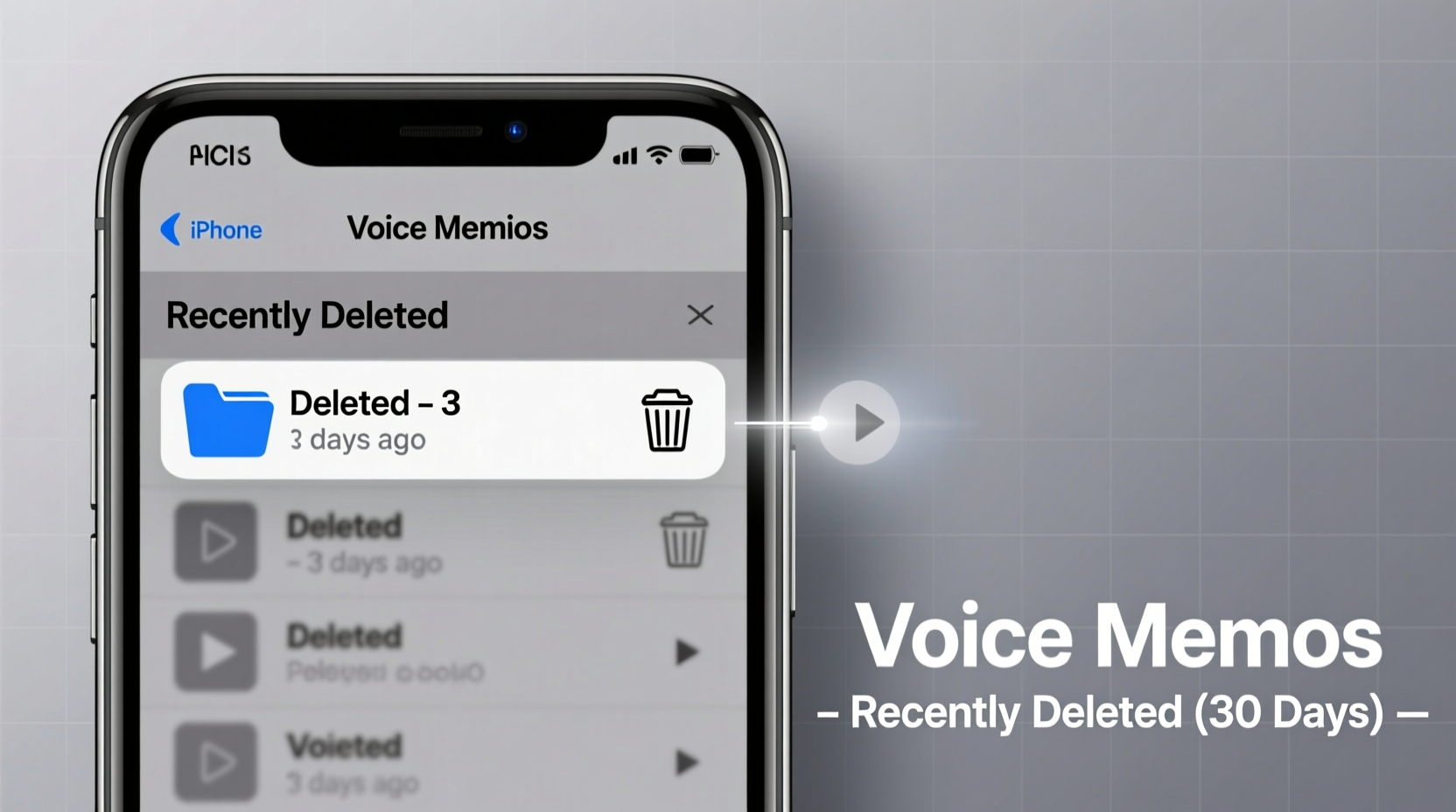
Unlike photos, which go to the Recently Deleted album for up to 30 days, voice memos have their own separate deletion lifecycle. When you delete a voice memo, it doesn’t vanish immediately—it moves to a hidden folder called the “Recently Deleted” section within the Voice Memos app.
This safety net lasts for exactly 30 days. After that, the file is permanently erased from your device and iCloud (if synced). During those 30 days, recovery is possible—if you know where to look.
“Apple's design philosophy prioritizes user control and data safety. The temporary retention of deleted voice memos mirrors similar systems in Photos and Notes, giving users a grace period to correct mistakes.” — David Lin, iOS Systems Analyst at TechInsight Group
How to Access Recently Deleted Voice Memos
- Open the Voice Memos app.
- Tap the Back button (top-left) until you return to the main list view.
- Scroll down and tap Recently Deleted.
- You’ll see all memos deleted in the past 30 days.
- Select the memo(s) you want to recover.
- Tap Recover, then confirm.
If the Recently Deleted folder is empty despite recent deletions, either the files were already permanently removed, or syncing issues have caused discrepancies between devices.
Recovering Voice Memos Without a Backup
Many users assume that without an iCloud or iTunes backup, lost voice memos are gone for good. While recovery becomes significantly harder, it’s not always impossible—especially if the deletion was recent.
When a file is deleted, the data isn’t instantly wiped from your iPhone’s storage. Instead, the system marks the space as available for reuse. Until new data overwrites it, the original audio may still exist and be retrievable using specialized tools.
Steps to Attempt Recovery Without Backup
- Stop Using Your iPhone Immediately: Every new photo, app download, or message increases the chance of overwriting lost data.
- Check iCloud.com: Log into iCloud.com and open Voice Memos there. Sometimes, syncing delays mean the memo exists online but not on-device.
- Use Third-Party Data Recovery Tools: Software like iMyFone D-Back, Tenorshare UltData, or Dr.Fone – Recover (iOS) can scan your device for residual audio fragments.
- Connect via Computer: Install the tool on a Mac or PC, connect your iPhone, and follow the guided scan. These tools often detect “deleted but not overwritten” files.
- Recover and Export: Once found, export the memo to your computer before attempting to re-import it to your phone.
Do’s and Don’ts of Voice Memo Management
| Do’s | Don’ts |
|---|---|
| Enable iCloud Sync for automatic backups across devices. | Assume recordings are saved just because you pressed “Stop.” |
| Review and rename important memos immediately after recording. | Delete old memos without archiving critical content. |
| Regularly back up your iPhone via iCloud or Finder/iTunes. | Rely solely on the device for long-term storage of sensitive recordings. |
| Check the Recently Deleted folder monthly for accidental losses. | Ignore low storage warnings—they directly impact app performance. |
| Export vital memos to cloud services like Google Drive or Dropbox. | Store confidential memos unencrypted on shared devices. |
Real-World Example: Recovering a Lost Interview Recording
Sophie, a freelance journalist, recorded a 20-minute interview with a key source using her iPhone. After finishing, she closed the app, only to realize later that the memo wasn’t in her list. Panicked, she assumed it was lost—until she remembered reading about a “Recently Deleted” folder.
She opened Voice Memos, navigated to Recently Deleted, and found the recording listed with a deletion date of two days prior. She tapped Recover, and the file reappeared instantly. Upon reflection, she realized she had accidentally swiped left and deleted it while browsing her list.
Sophie now renames every important memo right after recording and exports them to her cloud drive the same day. She also enabled iCloud sync as a fail-safe. Her experience underscores how easily human error can trigger data loss—and how simple recovery can be when you know where to look.
Preventing Future Loss: A Proactive Checklist
Protecting your voice memos starts with consistent habits and smart settings. Follow this checklist to minimize risk:
- ✅ Enable iCloud Sync: Go to Settings > [Your Name] > iCloud > Show All > toggle on Voice Memos.
- ✅ Verify Saves: After recording, wait for the waveform to appear in the list before closing the app.
- ✅ Rename Critical Memos: Tap the memo > Edit > give it a descriptive title (e.g., “Client Call – May 14”).
- ✅ Export High-Value Recordings: Share important memos via AirDrop, email, or cloud apps for off-device storage.
- ✅ Monitor Storage: Keep at least 1–2 GB of free space to ensure smooth app operation.
- ✅ Review Recently Deleted Monthly: Clear out old entries manually to avoid accidental recovery of wrong files.
- ✅ Back Up Weekly: Use iCloud or computer backups to create restore points.
Frequently Asked Questions
Can I recover a voice memo deleted more than 30 days ago?
If no backup exists, recovery is unlikely but not impossible. Specialized data recovery software may still locate remnants of the file if no new data has overwritten it. However, success rates drop significantly after 30 days, especially with regular device usage.
Why do my voice memos disappear after updating iOS?
Occasionally, iOS updates cause syncing glitches, particularly if iCloud settings were interrupted during installation. First, check the Recently Deleted folder. Then, ensure iCloud sync is enabled and force a sync by toggling Voice Memos off and on in Settings > iCloud. Wait a few minutes and reopen the app.
Are voice memos backed up in iCloud automatically?
Only if you’ve manually enabled the feature. Go to Settings > [Your Name] > iCloud > Voice Memos to turn it on. Once active, recordings sync across all your Apple devices signed into the same account. Note: iCloud storage limits apply—large collections may require upgrading your plan.
Conclusion: Take Control of Your Audio Data
Losing a voice memo feels like losing a piece of your memory—especially when it contains something irreplaceable. But with the right knowledge, most losses are preventable, and many deletions are reversible. The key lies in understanding how the system works: where files go when deleted, how iCloud sync functions, and what tools are available when things go wrong.
Start today by checking your iCloud settings, reviewing the Recently Deleted folder, and establishing a habit of exporting critical recordings. Small actions now can save hours of frustration later. Your next great idea, heartfelt message, or professional insight deserves to be preserved—not lost to a silent app glitch.




 浙公网安备
33010002000092号
浙公网安备
33010002000092号 浙B2-20120091-4
Comments
No comments yet. Why don't you start the discussion?