
For photographers who rely on mobile devices to capture, edit, and share images, the choice between iPhone and Android isn’t just about hardware—it’s about creative control. While both platforms support high-resolution cameras and powerful editing apps, their ecosystems differ significantly in how they handle image processing, app integration, and long-term editing flexibility. Understanding these differences helps professionals and enthusiasts alike make informed decisions based on workflow efficiency, software depth, and creative freedom.
Camera Hardware and Default Image Processing
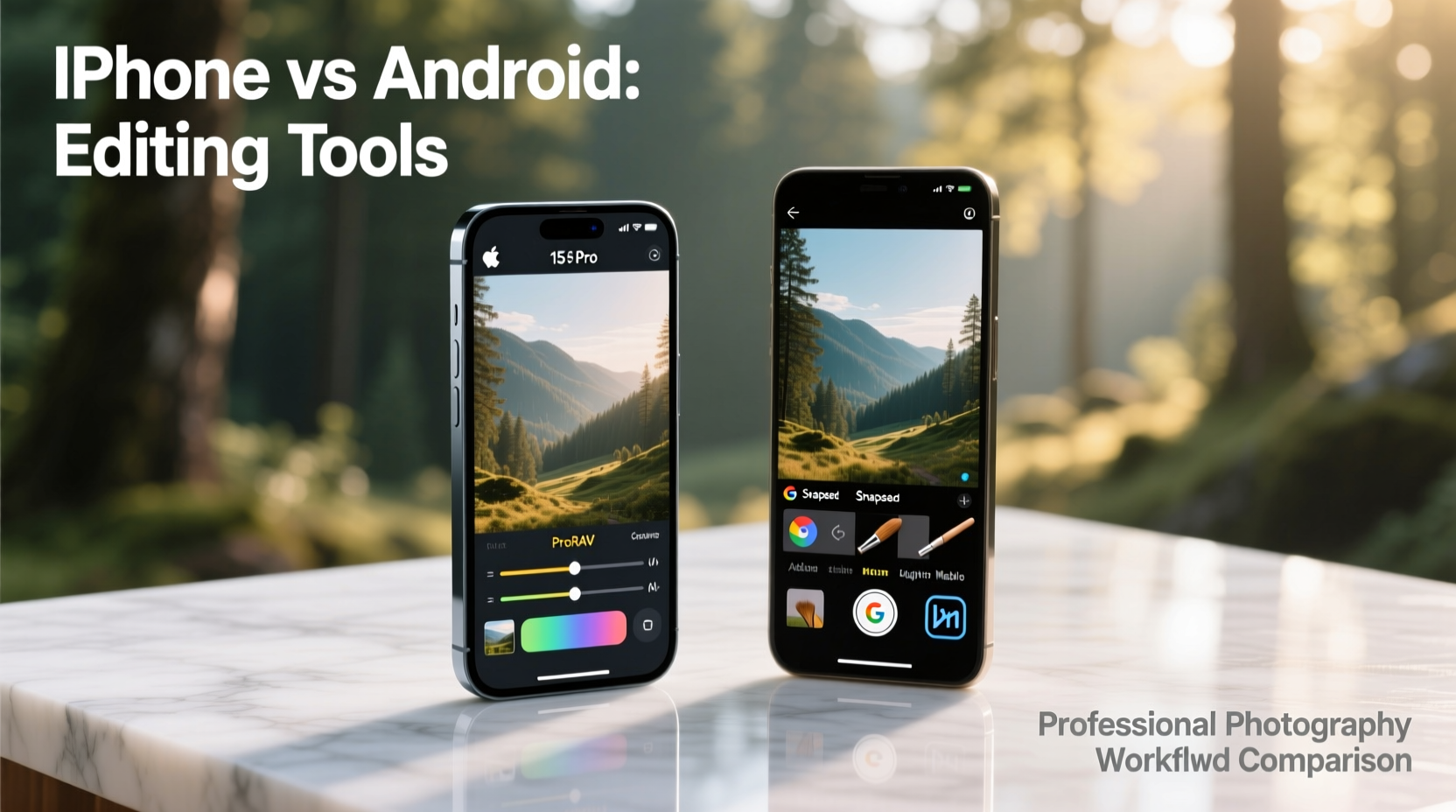
The foundation of any photo editing experience begins with the original image quality. Both iPhone and flagship Android devices—such as Google Pixel, Samsung Galaxy S series, and OnePlus models—offer advanced multi-lens systems, computational photography, and RAW capture support. However, their approach to image processing shapes what editors can do downstream.
iPhones use Apple’s Photographic Styles and Deep Fusion technology to produce consistent, color-accurate JPEGs out of the camera. The default Photos app applies subtle enhancements that preserve dynamic range while favoring natural skin tones and balanced contrast. This consistency benefits users who prefer minimal post-processing.
Android varies by manufacturer. Google Pixel leads with its HDR+ algorithm and Magic Eraser features, delivering highly detailed, noise-resistant images even in low light. Samsung emphasizes vibrant colors and sharpness, which can sometimes oversaturate skies or textures. These aggressive default edits may require more correction during editing, especially if the goal is a neutral or cinematic look.
Built-In Editing Tools: Native App Capabilities
The native photo apps on both platforms offer surprisingly robust editing suites. Apple’s Photos app includes non-destructive adjustments for exposure, contrast, highlights, shadows, white balance, sharpening, and noise reduction. Its interface is intuitive, with sliders that respond smoothly and changes that update in real time. Most importantly, edits are stored separately from the original file, preserving data integrity.
Google Photos (on Android) provides similar tools: brightness, color, cropping, rotation, and filters. It also integrates AI-powered “Auto” adjustments that analyze each image and apply corrections automatically. While convenient, this automation can limit fine-tuned control, especially when consistency across a series is needed.
Samsung’s Gallery editor goes further, offering selective adjustments, background blur after capture, and object removal tools—all within the stock app. This gives Samsung users an edge in quick fixes without needing third-party downloads.
“Native editing tools have closed the gap significantly, but iOS still leads in precision and responsiveness.” — Jordan Lee, Mobile Photography Educator at CapturePath Academy
Third-Party App Ecosystem and Professional Workflows
When photographers move beyond basic adjustments, they turn to advanced apps like Adobe Lightroom Mobile, Snapseed, VSCO, and Procreate. Here, the distinction between iPhone and Android becomes more nuanced.
iOS dominates in app optimization and feature parity. Adobe Lightroom Mobile, for instance, offers full RAW editing, presets, cloud syncing, and selective brushes on iPhone with near-desktop functionality. The iPad version even supports external storage and stylus input for retouching, making it viable for semi-professional workflows.
While Android supports the same apps, performance varies across devices. Lower RAM, inconsistent GPU drivers, or outdated OS versions can cause lag, crashes, or missing features. For example, some Android tablets lack pressure sensitivity support in drawing-based editing tools, limiting their utility for dodge-and-burn techniques.
That said, Android excels in customization and file access. Unlike iOS, Android allows direct manipulation of the file system. Photographers can organize DNG files, export edited versions to custom folders, and integrate with desktop DAM (Digital Asset Management) systems more seamlessly. This openness benefits users who manage large photo libraries or automate exports via scripts.
App Performance Comparison Table
| Feature | iPhone (iOS) | Android (Flagship Devices) |
|---|---|---|
| RAW Editing Support | Yes (Full in Lightroom, Affinity Photo) | Yes (Varies by device and app) |
| Cloud Sync Reliability | High (iCloud + Adobe Creative Cloud) | Moderate (Google Drive dependent) |
| Selective Adjustment Precision | Excellent (Smooth brush response) | Good (Can lag on mid-tier devices) |
| File System Access | Limited (Via Files app, restricted permissions) | Full (Direct folder access) |
| Stylus & External Input Support | Apple Pencil (iPad only) | Broad (S Pen, Wacom, generic styli) |
Workflow Integration and Cross-Platform Compatibility
A photographer’s editing tool is only as strong as its place in the larger workflow. iPhone integrates tightly with macOS, enabling seamless handoff between iPhone, iMac, and iPad using Continuity Camera, AirDrop, and iCloud Photos. Editors can start a crop on their phone and finish tone curves on a MacBook with Final Cut Pro or Photoshop—without manual transfers.
Android connects well with Windows and ChromeOS environments. Google One syncs photos across devices, and Android File Transfer works reliably on PCs. However, transferring RAW files often requires USB debugging or third-party tools like KDE Connect, adding friction compared to Apple’s plug-and-play experience.
For creatives using Adobe Creative Cloud, both platforms perform similarly—but iOS edges ahead in synchronization speed and UI consistency. On iPad, Lightroom allows drag-and-drop layers, keyboard shortcuts, and external monitor output—features still limited on most Android tablets.
Real-World Example: Travel Photographer’s Workflow
Consider Maya Tran, a freelance travel photographer documenting rural communities in Southeast Asia. She shoots primarily on her iPhone 15 Pro using ProRAW mode, leveraging Apple’s superior video-photo hybrid capabilities. Each evening, she reviews selects in Lightroom Mobile on her iPad Air, applying lens corrections and localized exposure tweaks.
From there, she uses AirDrop to send finalized JPEGs to her MacBook for client delivery. Her entire archive syncs via iCloud, allowing her editor in New York to pull updated versions instantly. When she tried switching to a Google Pixel 8 Pro, she found the camera quality comparable, but exporting DNG files required manual folder navigation, and syncing with her Mac was less reliable. Ultimately, the extra steps disrupted her tight turnaround schedule.
Conversely, her colleague Diego Ruiz uses a Samsung Galaxy S24 Ultra paired with a DeX docking station. He connects his phone to a portable monitor, uses Lightroom with a Bluetooth mouse, and exports directly to an SD card reader. For him, Android’s flexibility outweighs the steeper learning curve.
Step-by-Step Guide: Optimizing Your Mobile Editing Setup
Regardless of platform, photographers can maximize editing potential with a structured setup. Follow this sequence to build an efficient mobile-first workflow:
- Enable RAW capture in your camera settings (e.g., ProRAW on iPhone, DNG on Android).
- Install Adobe Lightroom Mobile and sign in with your Creative Cloud account.
- Configure cloud sync to back up originals and edits automatically.
- Create custom presets tailored to your aesthetic (e.g., warm film emulation, high-contrast B&W).
- Use selective tools like radial filters or gradient masks to enhance skies or portraits.
- Export at high resolution with embedded metadata for print or web use.
- Backup originals to an external drive or NAS weekly to prevent data loss.
“The best editing tool is the one you’ll use consistently. But if you value speed, polish, and ecosystem harmony, iOS remains the benchmark.” — Lena Patel, Digital Imaging Specialist at PhotoFlow Studio
Frequently Asked Questions
Can I edit professional-grade photos on a phone?
Yes. Modern smartphones support 12–16 bit RAW files, non-destructive editing, and AI-assisted masking. Apps like Lightroom Mobile and Affinity Photo deliver desktop-class tools in a mobile format. While screen size limits precision, zoomed-in editing and stylus support make high-quality results achievable.
Is Snapseed better on Android than iPhone?
Snapseed functions nearly identically across platforms, but Android users may experience slightly faster rendering due to deeper system-level optimizations. However, iOS offers smoother touch responsiveness and better long-term app updates. For most users, the difference is negligible.
Do iPhones lose detail when editing compared to Android?
No. iPhones process images with minimal generational loss, especially when editing in-app or using non-destructive tools. The perception of inferiority sometimes stems from Apple’s conservative sharpening and noise reduction profiles, which prioritize naturalism over punchiness. These can be overridden in third-party apps.
Editing Checklist for Photographers
- ✅ Shoot in RAW/DNG format for maximum editing headroom
- ✅ Calibrate your screen brightness for accurate color judgment
- ✅ Use headphones to zoom in and check focus during editing
- ✅ Apply lens corrections to fix distortion and vignetting
- ✅ Save presets for recurring styles (e.g., street, portrait, landscape)
- ✅ Enable cloud backup to protect against device loss
- ✅ Export final images at 300 DPI for print or 72 DPI for web
Final Verdict: Which Platform Offers Better Editing Tools?
The answer depends on priorities. For photographers who value a polished, integrated, and responsive editing experience with minimal friction, the iPhone is the stronger choice. Its optimized apps, consistent performance, and deep integration with macOS and iPadOS create a cohesive ecosystem ideal for fast-paced, high-quality work.
Android appeals to tinkerers and those invested in open systems. With full file access, broader hardware options, and strong AI-powered tools like Google’s Super Res Zoom and Magic Editor, Android offers creative possibilities—especially when paired with external monitors or productivity docks. However, this flexibility comes with trade-offs in stability and cross-device harmony.
If your workflow revolves around Adobe tools, client deadlines, and seamless sharing, iPhone delivers reliability. If you prefer granular control, customizable storage paths, and experimenting with niche apps, Android provides room to grow.




 浙公网安备
33010002000092号
浙公网安备
33010002000092号 浙B2-20120091-4
Comments
No comments yet. Why don't you start the discussion?