
If your iPhone suddenly stops sending emails, it can disrupt work, personal communication, and daily productivity. Unlike receiving issues, which often stem from server connectivity, the inability to send messages typically points to configuration errors, network problems, or account-specific glitches. The good news is that most of these issues are solvable without technical expertise. This guide walks through proven troubleshooting steps, real-world scenarios, and expert-backed strategies to get your iPhone’s email function back on track.
1. Verify Your Internet Connection
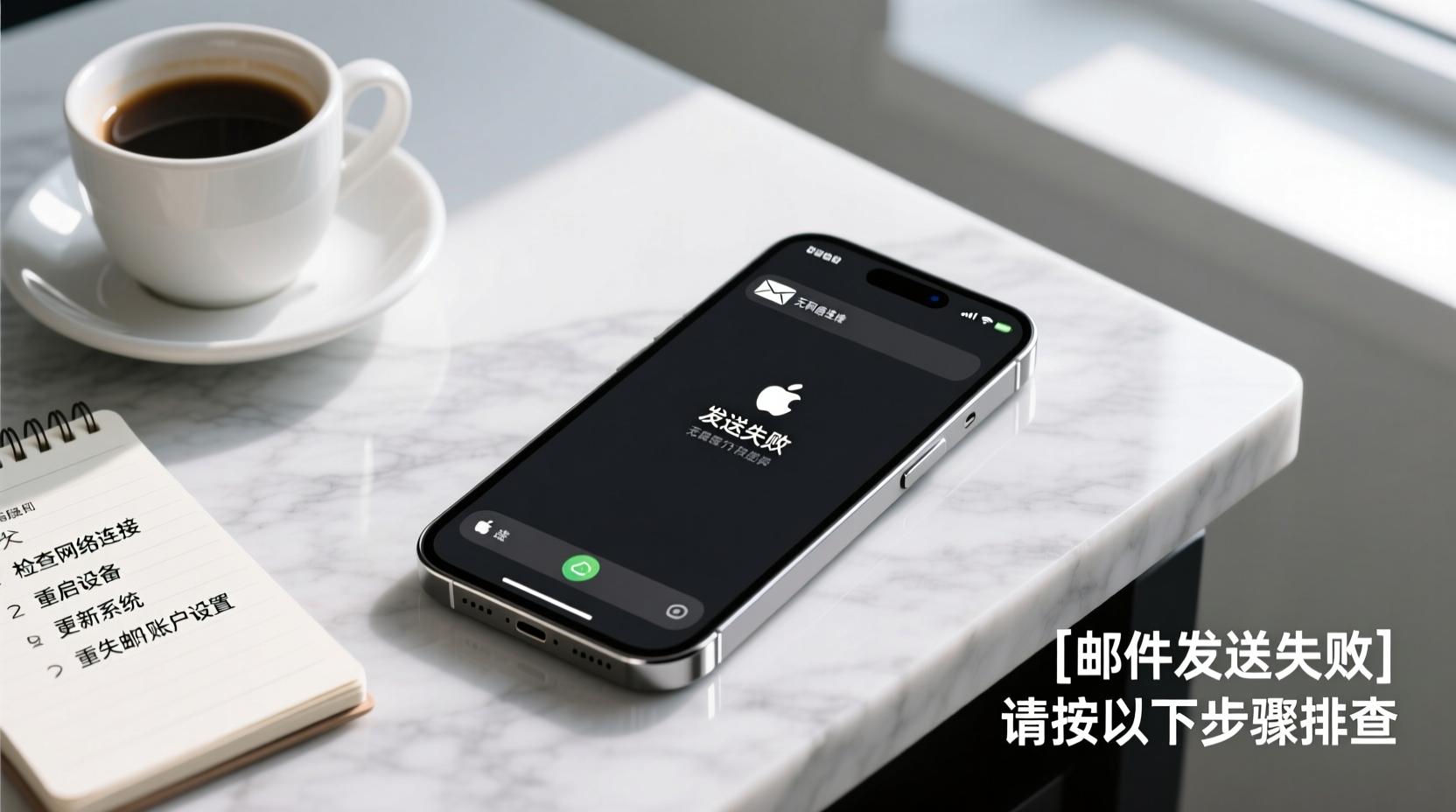
The first and most overlooked cause of email sending failure is a poor or unstable internet connection. Whether you're using Wi-Fi or cellular data, an interrupted signal prevents your iPhone from communicating with outgoing mail servers.
To test connectivity:
- Open Safari and load a website to confirm active internet access.
- Toggle Airplane Mode on for 10 seconds, then off to reset network settings temporarily.
- Switch between Wi-Fi and cellular data to see if one performs better.
Even if other apps work fine, certain ports used by email protocols (like SMTP) may be blocked on restricted networks such as corporate offices or hotels. In such cases, switching to mobile data often resolves the issue immediately.
2. Check Email Account Settings
Incorrect SMTP (outgoing mail server) settings are among the top reasons why iPhones fail to send emails. These settings vary depending on your email provider—Gmail, Outlook, Yahoo, or a custom domain—and even small typos in the server address or port number can break functionality.
Here’s how to verify your SMTP configuration:
- Go to Settings > Mail > Accounts.
- Select your email account.
- Tap Account, then scroll down and select SMTP under \"Outgoing Mail Server.\"
- Ensure the primary server is enabled and has correct details.
| Email Provider | SMTP Server | Port | Authentication |
|---|---|---|---|
| Gmail | smtp.gmail.com | 587 | TLS required |
| Outlook/Hotmail | smtp-mail.outlook.com | 587 | STARTTLS |
| Yahoo | smtp.mail.yahoo.com | 587 | SSL/TLS |
| ICloud | smtp.mail.me.com | 587 | Authentication ON |
If any information doesn’t match, update it manually. After saving changes, restart the Mail app and attempt to send a test message.
“Misconfigured SMTP settings account for nearly 40% of all ‘unable to send’ reports we receive from iOS users.” — David Lin, Senior Support Engineer at CloudMail Pro
3. Reboot and Force-Close the Mail App
Sometimes, temporary software glitches freeze background processes responsible for syncing and transmitting emails. A simple reboot can clear cached errors and restore normal operation.
Follow this sequence:
- Close the Mail app by swiping it up from the app switcher.
- Restart your iPhone by holding the side button and either volume button until the slider appears.
- Power the device back on and reopen Mail.
This process clears transient memory blocks and reinitializes network daemons, often resolving silent bugs that prevent message delivery.
4. Update iOS and Mail App
Apple frequently releases patches that fix known bugs in system-level apps like Mail. Running an outdated version of iOS might leave you vulnerable to email transmission failures introduced in earlier builds.
To check for updates:
- Navigate to Settings > General > Software Update.
- Install any available updates.
While the native Mail app doesn’t receive standalone updates via the App Store, it benefits from overall OS improvements. Updating ensures compatibility with modern encryption standards and server requirements used by major email providers.
5. Re-Add Your Email Account
When configuration corruption occurs at the system level, simply editing settings may not suffice. Removing and re-adding the account forces iOS to rebuild its sync profile from scratch, eliminating hidden misconfigurations.
- Go to Settings > Mail > Accounts.
- Select the problematic email account.
- Tap Delete Account. Note: This only removes the account from the device, not your inbox or messages stored on the server.
- Reboot the iPhone.
- Return to Accounts and tap Add Account.
- Choose your provider and sign in again.
iOS will auto-detect most settings for popular services. For IMAP or Exchange accounts, double-check that “Mail” is toggled on during setup.
Mini Case Study: Sarah’s Gmail Sending Failure
Sarah, a freelance designer, couldn’t send client proposals via her iPhone after returning from a trip. She could receive emails but got constant “Cannot Send Message” alerts when replying. Her Wi-Fi worked fine, and she had updated her phone recently.
After checking her SMTP settings, she discovered that during airport roaming, her phone had defaulted to an incorrect outgoing server (gmail-smtp-msa.l.google.com), which was disabled. By manually resetting the SMTP server to smtp.gmail.com with TLS on port 587, and re-enabling the primary server, her sending capability was restored within minutes.
This case illustrates how location changes and network handoffs can alter backend configurations without user awareness.
Comprehensive Troubleshooting Checklist
Use this checklist to methodically eliminate potential causes:
- ✅ Confirm internet access via browser
- ✅ Toggle Airplane Mode to reset network stack
- ✅ Verify correct SMTP server and port
- ✅ Ensure password hasn’t expired or been changed
- ✅ Test sending over Wi-Fi vs. cellular data
- ✅ Restart the iPhone and relaunch Mail
- ✅ Check for iOS updates
- ✅ Remove and re-add the email account
- ✅ Try an alternative email app (e.g., Spark or Outlook) to isolate the issue
Frequently Asked Questions
Why does my iPhone say “Cannot Send Mail” even though I’m connected to the internet?
This error usually indicates a problem with the outgoing (SMTP) server configuration, authentication failure, or blocked ports. It doesn’t mean your general internet is down—just that the mail protocol can’t establish a secure handshake with the server.
Does two-factor authentication affect my ability to send emails?
Yes. If you’ve enabled 2FA on accounts like Gmail, you may need to generate an app-specific password instead of using your regular login. Standard passwords no longer work in many cases due to enhanced security policies.
Will deleting my email account erase my messages?
No. Deleting the account from your iPhone only removes local syncing. All messages remain safe on the provider’s server and will reappear once the account is re-added and synced.
Final Steps and When to Seek Help
If all troubleshooting methods fail, consider testing with a third-party email app. Apps like Outlook or Spark often handle complex configurations more gracefully than Apple’s built-in client. If those work, the issue may lie in iOS Mail’s integration rather than your account itself.
Contact your email provider’s support team if:
- You’re consistently getting authentication errors despite correct credentials.
- Your domain administrator has recently changed server policies.
- You suspect your account has been locked or rate-limited.
Conclusion
An iPhone that won’t send emails is frustrating, but rarely permanent. Most issues stem from easily correctable settings, connectivity lapses, or outdated software. By systematically verifying your network, reviewing SMTP configurations, and knowing when to refresh your account setup, you regain control quickly. Don’t let a temporary glitch compromise your communication—apply these fixes today and keep your inbox running smoothly.




 浙公网安备
33010002000092号
浙公网安备
33010002000092号 浙B2-20120091-4
Comments
No comments yet. Why don't you start the discussion?