
Choosing the right monitor for coding isn’t just about screen size or brand reputation—it’s about balancing pixel density, usability, performance, and budget. As developers spend hours reading documentation, writing code, debugging, and managing multiple windows, display quality directly impacts both productivity and comfort. With 4K monitors becoming more accessible and 1440p (also known as QHD) remaining a popular choice, the question arises: is the jump to 4K justified, or does 1440p offer the optimal balance?
The answer depends on your workflow, hardware setup, and personal preferences. While 4K offers stunning clarity and screen real estate, it comes with trade-offs in scaling, software compatibility, and GPU demands. Meanwhile, 1440p delivers excellent sharpness without overwhelming system resources or requiring complex configuration.
Understanding Resolution and Pixel Density
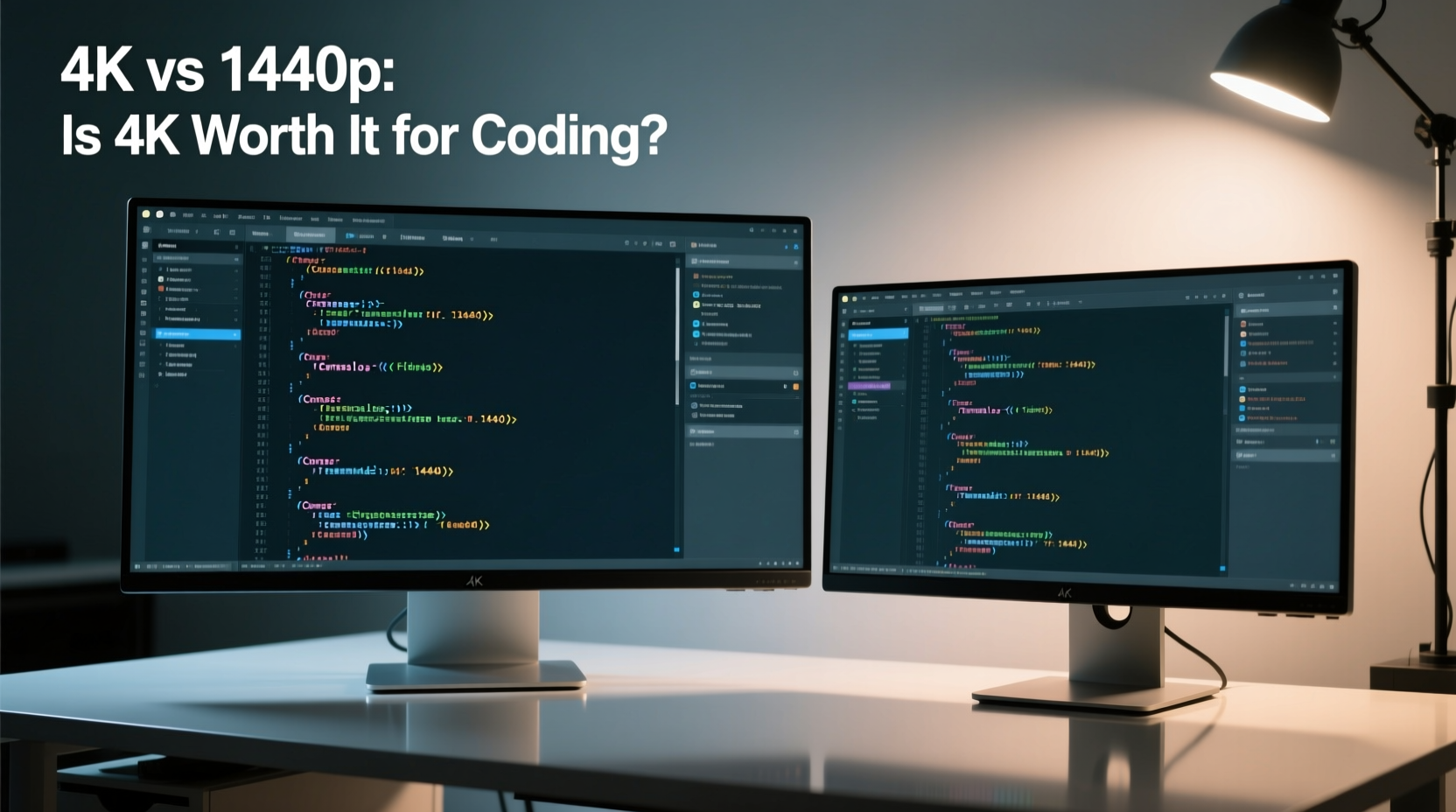
Before diving into which resolution suits coding best, it's essential to understand what these numbers mean in practical terms.
Resolution refers to the number of pixels displayed horizontally and vertically. A 1440p monitor typically has a resolution of 2560x1440 pixels, while a 4K (UHD) monitor has 3840x2160—four times the total pixels of a 1080p screen and roughly 2.25 times that of 1440p.
However, resolution alone doesn't determine visual clarity. Pixel density—measured in PPI (pixels per inch)—is equally important. For example:
| Monitor Size | Resolution | PPI (Approx.) | Use Case Suitability |
|---|---|---|---|
| 27\" | 1440p | 109 PPI | Sharp text, comfortable at standard viewing distance |
| 27\" | 4K | 163 PPI | Extremely sharp; may require scaling |
| 32\" | 4K | 138 PPI | Balanced sharpness and screen space |
| 24\" | 1080p | 92 PPI | Adequate but less crisp than higher resolutions |
Higher PPI means sharper text and finer detail, which benefits long reading sessions and reduces eye strain. However, too high a density on a small screen can make UI elements appear tiny unless properly scaled.
Coding Workflow: Screen Real Estate vs. Readability
Developers often work with split views—code editors, terminals, debuggers, browser windows, documentation tabs—all open simultaneously. The amount of visible information directly affects how quickly you can navigate between tools.
1440p Advantages:
- Natural text rendering without OS-level scaling issues.
- Supports two side-by-side code panes comfortably.
- Less GPU load when using remote desktop or virtual machines.
- Widely supported across IDEs and operating systems.
4K Advantages:
- Massive workspace—can fit four full IDE panels without scrolling.
- Sharper fonts and crisper syntax highlighting.
- Better for hybrid workflows involving design, video, or data visualization.
For pure coding, especially in languages like Python, JavaScript, or Go where line length is moderate, 1440p gives ample space. But if you're working with complex UI layouts, large JSON files, or database schemas, 4K allows you to keep more context visible at once, reducing reliance on tabs or constant window switching.
“On a well-configured 4K display, I can have my IDE, terminal, API docs, and test results all visible without alt-tabbing. That reduction in cognitive load is real.” — Daniel Reyes, Senior Full-Stack Engineer at DevScale Inc.
Scaling Challenges and Software Compatibility
One of the most overlooked aspects of 4K monitors is scaling—how operating systems and applications handle high-DPI displays.
Windows and macOS have made strides in high-resolution support, but inconsistencies remain. Some older or poorly maintained desktop applications render blurry or misaligned on 4K unless forced into compatibility modes. Even modern IDEs like VS Code or IntelliJ generally handle scaling well, but plugins or embedded tools might not scale correctly.
Linux users face additional complexity. While Wayland improves HiDPI support, X11-based environments often require manual DPI overrides in configuration files. This can be frustrating for developers who value stability over tinkering.
In contrast, 1440p sits in a “Goldilocks zone” for scaling: sharp enough to eliminate pixelation, but not so dense that everything requires adjustment. Most applications render natively at 100% scale, avoiding blurriness from upscaling.
Scaling Comparison
| Factor | 1440p (27\") | 4K (27\") |
|---|---|---|
| Default Scaling (Windows/macOS) | 100% | 125%–150% |
| App Compatibility | Excellent | Mostly good, some legacy issues |
| Text Clarity | Sharp | Very sharp (when scaled properly) |
| Setup Complexity | Plug-and-play | May require calibration |
If you frequently use niche tools, internal dashboards, or cross-platform apps, 1440p reduces friction. For those building user-facing products where pixel-perfect previews matter, 4K offers a truer representation of high-density mobile and web interfaces.
Hardware Considerations: GPU, CPU, and Multi-Monitor Setups
Driving a 4K monitor demands more from your system—especially if you’re using integrated graphics, running VMs, or connecting multiple displays.
A single 4K monitor at 60Hz over DisplayPort or HDMI 2.0 is manageable for most modern CPUs and GPUs. But push beyond that—say, dual 4K monitors or external displays on laptops—and you’ll notice increased power consumption, thermal throttling, or lag in UI responsiveness.
Consider this scenario:
Mini Case Study: Remote Developer Using Dual Monitors
Jessica, a backend engineer working remotely, upgraded her home office with two 27\" 4K monitors. Her laptop was a mid-tier Intel i7 with integrated Iris Xe graphics. Initially excited by the crisp visuals, she soon noticed sluggish window animations, delayed keystrokes in her editor, and dropped frames during video calls. After downgrading to a single 1440p monitor and keeping the second at 1080p, her system responded smoothly again. The extra resolution wasn’t worth the performance tax.
This illustrates a key point: raw resolution gains can be undermined by insufficient hardware. For developers relying on lightweight setups or older machines, 1440p remains the pragmatic choice.
Checklist: Is Your System Ready for 4K?
- ✅ Dedicated GPU (e.g., NVIDIA GTX 1650 or better)
- ✅ At least 16GB RAM (32GB recommended for multitasking)
- ✅ Modern CPU (Intel 11th Gen / AMD Ryzen 5000 series or newer)
- ✅ Display output supporting 4K@60Hz (DisplayPort 1.2+ or HDMI 2.0+)
- ✅ Operating system updated to latest version (better HiDPI support)
If any of these are missing, 1440p will deliver a smoother experience.
Cost-Benefit Analysis: Price, Longevity, and Future-Proofing
Let’s examine the financial aspect. As of 2024, a quality 27\" 1440p IPS monitor costs between $250–$350. A comparable 4K model ranges from $400–$700, with premium variants exceeding $1,000.
That $150–$300 difference could instead go toward a mechanical keyboard, ergonomic chair, or noise-canceling headset—tools that also significantly impact daily comfort and efficiency.
Still, 4K offers longer relevance. As software increasingly adopts high-DPI standards and cloud-based development environments become more graphical, having a future-ready display makes sense. If you plan to keep your monitor for 5+ years, investing in 4K may pay off.
But longevity isn’t just about specs—it’s about adaptability. A 1440p monitor used at 75% scale today will still look clean in five years. Conversely, a poorly calibrated 4K display might frustrate more than help.
Frequently Asked Questions
Can I use a 4K monitor for coding at 27 inches without scaling?
No—running a 27\" 4K monitor at 100% scaling makes text and icons extremely small and difficult to read. You should use OS-level scaling (125%–150%) to maintain readability. Most modern systems handle this well, but some apps may appear blurry if they don’t support vector scaling.
Does 4K reduce eye strain compared to 1440p?
Not inherently. Eye strain depends more on brightness, contrast, refresh rate, viewing distance, and blue light exposure than resolution alone. However, sharper text on 4K can reduce squinting during prolonged reading, indirectly helping comfort—if properly scaled.
Is 1440p enough for pair programming or screen sharing?
Absolutely. Most video conferencing tools cap shared resolution at 1080p anyway. Whether you’re presenting or collaborating, 1440p provides more than enough clarity for others to follow along. The added detail of 4K is lost in compressed streams.
Conclusion: Finding Your Personal Sweet Spot
There’s no universal answer to whether 4K is worth it for coding. The decision hinges on your specific circumstances: your machine’s capabilities, your development environment, and how you interact with your screen.
For most developers, 1440p strikes the ideal balance. It delivers crisp text, ample workspace, broad software compatibility, and minimal system overhead—all at a reasonable price. It’s the resolution that just works, day after day, without demanding technical adjustments.
4K shines in specialized cases: front-end developers previewing responsive designs, data scientists analyzing dense visualizations, or engineers working across multiple virtual desktops. If you have the hardware to drive it and the patience to fine-tune scaling, 4K can elevate your workflow.
Rather than chasing maximum specs, focus on creating a sustainable, distraction-free coding environment. Sometimes, the best upgrade isn’t higher resolution—it’s better lighting, reduced glare, or an adjustable stand that promotes posture.




 浙公网安备
33010002000092号
浙公网安备
33010002000092号 浙B2-20120091-4
Comments
No comments yet. Why don't you start the discussion?