
In the post-pandemic era, remote work isn’t a perk—it’s a standard. With that shift comes new demands on personal devices. Laptops were once the default, but tablets have surged in popularity due to their portability, battery life, and affordability. But when it comes to budget tablets—devices priced under $200—can they actually support productive, professional work, or are they better suited for streaming cartoons and casual browsing?
The answer isn’t binary. For some users, a budget tablet is more than adequate. For others, it could become a frustrating bottleneck. The truth lies in how you work, what tools you rely on, and your expectations from a device.
What Defines a Budget Tablet?
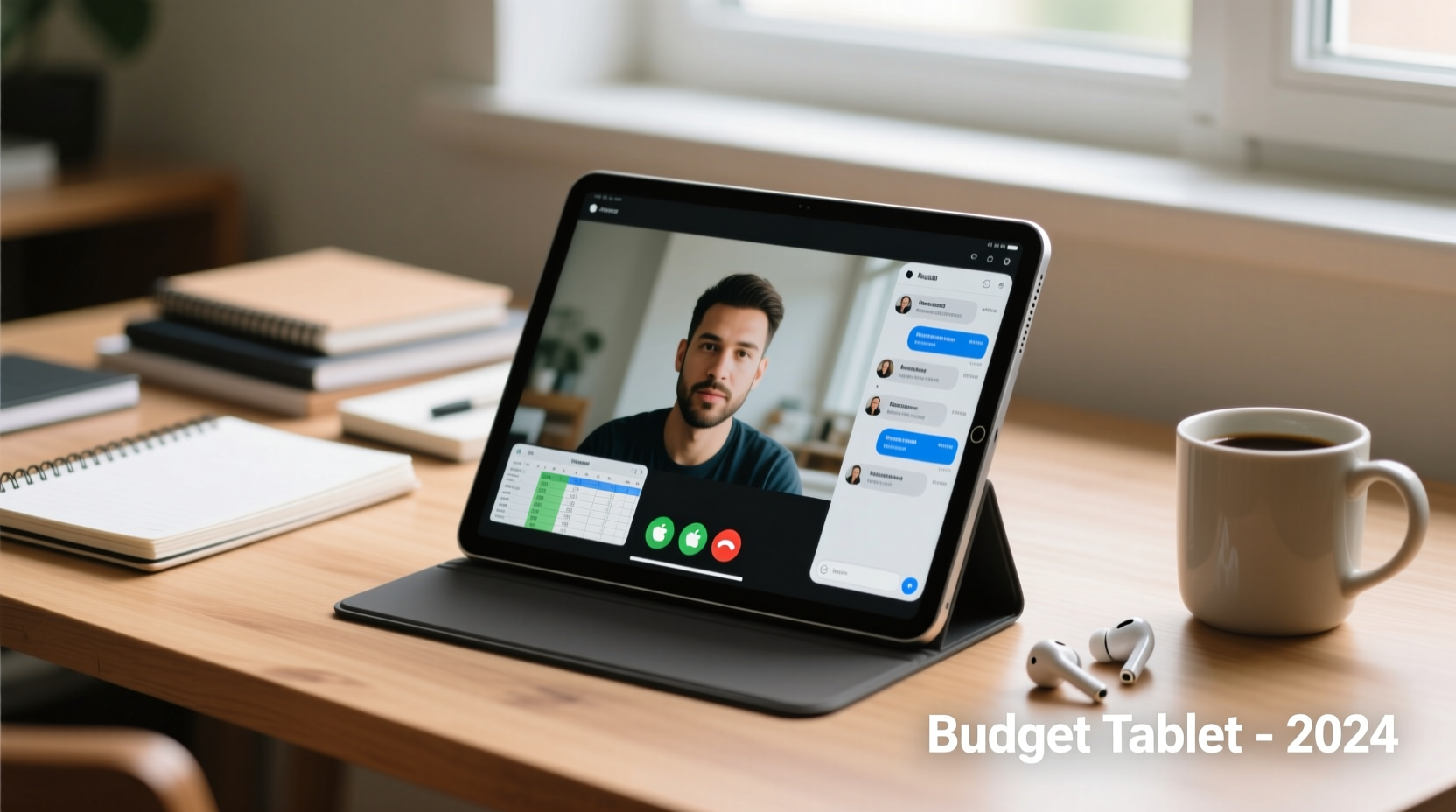
Budget tablets typically range from $80 to $200. They’re often manufactured by brands like Amazon (Fire series), Lenovo, Samsung (Galaxy A and Tab A lines), and Alldocube. While specs vary, common traits include:
- Entry-level processors (like MediaTek or older Qualcomm Snapdragon chips)
- 2GB to 4GB of RAM
- 32GB to 64GB internal storage (expandable via microSD in some models)
- 7 to 10-inch displays with HD or Full HD resolution
- Limited software updates and manufacturer support
These limitations don’t automatically disqualify them from professional use—but they do set boundaries.
Remote Work Needs vs. What Budget Tablets Offer
Remote work spans a wide spectrum—from answering emails and joining video calls to managing spreadsheets, editing documents, and collaborating on cloud platforms. Let’s examine how budget tablets handle key tasks.
Email and Calendar Management
Checking email, scheduling meetings, and syncing calendars are the most basic functions of remote work. Most budget tablets handle this without issue. Gmail, Outlook, and Google Calendar run smoothly even on modest hardware. Push notifications are reliable, and touch interfaces make swiping through messages efficient.
Video Conferencing
Zoom, Google Meet, and Microsoft Teams are essential. Here, budget tablets show mixed results. While the apps install and function, performance depends on the processor and camera quality. Entry-level tablets may struggle with screen sharing, multitasking during calls, or maintaining stable audio/video over long sessions.
Front-facing cameras on budget models are often 2MP to 5MP, resulting in grainy video. Poor microphone placement can also lead to echo or muffled speech. If video presence matters in your role, this is a real limitation.
Document Editing and Cloud Collaboration
Google Docs, Sheets, and Slides work well on Android-based tablets. Microsoft Office apps (Word, Excel, PowerPoint) are available on both Android and iPadOS, though functionality is reduced compared to desktop versions.
Editing complex spreadsheets with multiple formulas or large presentations with embedded media may lag on a tablet with only 2GB of RAM. Touch input is functional but imprecise for detailed formatting. A Bluetooth keyboard helps, but not all budget tablets pair reliably with accessories.
File Storage and Access
Most budget tablets come with limited onboard storage. However, integration with Google Drive, Dropbox, or OneDrive mitigates this. Files open directly from the cloud, reducing the need for local space. Just ensure your internet connection is stable—offline access is limited without sufficient storage for cached files.
“Tablets have evolved into legitimate productivity tools, but the divide between ‘good enough’ and ‘frustrating’ often comes down to RAM and software optimization.” — David Lin, Tech Analyst at MobileWork Insights
When a Budget Tablet Works Well for Remote Work
A budget tablet isn’t inherently useless for professionals. In fact, certain roles and workflows benefit significantly from its strengths: portability, battery life, and simplicity.
Scenario: The Mobile-Focused Freelancer
Consider Maria, a freelance writer who works from cafes, co-working spaces, and her home office. Her workflow revolves around Google Docs, email, and occasional Zoom calls. She uses voice typing for drafts and connects a foldable Bluetooth keyboard when needed.
Maria bought a $150 Samsung Galaxy Tab A9. It has 3GB of RAM, 32GB storage (expanded to 128GB with a microSD card), and runs Android 13. For her, the tablet lasts two full workdays on a single charge. She avoids heavy multitasking and keeps her tabs minimal. To her, the device is not just “good enough”—it’s ideal.
Scenario: The Field Service Coordinator
Jamal manages repair technicians across a metro area. He spends half his day in a vehicle, checking job statuses, updating schedules, and communicating via messaging apps. His needs are communication-heavy and mobile-first.
He uses a $120 Lenovo Tab M10. It syncs perfectly with his team’s Slack and Google Workspace accounts. He views PDFs of service reports and signs off on approvals using a stylus. No spreadsheet modeling, no video editing—just streamlined task management. The tablet fits in his console and charges via car USB—ideal for his workflow.
When a Budget Tablet Falls Short
Not every remote worker can thrive on a stripped-down device. Certain professions demand more processing power, multitasking capability, and peripheral support.
Limitations in Multitasking
Running two apps side-by-side—say, a document and a research browser—is possible on many budget tablets, but performance suffers. Switching between apps can trigger reloads, losing your place. Background apps may close unexpectedly, disrupting workflow continuity.
Lack of Desktop-Class Software
If your job requires Adobe Creative Suite, advanced financial modeling in Excel, or development environments, a budget tablet simply won’t cut it. Even web-based alternatives (like Figma or Canva) may lag or lack features on mobile browsers.
Peripheral and File System Limitations
While USB-C is common, support for external drives, monitors, or docking stations is rare on budget models. File managers on Android are less intuitive than desktop OS options, making bulk file handling tedious.
Software Updates and Longevity
Many budget tablets receive only one or two years of OS updates. After that, security patches stop, and app compatibility degrades. A three-year-old tablet might still turn on, but it won’t support the latest versions of critical apps.
| Use Case | Budget Tablet Viability | Key Considerations |
|---|---|---|
| Email & Messaging | ✅ High | Reliable performance; no issues |
| Video Calls (daily) | 🟡 Moderate | Camera/mic quality varies; may lag with screen sharing |
| Document Editing | ✅ High (light), 🟡 Moderate (complex) | Simple docs fine; spreadsheets with macros may stutter |
| Multitasking (3+ apps) | ❌ Low | RAM limits; frequent app reloads |
| Graphic Design / Coding | ❌ Not Suitable | Lacks software and precision input |
| Field Notes / Forms | ✅ High | Great for checklists, signatures, quick entries |
Smart Buying Guide: How to Choose a Budget Tablet That Works
If you're considering a budget tablet for remote work, focus on these five criteria to avoid buyer’s remorse.
- Ram (Minimum 3GB): This is non-negotiable for smooth multitasking. Avoid 2GB models unless usage is extremely light.
- Storage (32GB minimum + microSD slot): Local storage fills up fast with apps and cached files. Expandability is crucial.
- Operating System Support: Choose devices with clear update policies. Samsung and Lenovo generally offer better support than obscure brands.
- Keyboard and Stylus Compatibility: Check reviews for reliable Bluetooth pairing. Some tablets support partial keyboard shortcuts, enhancing productivity.
- Battery Life (8+ hours): Look for user-reported battery endurance, not just manufacturer claims. Real-world usage includes screen brightness and background sync.
Recommended Models (2024)
- Samsung Galaxy Tab A9 (3GB/32GB): Reliable software, decent display, regular updates.
- Lenovo Tab P11 (Gen 2): Slightly above budget ($230 refurbished), but excellent speakers and multitasking.
- Amazon Fire Max 11: Surprisingly capable for $180, especially with Kindle and Alexa integration.
Frequently Asked Questions
Can I use Microsoft Office on a budget tablet?
Yes, the free versions of Word, Excel, and PowerPoint are available on Android and iPadOS. However, advanced features like pivot tables, VBA macros, or track changes may be limited or require a Microsoft 365 subscription. On-screen editing is functional but slower than on a laptop.
Do budget tablets support external keyboards?
Most do via Bluetooth. However, pairing stability and keyboard layout compatibility vary. Some manufacturers offer proprietary docks, but these are rarely available for budget models. Stick to well-reviewed third-party keyboards with built-in stands.
How long will a budget tablet last for work use?
With moderate use, expect 2–3 years of reliable service. After that, software updates may cease, and newer apps may run poorly. Regular cache clearing and app management can extend usability.
Final Verdict: Not a Waste—if Used Wisely
A budget tablet isn’t inherently a waste of money for remote work. For communication-focused, mobile-first professionals, it can be an efficient, cost-effective tool. Its strengths—long battery life, lightweight design, instant-on access—align well with modern, agile workflows.
However, calling it a “laptop replacement” would be misleading. It excels as a secondary device or a primary tool only within narrow use cases. If your work involves deep concentration, complex software, or constant multitasking, investing in a used laptop or mid-tier Chromebook ($250–$400) will yield far better returns.
The key is alignment: match the device to your actual tasks, not aspirational ones. A teacher grading essays on Google Docs? A sales rep reviewing contracts on the go? A project manager tracking tasks via Trello? A budget tablet can serve them well.
But if you're editing 4K videos, coding full-stack applications, or running virtual machines, save up for better hardware.
“The best tool isn’t the most powerful—it’s the one that fits your workflow without friction.” — Lena Park, Digital Productivity Consultant
Take Action: Optimize Your Setup Today
If you already own a budget tablet, don’t dismiss it. Audit your daily tasks. Identify which can be efficiently handled on a touchscreen. Install essential apps, connect a keyboard, and organize your home screen for work-first access.
If you’re shopping, resist the temptation to buy the cheapest option. Spend an extra $30 for 3GB RAM and expandable storage—it pays off in longevity and performance.
Technology should empower, not frustrate. Whether you choose a tablet, laptop, or hybrid, let practicality guide your decision—not price alone.




 浙公网安备
33010002000092号
浙公网安备
33010002000092号 浙B2-20120091-4
Comments
No comments yet. Why don't you start the discussion?