
In an era where remote work and digital multitasking dominate, the sight of two monitors glowing side by side has become a symbol of professional efficiency. Tech influencers flaunt their ultrawide setups, developers code across screens, and financial analysts track multiple data streams simultaneously. But beneath the sleek aesthetics lies a practical question: Does adding a second monitor genuinely enhance productivity, or is it simply an expensive way to occupy more desk real estate?
The answer isn’t as straightforward as marketing would have you believe. While many users report increased efficiency, others find themselves distracted, overwhelmed, or underutilizing the extra screen. The truth depends on your workflow, habits, and how intentionally you integrate the technology into your routine.
The Productivity Promise of Dual Monitors
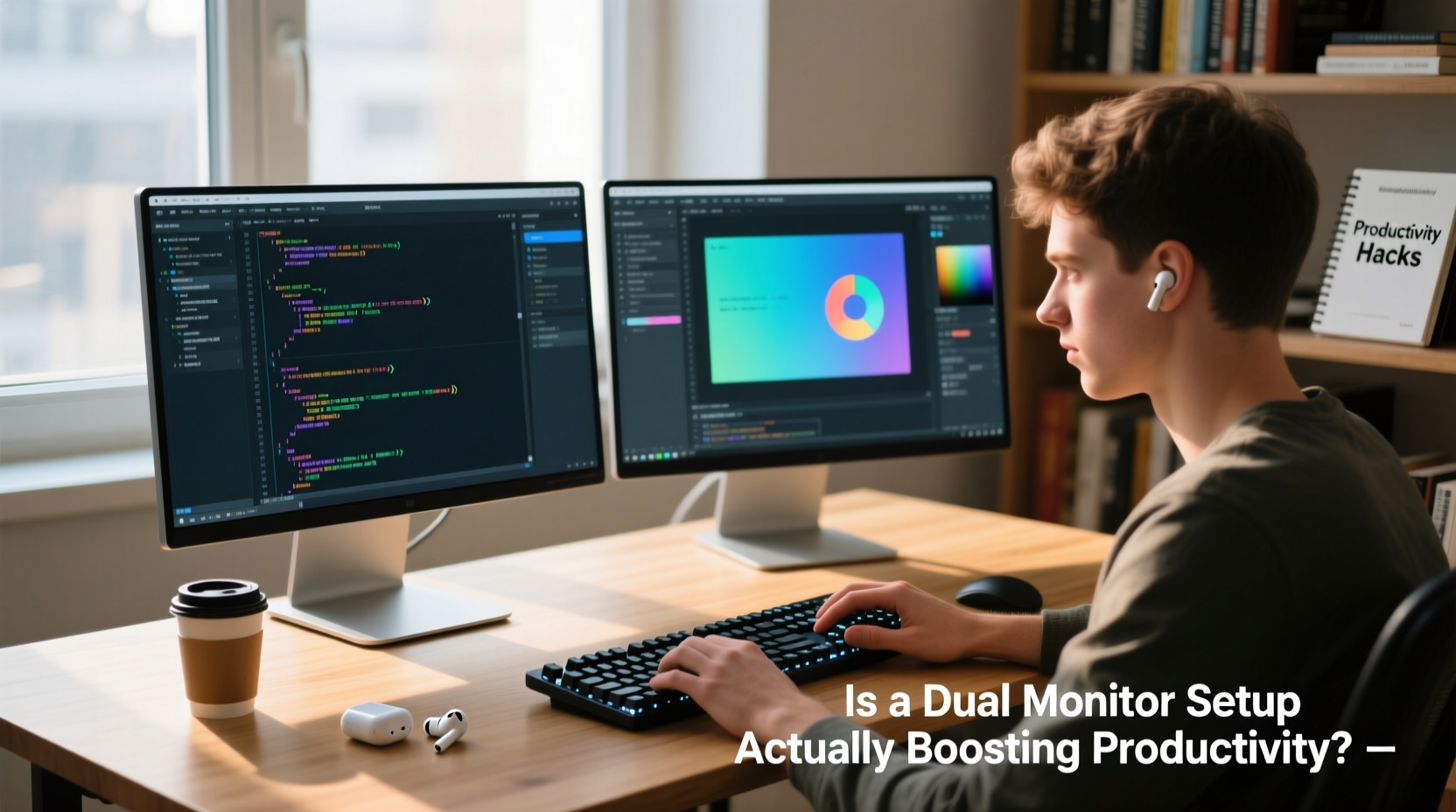
Multiple studies suggest that using two monitors can improve task performance. A 2008 study by the University of Utah, commissioned by NEC Displays, found that workers using dual monitors were up to 42% more productive in certain tasks involving data transfer and multitasking. More recent research from the Journal of Applied Psychology supports this, showing that extended desktops reduce time spent switching between applications, thereby decreasing cognitive load.
The logic is simple: more screen space allows you to keep essential tools visible without constant tab-switching. For example, a writer can have research open on one screen while drafting on the other; a programmer can view code on one monitor and documentation or debugging tools on the second. This spatial separation reduces mental clutter and streamlines workflow.
“Extending your workspace across two monitors reduces the friction of context switching—a major hidden cost in knowledge work.” — Dr. Linda Ray, Cognitive Ergonomics Researcher, MIT Human Performance Lab
However, these gains are not automatic. They require deliberate configuration and disciplined use. Simply plugging in a second monitor and dragging windows at random won’t unlock productivity miracles. The key lies in aligning the setup with your actual work patterns.
When Dual Monitors Deliver Real Value
Not all jobs benefit equally from multiple screens. The effectiveness of a dual monitor setup hinges on the nature of your daily tasks. Here’s where the investment typically pays off:
- Content creation: Video editors, graphic designers, and audio producers often need access to timelines, tool palettes, preview windows, and reference material simultaneously.
- Data analysis: Financial analysts, data scientists, and researchers frequently compare spreadsheets, dashboards, and reports across sources.
- Software development: Coders benefit from having code, terminals, API docs, and version control tools visible at once.
- Customer support & operations: Agents managing live chats, CRM systems, and knowledge bases can respond faster when information is always in view.
- Trading and finance: Real-time market data, charts, and order books demand constant visual monitoring.
Real Example: The Overwhelmed Marketer
Sophie, a digital marketing specialist, upgraded to a dual monitor setup hoping to streamline her campaign management. Initially, she placed her email client, Slack, Google Analytics, and three ad platforms across both screens. Instead of feeling more efficient, she reported higher stress and fatigue by midday. Her eyes darted constantly between notifications, and she often lost focus on core tasks.
After consulting with a workplace ergonomics coach, Sophie restructured her layout: one screen dedicated solely to campaign creation (active work), the other reserved for communication and analytics (passive monitoring). She also set app-specific rules—no notifications on the primary screen. Within two weeks, her self-reported focus improved by 60%, and she completed weekly reports 30% faster.
This case illustrates a crucial point: raw screen real estate doesn’t equal productivity. It’s the organization and intentionality behind its use that determines success.
When the Second Monitor Becomes Dead Weight
Despite the hype, many dual monitor users underutilize their second screen—or worse, let it hinder performance. Common pitfalls include:
- Using the second monitor only for music players or social media feeds
- Duplicating the same content instead of extending the desktop
- Cluttering both screens with too many open windows
- Failing to adjust resolution or scaling, causing eye strain
- Ignoring ergonomic alignment, leading to neck pain
In fact, a 2021 survey by FlexJobs found that 37% of remote workers with dual monitors admitted they rarely used the second screen for work-related tasks. For them, the second display served mainly as a status symbol or entertainment hub during breaks.
Moreover, cognitive science warns against excessive visual stimuli. The brain processes peripheral movement and color changes—even subconsciously—which can fragment attention. If your secondary screen hosts constantly updating dashboards, news tickers, or chat pop-ups, it may be costing you more in concentration than it returns in convenience.
Do’s and Don’ts of Dual Monitor Use
| Do | Don’t |
|---|---|
| Extend your desktop (not mirror) | Mirror displays unless presenting |
| Position monitors at eye level and within arm’s reach | Angle screens outward like wings without adjusting tilt |
| Use task-specific layouts (e.g., writing + research) | Leave unused apps open just because “space is available” |
| Leverage OS features like Snap Layouts (Windows) or Mission Control (macOS) | Manually resize and position every window daily |
| Turn off or dim the second screen when not needed | Assume more screens always mean better focus |
Optimizing Your Setup: A Step-by-Step Guide
Maximizing the value of a dual monitor system requires more than hardware—it demands strategy. Follow this sequence to ensure your investment translates into measurable gains:
- Assess your workflow: Track your screen usage for three days. Note how often you switch between apps, resize windows, or lose focus due to navigation delays.
- Define primary and secondary functions: Decide what belongs on each screen. Example: Screen 1 = active creation (writing, coding); Screen 2 = supporting tools (email, calendar, references).
- Configure display settings: Extend (not mirror) displays. Match resolution and scaling. Align virtual desktop positioning to match physical layout.
- Arrange monitors ergonomically: Place the main monitor directly in front of you. Angle the secondary monitor inward slightly (30-degree angle). Top of screens should be at or slightly below eye level.
- Implement software tools: Use window management apps like Divvy (macOS), PowerToys (Windows), or Magnet to save and recall layouts with shortcuts.
- Test and refine: After one week, evaluate: Are you completing tasks faster? Do you feel less fatigued? Adjust placements and roles accordingly.
Expert Insight: Beyond the Hype
While the tech industry promotes multi-monitor setups as essential for professionals, experts caution against one-size-fits-all thinking.
“The marginal gain from a second monitor diminishes quickly if the user lacks structured workflows. For some, a single high-resolution screen with effective virtual desktops is more productive than two poorly managed ones.” — Dr. Alan Park, HCI Specialist, Stanford Interaction Lab
Dr. Park emphasizes that interface design and user habits matter more than hardware alone. He points to the rise of ultrawide monitors and advanced tiling window managers as evidence that screen quantity isn’t the only path to efficiency.
Additionally, operating systems now offer robust virtual desktops and split-screen features that can simulate multi-monitor benefits on a single display. macOS Spaces and Windows Virtual Desktops allow users to segment tasks without physical duplication.
FAQ: Common Questions About Dual Monitor Setups
Does a dual monitor setup reduce eye strain?
It can—if configured properly. Spreading content across two screens reduces the need to squint at small, overlapping windows. However, mismatched brightness, glare, or poor positioning can increase strain. Ensure both monitors have similar color temperature and are free from reflections.
Can I use different-sized monitors together?
Yes, but with caveats. Mixing sizes (e.g., 24” and 27”) works best when the larger screen serves as the primary workspace. Be mindful of cursor jumps at edges and adjust display arrangement in system settings to reflect physical placement. Avoid extreme size differences (e.g., 19” and 32”) as they create awkward transitions.
Is a dual monitor setup worth it for casual users?
For most casual users—those checking email, browsing, or streaming—adding a second monitor offers minimal benefit. The complexity and cost often outweigh the gains. A single high-quality monitor with good multitasking features (like split-screen) is usually sufficient.
Checklist: Is Your Dual Monitor Setup Actually Working for You?
Before assuming your second monitor is boosting productivity, run through this checklist:
- ☑️ Do you actively use both screens for work tasks daily?
- ☑️ Is each monitor assigned a clear function (e.g., primary vs. secondary)?
- ☑️ Are windows organized efficiently, not just scattered due to available space?
- ☑️ Have you adjusted resolution, scaling, and orientation for comfort?
- ☑️ Is the physical setup ergonomic (height, angle, distance)?
- ☑️ Can you complete common tasks faster or with fewer interruptions than before?
- ☑️ Do you experience less frustration from app switching?
If fewer than five apply, your setup may need refinement—or reconsideration.
Conclusion: Space vs. Substance
A dual monitor setup isn’t inherently productive. It’s a tool—one that amplifies existing habits, for better or worse. When thoughtfully implemented, it can eliminate friction, reduce cognitive load, and accelerate complex workflows. But when adopted without purpose, it becomes digital clutter: two screens full of distractions, inefficiencies, and wasted potential.
The real question isn’t whether dual monitors boost productivity, but whether you’re using them to create space for focus—or just filling space with noise. Evaluate your needs honestly. Design your setup intentionally. And remember: productivity isn’t measured in pixels, but in progress.




 浙公网安备
33010002000092号
浙公网安备
33010002000092号 浙B2-20120091-4
Comments
No comments yet. Why don't you start the discussion?