
In today’s knowledge-driven work environment, efficiency isn’t just about working harder—it’s about working smarter. One of the most frequently debated tools in this pursuit is the dual monitor setup. While commonly associated with graphic designers, video editors, or financial analysts, many non-creative professionals wonder: does adding a second screen actually improve productivity? The answer isn't a simple yes or no—it depends on how you work, what tasks dominate your day, and how well you integrate the extra space into your workflow.
Research, user experiences, and ergonomic studies suggest that for many non-designers—writers, developers, customer support agents, project managers, and even students—a second monitor can significantly enhance focus, reduce task-switching fatigue, and streamline multitasking. But like any tool, its value is determined by usage, not ownership.
The Productivity Science Behind Dual Monitors
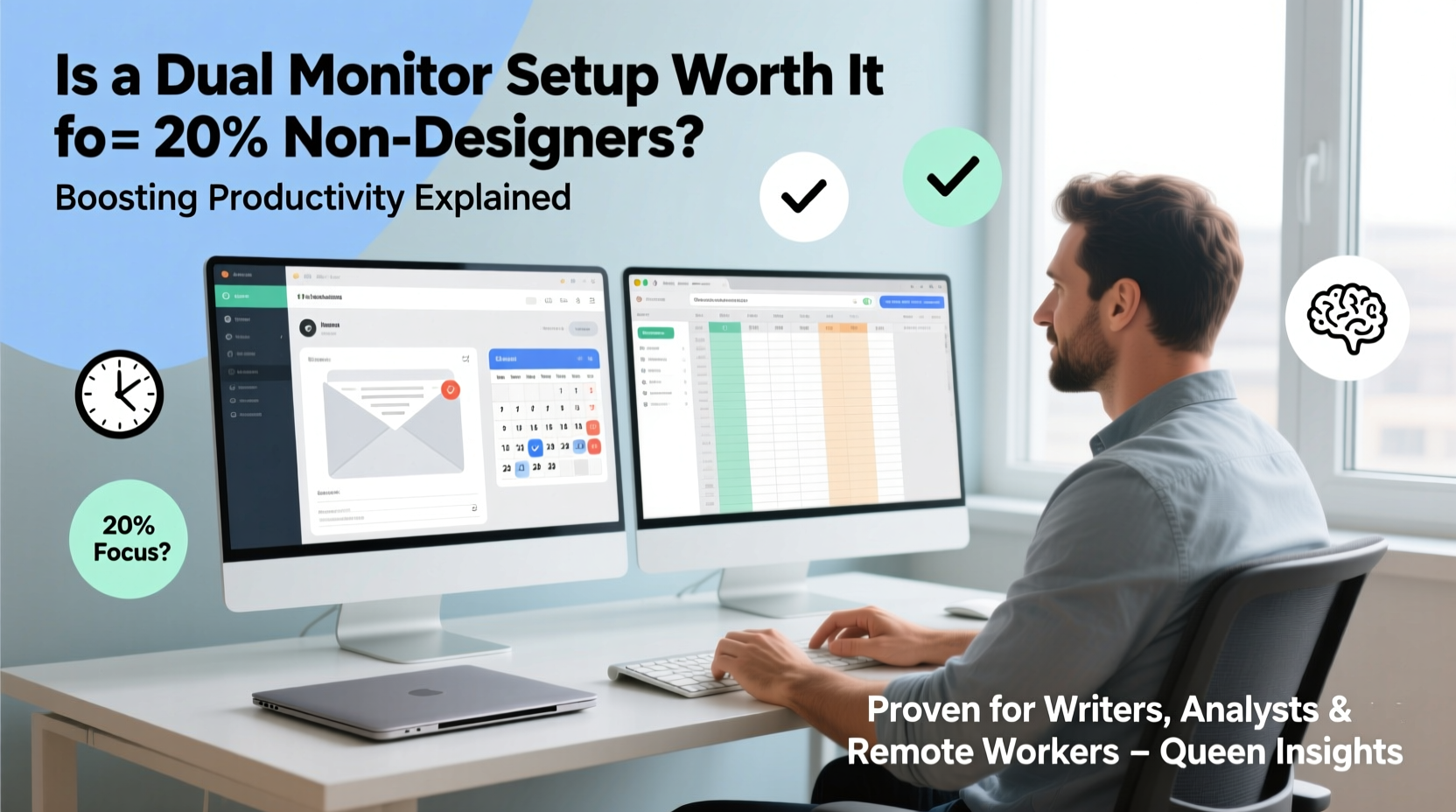
Multiple studies have explored the cognitive and practical benefits of extended desktop space. A landmark study by the University of Utah, commissioned by NEC Displays, found that users with dual monitors were up to 42% more productive when performing common office tasks such as copying and pasting between documents, managing spreadsheets, or comparing data across applications. Another report from the Journal of Applied Psychology noted that workers using two screens completed tasks an average of 20–30% faster than those using one.
The key lies in reducing context switching—the mental cost of toggling between windows. Every time you minimize a browser tab to check an email or alt-tab between a document and a reference source, your brain must reorient itself. This “attention residue” slows performance over time. With a second monitor, you can keep essential tools open side-by-side, minimizing interruptions and preserving flow.
“Adding a second screen reduces the cognitive load of task management. It’s like giving your brain extra RAM.” — Dr. Linda Nguyen, Cognitive Ergonomist at MIT Human Systems Lab
Real-World Applications for Non-Designers
For individuals outside creative fields, the advantages of dual monitors are often underappreciated. Below are several common professional roles where a second display delivers measurable improvements:
Software Developers & Programmers
Coders routinely juggle code editors, terminal windows, documentation, debugging tools, and version control systems. A dual monitor setup allows them to keep their IDE (Integrated Development Environment) on one screen while referencing API docs, running tests, or monitoring server logs on the other. This spatial separation reduces errors and accelerates development cycles.
Writers & Content Creators
Whether drafting articles, editing blog posts, or researching topics, writers benefit from having research materials open on one screen and their writing software on the other. No more flipping back and forth between tabs—everything stays visible. This setup supports deeper concentration and faster fact-checking.
Project Managers & Remote Team Leads
Managing timelines, responding to messages, tracking deliverables, and attending virtual meetings all demand attention. A second monitor enables project managers to keep their calendar, task board (like Trello or Asana), and communication platform (Slack, Teams) open simultaneously. During video calls, they can view meeting notes or presentation slides without leaving the conferencing window.
Customer Support & Service Representatives
Agents handling live chats or phone support often need access to CRM systems, knowledge bases, order histories, and ticketing platforms. A dual-screen configuration lets them maintain visibility across all these tools, reducing response time and improving accuracy.
Students & Researchers
Writing papers, analyzing sources, taking notes, and managing citations become far more efficient when each function has dedicated screen real estate. Imagine reading a journal article on one monitor while typing a literature review on the other—no constant scrolling or tab hunting required.
Setting Up Your Dual Monitor System for Maximum Impact
Simply plugging in a second monitor won’t guarantee productivity gains. To get real value, you need to configure your system thoughtfully. Here’s a step-by-step guide to optimizing your dual-display workspace:
- Choose the Right Monitors: Match resolution, size, and panel type if possible. Mismatched displays can cause eye strain and layout inconsistencies.
- Position for Ergonomics: Place both monitors at eye level, aligned horizontally. The center of the two screens should be directly in front of you. Avoid turning your head excessively to view either screen.
- Extend, Don’t Duplicate: In your display settings, select “Extend these displays” so each screen functions as part of a larger desktop.
- Assign Primary and Secondary Roles: Designate your main monitor for primary tasks (e.g., writing, coding) and the secondary for supporting apps (email, chat, references).
- Use Keyboard Shortcuts: Master shortcuts like Win + Left/Right Arrow (Windows) or Cmd + Option + Arrow (Mac) to move windows between screens instantly.
- Customize Taskbar & Dock Behavior: On Windows, enable “Show taskbar on all displays” for easier app switching. On Mac, consider third-party tools like Display Menu to manage spaces efficiently.
- Calibrate Brightness & Color: Ensure both monitors have similar brightness and color temperature to avoid visual discomfort during long sessions.
Common Setup Mistakes to Avoid
| Mistake | Why It Hurts Productivity | Solution |
|---|---|---|
| Placing monitors too far apart | Forces excessive head movement; breaks focus | Keep screens adjacent, bezels touching if possible |
| Duplicating displays instead of extending | No added workspace; defeats the purpose | Change display mode to “Extend” in system settings |
| Using mismatched resolutions | Causes cursor jumps and window scaling issues | Use identical or compatible resolutions (e.g., both 1080p) |
| Cluttering both screens with open windows | Increases visual noise and distraction | Adopt a minimalist approach—only keep essential apps visible |
| Ignoring cable management | Tangled cords create stress and reduce desk usability | Use clips, sleeves, or under-desk trays to organize cables |
Mini Case Study: From Single to Dual – A Project Manager’s Transformation
Sarah Thompson, a remote project manager at a mid-sized tech firm, spent months struggling with inefficiency. Her daily routine involved toggling between Jira, Google Calendar, Slack, Zoom, and Notion. She estimated losing nearly 45 minutes per day just navigating between apps. After receiving approval for a second monitor, she restructured her setup: her laptop screen hosted active tasks and video meetings, while the external monitor displayed her Kanban board, upcoming deadlines, and pinned team messages.
Within two weeks, Sarah reported a noticeable improvement in task completion speed and fewer missed updates. “I used to forget to check my backlog because it was buried in another tab,” she said. “Now I see it all day long. It’s like having a co-pilot.” Her manager observed a 17% increase in her sprint delivery rate over the next quarter—attributed largely to reduced cognitive friction.
When a Second Monitor Might *Not* Help
Despite the benefits, a dual monitor setup isn’t universally advantageous. Certain conditions can diminish or negate its effectiveness:
- Limited Desk Space: Cramped environments make proper monitor placement impossible, leading to neck strain and poor posture.
- Infrequent Multitasking: If your work involves deep, single-task focus (e.g., long-form writing or meditation-based coding), extra screen space may serve as a distraction rather than a help.
- Poor Software Habits: Without disciplined window management, dual monitors can become digital junk drawers—overflowing with unused tabs and forgotten applications.
- Budget Constraints: High-quality monitors, mounts, and adapters add cost. For some, the investment may not justify marginal gains.
The key is alignment between hardware and workflow. As productivity expert James Clear notes: “Tools don’t create habits. People do. A second monitor amplifies existing behaviors—good or bad.”
Checklist: Is a Dual Monitor Setup Right for You?
Before investing in a second screen, ask yourself the following:
- Do you regularly use multiple applications at once?
- If yes, dual monitors will likely save time.
- Do you spend more than 2 hours daily on screen-based tasks?
- Longer screen time increases the return on ergonomic investments.
- Can you dedicate physical space for a second display?
- You’ll need at least 20–24 inches of additional desk width.
- Are you willing to learn basic display management?
- Understanding window snapping, virtual desktops, and hotkeys is essential.
- Is your current computer capable of supporting dual output?
- Most modern laptops and desktops support dual monitors via HDMI, DisplayPort, or USB-C.
Frequently Asked Questions
Can I use a TV as a second monitor?
Yes, most modern smart TVs have HDMI inputs and can function as external displays. However, they often have higher input lag and lower pixel density than monitors, which may affect responsiveness and text clarity. Best suited for casual use or media playback, not precision work.
Does a dual monitor setup increase eye strain?
It can—if improperly configured. Ensure both monitors are at the same height, have matched brightness, and are free from glare. Take regular screen breaks using the 20-20-20 rule: every 20 minutes, look at something 20 feet away for 20 seconds.
Do I need two identical monitors?
Not strictly, but it helps. Matching size, resolution, and refresh rate creates a seamless experience. If mixing models, avoid drastic differences—e.g., pairing a 24-inch 1080p screen with a 27-inch 4K display can cause scaling issues and cursor jumps.
Conclusion: Make the Upgrade Work for You
A dual monitor setup isn’t magic—but it is a powerful enabler of productivity for non-designers who rely on digital workflows. The real benefit doesn’t come from simply owning two screens, but from designing a workspace that minimizes friction and maximizes focus. When implemented with intention, the second monitor becomes less of a gadget and more of a silent partner in your daily output.
If you’re tired of constantly minimizing windows, forgetting open tabs, or losing your train of thought during app switches, it may be time to expand your digital horizon. Start small: borrow a spare screen, test the layout, and observe how your workflow changes. The difference might surprise you.




 浙公网安备
33010002000092号
浙公网安备
33010002000092号 浙B2-20120091-4
Comments
No comments yet. Why don't you start the discussion?