
In an era where digital workspaces define productivity, the idea of adding a second monitor often feels like a luxury reserved for graphic designers, video editors, or financial analysts. But what about everyone else—remote workers, students, writers, customer support agents, or casual users? Is investing in a dual monitor setup genuinely beneficial, or is it simply tech overkill with diminishing returns?
The truth lies somewhere in the middle. While not every user will experience dramatic gains, a second screen can quietly transform how you interact with your digital environment. The key isn’t whether you're a designer—it’s how you work, what tasks dominate your day, and whether visual multitasking plays a role in your routine.
Why Screen Real Estate Matters Beyond Design
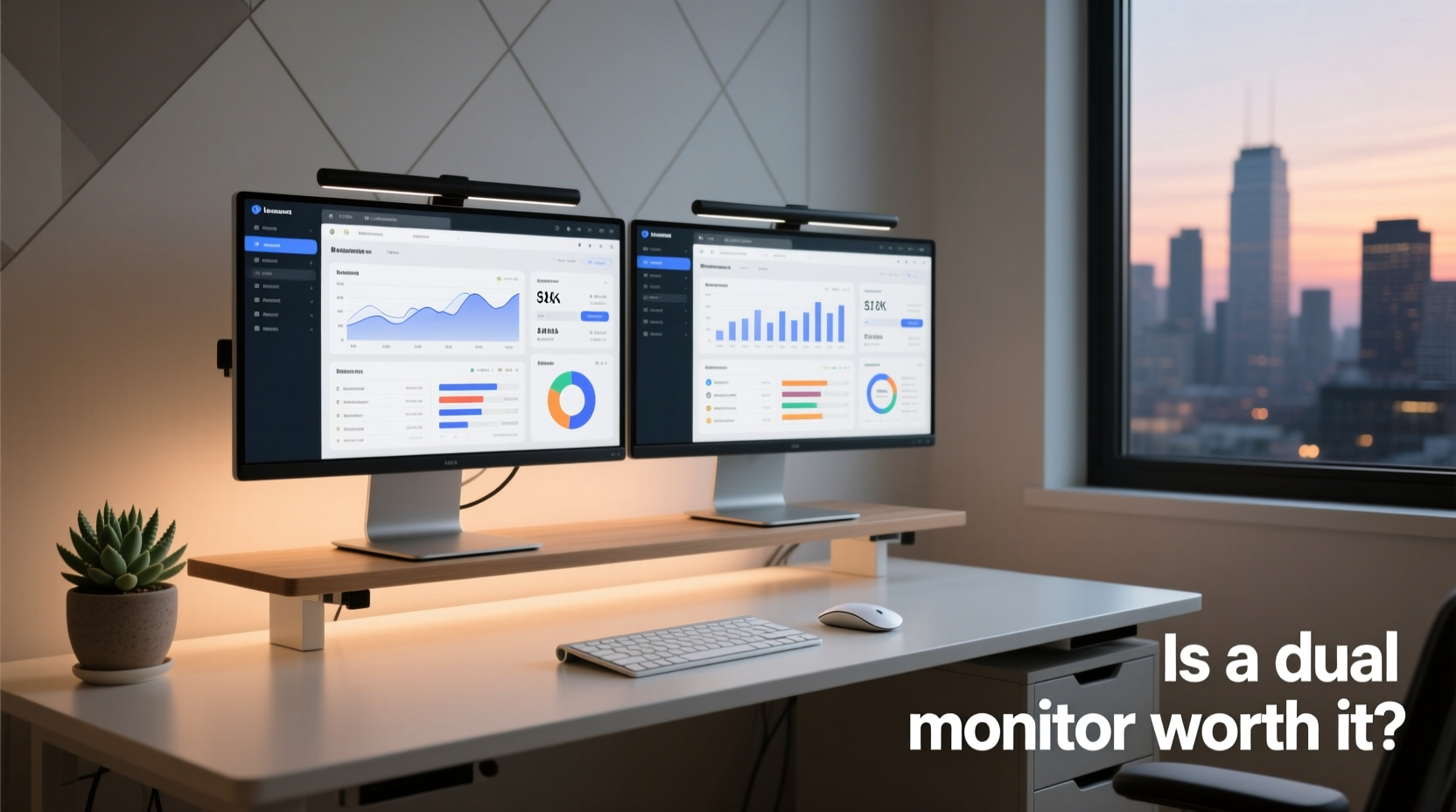
At its core, a dual monitor setup expands your workspace. This may sound trivial until you consider how much time is spent toggling between applications: checking email while writing a report, referencing documents during a call, or tracking messages while managing spreadsheets. Each switch costs cognitive effort and breaks flow.
Multiple monitors reduce context switching by allowing simultaneous visibility of different tools. A 2020 study by the University of Utah found that users with two monitors were up to 30% more productive in multitasking scenarios than those using a single display. Importantly, this boost wasn't limited to design or coding roles—it applied across office-based knowledge work.
Consider this: when you’re drafting a proposal, having research open on one side and your document on the other eliminates constant tab-hopping. That small reduction in friction accumulates over hours, leading to fewer distractions and improved focus.
Who Actually Benefits from Dual Monitors—And Who Doesn’t
Not all workflows benefit equally. Some roles gain significant advantages, while others see minimal change. Here’s a breakdown based on common non-design professions:
| Profession | Benefit Level | Typical Use Case |
|---|---|---|
| Remote Office Workers | High | Email + calendar on one screen; document editing or meetings on the other |
| Students & Researchers | High | E-books or notes on one screen; essay or presentation on the second |
| Customer Support Agents | Medium-High | Ticketing system on primary; knowledge base or chat on secondary |
| Writers & Editors | Medium | Draft on main screen; reference material or grammar tools on the side |
| Casual Browsers / Media Consumers | Low | Streaming video while browsing social media—possible but rarely essential |
| Data Entry Clerks | Medium | Source data on one screen; input form on the other reduces errors |
The pattern is clear: value increases with task complexity and reliance on multiple sources. If your job involves pulling information from several places at once, dual monitors help maintain continuity. Conversely, if you primarily use one application at a time, the investment may not justify the desk space.
Real-World Example: How a Teacher Doubled Her Planning Efficiency
Sarah, a high school English teacher based in Portland, used a single laptop screen for years. Her daily routine involved grading essays, preparing lesson plans, and coordinating with parents via email—all within tight deadlines. She described her workflow as “constantly minimizing and maximizing windows.”
After purchasing an affordable 24-inch monitor, she restructured her desktop: her grading platform stayed on the laptop, while the external monitor hosted her curriculum calendar, rubric templates, and student performance tracker. Within a week, she reported spending 40 minutes less per day on administrative tasks.
“We assume teaching is about classroom time, but so much happens behind the scenes,” Sarah said. “Having everything visible cut down on mental fatigue. I’m not losing my train of thought every time I switch apps.”
Her experience illustrates a broader principle: even in non-technical roles, reducing cognitive load through better spatial organization leads to tangible time savings.
Setting Up Smartly: A Step-by-Step Guide for Non-Designers
You don’t need advanced tech skills to benefit from dual monitors. Follow these steps to integrate a second screen effectively without unnecessary complexity.
- Assess Your Current Workflow: Track how many applications you use simultaneously over three workdays. Note frequent switches between tools (e.g., browser ↔ word processor).
- Choose the Right Monitor: For general use, a 22–24 inch Full HD (1920x1080) panel is sufficient. Prioritize IPS technology for better viewing angles and color accuracy—even if you’re not editing photos.
- Position Correctly: Place the secondary monitor to the left or right of your main screen at eye level. Avoid stacking unless you have a standing desk with vertical adjustment.
- Configure Display Settings: On Windows, press Win + P to extend your desktop. On macOS, go to System Settings > Displays > Arrange and drag icons to match physical layout.
- Assign Roles: Decide which screen handles static content (email, calendar) and which hosts dynamic work (writing, presentations). Stick to this layout consistently.
- Test for One Week: Use the setup daily before deciding. Initial discomfort often fades after adaptation.
Expert Insight: What Productivity Researchers Say
Dr. Linda Nguyen, a human-computer interaction researcher at MIT, has studied display usage across industries for over a decade. She emphasizes that screen count matters less than *how* information is organized spatially.
“The brain treats each monitor like a separate cognitive zone. When users assign consistent functions—such as communication on the left and creation on the right—they develop muscle memory and reduce decision fatigue. It’s not about having more screens; it’s about creating predictable digital environments.” — Dr. Linda Nguyen, MIT Human-Centered Systems Lab
This insight shifts the conversation from hardware to habit. A dual monitor setup only delivers value when paired with intentional workspace design. Simply duplicating your desktop or streaming YouTube on the second screen won’t yield gains.
Common Myths About Dual Monitor Setups
Several misconceptions deter people from trying a second monitor. Let’s address them directly:
- Myth: You need a powerful PC or Mac. Most modern laptops and desktops support at least one external display without issue. Integrated graphics handle basic multitasking fine.
- Myth: It’s too distracting. Distraction comes from misuse, not the hardware. Keep notifications off the secondary screen or use it solely for reference materials.
- Myth: Only useful for full-time desk jobs. Even part-time remote workers or students preparing exams benefit during peak workload periods.
- Myth: Takes up too much space. Modern slim bezel monitors fit well on most desks. Consider a VESA mount or articulating arm to save surface area.
Checklist: Is a Second Monitor Right for You?
Before buying, ask yourself the following questions. Check off each item that applies:
- Do you regularly use two or more applications at the same time?
- Do you find yourself frequently alt-tabbing or minimizing/maximizing windows?
- Does your work involve comparing or cross-referencing data (e.g., spreadsheets, articles, forms)?
- Are you working from home or in a fixed location where portability isn’t critical?
- Can you dedicate desk space for an additional monitor?
- Would reduced eye strain from larger text or better layout improve comfort?
If four or more apply, a dual monitor setup is likely worth exploring. If fewer than three resonate, stick with your current configuration—for now.
Frequently Asked Questions
Can I use a TV as a second monitor?
Yes, provided it has HDMI input and supports PC connectivity. However, TVs often have higher input lag and overscan issues, making them less ideal for text-heavy work. Use only if a dedicated monitor isn’t feasible.
Do I need identical monitors?
No. Mix sizes and resolutions, but expect minor alignment quirks when dragging windows across screens. Many users pair a 13” laptop with a 24” external monitor successfully.
Will a second monitor increase my electricity bill?
Minimal impact. A typical 24-inch LED monitor consumes about 20–30 watts. Running it eight hours daily adds roughly $3–$5 per month to energy costs, depending on local rates.
Final Thoughts: Practical Value Over Perceived Necessity
A dual monitor setup isn’t inherently “worth it” or “overkill.” Its value depends entirely on how you work. For non-designers immersed in multitasking, information synthesis, or long-form digital engagement, the upgrade pays dividends in efficiency, comfort, and mental clarity.
The real cost isn’t financial—it’s the willingness to restructure your digital habits. A second screen amplifies existing workflows; it doesn’t fix poor organization. But when used intentionally, it becomes less of a gadget and more of a silent productivity partner.
Technology should serve function, not trend. If your daily rhythm involves juggling digital pieces, giving yourself room to spread out isn’t excess. It’s smart ergonomics.




 浙公网安备
33010002000092号
浙公网安备
33010002000092号 浙B2-20120091-4
Comments
No comments yet. Why don't you start the discussion?