
In an age where digital multitasking is the norm, more people are considering expanding beyond a single screen. While dual monitors have long been associated with graphic designers, video editors, and coders, their relevance for everyday computer users—writers, students, remote workers, and even casual browsers—is increasingly debated. Is adding a second monitor a genuine productivity upgrade, or does it simply introduce visual noise and distraction? The answer depends on how you work, what tasks dominate your day, and whether your digital environment supports focused efficiency.
Far from being exclusive to creative professionals, a dual monitor setup can benefit anyone who regularly juggles multiple applications, references, or communication tools. But like any tool, its value isn’t inherent—it’s determined by usage. When implemented thoughtfully, a second screen reduces context switching, improves workflow continuity, and creates mental space. When misused, it becomes a playground for open tabs, half-finished documents, and digital disarray.
The Hidden Cost of Context Switching
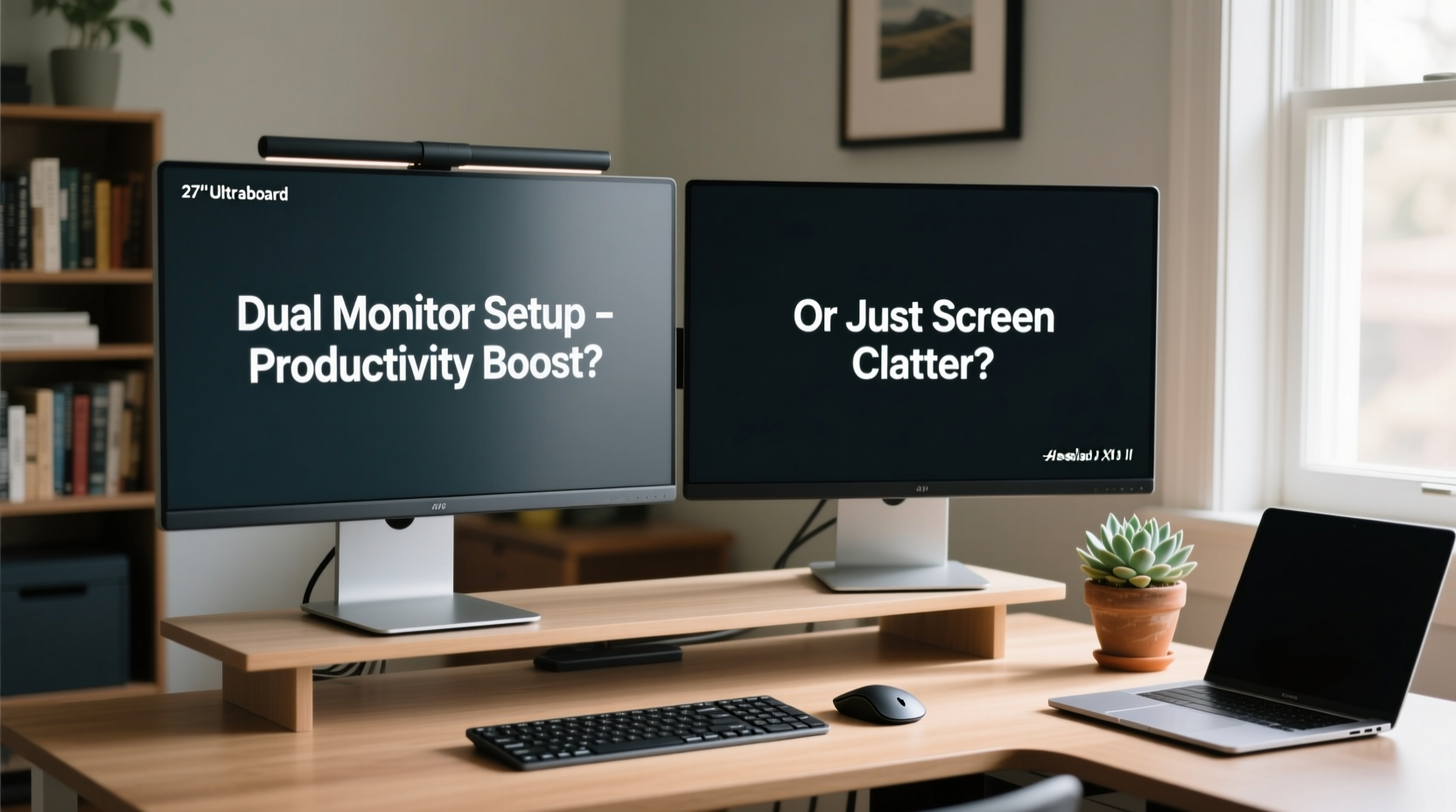
Every time you alt-tab between applications, your brain incurs a cognitive cost. Research from the American Psychological Association shows that task-switching can reduce productivity by as much as 40%, especially when the tasks require concentration. For example, toggling between an email client, a spreadsheet, and a web browser fragments attention and delays deep focus.
A second monitor mitigates this by allowing parallel visibility. Instead of minimizing one window to check another, both remain in view. This spatial memory—knowing where information lives on your desktop—reduces mental load and accelerates decision-making. A study conducted at the University of Utah found that participants using dual monitors completed tasks up to 32% faster than those using a single display.
Who Actually Benefits From Dual Monitors?
It’s easy to assume that only visually intensive professions gain from extra screen real estate. But many non-design roles involve constant data referencing, communication, and documentation—activities that thrive with expanded workspace.
- Remote Workers: Managing Zoom calls while tracking project timelines in a separate window prevents missed updates.
- Students: Writing a paper while viewing lecture notes or research articles side-by-side reduces copy-paste fatigue.
- Administrative Staff: Processing invoices across accounting software and PDFs without losing place improves accuracy.
- Writers & Researchers: Keeping source material visible while drafting maintains flow and minimizes fact-checking interruptions.
- Online Traders: Monitoring live market data alongside trading platforms enables quicker decisions.
Even casual users benefit. Watching a tutorial on one screen while practicing the steps on the other eliminates back-and-forth navigation. The key is intentionality—not just having two screens, but assigning them distinct roles.
“Dual monitors aren’t about doing more; they’re about reducing friction in how we already work.” — Dr. Linda Nguyen, Cognitive Ergonomics Researcher, MIT Media Lab
Dual Monitor Setup: Do’s and Don’ts
Simply attaching a second monitor doesn’t guarantee improved performance. Poor configuration can lead to neck strain, inefficient layouts, or digital clutter. Below is a comparison of best practices versus common pitfalls.
| Do’s | Don’ts |
|---|---|
| Align monitors at eye level to prevent neck strain | Mismatch monitor sizes or resolutions without calibration |
| Use monitor arms for ergonomic positioning | Place the secondary monitor too far to the side, requiring full head turns |
| Assign functional roles (e.g., primary = work, secondary = comms) | Fill both screens with unrelated apps and notifications |
| Match brightness and color profiles for visual consistency | Leave default settings that create jarring contrast between screens |
| Use OS features like Snap Layouts (Windows) or Mission Control (macOS) | Ignore built-in window management tools that optimize multi-screen use |
Real-World Example: A Freelance Writer’s Workflow
Consider Maria, a freelance content writer working from home. Her typical day involves researching topics, drafting articles, communicating with editors via Slack, and checking emails. On a single monitor, she spends significant time minimizing her word processor to verify facts or respond to messages—each switch breaking her concentration.
After setting up a dual monitor system, she placed her research materials, reference documents, and communication apps on the right screen. Her left monitor remained dedicated to writing. Within a week, she reported a noticeable reduction in editing time and fewer instances of losing her train of thought. More importantly, she felt less mentally fatigued at the end of the day.
She didn’t increase her workload—she reduced the effort required to manage it. This is the essence of effective dual-monitor use: not doing more, but doing it with less resistance.
Step-by-Step Guide to Setting Up Your Dual Monitor System
Setting up a second monitor doesn’t need technical expertise. Follow these steps to ensure a smooth, productive experience.
- Check Compatibility: Ensure your laptop or desktop has the necessary ports (HDMI, DisplayPort, USB-C) and GPU support for dual displays.
- Choose the Right Monitor: Match size (24” is ideal for most), resolution (1080p minimum), and panel type (IPS for better viewing angles).
- Position for Ergonomics: Place the primary monitor directly in front of you. The secondary should be adjacent, angled slightly inward. Top of both screens should align with eye level.
- Connect and Detect: Plug in the monitor and use your operating system’s display settings (e.g., Windows Display Settings or macOS Displays) to detect and arrange screens.
- Configure Display Mode: Select “Extend” mode instead of “Duplicate” to expand your desktop across both screens.
- Customize Layout: Drag windows to assign permanent zones. Use snapping features to lock apps into quadrants.
- Adjust Visual Settings: Calibrate brightness, contrast, and color temperature so both screens feel consistent.
- Test and Refine: Spend a day using the setup, then adjust based on comfort and efficiency.
When Dual Monitors Become Clutter
Not every user will benefit. For some, a second monitor amplifies distraction rather than reducing it. If your work is linear—reading, writing long-form content, or focused coding—a split view may fragment attention instead of supporting it.
The risk lies in treating the second screen as a dumping ground. Opening ten browser tabs, leaving social media feeds running, and keeping notifications active across both displays defeats the purpose. Without discipline, dual monitors enable digital hoarding.
The difference between utility and clutter comes down to structure. Ask yourself: Does my second screen serve a defined function? Or am I just spreading out because I can?
Checklist: Is a Dual Monitor Setup Right for You?
Before investing in hardware, evaluate your needs with this checklist.
- ✅ Do you frequently switch between two or more applications?
- ✅ Do you reference documents, spreadsheets, or websites while creating content?
- ✅ Do you attend video calls while needing access to notes or files?
- ✅ Do you feel constrained by your current screen space?
- ✅ Can you commit to organizing each screen with a specific role?
- ❌ Do you primarily consume media or perform single-task activities?
- ❌ Are you prone to leaving unused apps and tabs open indefinitely?
If most answers are “yes” to the first five and “no” to the last two, a dual monitor setup is likely worth exploring.
FAQ
Can I use a TV as a second monitor?
Yes, if it has HDMI input and you’re okay with potential lag or lower text clarity. However, TVs are optimized for video, not desktop use—their overscan and refresh behavior can make reading text uncomfortable over time. A dedicated computer monitor is preferable for productivity.
Does a dual monitor setup increase eye strain?
Not inherently. Eye strain usually results from poor ergonomics—improper height, glare, or mismatched brightness. Position both screens at eye level, reduce reflections, and take regular breaks using the 20-20-20 rule (every 20 minutes, look at something 20 feet away for 20 seconds).
Do I need two identical monitors?
No, but matching resolution and size simplifies workflow. Mismatched monitors can cause window scaling issues and visual imbalance. If buying new, aim for consistency. If repurposing, calibrate display settings carefully.
Conclusion: Beyond the Designer Myth
The idea that dual monitors are only for designers is outdated. In today’s hybrid work landscape, cognitive efficiency matters more than job title. Whether you're managing emails, analyzing data, studying, or writing reports, the ability to see more without switching pays dividends in focus, speed, and mental endurance.
But technology alone doesn’t solve problems—how you use it does. A second screen is not a magic boost. It’s a canvas for better workflow design. When paired with intentional organization, ergonomic setup, and clear purpose, it transforms from screen clutter into a silent productivity partner.




 浙公网安备
33010002000092号
浙公网安备
33010002000092号 浙B2-20120091-4
Comments
No comments yet. Why don't you start the discussion?