
Working from home has redefined how we interact with our digital environments. As more people transition to remote or hybrid work models, the tools we use daily—especially our screens—have come under scrutiny. One of the most debated upgrades is the shift from a single to a dual monitor setup. While it may seem like a luxury reserved for gamers or video editors, mounting a second display can significantly impact everyday efficiency, focus, and workflow fluidity. But is it truly worth the investment for the average remote worker?
The answer, supported by both empirical research and anecdotal evidence, leans strongly toward yes—provided the setup aligns with your tasks and workspace constraints. This article explores the tangible benefits, potential drawbacks, cost considerations, and real-world applications of using two monitors at home. Whether you're a writer, developer, marketer, or managing personal finances, understanding how a dual-screen environment affects performance can help you make an informed decision.
Productivity Gains: What Research Says
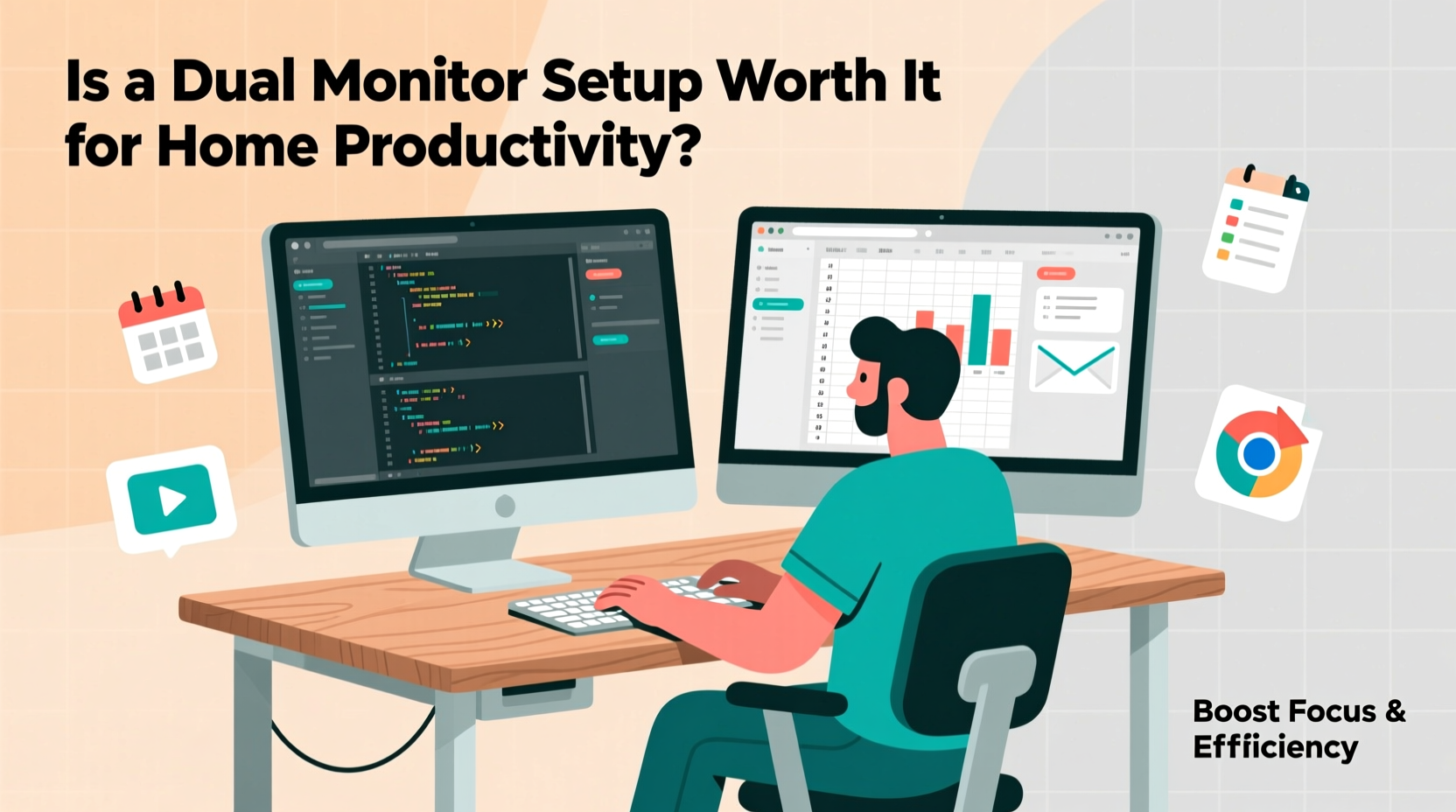
Multiple studies have examined the relationship between screen real estate and task efficiency. A landmark study conducted by the University of Utah and funded by NEC Display Solutions found that users with dual monitors were 30% faster at completing common office tasks such as copying and pasting data, dragging files across windows, and comparing information between documents. The same study reported a 42% improvement in multi-application workflows.
These findings are echoed in workplace observations. According to a report by Jon Peddie Research, professionals who use dual monitors save an average of 2.5 hours per week due to reduced window-switching and minimized cognitive load. That translates to over 130 extra productive hours annually—equivalent to nearly a full month of work.
The core advantage lies in spatial memory and visual continuity. When your email client, calendar, reference document, and main project all reside on separate screens, your brain doesn’t need to reload context each time you switch tabs. This reduction in mental friction allows for smoother transitions between tasks and deeper concentration during focused work.
“Adding a second monitor is one of the highest ROI investments you can make for knowledge workers. It’s not about resolution—it’s about real estate.” — Dr. Gloria Mark, Professor of Informatics, UC Irvine
Real-World Use Cases and Workflow Benefits
Different professions benefit from dual monitors in distinct ways. Below are three realistic scenarios illustrating how a second screen enhances productivity across common remote work roles:
Case Study: Content Writer Managing Multiple Projects
Sarah, a freelance copywriter based in Portland, used to juggle client briefs, SEO tools, grammar checkers, and publishing platforms on a single 13-inch laptop screen. After connecting a second 24-inch monitor, she dedicated her primary screen to drafting articles and placed research materials, style guides, and communication apps (Slack, email) on the secondary display.
The result? She reduced revision cycles by 40%, improved turnaround time on drafts, and reported fewer instances of missing client instructions buried in long email threads. By eliminating constant tab switching, Sarah maintained better flow during writing sessions and experienced less post-work fatigue.
Software Developer Debugging Across Environments
Mark, a backend engineer, runs code on one screen while monitoring logs, database queries, and version control diffs on the other. His IDE occupies the left monitor; the right displays terminal outputs, API documentation, and team chat. This split enables him to spot errors in real time without losing his place in the codebase.
Before the dual setup, he frequently missed subtle bugs because he had to toggle between windows. Now, simultaneous visibility into execution results and source code has cut debugging time by nearly half, according to internal sprint reviews.
Financial Analyst Comparing Data Sets
Linda uses Excel models on one screen and pulls live market data feeds, PDF reports, and Bloomberg terminals on the other. Being able to drag values between spreadsheets without minimizing or resizing windows has streamlined her monthly reporting process. She estimates saving at least six hours per reporting cycle thanks to side-by-side comparison capabilities.
Cost vs. Value: Is the Investment Justified?
A common objection to adopting a dual monitor system is cost. However, prices for functional secondary displays have dropped dramatically in recent years. You don’t need top-tier specs to gain productivity benefits—a basic 24-inch Full HD (1920x1080) monitor typically ranges from $100 to $180. Many users even repurpose older laptops as secondary displays using software like SpaceDesk or Duet Display.
When evaluating return on investment, consider opportunity cost. If a $150 monitor saves you just one hour per week, and your time is valued at $30/hour, the device pays for itself in five weeks. Beyond monetary value, reduced frustration, improved accuracy, and enhanced job satisfaction contribute to long-term well-being.
It's also worth noting that modern GPUs—both integrated and discrete—routinely support multiple displays out of the box. Most laptops and desktops have HDMI, DisplayPort, or USB-C outputs capable of driving a second screen with minimal configuration.
Setting Up Your Dual Monitor System: A Step-by-Step Guide
Implementing a dual monitor setup doesn't require technical expertise. Follow these steps to get started efficiently:
- Assess your hardware compatibility: Check if your computer has available video outputs (HDMI, DisplayPort, USB-C). Most modern machines support at least one external display.
- Select a suitable secondary monitor: Match resolution where possible, but prioritize size and ergonomics. A 22–27 inch screen is ideal for general productivity.
- Connect the monitor: Use appropriate cables to link the display to your computer. Power on both devices.
- Configure display settings: On Windows, press Win + P to choose \"Extend\" mode. On macOS, go to System Settings > Displays and arrange the screens logically.
- Optimize screen layout: Drag the on-screen representations so they match your physical desk arrangement. This ensures smooth mouse movement between screens.
- Customize taskbar and dock behavior: Enable features like “Show taskbar on all displays” (Windows) or use Stage Manager (macOS) to manage app placement.
- Test and refine: Open your most-used applications and assign them to fixed positions. Adjust brightness and orientation for visual harmony.
For best results, position both monitors at arm’s length, with the top of the screens at or slightly below eye level. Avoid stacking one high above the other unless using vertical orientation for coding or long documents.
Do’s and Don’ts of Dual Monitor Usage
| Do’s | Don’ts |
|---|---|
| Use extended mode instead of mirrored displays | Mirror screens unless presenting |
| Align monitor heights and angles to reduce neck strain | Place one screen much higher or lower than the other |
| Assign specific functions to each screen (e.g., comms vs. creation) | Clutter both screens with too many open windows |
| Take advantage of OS shortcuts (e.g., Win+Left/Right to snap windows) | Ignore built-in window management tools |
| Turn off the secondary screen when not needed to minimize distraction | Leave social media or notifications active on both displays |
Frequently Asked Questions
Can I use a TV as a second monitor?
Yes, most modern smart TVs have HDMI inputs and can function as computer displays. However, input lag and lower refresh rates may affect responsiveness. For productivity tasks like document editing or browsing, this isn’t usually an issue. Just ensure the TV is set to “PC” or “Game Mode” to minimize delay.
Does a dual monitor setup increase eye strain?
Not inherently. In fact, reducing the need to resize, scroll, or constantly refocus on small windows can decrease visual fatigue. However, mismatched brightness levels, glare, or poor positioning can contribute to discomfort. Use ambient lighting and anti-glare settings to maintain consistent viewing conditions.
What if my laptop only has one port?
You can use a USB-to-HDMI or USB-C docking station to add multiple video outputs. Many affordable adapters support dual external displays via a single connection. Verify compatibility with your operating system before purchasing.
Maximizing the Setup: Tips for Sustained Efficiency
To fully leverage a dual monitor configuration, integrate it into your daily habits strategically:
- Create screen zones: Designate one monitor for active creation (writing, designing, coding) and the other for passive reference (email, chat, calendars).
- Leverage virtual desktops: Combine multiple monitors with OS-level virtual desktops (like Mission Control on Mac or Task View on Windows) to compartmentalize projects.
- Go vertical when needed: Rotate one monitor to portrait mode for reading long documents, reviewing code, or scrolling through timelines and analytics dashboards.
- Automate window placement: Use third-party tools like DisplayFusion (Windows) or Moom (macOS) to define rules for how apps open across screens.
- Minimize distractions: Keep entertainment, news, or social media off your secondary screen during deep work sessions.
Conclusion: A Small Change with Outsize Impact
A dual monitor setup is more than a convenience—it’s a strategic enhancement to how you process information and manage attention. For home-based professionals, students, or anyone engaged in knowledge-intensive tasks, the ability to see more at once reduces interruptions, accelerates decision-making, and supports sustained focus.
The initial cost is modest, the learning curve is shallow, and the long-term gains in efficiency and comfort are well-documented. While not every user will experience identical improvements, the overwhelming consensus among researchers, ergonomics experts, and real-world practitioners confirms that adding a second screen delivers measurable value.
If you're serious about optimizing your home workspace, consider a dual monitor configuration not as a luxury, but as a foundational upgrade—one that pays dividends in time saved, errors avoided, and energy preserved. Start small, test the arrangement, and refine it to fit your unique workflow. The difference might surprise you.




 浙公网安备
33010002000092号
浙公网安备
33010002000092号 浙B2-20120091-4
Comments
No comments yet. Why don't you start the discussion?