
In today’s digital-first work environment, remote professionals and multitaskers are constantly seeking tools that enhance efficiency without sacrificing comfort or budget. One upgrade that consistently surfaces in productivity discussions is the addition of a second monitor. While laptops have become increasingly powerful, their single-screen limitation can hinder workflow fluidity—especially when juggling video calls, spreadsheets, messaging apps, and research tabs. But is investing in a second display truly worthwhile? For many, the answer isn’t just yes—it’s transformative.
The decision hinges on more than screen real estate; it's about cognitive load, task management, and long-term work sustainability. Adding a second monitor doesn't automatically make you more productive, but when used strategically, it can significantly reduce mental fatigue, minimize context switching, and streamline complex workflows.
How Dual Monitors Improve Work Efficiency
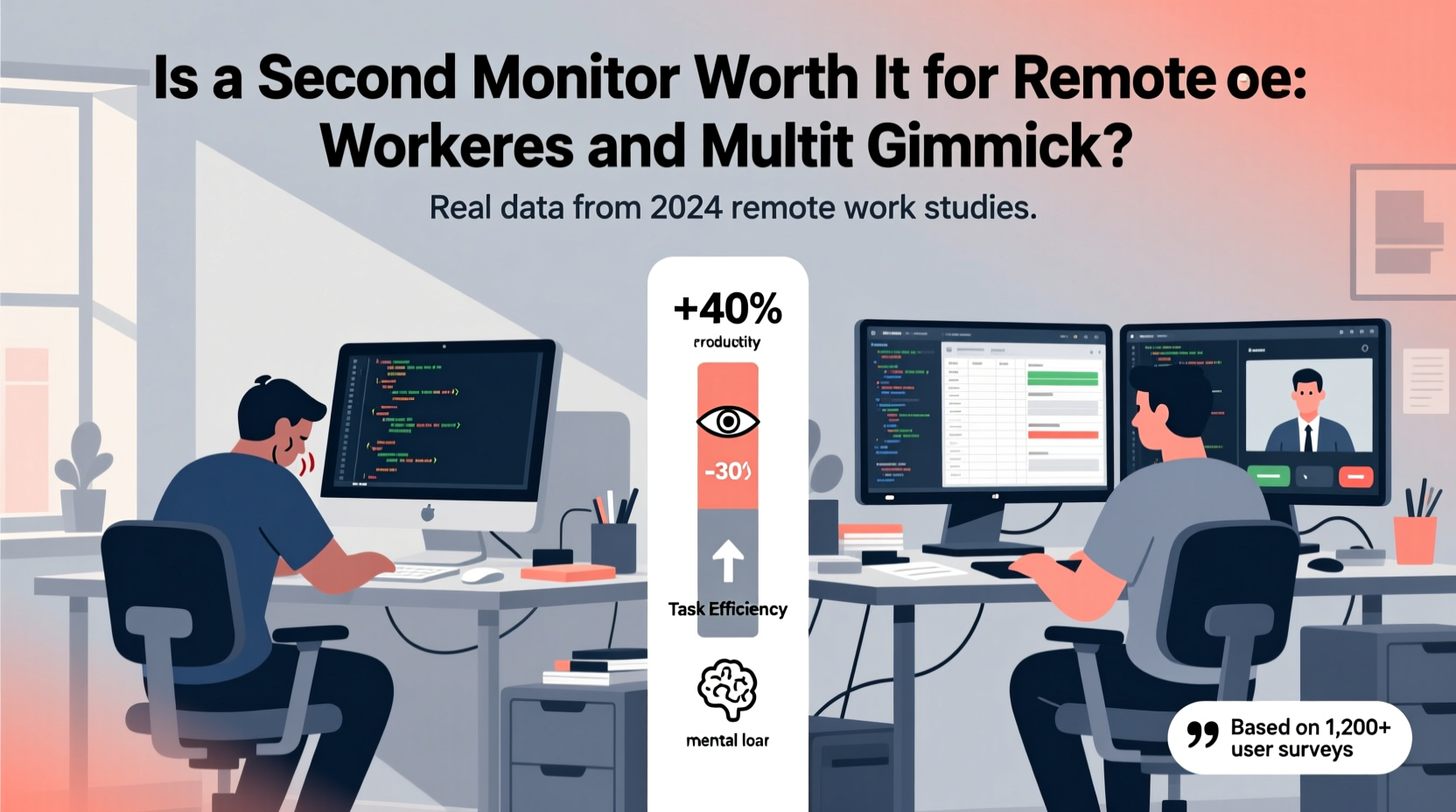
Human attention is finite. Every time you alt-tab between applications, your brain must reorient itself—a process known as \"context switching.\" Studies from the University of California, Irvine suggest that it takes an average of 23 minutes to fully regain focus after an interruption. A dual-monitor setup reduces these disruptions by allowing simultaneous visibility of multiple tools.
Consider a typical remote worker managing a Zoom call while taking notes, referencing a document, and monitoring Slack messages. On a single screen, this requires constant window toggling. With two monitors, the video call can stay open on one side, while documents, chat, and email occupy the other. This spatial separation mimics how we organize physical desks—keeping related items grouped and accessible.
Research published in the journal *Computers in Human Behavior* found that users with dual monitors completed tasks up to 44% faster than those using a single display. The improvement was most pronounced in data-intensive roles such as programming, financial analysis, and graphic design, where cross-referencing is routine.
Real-World Use Cases: Who Benefits Most?
Not all remote workers gain equal value from a second screen. The return on investment depends heavily on job function, daily tasks, and personal workflow preferences.
Software Developers
Coders frequently need to view source code, documentation, terminal outputs, and debugging tools simultaneously. A second monitor allows them to keep their IDE (Integrated Development Environment) on one screen and reference materials or test environments on the other. This eliminates the need to resize windows or rely on split-screen modes that often feel cramped.
Financial Analysts & Data Scientists
These professionals regularly analyze large datasets across multiple spreadsheets or dashboards. Viewing a pivot table alongside raw data or comparing quarterly reports becomes seamless with extended desktop space. According to a survey by Jon Peddie Research, 78% of analysts reported improved accuracy in data interpretation when using dual monitors.
Digital Marketers & Content Creators
Managing social media calendars, editing copy, reviewing analytics, and coordinating with teams across platforms demands constant app switching. A second monitor enables side-by-side operation of tools like Google Analytics, Canva, Trello, and email clients—dramatically reducing navigation friction.
Customer Support & Project Managers
For those handling live chats, CRM systems, and project timelines, having communication tools on one screen and case details on another prevents missed updates and improves response quality. Real-time collaboration feels less chaotic when each component has its dedicated space.
“Adding a second monitor was the single most impactful hardware upgrade I made to my home office. My meeting prep time dropped by nearly half.” — Sarah Lin, Remote Product Manager
Cost vs. Benefit Analysis
Before purchasing additional equipment, it’s essential to weigh upfront costs against long-term gains. A basic 24-inch Full HD monitor typically ranges from $100 to $200. Higher-end models with better color accuracy, resolution, or ergonomic features may cost $300–$500. Factor in potential accessories like monitor stands or HDMI cables, and total investment rarely exceeds $600—even for premium setups.
Compare this to lost productivity. If a remote worker spends 20 minutes per day navigating cluttered windows, that accumulates to over 80 hours annually—nearly two full workweeks. Even at modest hourly rates, the financial opportunity cost far outweighs the price of a second monitor.
Moreover, dual monitors contribute to reduced digital fatigue. A study by the National Institute for Occupational Safety and Health (NIOSH) linked prolonged screen crowding with increased eye strain and mental exhaustion. By spreading out visual elements, users report feeling less overwhelmed at the end of the workday.
| Factor | Single Monitor | Dual Monitor |
|---|---|---|
| Avg. Task Switching Time | ~18 seconds per switch | ~6 seconds per switch |
| Daily Context Switches | 120+ | 60–80 |
| Estimated Annual Productivity Loss | 75–100 hours | 30–50 hours |
| Upfront Cost | $0 (existing setup) | $100–$600 |
| User Satisfaction (Survey-Based) | 62% | 89% |
Setting Up Your Dual-Monitor System: A Step-by-Step Guide
Getting started with dual monitors is simpler than many assume. Follow this sequence to ensure optimal configuration:
- Assess Your Laptop/PC Output: Check available ports (HDMI, DisplayPort, USB-C). Most modern devices support external displays out of the box.
- Select the Right Monitor: Match resolution with your primary screen if possible. For general office work, 1920x1080 (Full HD) is sufficient. Creative professionals may prefer 2560x1440 or 4K.
- Connect the Monitor: Use the appropriate cable. Plug in power and connect to your computer. Windows and macOS usually detect the new display automatically.
- Configure Display Settings:
- On Windows: Right-click desktop → Display settings → Arrange displays visually → Choose “Extend these displays.”
- On macOS: System Settings → Displays → Arrangement → Drag screens to match physical layout.
- Optimize Layout: Designate your main monitor for primary tasks (e.g., writing, coding), and use the secondary for supporting apps (email, calendar, music).
- Test Workflow Patterns: Spend a few days experimenting. Move different applications between screens to find what reduces friction.
- Adjust Ergonomics: Ensure both monitors are at eye level, angled slightly inward, and positioned about an arm’s length away.
Common Pitfalls and How to Avoid Them
While dual monitors offer clear advantages, improper use can negate benefits or even harm productivity.
- Overloading the Second Screen: Turning the secondary monitor into a cluttered dashboard defeats the purpose. Keep it focused—use it for one or two key functions, not ten.
- Misaligned Physical Setup: Monitors placed too high, too low, or at awkward angles cause neck and shoulder strain. Invest in adjustable arms if needed.
- Ignoring Software Tools: Many overlook built-in OS features like virtual desktops or window managers. Combine these with dual monitors for even greater control.
- Using Mismatched Resolutions: Drastic differences in DPI or scaling can make dragging windows between screens jarring. Aim for consistency where possible.
Mini Case Study: From Overwhelmed to Organized
Jamal, a freelance copywriter based in Austin, spent months struggling with deadline pressure despite working long hours. His workflow involved researching articles on one browser tab, drafting in Google Docs, responding to client emails, and tracking invoices—all on a 13-inch MacBook Air. He described his experience as “constantly digging through layers of windows.”
After investing $180 in a 24-inch IPS monitor, he restructured his workspace: research stayed on the laptop, while writing and email lived on the external screen. Within a week, he noticed fewer typos, faster turnaround times, and reduced stress. “It’s like I finally have breathing room,” he said. “I’m not just surviving my to-do list—I’m staying ahead of it.”
Frequently Asked Questions
Can I use a TV as a second monitor?
Yes, most modern smart TVs have HDMI inputs and can function as extended displays. However, input lag and lower refresh rates may affect responsiveness. Additionally, TVs are often larger and farther from the desk, which can disrupt ergonomics. Best suited for casual use or presentations.
Do I need a powerful computer to run two monitors?
For standard office tasks (web browsing, word processing, video calls), integrated graphics on most laptops and desktops handle dual monitors effortlessly. Only demanding applications like 4K video editing or 3D rendering require dedicated GPUs. If your system supports external output, it likely supports extension.
Is a ultrawide monitor a better alternative?
An ultrawide (e.g., 29” or 34”) can replace dual monitors by offering expansive horizontal space. It eliminates the bezel gap and simplifies cabling. However, some users miss the physical separation of tasks. Ultrawides also tend to be more expensive. Try both setups if possible—many find dual 24” monitors provide superior flexibility.
Final Checklist Before Buying
Before making your purchase, confirm the following:
- ✅ Your computer has a compatible video output (HDMI, DisplayPort, USB-C/Thunderbolt)
- ✅ You have adequate desk space (minimum 48 inches recommended for two 24” monitors)
- ✅ The monitor resolution matches or complements your primary screen
- ✅ You’ve considered ergonomics (height, tilt, viewing distance)
- ✅ You plan to use the second screen intentionally—not just as extra space for distractions
Conclusion: A Small Investment with Lasting Returns
A second monitor isn’t a luxury reserved for tech enthusiasts or corporate offices. For remote workers and multitaskers, it’s a practical tool that aligns with how modern knowledge work actually happens—across multiple streams of information, requiring rapid yet accurate coordination. The initial cost is minimal compared to the cumulative gains in speed, accuracy, and mental well-being.
Whether you're analyzing data, managing projects, or creating content, the ability to see more at once translates directly into doing more with less effort. Like upgrading from a notepad to a spreadsheet, the shift may seem subtle at first, but its impact compounds over time.




 浙公网安备
33010002000092号
浙公网安备
33010002000092号 浙B2-20120091-4
Comments
No comments yet. Why don't you start the discussion?