
In today’s digital landscape, where multitasking is no longer optional but essential, professionals, streamers, and hybrid workers are constantly seeking ways to improve efficiency. One upgrade that frequently comes up is adding a second monitor. But is it truly worth the investment—especially when juggling live streaming, content creation, communication, and background tasks? The answer isn’t a simple yes or no; it depends on how you work, what tools you use, and your long-term goals. This article breaks down the real benefits, trade-offs, and practical applications of dual-monitor setups specifically for streaming and multitasking.
Why Multitasking Demands More Than One Screen
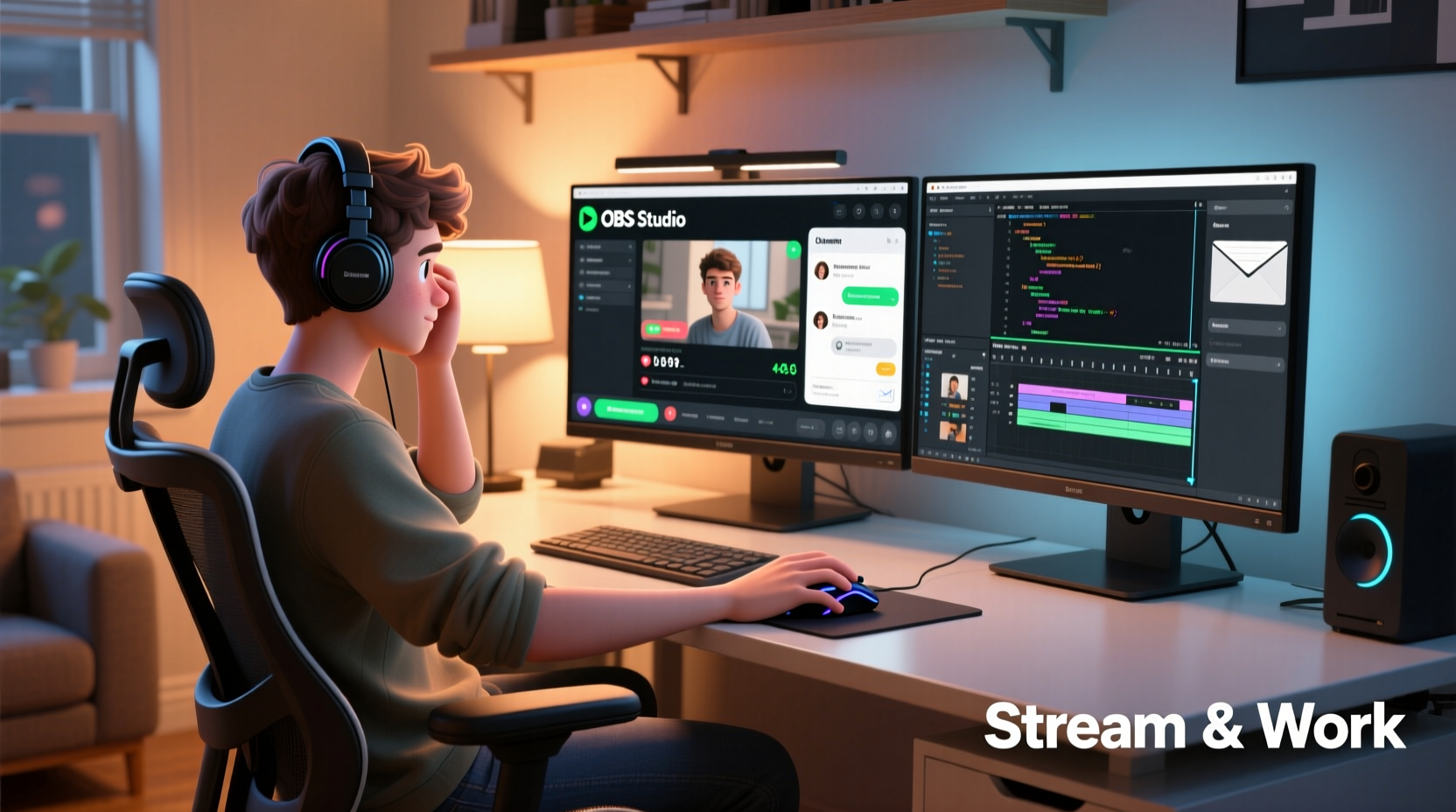
Multitasking in modern workflows often means managing multiple applications simultaneously: video conferencing on one window, research on another, messaging apps open in the corner, and perhaps design or editing software taking center stage. When all of this happens on a single screen, users resort to constant tab switching, minimizing windows, and losing focus—each of which carries a cognitive cost.
Research from the University of Utah found that using dual monitors can increase productivity by up to 42% in certain tasks involving data comparison and application switching. For streamers, this translates into smoother operations during live broadcasts. Instead of alt-tabbing out of their game or presentation to check chat, respond to alerts, or adjust audio levels, they can keep everything visible at once.
The Streaming Workflow: How a Second Monitor Transforms Your Setup
Streaming isn't just about playing a game or presenting content—it's an orchestrated performance involving several moving parts. A typical streaming environment includes:
- Streaming software (OBS, Streamlabs, etc.)
- Live chat viewer (Twitch, YouTube, or Discord)
- Alerts dashboard (donations, subscriptions, hype trains)
- Music or soundboard controls
- Browser tabs for research or social media
- Communication tools (Discord, Slack, email)
Trying to manage all these elements on one screen leads to frequent interruptions. Every time you switch away from your main content, there's a risk of dropping frames, missing viewer interactions, or losing audience engagement.
A second monitor allows you to dedicate your primary screen to gameplay or presentation while reserving the secondary screen exclusively for monitoring backend operations. You can have OBS open with scene previews, watch live chat scroll in real time, and mute an unruly alert sound—all without ever leaving your main application.
“Streamers who adopt dual monitors report fewer on-air mistakes and significantly better audience interaction. Visibility equals control.” — Jordan Lee, Senior Streaming Consultant at Broadcaster Labs
Real-World Example: From Overwhelmed to Organized
Consider Maya, a part-time streamer and full-time graphic designer. She used to run her weekly gaming streams on a single 24-inch monitor. During broadcasts, she’d constantly miss donations because she was focused on the game. Her chat responses were delayed, and she once accidentally muted her microphone mid-donation thanks to a clumsy alt-tab.
After investing in a second monitor—a basic 27-inch IPS panel—she restructured her workflow. Her main screen remained locked on the game. On the second screen, she arranged vertical panels: Twitch chat on the left, OBS controls in the center, and her music playlist and alerts on the right. Within two weeks, her viewer retention increased by 30%, and she began responding to donations within seconds.
The change wasn’t just technical—it was psychological. Knowing everything was visible reduced her stress and allowed her to engage more authentically with her audience.
Comparing Single vs. Dual Monitor Setups for Key Tasks
| Task | Single Monitor Experience | Dual Monitor Advantage |
|---|---|---|
| Monitoring live chat | Requires constant switching; high chance of missing messages | Always visible; enables real-time interaction |
| Adjusting stream settings | Risky to access mid-stream; may cause lag or crashes | Safer access; preview changes without disrupting main view |
| Running background research | Slows down workflow; easy to lose track | Seamless access to references, scripts, or notes |
| Managing alerts and sounds | Frequent distractions; hard to control timing | Centralized control; mute or trigger effects instantly |
| Video calls during streams | Interruptive pop-ups; hard to maintain focus | Keep call window on second screen; respond discreetly |
Setting Up Your Dual-Monitor System: A Step-by-Step Guide
Adding a second monitor isn’t just about plugging in a cable. To get the most value, follow this structured approach:
- Assess your current hardware: Check if your GPU supports multiple displays. Most modern graphics cards support at least two outputs (HDMI, DisplayPort, etc.). Integrated Intel/AMD graphics also typically support dual monitors.
- Choose the right second monitor: It doesn’t need to match your primary screen exactly. Look for at least 1080p resolution, IPS panel for color accuracy, and adjustable stand. Budget models from brands like Dell, ASUS, or LG offer excellent value.
- Connect and configure: Use HDMI or DisplayPort to connect. Once detected, go to Display Settings (Windows) or Displays (Mac) and choose “Extend Desktop” rather than “Duplicate.”
- Arrange screens logically: Drag the monitor icons so their layout matches your physical desk setup. This ensures smooth mouse movement between screens.
- Optimize workspace zones: Assign roles—e.g., primary for creative work or gameplay, secondary for communication and monitoring. Use tools like OBS’s “Dockable Docks” or browser sidebar extensions to maximize space.
- Test under load: Run a test stream or simulate a busy multitasking session. Adjust brightness, positioning, and app placement based on comfort and usability.
When a Second Monitor Might Not Be Worth It
While the advantages are compelling, a second monitor isn’t universally beneficial. Consider these scenarios:
- Limited desk space: Cramped setups can make dual monitors impractical or ergonomically harmful.
- Low-resolution secondary display: A mismatched, blurry, or laggy screen can create visual fatigue and reduce effectiveness.
- Infrequent streaming or multitasking: If you only stream once a month or rarely juggle complex workflows, the ROI may not justify the cost.
- Using a laptop as secondary: While possible, laptops often have lower refresh rates, poor viewing angles, and awkward positioning unless elevated properly.
Additionally, some software limitations exist. Older versions of OBS may not handle multi-monitor preview well, and certain games enter fullscreen mode that blocks access to other screens. Using “Borderless Windowed” mode in games often resolves this issue.
Cost vs. Value: Is the Investment Justified?
A decent second monitor typically costs between $150 and $300. Compare that to the value gained:
- Reduced errors during live streams
- Increased audience engagement and retention
- Higher productivity in day jobs or content creation
- Potential monetization growth due to improved stream quality
For most serious streamers and multitaskers, the return on investment becomes clear within a few months. Even knowledge workers report saving nearly an hour per day in task-switching time when using dual monitors, according to a study by Jon Peddie Research.
“The biggest gains aren’t in speed—they’re in mental clarity. Seeing everything reduces anxiety and improves decision-making.” — Dr. Alan Torres, Human-Computer Interaction Researcher
Checklist: Is a Second Monitor Right for You?
Before purchasing, ask yourself the following:
- Do I regularly run multiple applications at once?
- Do I miss chat messages or alerts during streams?
- Am I frequently alt-tabbing, causing lag or interruptions?
- Do I have enough desk space and power outlets?
- Is my GPU capable of supporting a second display?
- Will I use it for both work and streaming?
- Can I commit to organizing my workflow across two screens?
If you answered “yes” to three or more, a second monitor is likely a smart upgrade.
Frequently Asked Questions
Can I use different monitor sizes or resolutions?
Yes. Modern operating systems handle mixed resolutions well. However, large disparities (e.g., 1080p next to 4K) may cause scaling issues with text and UI elements. Adjust display scaling in system settings to balance readability.
Does a second monitor increase my PC’s workload?
Minimal impact. Driving a second monitor adds slight GPU usage, especially at higher resolutions or refresh rates. For most mid-tier systems, this is negligible. Integrated graphics can usually handle 1080p on a second screen without issue.
Should I mirror or extend my display?
Always choose “Extend” for streaming and multitasking. Mirroring duplicates the same image on both screens, defeating the purpose of extra workspace. Extension gives you independent desktop space across both monitors.
Final Thoughts: Upgrade Your Workflow, Not Just Your Hardware
A second monitor isn’t just a peripheral—it’s a workflow enabler. For streamers, it transforms chaotic, reactive broadcasting into a controlled, engaging experience. For multitaskers, it replaces mental juggling with visual clarity. The true value lies not in the screen itself, but in how it reshapes your relationship with digital tasks.
You don’t need the most expensive setup to benefit. Even a modest 24-inch monitor paired strategically with your existing system can dramatically improve focus, responsiveness, and output quality. The key is intentionality: define what goes on each screen, organize your tools, and resist clutter.




 浙公网安备
33010002000092号
浙公网安备
33010002000092号 浙B2-20120091-4
Comments
No comments yet. Why don't you start the discussion?