
Remote work has reshaped how we interact with technology at home. One of the most debated upgrades is adding a second monitor. While some swear by the dual-screen setup, others question whether the investment truly translates into measurable productivity gains. The answer isn’t universal—it depends on your workflow, profession, and digital habits. However, research and real-world data consistently point to significant advantages when using multiple displays in a home office environment.
This analysis explores the tangible benefits of a second monitor, evaluates the return on investment, and provides practical guidance for those considering the switch. From multitasking efficiency to long-term health considerations, we’ll break down what the numbers—and professionals—say about dual-monitor setups.
How Dual Monitors Improve Workflow Efficiency
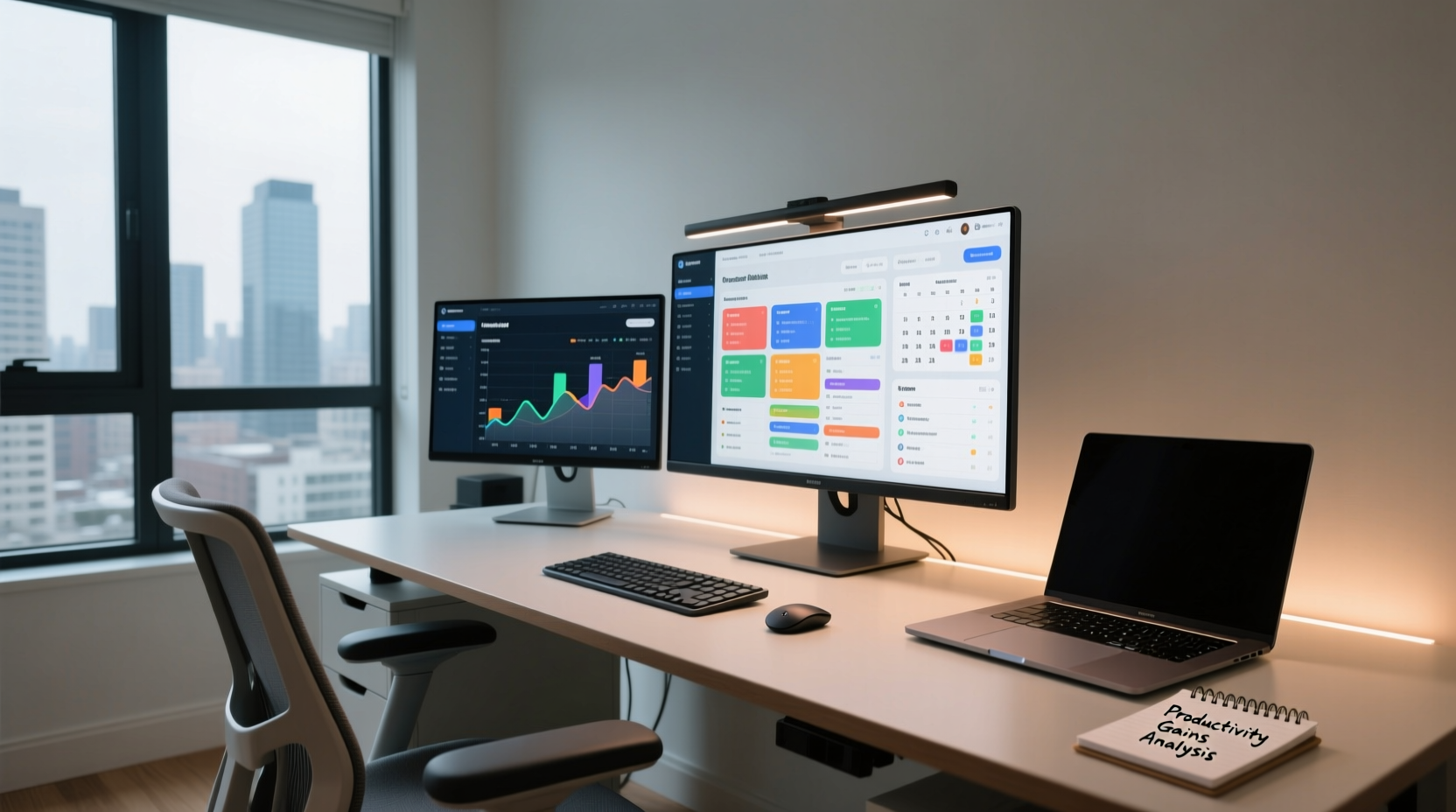
At its core, a second monitor expands your digital workspace. Instead of constantly minimizing and maximizing windows, you can keep essential applications open side by side. This eliminates cognitive load associated with task-switching—a phenomenon well-documented in productivity psychology.
For example, a writer can have research materials open on one screen while drafting on the other. A financial analyst might run spreadsheets on the primary display while monitoring live market data on the secondary. These small efficiencies compound over time, reducing friction in daily tasks.
A study by the University of Utah, commissioned by NEC, found that users with dual monitors were 30% more productive than single-display users when performing common office tasks like copying and pasting between documents or comparing data across files. Another report from the Journal of Applied Psychology noted that workers using two screens completed tasks up to 44% faster than their single-monitor counterparts.
Professions That Benefit Most from a Second Monitor
Not all jobs benefit equally from extra screen space. Some roles inherently require constant context switching or simultaneous access to multiple tools. Here’s a breakdown of professions where dual monitors deliver the highest returns:
- Software Developers: Code on one screen, documentation or terminal output on the other.
- Data Analysts & Accountants: Run complex spreadsheets alongside reference data or dashboards.
- Graphic Designers & Video Editors: Use one screen for the canvas and the other for tool panels or timelines.
- Customer Support Agents: Keep CRM systems open while communicating via chat or email.
- Researchers & Writers: View source material on one screen and write or annotate on the other.
In contrast, roles with minimal multitasking—such as basic data entry or reading-heavy tasks—may not see dramatic improvements. But even in these cases, reduced window toggling can still contribute to lower mental fatigue over an eight-hour day.
“Adding a second monitor is one of the most cost-effective productivity upgrades available today. For less than $150, many professionals gain hours of effective work time per week.” — Dr. Laura Kim, Human Factors Researcher at MIT Media Lab
Cost-Benefit Analysis: Is the Investment Justified?
The average price of a reliable 24-inch 1080p monitor ranges from $100 to $200. High-end models with higher resolution or ergonomic features may reach $300–$500. Compared to upgrading a laptop or buying new software licenses, this is a relatively low-cost investment. But does it pay for itself?
Let’s consider a remote worker earning $30/hour. If a second monitor saves just 30 minutes of unproductive time each day (due to faster navigation, fewer errors, or reduced task-switching), that equates to 2.5 hours saved per week—or $75 in recovered value weekly. Over a year, that’s nearly $3,900 in regained productivity. Even at the higher end of monitor pricing ($500), the break-even point arrives within three months.
Beyond monetary value, there are intangible benefits: reduced stress, improved concentration, and better work-life balance due to shorter workdays achieved through efficiency.
| Monitor Cost | Daily Time Saved | Weekly Value (at $30/hr) | Break-Even Point |
|---|---|---|---|
| $150 | 20 minutes | $10 | 15 weeks |
| $150 | 30 minutes | $15 | 10 weeks |
| $250 | 45 minutes | $22.50 | 11 weeks |
| $350 | 60 minutes | $30 | 12 weeks |
Note: This assumes consistent usage over five days per week. Actual savings depend on individual workflows and baseline inefficiencies.
Real-World Example: Sarah’s Remote Work Transformation
Sarah, a freelance digital marketer based in Portland, worked from her kitchen table for over a year using only her 13-inch laptop. She frequently felt overwhelmed managing client emails, social media calendars, analytics dashboards, and content creation—all within a cramped screen.
After investing $180 in a second monitor, she restructured her desk: her laptop remained central for video calls, while the new 24-inch display hosted her browser tabs, Google Analytics, and Trello boards. Within two weeks, she reported completing daily planning sessions 40% faster. More importantly, she noticed fewer mistakes in campaign reports because she could view raw data and final summaries simultaneously.
“I didn’t realize how much mental energy I was wasting just flipping between tabs,” Sarah said. “Now I finish work earlier and feel less drained by Friday afternoons.” Her annual income increased by 22% the following year—not solely due to the monitor, but enabled by the efficiency gains that allowed her to take on more clients without burnout.
Setting Up Your Dual-Monitor System for Maximum Impact
Purchasing a second monitor is only half the battle. To fully leverage its potential, proper configuration is critical. Follow this step-by-step guide to optimize your setup:
- Choose the Right Monitor: Match resolution and size with your primary display if possible. A 24-inch 1080p or 27-inch 1440p panel works well for most users.
- Check Connectivity: Ensure your laptop or desktop has the necessary ports (HDMI, DisplayPort, USB-C). Use adapters if needed, but prioritize native connections for stability.
- Position Ergonomically: Place both monitors at eye level, forming a gentle arc around your field of vision. Avoid placing the secondary screen too far to the side, which causes neck strain.
- Extend, Don’t Mirror: In your system settings (Windows: Display Settings / macOS: Displays), select “Extend” mode so each screen functions independently.
- Customize Taskbar & Dock Behavior: On Windows, enable taskbar labels on both screens. On Mac, consider third-party tools like Display Maid to manage windows efficiently.
- Assign Roles: Decide which apps go where. Common configurations include keeping communication tools (email, Slack) on the secondary screen and creative or analytical work on the primary.
- Test and Adjust Weekly: Spend the first month experimenting. Move apps between screens and refine layouts until the flow feels natural.
Common Pitfalls to Avoid
Even with the right hardware, poor setup choices can undermine productivity. Watch out for these common mistakes:
- Using mismatched resolutions: Can cause scaling issues and visual discomfort.
- Placing monitors at different heights: Leads to chronic neck and eye strain.
- Overloading the second screen: Clutter defeats the purpose. Use it strategically, not as a dumping ground for every open app.
- Ignoring cable management: Tangled cords create visual clutter and reduce focus.
- Skipping software optimization: Failing to set default displays for specific apps reduces automation benefits.
Frequently Asked Questions
Can I use a TV as a second monitor?
Yes, many modern TVs support HDMI input and can function as large external displays. However, they often have higher input lag and suboptimal pixel density for close-up work. Use only if no dedicated monitor is available, and set the TV to “PC” or “Game” mode to reduce latency.
Do ultrawide monitors replace the need for a second screen?
An ultrawide monitor (e.g., 29” or 34”) can simulate dual-screen functionality by allowing multiple windows side by side. However, true dual monitors offer greater flexibility—you can rotate one vertically for coding or documents, or close one when not needed. Ultrawides are excellent alternatives but don’t provide the same configurability.
Will a second monitor increase my electricity bill significantly?
No. A typical 24-inch LED monitor consumes about 20–30 watts. Running it eight hours a day adds roughly $3–$5 to your monthly electric bill, depending on local rates. The energy cost is negligible compared to productivity returns.
Action Plan: How to Decide If a Second Monitor Is Right for You
Before purchasing, evaluate your current workflow with this checklist:
- ✅ Do you regularly use more than two applications at once?
- ✅ Do you copy and paste data between windows frequently?
- ✅ Do you find yourself minimizing/maximizing windows dozens of times per hour?
- ✅ Are you using a laptop with a screen smaller than 15 inches?
- ✅ Do you experience eye strain or fatigue from squinting at small text?
- ✅ Can you dedicate physical space for an additional display?
If you answered yes to three or more, a second monitor is likely a worthwhile investment. Start with a mid-range model and test it for at least two weeks. Track your task completion times, error rates, and subjective focus levels before and after installation.
“The biggest barrier to adopting dual monitors isn’t cost—it’s habit. Once people adjust to the expanded workspace, very few go back.” — Mark Tran, IT Consultant and Remote Work Trainer
Final Thoughts: Upgrade Smarter, Not Harder
In the era of distributed work, optimizing your home office isn’t a luxury—it’s a strategic necessity. A second monitor represents one of the simplest, most evidence-backed upgrades you can make to enhance productivity, reduce fatigue, and reclaim valuable time.
It won’t magically solve poor time management or eliminate distractions. But when integrated thoughtfully into your workflow, it acts as a force multiplier—amplifying your existing efforts and making focused work more sustainable. Whether you’re a developer, designer, analyst, or entrepreneur, the data shows that screen real estate directly correlates with output quality and speed.




 浙公网安备
33010002000092号
浙公网安备
33010002000092号 浙B2-20120091-4
Comments
No comments yet. Why don't you start the discussion?