
For developers spending eight or more hours a day reading, writing, and debugging code, screen real estate is more than a luxury—it’s a necessity. While most people default to landscape-oriented monitors, an increasing number of programmers are rotating their displays vertically. The idea seems counterintuitive at first: after all, operating systems and applications are designed with horizontal layouts in mind. But when it comes to coding, where long lines of text, nested functions, and deep file hierarchies dominate the screen, the case for a vertical monitor becomes compelling.
The shift isn’t just aesthetic. It’s rooted in how code is structured—vertically. Most programming languages rely on sequential logic that flows from top to bottom. A vertical display aligns naturally with this flow, reducing the need for constant scrolling and enabling developers to see more context at once. But does this translate into measurable gains in productivity, focus, and comfort? Let’s examine the evidence, user experiences, and practical considerations behind the vertical coding revolution.
Ergonomic Advantages of Vertical Coding
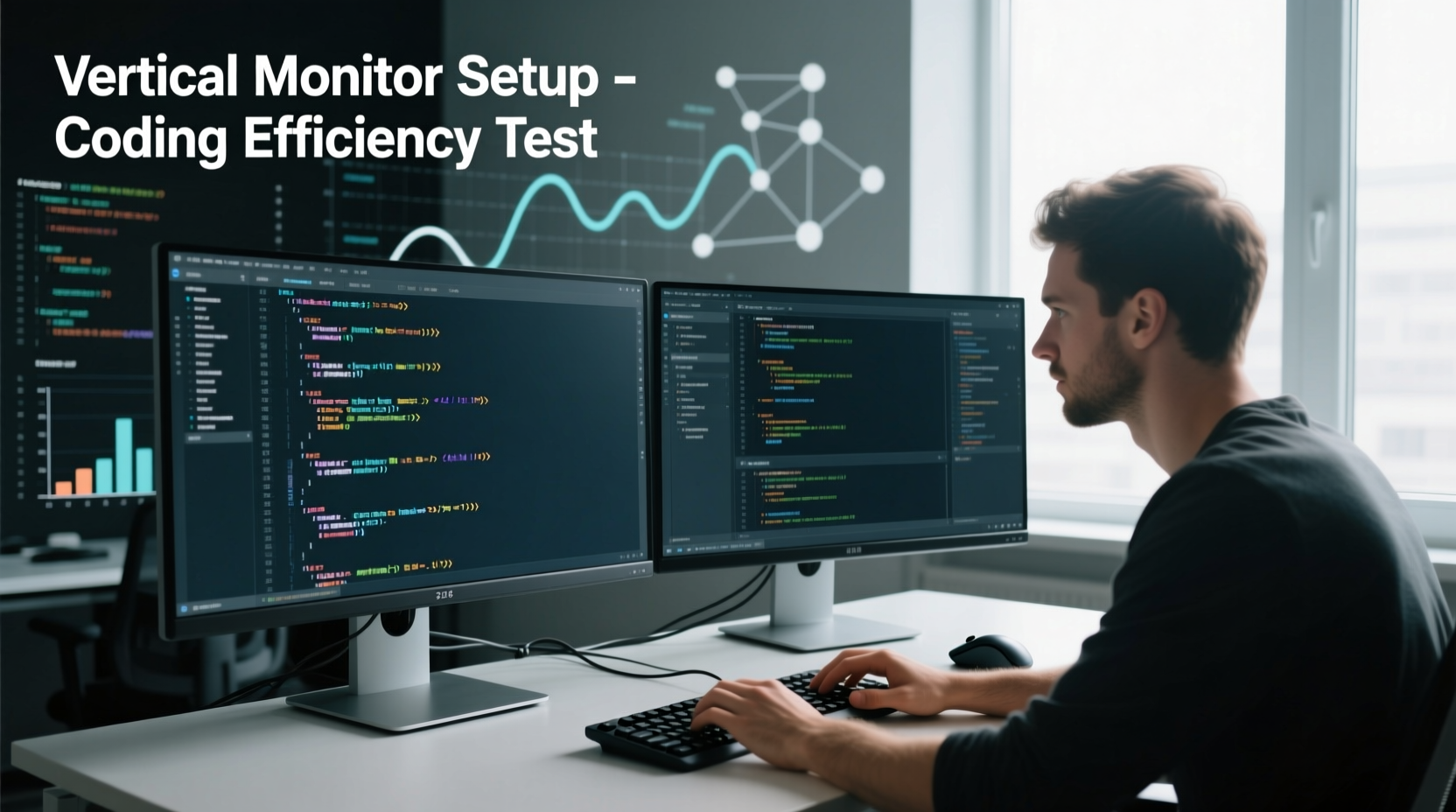
One of the most immediate benefits of a vertical monitor is improved posture and reduced neck strain. When working in landscape mode, developers often scroll through hundreds of lines of code, forcing them to crane their necks downward as they track changes across multiple files. This repetitive motion contributes to what ergonomists call “tech neck,” a growing concern among desk-based professionals.
A vertically oriented screen allows you to position the monitor so that your eyes follow the natural downward reading path without excessive head movement. The top third of the screen can be aligned with your eye level, letting your gaze drift down comfortably. This alignment supports a neutral spine position, which reduces muscular fatigue over extended work sessions.
“Proper monitor height and orientation can reduce musculoskeletal strain by up to 40% during prolonged computer use.” — Dr. Lena Torres, Occupational Ergonomist
Beyond posture, vertical monitors also encourage better workspace organization. With more vertical space, side-by-side tools like terminals, debuggers, and documentation panels can coexist without overlapping. This reduces cognitive load associated with switching between windows, allowing developers to maintain deeper focus.
Code Visibility and Context Retention
In software development, context is king. Understanding how a function interacts with others, tracing variable declarations, or reviewing Git diffs requires seeing large sections of code simultaneously. Landscape monitors force developers to make trade-offs: either zoom out (reducing readability) or scroll constantly (breaking concentration).
A typical 27-inch 16:9 monitor in landscape offers about 30–35 lines of code at standard font sizes. Rotate that same monitor to portrait, and you gain roughly 50–60 lines—nearly double the visible context. For modern web frameworks like React or Angular, where components span dozens of lines including imports, state definitions, and lifecycle methods, this extra visibility is invaluable.
Consider a full-stack developer reviewing a backend API route. In landscape, they might see only the route handler, missing the middleware chain above or validation logic below. In portrait, they can view the entire function, related error handlers, and even adjacent routes—all without scrolling. This broader context accelerates comprehension and reduces bugs caused by incomplete understanding.
Vertical setups also shine when working with deeply nested JSON, XML, or configuration files. Instead of horizontal scrolling—a notoriously inefficient action—developers can scan vertically, mimicking the way these formats are typically written and read.
Workflow Efficiency: Real-World Gains
To understand the tangible impact, consider the experience of Sarah Kim, a senior full-stack engineer at a mid-sized SaaS company. After switching to a dual-monitor setup—one landscape for design tools, one vertical for coding—she reported a noticeable drop in context-switching time.
“I used to spend minutes every hour just navigating between files and scrolling to find the right block. Now, I keep my main code file in portrait mode, and I rarely lose my place. My PR review speed increased by almost 20%.”
This anecdote reflects broader trends. A 2022 internal study at a tech consultancy found that developers using vertical monitors completed code reviews 15% faster on average than those using traditional landscape displays. The researchers attributed the gain not to typing speed but to reduced navigation overhead and improved mental mapping of file structures.
Another efficiency boost comes from integrated development environments (IDEs) that support split views. In portrait mode, you can stack two panes vertically—say, source code on top and test output below—without sacrificing line width. This layout mirrors the cause-and-effect relationship between code changes and test results, making feedback loops faster and more intuitive.
Comparison: Vertical vs. Landscape Monitor Setup
| Factor | Landscape Monitor | Vertical Monitor |
|---|---|---|
| Lines of Code Visible | ~30–35 lines (at 1080p) | ~50–60 lines (same resolution) |
| Scrolling Frequency | High – frequent vertical + occasional horizontal | Moderate – primarily vertical |
| Ease of Multitasking | Good for side-by-side apps | Better for stacked workflows (code + terminal) |
| Ergonomic Alignment | Poor – encourages downward neck tilt | Superior – supports neutral posture |
| IDE Usability | Standard fit, but limited context | Enhanced file navigation and method visibility |
| Best For | Design, video editing, spreadsheets | Coding, reading docs, reviewing logs |
Practical Implementation Guide
Switching to a vertical monitor isn’t just about rotating the screen. To get the most benefit, follow these steps:
- Choose the Right Monitor: Opt for a display with at least 1440p resolution (2560x1440 or higher). Lower resolutions may result in overly narrow width when rotated, making some UI elements hard to use.
- Use a VESA-Compatible Mount: A flexible arm mount allows precise height and angle adjustments, ensuring optimal ergonomic positioning.
- Rotate the Display: In Windows, right-click desktop > Display settings > Orientation > Portrait. On macOS, go to System Settings > Displays > Rotation.
- Adjust Font and Zoom Levels: You may need to increase IDE font size slightly to compensate for reduced horizontal space.
- Optimize Window Layout: Place your primary code editor in the vertical monitor and reserve landscape screens for browsers, Slack, or design tools.
- Test for a Week: Give yourself time to adapt. Initial discomfort often fades as muscle memory develops.
Common Challenges and How to Overcome Them
Not every developer thrives in a vertical environment. Some report difficulty with wide IDE toolbars, cramped input fields, or awkward video conferencing layouts. These issues are real but manageable.
Modern IDEs like VS Code, IntelliJ, and Sublime Text allow extensive customization. You can collapse side panels, reposition tabs, or use keyboard shortcuts to toggle visibility. Many developers configure their editors to hide navigation bars until needed, maximizing usable space.
For communication-heavy roles, consider a dual-monitor strategy: keep one screen vertical for coding and another in landscape for Zoom, email, and documentation. This hybrid approach balances specialization with flexibility.
Another concern is font rendering. On lower-resolution displays, portrait mode can make characters appear thinner due to fewer horizontal pixels. Upgrading to a 4K monitor mitigates this issue, offering both ample height and sufficient width for comfortable reading.
Expert Insights and Industry Trends
Dr. Rajiv Mehta, a human-computer interaction researcher at MIT, has studied developer workflows for over a decade. He notes a clear trend toward vertical configurations in high-performance teams.
“Our eye-tracking studies show that developers using vertical monitors exhibit 30% less saccadic movement—those rapid eye jumps during scrolling. Less visual disruption means better retention and fewer errors.”
He adds that the productivity gains aren’t uniform. Junior developers, who often rely on tutorials and reference materials open in adjacent tabs, benefit less initially. But as they progress into complex system architecture and debugging, the advantages become pronounced.
Meanwhile, companies like GitHub and JetBrains have started recommending vertical monitor setups in their official developer environment guides. These endorsements reflect a growing consensus that screen orientation should match task structure—not convention.
Frequently Asked Questions
Can I use a vertical monitor with any programming language?
Yes. Vertical monitors are especially effective for verbose languages like Java, C#, and Python, where methods and classes tend to be long. They’re also useful for markup languages like HTML and configuration formats like YAML, which benefit from top-to-bottom readability.
Won’t I run out of horizontal space for wide lines of code?
Sometimes. However, most coding standards limit line length to 80–120 characters, well within the width of even a rotated 1440p display. For exceptions, enable word wrap in your editor or use a secondary landscape screen.
Do I need two monitors to make this work?
Not necessarily. Many solo developers use a single vertical monitor successfully. However, pairing a vertical screen with a landscape one creates a powerful, role-specific workstation ideal for full-time coding.
Checklist: Setting Up Your Vertical Coding Environment
- ✅ Choose a monitor with at least 2560x1440 resolution
- ✅ Install a VESA-compatible adjustable mount
- ✅ Rotate display to portrait mode via OS settings
- ✅ Adjust IDE font size and UI density
- ✅ Position the top third of the screen at eye level
- ✅ Test the setup for at least five full workdays
- ✅ Use keyboard shortcuts to minimize mouse dependency
- ✅ Reserve landscape tasks (video calls, spreadsheets) for secondary screens if available
Final Thoughts: Is Vertical Better?
The answer depends on your workflow, but for most serious coders, the evidence leans strongly toward yes. A vertical monitor setup aligns with the inherent structure of code, reduces physical strain, and enhances cognitive continuity. It’s not a gimmick—it’s a deliberate optimization for a specific type of intellectual labor.
That said, it’s not a universal fix. It works best when paired with good lighting, proper seating, and disciplined coding practices. And like any major change, it requires an adjustment period. Don’t expect instant results; give it two weeks of consistent use before evaluating its impact.
If you're looking to squeeze more focus, efficiency, and comfort out of your daily development routine, rotating your monitor might be the simplest upgrade you’ll ever make. It costs nothing beyond a few minutes of configuration and delivers returns in reduced fatigue, faster navigation, and deeper immersion in your codebase.




 浙公网安备
33010002000092号
浙公网安备
33010002000092号 浙B2-20120091-4
Comments
No comments yet. Why don't you start the discussion?