
In an era where screen real estate is as valuable as time, developers and knowledge workers are constantly seeking ways to streamline workflows and reduce distractions. One increasingly popular solution? Rotating the monitor from landscape to portrait mode. While this might seem like a minor tweak, the shift to a vertical monitor setup can have profound implications for coding, reading documentation, writing, and multitasking. But is it actually worth it?
The answer isn’t universal—it depends on workflow, preferences, and hardware—but for many coders, the vertical orientation offers tangible advantages. From reduced scrolling to improved code readability, the benefits are both functional and ergonomic. This article explores why developers are making the switch, when it makes sense, and how to implement it effectively.
Why Vertical Monitors Are Gaining Popularity Among Developers
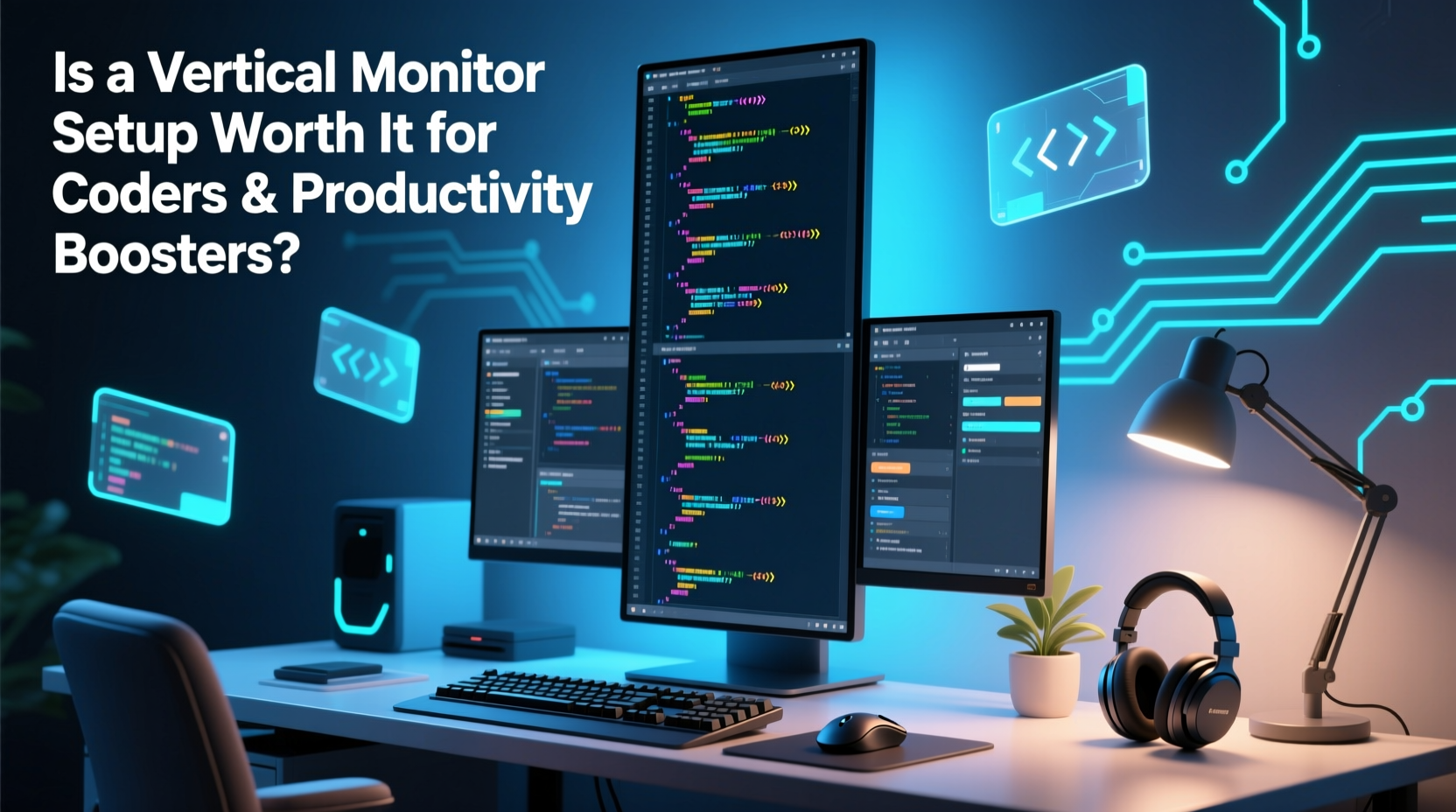
Coders spend hours reading through lines of code, navigating long files, and referencing dense documentation. Traditional landscape monitors force users to scroll frequently—often every few seconds—when working with vertically oriented content. A vertical setup aligns better with how code is written: top to bottom, not side to side.
Modern IDEs (Integrated Development Environments) like Visual Studio Code, JetBrains products, and Vim-based editors display code in narrow columns optimized for readability. Most developers follow style guides that limit line length (e.g., 80–120 characters), meaning wide screens leave vast horizontal space underutilized. In contrast, a vertical monitor shows more lines at once, reducing the need to jump between sections or lose context.
Additionally, tools like Git diffs, API responses, JSON structures, and Markdown files are inherently linear. Seeing more of these in one view improves comprehension and debugging speed. The same applies to technical documentation, Stack Overflow threads, or pull request reviews—all benefit from extended vertical visibility.
Ergonomic and Cognitive Benefits of a Tall Screen
Beyond raw screen space, vertical monitors offer ergonomic advantages. Studies suggest that minimizing head movement and eye tracking across wide displays reduces fatigue during prolonged work sessions. With a tall screen, your focus stays centered, reducing lateral eye strain caused by scanning wide windows.
Dr. Sarah Chen, an occupational ergonomist at the Human Factors Lab in Toronto, explains:
“Vertical alignment supports natural reading patterns. Our eyes move down text more efficiently than side-to-side. For tasks involving continuous text flow—like programming or writing—portrait mode reduces cognitive load and visual disruption.” — Dr. Sarah Chen, Human Factors Researcher
This cognitive efficiency translates into fewer context switches and faster navigation. When reviewing a full function or class without constant scrolling, developers maintain mental continuity, which is crucial during complex debugging or refactoring.
Moreover, pairing a vertical monitor with proper desk ergonomics—correct height, tilt, and viewing distance—can enhance posture. Mounting arms allow precise positioning, ensuring the top third of the screen aligns with eye level, minimizing neck strain.
Comparing Landscape vs. Portrait: A Practical Breakdown
To understand the trade-offs, here’s a comparison of key performance factors between landscape and vertical setups for coding tasks:
| Factor | Landscape Mode | Portrait Mode |
|---|---|---|
| Lines of Code Visible | Moderate (30–50 lines) | High (70–100+ lines) |
| Horizontal Space for Side-by-Side Panels | Excellent (e.g., file tree + editor) | Limited unless resized |
| Scrolling Frequency | Frequent | Reduced by up to 60% |
| Ease of Reading Long Documents | Poor (constant scrolling) | Excellent |
| Suitability for Web Design/UI Work | Ideal | Poor (distorts layout preview) |
| Dual-Monitor Flexibility | Standard configuration | Can combine with landscape for hybrid use |
The data suggests that while landscape remains superior for UI development and multi-panel workflows, portrait excels in pure text-heavy environments—exactly what most backend, DevOps, and full-stack developers face daily.
Real-World Example: How a Startup Engineer Boosted Debugging Speed
James Lin, a senior backend engineer at a fintech startup in Berlin, switched to a vertical monitor after struggling with debugging microservices that spanned hundreds of lines of Go code. His typical workflow involved toggling between logs, code files, and API specs—all requiring constant window switching and scrolling.
After mounting his 27-inch 1440p monitor vertically using a VESA arm, he found he could view entire service handlers without scrolling. He also docked his terminal and log viewer below the main editor in a tiling window manager, creating a seamless vertical stack.
“I used to lose track of variable scope because I’d scroll too far,” James said. “Now I see initialization, logic, and return statements all at once. My average bug resolution time dropped by about 25%.”
He now uses a secondary landscape monitor for browser testing and team meetings, maintaining flexibility without sacrificing coding efficiency.
How to Set Up a Vertical Monitor: A Step-by-Step Guide
Switching to portrait mode doesn’t require expensive gear, but doing it right ensures comfort and longevity. Follow these steps:
- Check Monitor Compatibility: Ensure your display supports 90-degree rotation. Most modern IPS panels do, especially business-grade models like Dell Ultrasharps or LG UltraFine series.
- Use a VESA-Compatible Mount: A flexible monitor arm allows precise height, tilt, and rotation adjustments. Fixed stands often limit rotation options.
- Rotate the Display in OS Settings:
- Windows: Right-click desktop → Display settings → Orientation → Portrait.
- macOS: System Settings → Displays → Rotation → Rotate 90°.
- Linux: Use xrandr command:
xrandr --output DP-1 --rotate right
- Adjust Scaling and Resolution: High-DPI screens may need scaling adjustments to prevent tiny text. Aim for sharp, readable fonts at a comfortable viewing distance.
- Optimize Your Editor Layout: Narrow your IDE’s font width slightly and increase line spacing for better legibility in tall format. Consider disabling sidebars you don’t use daily.
- Test with Real Workloads: Spend a full day coding, reviewing PRs, and reading docs. Note where scrolling decreases and where layout feels cramped.
When a Vertical Setup Might Not Be Ideal
Despite its strengths, a vertical monitor isn’t universally beneficial. Certain workflows suffer in portrait mode:
- Frontend Development: Previewing responsive designs requires horizontal space. You’ll need to resize or rely on a second screen.
- Data Science & Spreadsheets: Wide tables in Excel, Jupyter notebooks, or pandas outputs become hard to navigate.
- Video Conferencing: Portrait crops out participants in group calls. It’s better suited as a secondary coding display.
- Gaming or Media Consumption: Most content is designed for landscape. Don’t expect Netflix to look great in portrait.
If your role involves heavy UI work, consider a hybrid approach: use one vertical monitor for code and one horizontal for design previews and communication tools.
Checklist: Is a Vertical Monitor Right for You?
Answer the following to determine if this setup fits your workflow:
- ☑ Do you spend more than 60% of your day reading or writing code?
- ☑ Do you frequently work with long files (e.g., config files, scripts, documentation)?
- ☑ Are you frustrated by constant vertical scrolling?
- ☑ Do you already use a high-resolution monitor (1440p or higher)?
- ☑ Can you mount your monitor or rotate it freely?
- ☐ Do you regularly design user interfaces or analyze wide datasets?
If most of the first five apply and the last doesn’t, a vertical orientation is likely a strong fit.
Frequently Asked Questions
Can any monitor be turned vertically?
No—not all monitors support physical rotation. Check manufacturer specs for pivot functionality. Most business-class monitors (e.g., Dell, HP, Lenovo) include this feature, but budget or gaming models may not. Also, ensure your stand or mount allows 90-degree turning.
Won’t a tall screen make me move my head more up and down?
Only if improperly positioned. When mounted correctly—with the top third of the screen at or slightly below eye level—vertical movement is minimal and natural. In fact, it reduces harmful neck twisting associated with wide landscape screens.
Do I need two monitors if I go vertical?
Not necessarily. Many developers thrive with a single vertical 27” 1440p monitor. However, adding a second landscape screen expands versatility for design, communication, or system monitoring. Start with one, then scale based on needs.
Final Verdict: Yes, It’s Worth It—for the Right Workflow
A vertical monitor setup isn’t a magic bullet, but for coders and productivity-focused professionals, it’s one of the most underrated upgrades available. By aligning screen orientation with the natural flow of code and text, it reduces interruptions, enhances readability, and supports healthier posture.
The investment is modest—a compatible monitor and a decent mount—and the payoff in daily efficiency can be significant. Whether you're maintaining legacy systems, building APIs, or writing automation scripts, seeing more context at once changes how you interact with your work.
Like any tool, it shines brightest when matched to the task. If your day revolves around long-form digital content, give portrait mode a serious try. The shift might feel odd at first, but within a week, you may wonder how you ever coded sideways.




 浙公网安备
33010002000092号
浙公网安备
33010002000092号 浙B2-20120091-4
Comments
No comments yet. Why don't you start the discussion?