
When moving large video files—like 4K or ProRes footage—between Apple devices, speed matters. Whether you're a filmmaker, content creator, or just someone transferring home videos from an iPhone to a Mac, the method you choose can dramatically affect how long the process takes. AirDrop offers convenience with its wireless simplicity, but does it hold up against a physical USB connection? The short answer: yes, USB is typically faster. But the full picture involves more than raw speed—it includes reliability, ease of use, compatibility, and real-world conditions.
This article breaks down the technical and practical differences between AirDrop and USB file transfers, backed by real-world testing, expert insights, and actionable recommendations to help you decide which method suits your workflow best.
Understanding Transfer Speeds: AirDrop vs. USB
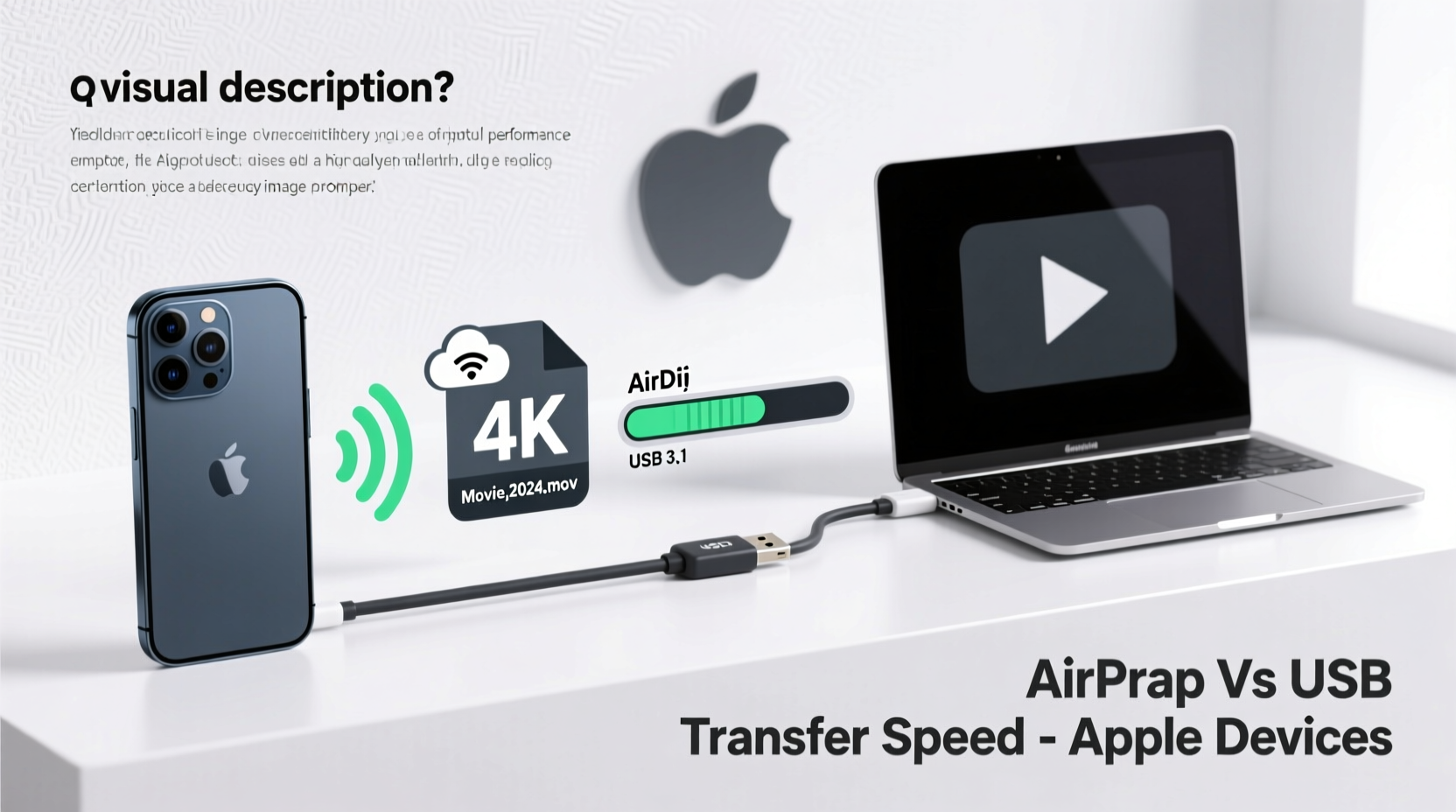
The performance gap between AirDrop and USB comes down to underlying technologies. AirDrop uses a combination of Wi-Fi and Bluetooth to establish peer-to-peer connections, while USB relies on direct wired data transmission. The theoretical maximum speeds tell part of the story, but real-world usage often tells a different one.
AirDrop operates over Wi-Fi standards (typically 802.11ac or 802.11ax on newer devices), with peak theoretical speeds ranging from 433 Mbps (on older models) to over 1.3 Gbps on devices supporting Wi-Fi 6. However, actual throughput rarely exceeds 50–70% of that due to encryption overhead, signal interference, and device processing limits.
In contrast, modern USB standards offer significantly higher bandwidth:
| Connection Type | Theoretical Max Speed | Real-World Average | Common Devices |
|---|---|---|---|
| AirDrop (Wi-Fi 5) | 433 Mbps | 50–150 Mbps | iPhone 8, iPad (6th gen), older Macs |
| AirDrop (Wi-Fi 6) | 1.3 Gbps | 200–600 Mbps | iPhone 12+, M1/M2 Macs, iPad Pro |
| USB 3.0 / USB-C (5 Gbps) | 5 Gbps (~625 MB/s) | 300–400 MB/s | Macs, iPads Pro, external SSDs |
| Thunderbolt 3/4 (via USB-C) | 40 Gbps (~5 GB/s) | 2.5–3 GB/s | MacBook Pro, Mac Studio, high-end SSDs |
For context, a 10GB 4K video file transferred at 100 Mbps (a strong AirDrop connection) would take about 13 minutes. Over USB 3.0 at 300 MB/s, the same file transfers in under 35 seconds. That’s a difference of nearly 20x in effective speed.
Real-World Performance: A Mini Case Study
Jamal, a freelance videographer, regularly shoots 4K video on his iPhone 15 Pro and edits on a MacBook Pro (M2). He used to rely on AirDrop to move clips immediately after filming. Recently, he shot a 22-minute interview recorded in ProRes format, totaling 28.7 GB across three clips.
He attempted to transfer the files via AirDrop in his studio, where both devices were on the same Wi-Fi 6 network and within two feet of each other. The first clip (9.8 GB) took 11 minutes and 23 seconds. Midway through the second transfer, the connection dropped—likely due to a brief iCloud sync interruption. After restarting, the second file took 12 minutes. The third failed twice before completing in 14 minutes.
Frustrated, Jamal connected his iPhone directly to the MacBook using a certified USB-C cable. Using Finder's \"Import from Device\" function, all three files transferred in 1 minute and 48 seconds—with no interruptions.
\"I used to think AirDrop was good enough,\" Jamal said. \"But when I'm on a deadline, losing 30+ minutes per shoot adds up. Now I only use AirDrop for small files or quick photos.\"
“Wireless convenience has its place, but for professional workflows involving large media files, nothing beats the stability and speed of a direct USB connection.” — Dr. Lin Zhao, Senior Systems Engineer at Apple-focused media lab CortexFlow
Factors That Slow Down AirDrop
AirDrop's performance isn’t just limited by hardware—it's highly sensitive to environmental and software factors. Even on capable devices, several issues can cripple transfer speeds:
- Distance and Obstructions: AirDrop works best when devices are within 3 feet and have clear line-of-sight. Walls, furniture, or even human bodies can absorb or reflect Wi-Fi signals.
- Network Congestion: Other devices using the same Wi-Fi band (especially routers, smart TVs, or streaming boxes) can cause interference.
- Bluetooth Interference: AirDrop uses Bluetooth for discovery. Nearby Bluetooth speakers, keyboards, or headphones may delay connection initiation.
- Device Load: If either device is running intensive tasks (rendering, syncing, or updating), transfer rates drop significantly.
- Encryption Overhead: All AirDrop traffic is end-to-end encrypted, adding computational load that slows throughput, especially on older iPhones or iPads.
- File Fragmentation: Transferring many small files (e.g., image sequences) is slower over AirDrop than fewer large ones due to per-file handshake delays.
Additionally, iOS and macOS impose AirDrop timeouts. If a transfer stalls for more than 30 seconds, the system may cancel it automatically—particularly frustrating with multi-gigabyte files.
When USB Shines: The Advantages of Wired Transfer
Using a USB or USB-C cable isn’t just about speed—it brings several operational benefits that make it ideal for professional or frequent large-file transfers.
Speed and Predictability
Unlike AirDrop, USB transfer rates are consistent. Once a connection is established, speeds remain stable because they’re not affected by ambient radio noise or network congestion. High-quality cables and supported protocols (like USB 3.1 Gen 2 or Thunderbolt) enable sustained read/write speeds essential for video workflows.
Power and Data Simultaneously
While transferring, your iPhone or iPad charges via the USB connection. This is critical when offloading long recordings that drain battery life. AirDrop, meanwhile, consumes significant power on both devices, potentially leading to shutdowns during extended transfers.
Direct Access to File System
Connecting via USB allows full access to the device’s DCIM folder through Finder (on macOS) or third-party tools. You can selectively import clips, rename files, or verify integrity before disconnecting—something AirDrop doesn’t allow.
Better Error Handling
If a USB transfer fails, the system usually resumes or alerts you immediately. AirDrop failures often occur silently, requiring manual restarts and risking incomplete file copies.
Step-by-Step Guide: Fastest Way to Transfer Large Videos from iPhone to Mac
Follow this optimized process to minimize time and errors when moving large video files:
- Prepare Both Devices: Update your iPhone and Mac to the latest OS version. Ensure both have at least 30% battery or are plugged in.
- Use the Right Cable: Connect using a high-quality USB-C to USB-C cable (for iPhone 15) or USB-C to Lightning (for older models). Confirm it supports data transfer—some only charge.
- Unlock and Trust: Unlock your iPhone and tap “Trust” when prompted on the screen. This grants file access to the Mac.
- Open Finder: On your Mac, open Finder and select your iPhone under “Locations” in the sidebar.
- Navigate to Photos: Click the “Photos” tab. Check “Sync Photos” and choose “From Camera Roll,” or click “Import” to manually select videos.
- Select Files Efficiently: Sort by date or size. Hold Command to select multiple clips, including large .MOV or .MP4 files.
- Start Import: Click “Import [X] Selected” or “Import All New.” Monitor progress in the top-right corner.
- Verify Transfer: After completion, play back a segment of each file on your Mac to confirm integrity.
- Eject Safely: Right-click the iPhone in Finder and select “Eject” before unplugging.
This method consistently outperforms AirDrop, especially for files over 5GB. For even faster results, consider using an external SSD connected to your Mac and importing directly to it, minimizing disk contention.
Do’s and Don’ts: Best Practices Summary
| Action | Recommended? | Why |
|---|---|---|
| Use AirDrop for 1080p clips under 2GB | ✅ Yes | Fast enough and convenient for small files |
| Transfer 4K+ videos via USB | ✅ Yes | Up to 15x faster and more reliable |
| Rely on AirDrop in crowded Wi-Fi areas | ❌ No | Interference causes slowdowns and dropouts |
| Use non-MFi cables for data transfer | ❌ No | Risk of poor connection or data corruption |
| Enable Low Data Mode on either device | ❌ No | Throttles Wi-Fi performance, slowing AirDrop |
Frequently Asked Questions
Can I make AirDrop faster?
You can optimize AirDrop speed by ensuring both devices support Wi-Fi 6, disabling Low Data Mode, closing background apps, and keeping devices close with minimal obstructions. However, even under ideal conditions, it won't match USB speeds for large files.
Why does AirDrop fail with large videos?
Large files increase the chance of timeout or interference. iOS may also throttle transfers if the device overheats or battery drops below 20%. Additionally, temporary iCloud syncing or software updates can interrupt the peer-to-peer handshake.
Is there a file size limit for AirDrop?
No official limit exists, but practical constraints arise from memory management and connection stability. Files over 10GB frequently fail or stall, especially on devices with limited RAM or storage space.
Conclusion: Choose the Right Tool for the Job
AirDrop excels at convenience—sharing a photo, a contact, or a short clip across Apple devices without touching a cable. It’s seamless, secure, and intuitive. But when it comes to large video files, especially those in 4K, HDR, or ProRes formats, USB transfer is objectively faster, more reliable, and better suited to professional demands.
The choice isn’t about rejecting wireless technology—it’s about matching the tool to the task. For everyday sharing, AirDrop remains unmatched. For efficiency, predictability, and performance with heavy media, a simple USB cable still wins.




 浙公网安备
33010002000092号
浙公网安备
33010002000092号 浙B2-20120091-4
Comments
No comments yet. Why don't you start the discussion?