
When it comes to safeguarding personal data—photos, documents, financial records, creative projects—the question isn’t whether you should back up, but how. Two dominant solutions stand out: cloud storage services like Google Drive, Dropbox, or iCloud, and physical external hard drives. Both offer compelling advantages, but when security is the priority, the comparison becomes nuanced. Security isn't just about encryption or access control—it's also about resilience against theft, hardware failure, natural disasters, and human error. The truth is, neither option is universally “more secure.” Instead, the answer depends on your threat model, technical habits, and risk tolerance.
Understanding the Security Landscape
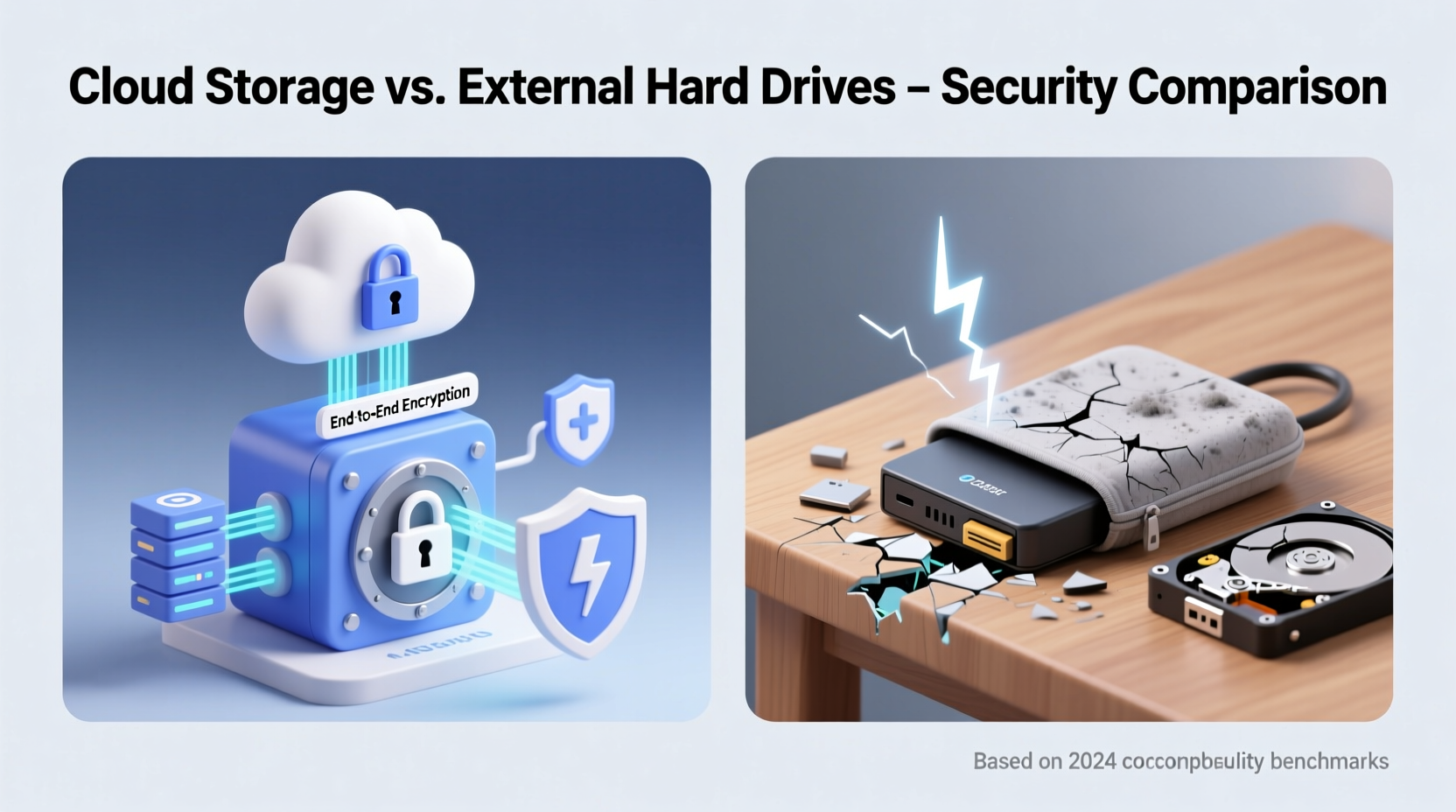
Security in data storage encompasses multiple dimensions: confidentiality (who can access your data), integrity (is your data unchanged), availability (can you retrieve it when needed), and durability (will it survive over time). Cloud storage and external hard drives approach these differently.
Cloud providers invest heavily in enterprise-grade security infrastructure. They employ end-to-end encryption (in transit and at rest), multi-factor authentication, intrusion detection systems, and geographically distributed data centers. Your files are often replicated across multiple locations, protecting against localized failures. However, this centralized model introduces new risks: account breaches, service outages, and potential government surveillance under legal compulsion.
External hard drives, by contrast, keep your data physically under your control. There’s no internet exposure if disconnected, reducing attack surface. But they’re vulnerable to physical threats—fire, water damage, loss, or theft. If not encrypted, a stolen drive can expose all your data instantly. Moreover, mechanical failure is common; the average hard drive lasts 3–5 years under regular use.
“Physical media gives you control, but control without proper safeguards is an illusion of security.” — Dr. Lena Patel, Cybersecurity Researcher at MIT
Comparing Threat Models: What Are You Protecting Against?
The right backup strategy starts with identifying what you fear most. A homeowner in a flood-prone area has different needs than a journalist handling sensitive sources. Below is a breakdown of common threats and how each storage method fares.
| Threat Type | Cloud Storage | External Hard Drive |
|---|---|---|
| Hacking / Remote Breach | Moderate risk (depends on password strength, MFA) | Negligible (if offline) |
| Theft / Loss | Low (data encrypted, access controlled) | High (unless encrypted) |
| Fire / Natural Disaster | Very Low (offsite redundancy) | Very High (single point of failure) |
| Hardware Failure | Very Low (redundant systems) | High (mechanical wear) |
| Data Longevity | High (managed refresh cycles) | Moderate (degradation over time) |
| Internet Outage | Prevents access | No impact (local access) |
| Vendor Lock-in / Service Shutdown | Moderate (migration challenges) | None (direct file access) |
This table reveals a key insight: cloud storage excels at protecting against environmental and hardware risks, while external drives reduce exposure to remote cyberattacks—but only if properly secured. Neither is foolproof alone.
The 3-2-1 Backup Rule: A Balanced Approach
Security experts widely recommend the 3-2-1 backup rule: keep three copies of your data, on two different types of media, with one copy stored offsite. This framework neutralizes the weaknesses of any single solution.
Here’s how it works in practice:
- Primary Copy: On your computer’s internal drive.
- Second Copy: On an external hard drive kept locally (e.g., in your home office).
- Third Copy: In the cloud or at a remote physical location (like a safe deposit box).
This setup ensures that even if one layer fails—your house burns down, your drive crashes, or your cloud account is compromised—you still have recoverable data.
For example, consider a freelance photographer who stores raw images on their laptop. Each week, they back up to a 4TB encrypted SSD stored in a fireproof cabinet. Simultaneously, they sync critical project folders to a zero-knowledge cloud service like Tresorit or Sync.com, which encrypts files before upload. If lightning strikes their home office, frying both laptop and drive, the cloud copy remains intact. If their cloud provider suffers a breach, the attacker gets only encrypted blobs—useless without the decryption key.
Real Example: When One Layer Failed
In 2022, a small business owner in Colorado lost nearly six months of client records after a burst pipe flooded her basement. Her external backup drive, stored on a lower shelf, was submerged. She had no cloud backup, assuming “having a drive was enough.” Recovery attempts failed, and the cost of recreating invoices and contracts exceeded $7,000 in labor. Her mistake wasn’t using an external drive—it was relying on it exclusively. A single offsite copy, even a modest 100GB cloud plan, would have prevented the loss.
Encryption: The Great Equalizer
Encryption transforms both storage methods from risky to robust. Without it, a lost drive or compromised account can be catastrophic. With it, data remains protected even in worst-case scenarios.
Most major cloud providers encrypt data at rest and in transit. However, many use server-side encryption, meaning they hold the decryption keys. If compelled by law enforcement or breached internally, your files could be exposed. Zero-knowledge (client-side) encrypted services like ProtonDrive, pCloud (with Crypto folder), or NordLocker ensure only you possess the key. No third party—not even the provider—can access your files.
For external drives, full-disk encryption is essential. Tools like BitLocker (Windows), FileVault (macOS), or VeraCrypt (cross-platform) can lock your entire drive behind a strong passphrase. Without it, anyone who finds or steals the drive can plug it in and browse your life.
“Encryption isn’t optional—it’s the baseline. Whether cloud or local, unencrypted data is already compromised.” — Alex Rivera, Lead Engineer at OpenPrivacy Foundation
Action Checklist: Securing Your Backups
- ✅ Enable multi-factor authentication (MFA) on all cloud accounts.
- ✅ Choose a zero-knowledge cloud provider for sensitive data.
- ✅ Encrypt your external hard drive using built-in or third-party tools.
- ✅ Store the drive in a secure, climate-controlled location.
- ✅ Test backups regularly—verify you can restore files.
- ✅ Update passwords annually and avoid reusing them.
- ✅ Maintain version history to guard against ransomware.
Practical Step-by-Step Setup Guide
Follow these steps to build a secure, hybrid backup system:
- Assess Your Data: Identify critical files (documents, photos, tax records) versus non-essential ones (downloads, temporary files).
- Select a Cloud Provider: Choose one with zero-knowledge encryption and a privacy-focused reputation (e.g., Tresorit, Proton, Sync.com).
- Set Up Automatic Sync: Install the desktop app and configure it to back up key folders (e.g., Documents, Desktop, Photos).
- Acquire an External Drive: Buy a reliable SSD (faster, more durable than HDD) with at least double your total data size.
- Encrypt the Drive: Use BitLocker (Windows) or Disk Utility + APFS encryption (macOS) before copying any data.
- Perform Initial Backup: Copy all important files to the drive. Use file-sync software like FreeFileSync for consistency.
- Store Offsite (Optional): Rotate the drive monthly with a second encrypted copy kept at a trusted friend’s house or safe deposit box. <8> Schedule Maintenance: Every 3 months, verify file integrity, update encryption passphrases, and check for hardware wear.
This process takes under two hours initially and pays dividends in peace of mind. Over time, automation handles most of the work.
FAQ: Common Questions About Backup Security
Can hackers access my data in the cloud?
Yes, if your account lacks strong protection. Weak passwords, lack of MFA, or phishing attacks can lead to breaches. However, with zero-knowledge encryption and MFA enabled, even a compromised account yields unreadable data. Always assume the endpoint (your device) is the weakest link.
Are external hard drives obsolete?
No. They remain vital for large datasets (e.g., video libraries), fast local restores, and air-gapped backups. Their role has evolved—not replaced, but integrated into broader strategies. For users with limited internet bandwidth, uploading terabytes to the cloud isn’t practical. Local drives fill that gap efficiently.
What happens if my cloud provider shuts down?
Reputable providers give advance notice (typically 60–90 days) and tools to export data. Still, avoid long-term dependency on niche services. Stick to established players with proven track records. Regularly audit your cloud usage and maintain local archives of irreplaceable files.
Conclusion: Security Is Not a Choice—It’s a Practice
The debate between cloud storage and external hard drives isn’t about picking a winner. It’s about recognizing that true data security comes from diversity, discipline, and defense in depth. Relying solely on the cloud exposes you to digital threats. Trusting only a hard drive leaves you vulnerable to physical loss. Together, layered with encryption and smart habits, they form a resilient system.
Your personal backups are not just files—they’re memories, livelihoods, identities. Treat them with the seriousness they deserve. Start today: encrypt your drive, sign up for a private cloud plan, and run your first test backup. Don’t wait for a crisis to discover your data was never really safe.




 浙公网安备
33010002000092号
浙公网安备
33010002000092号 浙B2-20120091-4
Comments
No comments yet. Why don't you start the discussion?