
In an era where remote work and digital multitasking dominate, the dual monitor setup has become a symbol of professional efficiency. From stock traders analyzing live data across screens to writers referencing research on one display while drafting on another, multiple monitors are often seen as essential tools. But is this setup genuinely enhancing focus and output, or is it simply multiplying distractions? The answer isn’t universal—it depends on your workflow, environment, and cognitive habits.
While some users report dramatic gains in task-switching speed and screen real estate satisfaction, others find themselves overwhelmed by visual noise, split attention, and unnecessary complexity. To determine whether a second monitor helps or hinders, we need to look beyond trends and examine how human cognition interacts with digital environments.
The Productivity Promise of Dual Monitors
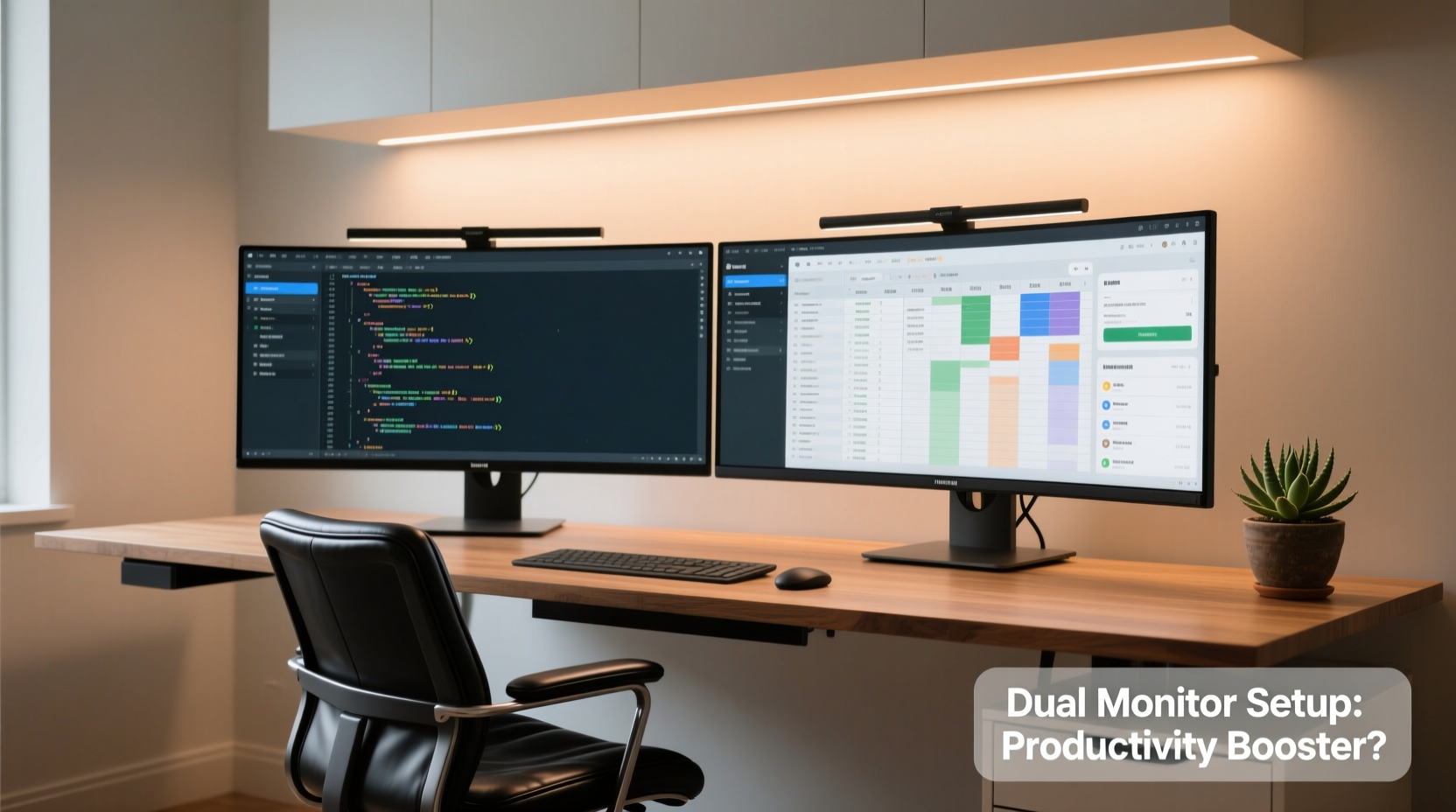
Multiple studies have explored the impact of dual monitors on workplace performance. A 2008 study by the University of Utah, commissioned by NEC Displays, found that users with two monitors were up to 42% more productive than those using a single screen when performing tasks like data entry, coding, and financial analysis. The logic is straightforward: having more screen space reduces the need to minimize, maximize, and switch between windows—a process known as “window juggling.”
For roles involving constant context switching—such as software development, graphic design, video editing, or data analysis—the ability to keep reference materials, code editors, communication tools, and preview panels open simultaneously can streamline workflows. Developers might run their IDE on one screen and documentation or terminal logs on the other; designers may place Photoshop on one side and color palettes or client feedback on the other.
Moreover, extended desktop space supports better spatial memory. Users tend to remember where they placed certain files or applications on-screen, which speeds up retrieval. This “cognitive offloading” frees mental bandwidth for higher-level thinking rather than remembering file locations.
When Dual Monitors Become Distraction Engines
Despite the advantages, dual monitors aren't immune to misuse. In fact, they can amplify distraction if not managed intentionally. With double the screen real estate comes double the temptation: email clients pinging in the corner, social media tabs lurking behind spreadsheets, news tickers running in the background—all competing for attention.
Research from the American Psychological Association highlights that multitasking reduces efficiency and increases error rates. A dual monitor setup, without discipline, turns into a perfect enabler of continuous partial attention. Instead of deep work, users fall into a cycle of reactive toggling—responding to notifications, checking messages, and scanning unrelated content—all while believing they’re being productive.
This effect is particularly pronounced in open-plan offices or home environments lacking boundaries. One screen meant for focused work can easily be invaded by entertainment, personal browsing, or passive video consumption on the adjacent display. Over time, the brain begins associating the workspace with fragmentation rather than concentration.
“More screen space doesn’t automatically mean better focus. It means more room for both productivity and procrastination.” — Dr. Linda Ray, Cognitive Ergonomics Researcher, MIT Human Performance Lab
Who Benefits Most (and Who Doesn’t)
Not all professions or individuals gain equally from dual monitors. The value depends heavily on the nature of daily tasks, user behavior, and interface management skills.
| Profession / Role | Benefit Level | Why It Helps |
|---|---|---|
| Software Developers | High | Code editor, terminal, API docs, and debugging tools can coexist without tab switching. |
| Graphic & UI Designers | High | Design canvas on one screen, layers panel, color picker, and asset library on the other. |
| Data Analysts | High | SAS/Python/R console on one side, dataset viewer and visualization tool on the other. |
| Writers & Researchers | Moderate | Reference material on one screen, writing app on the other—but only if self-control is strong. |
| Customer Support Agents | Moderate | CRM on one screen, knowledge base and chat window on the other improves response time. |
| Casual Email & Web Users | Low | Limited benefit; increased risk of distraction from non-work tabs and pop-ups. |
Interestingly, personality traits also influence outcomes. Individuals with high executive function—who naturally organize tasks, manage time well, and resist impulses—tend to leverage dual monitors effectively. Those prone to distraction or low in task persistence may see diminished returns or even negative effects.
Optimizing Your Dual Monitor Setup: A Step-by-Step Guide
If you're considering a dual monitor configuration—or already using one but unsure if it’s helping—follow this structured approach to evaluate and refine your setup.
- Assess Your Core Workflow: Track your tasks for three days. Note how often you switch between applications, copy-paste between sources, or need simultaneous views. If you do this frequently, dual monitors could help.
- Choose the Right Hardware: Match screen size, resolution, and brightness. Mismatched displays create visual imbalance and eye fatigue. Ideally, both monitors should be identical or very similar.
- Arrange for Ergonomic Efficiency: Place the primary monitor directly in front of you, aligned with your natural line of sight. The secondary monitor should sit slightly to the side, angled inward. Top edges should align with your eye level.
- Assign Functional Roles: Define what each screen does. Example: Left = communication (email, Slack), Right = deep work (writing, coding). Avoid letting one screen become a “junk zone” for random tabs.
- Use Software Tools Wisely: Leverage virtual desktops (Windows Task View or macOS Mission Control) to segment activities. Use apps like DisplayFusion or Magnet (Mac) to snap windows precisely.
- Test and Measure: Run a two-week trial. Compare output metrics—completed tasks, time spent per project, interruptions—before and after setup changes.
- Re-evaluate Monthly: Needs change. What worked last month might now contribute to clutter. Be willing to scale back to a single screen if focus suffers.
Real-World Case: From Burnout to Balance
Mark, a technical writer at a SaaS company, upgraded to a dual monitor setup during the pandemic, believing it would boost his documentation speed. Initially, he felt empowered—research on one side, draft on the other. But within weeks, he noticed declining quality and rising stress.
His secondary screen had evolved into a hub for Slack, Twitter, YouTube tutorials, and RSS feeds. Every notification pulled his gaze away. He was writing slower, making more errors, and feeling mentally drained by noon.
After consulting an ergonomics specialist, Mark restructured his setup. He disabled all non-essential apps on the second screen, reserved it strictly for static references (API docs, style guides), and enabled “Do Not Disturb” mode during writing blocks. He also rotated back to a single monitor for mornings, using the second only during collaborative hours.
Within a month, his word output increased by 30%, and peer reviews noted improved clarity. “I thought more screens meant more capacity,” Mark said. “But really, I just needed better boundaries.”
Checklist: Is Your Dual Monitor Setup Working for You?
- ✅ Do you use both screens purposefully, not just because they’re available?
- ✅ Are notifications minimized or silenced on at least one display?
- ✅ Can you complete deep work tasks without constantly glancing sideways?
- ✅ Is your posture supported by proper monitor placement?
- ✅ Have you measured actual output before and after implementation?
- ✅ Are both monitors visually consistent (size, resolution, color profile)?
- ✅ Do you take regular breaks to avoid screen fatigue?
If you answered “no” to more than two of these, your setup may be hurting more than helping.
Frequently Asked Questions
Can a dual monitor setup cause eye strain or fatigue?
Yes, if monitors are poorly positioned, mismatched in brightness or resolution, or used without breaks. Glancing repeatedly between uneven displays forces your eyes to constantly refocus, leading to discomfort. Ensure both screens are at eye level, equally lit, and free of glare.
Is one large ultrawide monitor better than two separate ones?
Often, yes. An ultrawide monitor (e.g., 34-inch 21:9) provides similar horizontal space without the bezel interruption in the center. It reduces head movement and creates a seamless workspace. However, it lacks true independence—one app can’t span both “sides” without affecting visibility. For some, this limitation enhances focus.
Should I use dual monitors if I work remotely part-time?
Only if your part-time role involves complex, multi-app workflows. For occasional email and meetings, a laptop with a temporary external monitor during intensive sessions may suffice. Flexibility beats permanence in hybrid setups.
Conclusion: Intentionality Over Quantity
A dual monitor setup is neither inherently productive nor inherently distracting. Its impact is determined not by the hardware itself, but by how it’s used. For professionals managing layered digital tasks, the extra space can eliminate friction and accelerate output. For others, it becomes a gateway to fragmented attention and cognitive overload.
The key lies in intentionality. Before adding a second screen, ask: What specific problem am I solving? How will I prevent it from becoming a distraction vector? And how will I measure success?




 浙公网安备
33010002000092号
浙公网安备
33010002000092号 浙B2-20120091-4
Comments
No comments yet. Why don't you start the discussion?