
For remote workers, the home office is more than just a place to log hours—it’s where focus, efficiency, and comfort intersect. One of the most debated upgrades in this space is the dual monitor setup. Advocates swear by its ability to streamline workflows, while skeptics worry about added complexity and visual clutter. The truth lies somewhere in between, shaped by individual needs, job functions, and workspace design. This article explores whether investing in a second screen genuinely enhances productivity or risks turning your desk into a tangled mess of cables and distractions.
The Productivity Promise of Dual Monitors
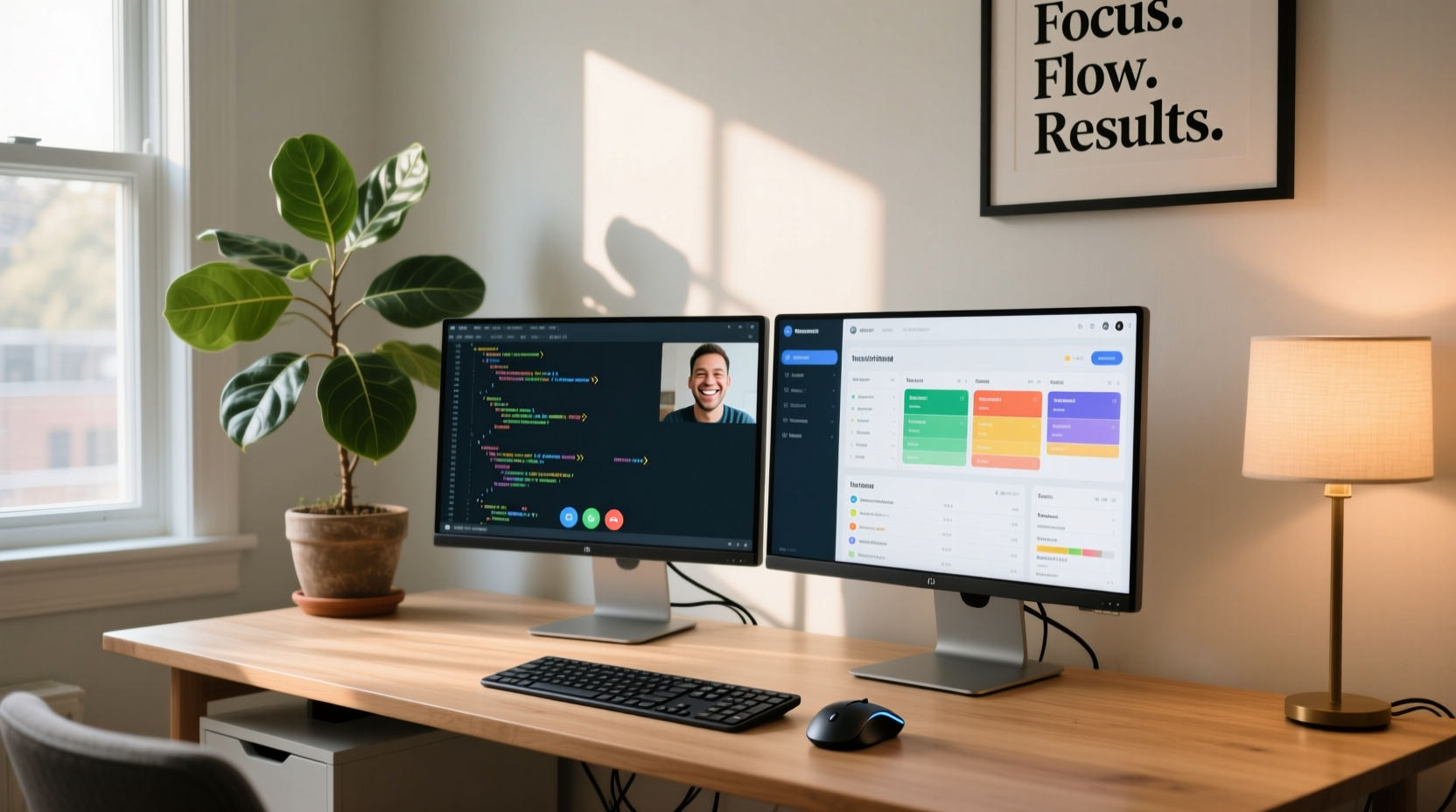
Multiple studies have demonstrated that using two monitors can significantly improve work efficiency. According to research from the University of Utah, users with dual displays completed tasks up to 32% faster than those working on a single screen. For remote professionals juggling video calls, spreadsheets, emails, and project management tools, the ability to keep applications open side-by-side reduces constant tab-switching and mental context shifting.
Consider a graphic designer editing an image on one screen while referencing client feedback on the other. Or a software developer coding on the primary display while monitoring server logs or documentation on the secondary. These real-world scenarios highlight how dual monitors reduce friction in multitasking—without requiring cognitive overload.
“Adding a second monitor is one of the most cost-effective ways to increase productivity for knowledge workers.” — Dr. Gloria Mark, Professor of Informatics, UC Irvine
The psychological benefit is also notable. A dedicated space for communication apps (like Slack or Zoom) separate from core work tools helps establish mental boundaries. This separation can reduce the stress of constant notifications interrupting deep work sessions.
When Dual Monitors Create Clutter Instead of Clarity
Despite the advantages, a dual monitor setup isn’t automatically beneficial. Poor implementation can lead to physical clutter, ergonomic strain, and digital distraction. Many remote workers install a second screen without adjusting their workflow, resulting in unused real estate or chaotic window arrangements.
Cable management becomes a critical issue. Two monitors mean additional power cords, HDMI or DisplayPort cables, and potentially extra USB hubs. Without proper organization, these wires accumulate under desks, creating both a tripping hazard and a visual eyesore. Moreover, mismatched monitor sizes, resolutions, or orientations can disrupt visual continuity and cause eye fatigue.
Another overlooked factor is desk space. Not all home offices are designed to accommodate two monitors comfortably. Crowding screens together forces users to turn their heads excessively, increasing neck strain over time. A poorly positioned dual setup can negate any productivity gains through long-term discomfort.
Who Benefits Most from a Second Screen?
Not every remote worker will see equal returns from a dual monitor system. The value depends heavily on the nature of the work being performed.
| Profession | Highly Beneficial? | Why? |
|---|---|---|
| Software Developers | Yes | Code on one screen, documentation/debugger on the other |
| Data Analysts | Yes | View datasets on one monitor, visualization tools on the second |
| Graphic & UI Designers | Yes | Design interface on primary, color palettes/assets on secondary |
| Writers & Editors | Sometimes | Useful for research/reference, but often manageable with split-screen |
| Customer Support Agents | Moderate | Helpful for viewing tickets and knowledge base simultaneously |
| HR & Administrative Staff | No | Routine tasks rarely require simultaneous app visibility |
The key differentiator is whether the role involves frequent cross-referencing or parallel application use. If your daily tasks involve copying data between systems, reviewing documents while taking notes, or managing multiple dashboards, dual monitors offer tangible benefits. If you primarily use one application at a time, the investment may not be justified.
Optimizing Your Dual Monitor Setup: A Step-by-Step Guide
Simply adding a second screen isn’t enough. To maximize productivity and minimize clutter, follow this structured approach:
- Assess Your Workflow Needs
Determine which applications you frequently switch between. Map out your typical day to identify opportunities for screen separation. - Choose Compatible Hardware
Select monitors with matching resolution (e.g., both 1080p or both 1440p) and similar brightness levels. Mismatched specs create visual dissonance when moving windows across screens. - Position for Ergonomics
Place the primary monitor directly in front of you, aligned with your line of sight. Position the secondary slightly to the side, angled inward. The top of both screens should be at or just below eye level. - Configure Display Settings
In your operating system (Windows/macOS), arrange the screens to match their physical layout. This ensures smooth mouse movement between them. Set the correct primary display for taskbars/menus. - Organize Apps Strategically
Reserve the main screen for active work (writing, designing, coding). Use the secondary for passive or reference tasks: email, calendar, chat apps, or browser research. - Manage Cables and Power
Use a surge protector with enough outlets. Bundle cables using Velcro ties or raceways. Consider a monitor arm with built-in cable management. - Test and Refine Weekly
After one week, evaluate usage patterns. Are both screens actively used? Is one becoming a “parking lot” for minimized windows? Adjust placement or reassign apps as needed.
Real-World Example: From Chaos to Clarity
Take Sarah, a freelance financial analyst working remotely. Initially, she used a single 13-inch laptop screen, constantly minimizing Excel models to check emails or messages. She felt mentally drained by midday due to constant context switching.
She invested in a 24-inch external monitor and followed the optimization steps above. Now, her laptop runs Outlook and Zoom, while the larger screen hosts complex financial models and data dashboards. Within two weeks, she reported a 40% reduction in time spent switching between tasks and improved accuracy in report generation.
But it wasn’t seamless at first. Her initial setup placed the external monitor too far to the right, causing neck strain. After adjusting the position and using a monitor stand to align heights, comfort improved dramatically. She also adopted cable clips to manage three separate cords, transforming her desk from chaotic to clean.
Sarah’s experience underscores a crucial point: the hardware is only half the solution. Intentional configuration and iterative refinement determine whether dual monitors become a productivity engine or just another desk ornament.
Checklist: Is a Dual Monitor Setup Right for You?
- ✅ Do you regularly use more than one application at a time?
- ✅ Do you find yourself constantly minimizing and reopening windows?
- ✅ Is your current screen size limiting your ability to view full documents or spreadsheets?
- ✅ Do you have sufficient desk space (at least 48 inches wide recommended)?
- ✅ Can your laptop or desktop support a second display (check ports and GPU capability)?
- ✅ Are you willing to invest time in organizing cables and configuring settings?
- ❌ Do you mostly browse, write, or perform linear tasks without cross-app referencing?
If you answered “yes” to three or more of the first six questions, a dual monitor setup is likely worth exploring. If most of your work fits the last item, consider alternative solutions like virtual desktops or split-screen modes before upgrading.
Frequently Asked Questions
Can I use a TV as a second monitor?
Yes, many modern TVs have HDMI inputs and can function as extended displays. However, they often have higher input lag and lower pixel density than computer monitors, making them less ideal for text-heavy or fast-paced work. Use only if a proper monitor isn’t available.
Does a dual monitor setup increase eye strain?
It can—if monitors are poorly positioned, mismatched in brightness, or placed at incorrect heights. Ensure both screens are at eye level, evenly lit, and free from glare. Take regular breaks using the 20-20-20 rule: every 20 minutes, look at something 20 feet away for 20 seconds.
What if my laptop doesn’t have enough ports?
You can use a USB-C docking station or a DisplayLink adapter to add video output via USB. Make sure your system meets the bandwidth requirements, especially for high-resolution displays.
Conclusion: Maximizing Value, Minimizing Clutter
A dual monitor setup isn’t inherently good or bad—it’s a tool whose effectiveness depends on how it’s implemented. For remote workers engaged in complex, multitask-heavy roles, the upgrade can dramatically enhance focus, speed, and job satisfaction. But without thoughtful planning, it risks introducing clutter, discomfort, and wasted resources.
The goal isn’t simply to own two screens, but to create a seamless digital workspace that supports your unique workflow. Start by evaluating your actual needs, not trends. Invest in compatibility and ergonomics as much as screen size. And remember: technology should serve you, not complicate your life.




 浙公网安备
33010002000092号
浙公网安备
33010002000092号 浙B2-20120091-4
Comments
No comments yet. Why don't you start the discussion?