
For remote workers, the home office is more than just a workspace—it's where productivity, focus, and comfort converge. As digital tools evolve, so do expectations for efficiency. One trend that has gained steady traction over the past decade is the dual monitor setup. While some swear by its multitasking power, others dismiss it as desk clutter with diminishing returns. So, is adding a second screen truly beneficial, or is it just another piece of hardware gathering dust?
The answer isn't universal. It depends on your work type, workflow preferences, and available space. But understanding the real-world impact—both positive and negative—can help you decide whether investing in a second monitor aligns with your professional goals.
The Productivity Promise: Why Two Screens Can Boost Output
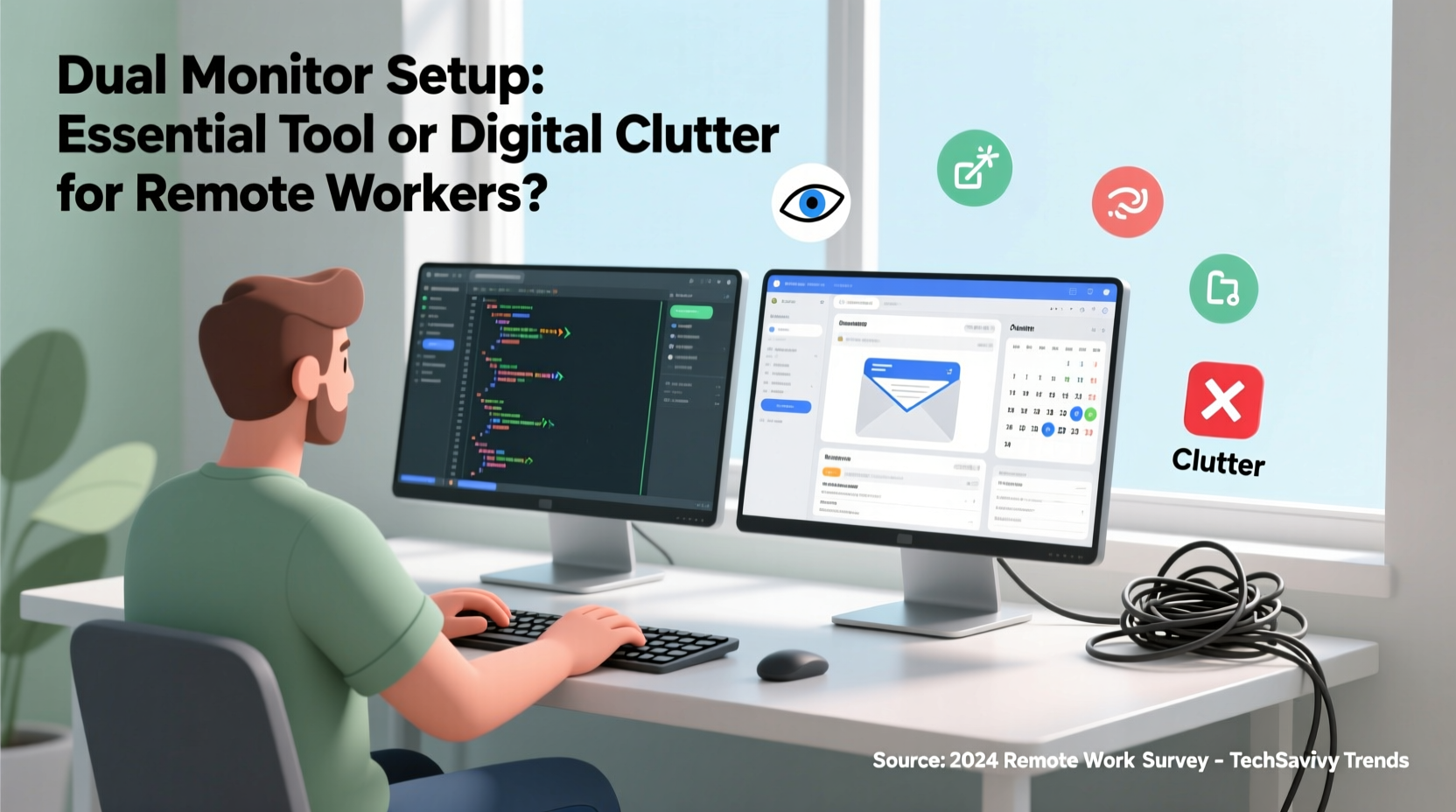
Multiple studies have demonstrated that using two monitors increases productivity. A landmark study by the University of Utah, commissioned by NEC, found that users working with dual displays completed tasks up to 44% faster than those using a single screen. This performance boost comes from reduced task-switching time and improved visual real estate.
Consider a typical remote worker juggling video calls, spreadsheets, email, and project management tools. With one monitor, constantly minimizing and maximizing windows disrupts concentration. A second screen allows persistent access to critical applications—keeping Zoom on one side while editing a document on the other, for example.
Professionals in data analysis, software development, graphic design, and financial modeling report particularly strong gains. These roles require constant cross-referencing between datasets, codebases, or design layers. Having reference material visible at all times eliminates memory strain and reduces errors caused by misreading transient information.
When Dual Monitors Add Value—and When They Don’t
Not every remote job benefits equally from extra screen space. The value of a dual monitor setup hinges largely on how much concurrent visual information you need.
Writers, editors, and content strategists often benefit from having research open on one screen while drafting on the other. Customer support agents can keep knowledge bases visible while responding to tickets. Developers frequently split their environment across terminals, code editors, and browser previews.
On the flip side, if your daily routine revolves around phone calls, short emails, and calendar management, a second monitor may offer little tangible return. In such cases, the added cables, power draw, and physical footprint might outweigh marginal convenience.
Space constraints also play a role. Many remote workers operate from small apartments or shared spaces where desk real estate is limited. Forcing a dual setup into an overcrowded area can lead to ergonomic issues and mental fatigue, defeating the purpose of enhancing work conditions.
“Adding a second monitor isn’t inherently productive—it’s how you use it that matters. If it enables better context switching without cognitive overload, it pays off.” — Dr. Lena Torres, Human Factors Researcher at MIT Media Lab
Setting Up Smartly: A Step-by-Step Guide to Effective Dual Monitor Use
Simply plugging in a second monitor won’t automatically improve your workflow. To get real value, intentional configuration is essential. Follow this timeline to integrate a dual display system effectively:
- Assess Your Workflow Needs (Day 1)
Determine which tasks involve multiple applications running simultaneously. Track window-switching frequency over a full workday. - Choose Compatible Hardware (Days 2–3)
Select a secondary monitor with matching resolution and refresh rate to avoid visual inconsistency. Ensure your laptop or desktop supports multi-display output via HDMI, DisplayPort, or USB-C. - Optimize Physical Placement (Day 4)
Align both screens at eye level, with the center of the primary monitor directly in front of you. Angle the secondary monitor inward slightly (15–30 degrees) to minimize head turning. - Configure Display Settings (Day 5)
In your operating system (Windows/macOS), set the correct orientation, scaling, and primary display. Arrange virtual screen positions to match physical layout. - Assign Application Zones (Ongoing)
Dedicate each screen to specific functions—e.g., communication apps on the left, core work tools on the right. Use built-in snapping features (like Windows Snap or macOS Split View) to maintain consistency. - Evaluate After Two Weeks
Reassess productivity, comfort, and actual usage. Did you use both screens regularly? Did distractions increase? Adjust or scale back accordingly.
Common Pitfalls and How to Avoid Them
A poorly implemented dual monitor setup can create more problems than it solves. Below are frequent issues and practical solutions:
| Issue | Solution |
|---|---|
| Eye strain from mismatched brightness or color temperature | Calibrate both monitors to similar settings; use night mode consistently across screens |
| Neck pain due to improper alignment | Use monitor arms for precise height and angle adjustment |
| Cluttered cable management reducing focus | Invest in cable sleeves or clips; route cords behind the desk |
| Distraction from too many open windows | Limit secondary screen to one auxiliary app (e.g., calendar or Slack), not social media |
| Underutilization leading to wasted investment | Start with part-time use; gradually expand only if proven useful |
Real Example: From Skeptic to Advocate – A Remote Project Manager’s Journey
Sophie Chen, a senior project manager at a distributed tech startup, initially dismissed dual monitors as overkill. Working from her Brooklyn apartment, she had a 13-inch MacBook Air and a compact desk. “I thought two screens were for gamers or coders,” she said. “My world was emails, Trello boards, and weekly standups.”
But after months of missing deadlines due to poor visibility during sprint planning, she experimented with a used 24-inch monitor placed to her right. She kept her main tasks on the laptop and moved Jira, Google Calendar, and team chat to the external screen.
Within a week, her meeting prep time dropped by nearly half. She could see upcoming milestones while updating task statuses without flipping tabs. More importantly, she reported feeling less mentally drained at the end of the day. “It’s like giving my brain extra RAM,” she joked. “Now I can’t imagine going back.”
Sophie’s experience highlights a key insight: even non-technical roles can benefit from expanded visual bandwidth when managing complex timelines and communication streams.
Checklist: Is a Dual Monitor Setup Right for You?
Before making a purchase, ask yourself these questions:
- Do I regularly use more than two applications at once?
- Do I spend significant time referencing documents, data, or communication tools while creating content?
- Am I experiencing fatigue from constant tab or window switching?
- Do I have enough desk space to accommodate a second screen without crowding?
- Can my current computer support an additional display without lag?
- Would I commit to organizing my workflow across both screens intentionally?
- Have I tried maximizing my current screen with virtual desktops or tiling managers first?
If you answered “yes” to three or more, a dual monitor setup is likely worth exploring. If most answers are “no,” consider optimizing your existing setup before upgrading hardware.
Alternatives to Dual Monitors for Space-Constrained Workers
Not everyone has room—or budget—for a second monitor. Fortunately, modern alternatives can deliver similar benefits without physical expansion:
- Virtual Desktops: Both Windows (Task View) and macOS (Mission Control) allow multiple desktop environments. Assign different projects or workflows to separate spaces and toggle between them with shortcuts.
- Window Tiling Managers: Tools like Magnet (macOS) or PowerToys (Windows) let you snap windows into predefined zones, simulating multi-screen organization on a single display.
- High-Resolution Single Monitors: A 27-inch 4K monitor offers ample space to view multiple panels side by side, reducing the need for a second unit.
- Laptop + Tablet Extension: Devices like the iPad can function as secondary displays using apps like Duet Display or Sidecar, offering flexibility without permanent installation.
These options provide scalable solutions that adapt to evolving needs without committing to long-term hardware changes.
Frequently Asked Questions
Does a dual monitor setup consume significantly more power?
Yes, but the impact is usually minor. An average LED monitor uses about 20–30 watts. Running two adds roughly 20–35% more energy consumption compared to one. For most home offices, this translates to a negligible increase in electricity costs—typically less than $10 per year with regular use.
Can I use monitors of different sizes or resolutions?
You can, but it may affect usability. Mismatched resolutions can cause scaling inconsistencies, making text appear larger on one screen than the other. While functional, this creates visual dissonance that can disrupt focus. For best results, match resolution and aspect ratio, or at least ensure both support the same scaling percentage (e.g., 100% or 125%).
Will a second monitor extend my laptop’s lifespan?
Indirectly, yes. Offloading display processing to external monitors reduces GPU and screen wear on laptops, especially older models. Additionally, closing the laptop lid and using external input devices promotes better ergonomics, potentially reducing long-term strain on internal components.
Conclusion: Clarity Over Clutter
A dual monitor setup isn’t inherently valuable—it becomes valuable only when it serves a clear purpose in your daily workflow. For remote workers drowning in tabs, toggling between communication platforms and production tools, the extra screen real estate can be transformative. It reduces cognitive load, speeds up task execution, and enhances overall control over digital environments.
Yet, for others, it risks becoming unused clutter—another device to manage, cable to hide, and surface to clean. The key lies not in following trends, but in auditing your actual needs. Test configurations, leverage software alternatives, and prioritize ergonomics over aesthetics.
If you’re considering a second monitor, start small. Borrow one, rent one, or repurpose an old TV. Give it two weeks of honest use before deciding. And if it works? Embrace the upgrade. If not, there’s no shame in keeping things simple.




 浙公网安备
33010002000092号
浙公网安备
33010002000092号 浙B2-20120091-4
Comments
No comments yet. Why don't you start the discussion?