
Remote work has redefined how we interact with technology. As home offices become permanent fixtures, professionals are re-evaluating their workspace setups. One of the most debated upgrades is the addition of a second monitor. Advocates claim it boosts productivity, reduces stress, and streamlines multitasking. Critics argue it introduces distractions, visual clutter, and unnecessary complexity. So, is a dual monitor setup truly beneficial—or does it do more harm than good?
The answer isn’t universal. It depends on your role, workflow, and personal habits. But understanding the evidence, real-world experiences, and best practices can help remote workers make an informed decision.
Productivity Gains: What the Research Says
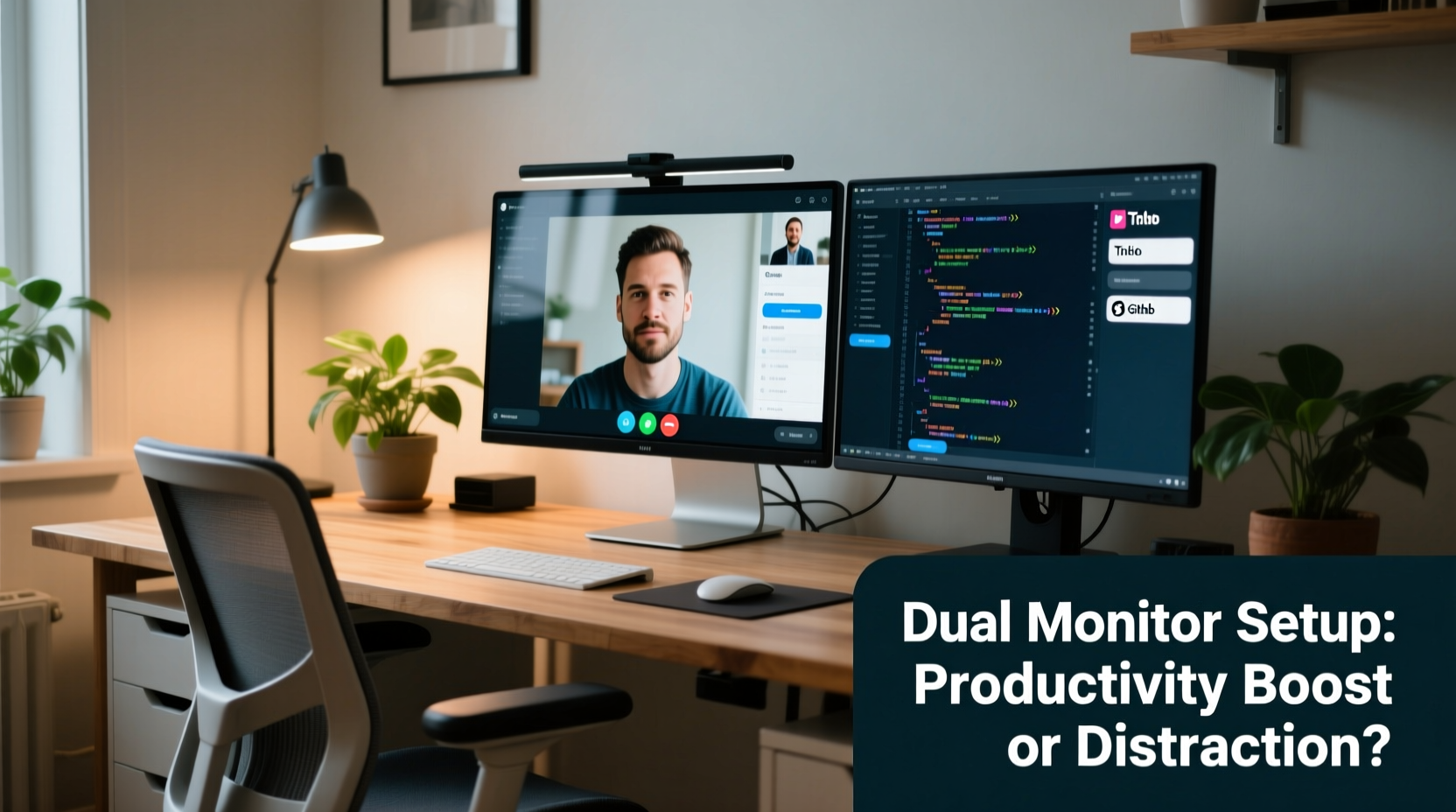
Multiple studies have explored the impact of multiple monitors on workplace efficiency. A 2008 study by the University of Utah, sponsored by NEC, found that users with dual monitors were up to 42% more productive when performing tasks like copying and pasting between documents, comparing spreadsheets, or managing email while reviewing files. More recent research from the University of Mississippi supports this, showing that dual-screen users complete complex digital tasks faster and with fewer errors.
These improvements stem from reduced task-switching overhead. Instead of alt-tabbing between applications, users can keep reference materials open on one screen while actively working on another. This minimizes cognitive load—the mental effort required to resume a task after interruption—which can be significant in knowledge-based roles.
“Reducing context switching is one of the most effective ways to improve deep work. A second monitor can serve as a dedicated space for auxiliary tools, keeping focus where it belongs.” — Dr. Lena Torres, Cognitive Ergonomics Researcher at Stanford Human-Computer Interaction Lab
However, these benefits assume intentional use. The same study noted that users who filled both screens with social media, messaging apps, or unrelated tabs saw no performance gains—and in some cases, experienced slower completion times due to distraction.
When Dual Monitors Help (and When They Don’t)
Not all remote jobs benefit equally from a second display. The value depends heavily on the nature of your daily tasks.
Jobs That Benefit Most
- Software developers: Code on one screen, documentation or terminal on the other.
- Data analysts: View dashboards alongside raw datasets or SQL editors.
- Graphic designers: Use one screen for design tools, the other for asset libraries or client feedback.
- Writers and editors: Draft content on one monitor, research or style guides on the second.
- Project managers: Keep project timelines visible while attending video calls or updating task lists.
Jobs Where Benefits Are Limited
- Call center agents: Often rely on a single CRM interface; extra space adds little value.
- Customer support reps: If handling one ticket at a time, a second screen may go underused.
- Creative writers focused on long-form work: May find a minimalist setup less distracting.
Common Pitfalls and How to Avoid Them
A dual monitor setup doesn’t automatically lead to better work. Poor configuration can actually hurt focus and ergonomics.
Digital Clutter
Having two screens often encourages users to leave too many applications open simultaneously. Email, Slack, calendar, news feeds, and YouTube videos scattered across both displays create visual noise. This constant peripheral stimulation fragments attention and increases mental fatigue.
Ergonomic Misalignment
Many users place the second monitor too far to the side, forcing them to twist their neck repeatedly. Over time, this leads to strain and discomfort. The ideal arrangement positions both screens at eye level, angled slightly inward, with the primary monitor centered and the secondary at about a 30-degree angle.
Misuse of Screen Real Estate
Some professionals use the second monitor for passive entertainment—streaming videos or leaving social media open “just in case.” This turns a productivity tool into a distraction engine.
“We installed dual monitors for our remote finance team thinking it would speed up reporting. Instead, we saw a spike in off-task browsing until we implemented clear usage guidelines.” — Mark Reynolds, IT Director at FinEdge Solutions
Optimizing Your Dual Monitor Setup: A Step-by-Step Guide
To get the most out of a second screen, follow this structured approach:
- Assess your workflow needs. Identify which applications you use together frequently. For example, if you write reports using data from Excel, that’s a strong pairing for separate screens.
- Choose the right hardware. Match screen size, resolution, and brightness. A mismatched pair creates visual imbalance. 24- to 27-inch monitors with 1080p or higher resolution are ideal for most remote workers.
- Position monitors correctly. Place the primary screen directly in front of you. The secondary should be to the left or right, flush with the edge of the main monitor, angled toward your line of sight.
- Assign functional roles. Designate one screen as your “active” workspace (e.g., writing, coding) and the other as “reference” (e.g., email, chat, research).
- Use OS features to organize. Windows Snap Layouts or macOS Mission Control help manage window placement. Assign keyboard shortcuts to move apps between screens quickly.
- Limit non-work apps. Reserve one screen strictly for professional tools. Avoid placing entertainment or social platforms on either display unless scheduled for breaks.
- Test and adjust weekly. After two weeks, evaluate whether your productivity, focus, and comfort have improved. Adjust layout or revert if necessary.
Real-World Example: From Skeptic to Advocate
Jamila Patel, a freelance copywriter based in Portland, was initially skeptical about dual monitors. She worked primarily in Google Docs and believed a single 24-inch screen was sufficient. After struggling to juggle client briefs, style guides, and live editing sessions during Zoom calls, she invested in a second display.
She assigned her left monitor to active writing and her right to reference materials and communication tools. Within a week, she noticed she was spending 30% less time flipping between tabs. Her editing sessions became smoother because she could see client feedback in real time without leaving her draft.
“I used to think I was efficient,” Jamila said. “But once I stopped alt-tabbing every 30 seconds, I realized how much mental energy I was wasting. Now, I wouldn’t go back.”
Her only regret? Not adjusting her chair height sooner. After experiencing neck strain, she raised her desk and added a monitor arm—transforming both comfort and usability.
Do’s and Don’ts: Quick Reference Table
| Do | Don’t |
|---|---|
| Align both monitors at eye level to reduce neck strain. | Place the second monitor at a sharp angle requiring head turning. |
| Use one screen for active work, the other for supporting apps. | Fill both screens with notifications, chats, and open browsers. |
| Match screen specs (size, resolution, brightness) for consistency. | Pair a modern 4K display with an old 720p monitor. |
| Take advantage of OS snapping and virtual desktops. | Leave windows overlapping and unorganized. |
| Turn off or dim the secondary screen during deep focus sessions. | Keep irrelevant apps running in the background just because space is available. |
Frequently Asked Questions
Can a dual monitor setup reduce eye strain?
Yes—if configured properly. Spreading content across two screens allows for larger text and reduced scrolling. However, mismatched brightness, glare, or improper positioning can increase eye fatigue. Use matte screens, ambient lighting, and the 20-20-20 rule (every 20 minutes, look at something 20 feet away for 20 seconds).
Is a laptop plus external monitor as effective as two desktop monitors?
In most cases, yes. Many remote workers use their laptop as a primary screen and connect a larger external monitor as a secondary display. This setup offers flexibility and mimics a true dual-monitor environment. Just ensure the external monitor is positioned at eye level, not below the laptop screen, to avoid hunching.
What if I work from different locations?
If you’re not at a fixed desk, consider a portable monitor. Lightweight, USB-C-powered models can double your screen space in co-working spaces or cafes. Alternatively, prioritize software tools (like virtual desktops or tab managers) over hardware when mobility is key.
Final Verdict: Worth It—With Conditions
A dual monitor setup can significantly enhance productivity for remote workers—but only when implemented thoughtfully. The hardware itself is not the magic ingredient; it’s how you use it. For roles involving frequent multitasking, data comparison, or simultaneous app usage, the investment pays off in time saved and reduced mental fatigue.
Yet, without discipline, a second screen becomes a gateway to distraction. Notifications spread across two displays are harder to ignore. Visual overload creeps in. The key is intentionality: define each monitor’s purpose, maintain clean layouts, and align the setup with your actual workflow—not just the idea of being more productive.
Before buying, ask yourself: Will this solve a real problem in my current setup? If you’re constantly resizing windows, losing track of tabs, or feeling mentally drained from switching contexts, dual monitors may be the solution. If you already work efficiently with one screen, adding another might not move the needle.




 浙公网安备
33010002000092号
浙公网安备
33010002000092号 浙B2-20120091-4
Comments
No comments yet. Why don't you start the discussion?