
In an era where smartphones automatically back up photos, laptops sync documents across devices, and smart homes store footage in remote servers, cloud synchronization has become second nature. Yet, as seamless as it feels, a lingering question persists: Is handing over your personal and professional data to the cloud truly safe? The answer isn’t binary. While cloud syncing offers unmatched convenience and resilience, dismissing its risks entirely is naive—and fearing it completely may be outdated. The truth lies somewhere in between, shaped by how you use the technology, who provides the service, and what protections you enforce.
The Reality of Cloud Syncing Today
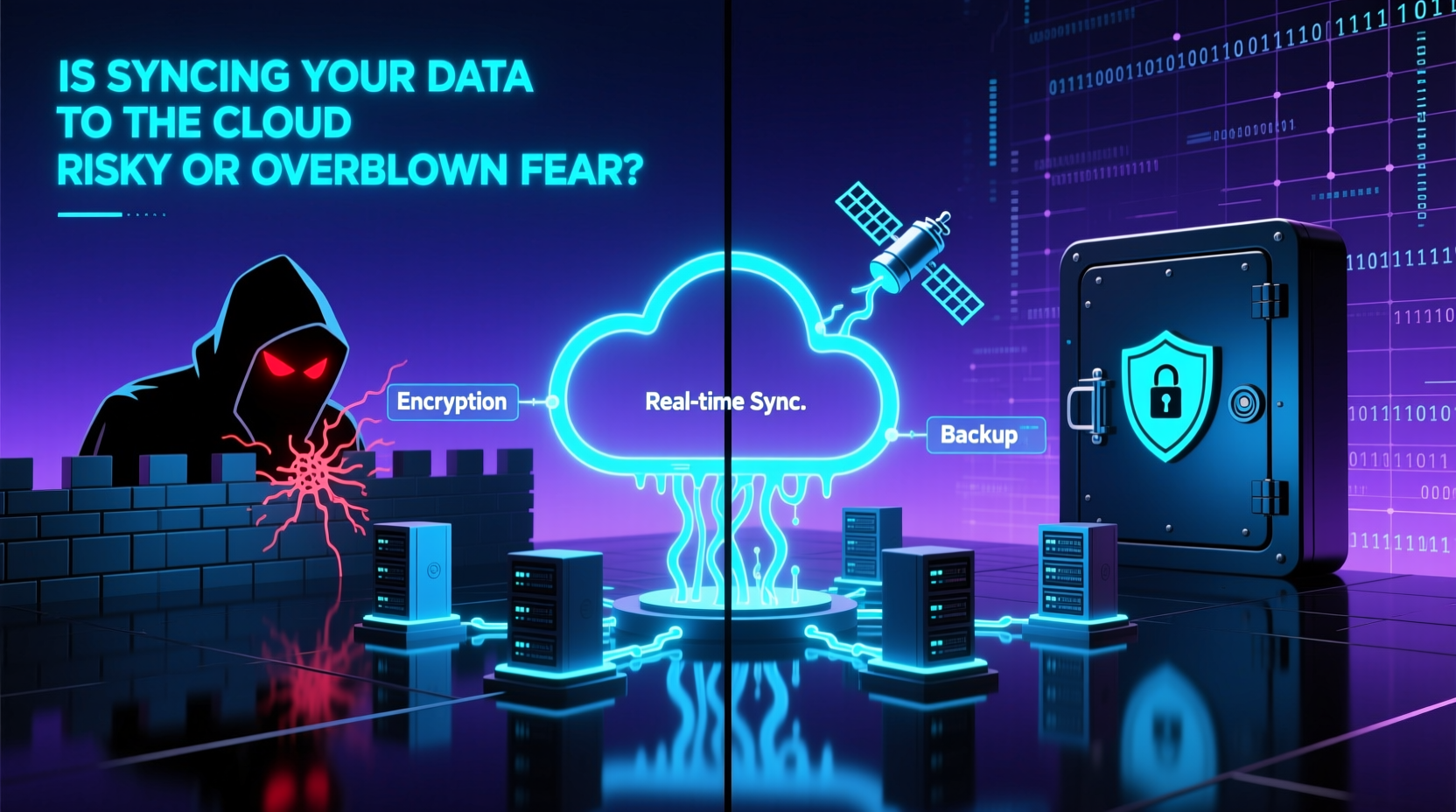
Cloud syncing refers to the automatic transfer and storage of files, settings, and data across internet-connected devices using remote servers managed by third-party providers like Google, Apple, Microsoft, Dropbox, or iCloud. These services ensure that when you edit a document on your phone, it appears updated on your laptop moments later. This seamless integration powers modern productivity, but it also centralizes vast amounts of sensitive information under corporate and potentially vulnerable infrastructure.
Concerns about cloud security are not new. High-profile breaches—such as the 2014 iCloud celebrity photo leak or Dropbox’s 2012 compromise affecting 68 million accounts—have fueled skepticism. However, these incidents often stemmed from weak user passwords or phishing attacks rather than direct cracks in encryption protocols. In reality, most major cloud providers now employ advanced security measures far beyond what the average individual could implement at home.
Common Risks vs. Perceived Threats
Not all fears about cloud syncing are equal. Some stem from legitimate vulnerabilities; others are exaggerated due to misinformation or lack of understanding. Breaking down the key concerns helps separate fact from fiction.
- Data Breaches: Real, but increasingly rare among top-tier providers due to enterprise-grade encryption and monitoring.
- Government Surveillance: A valid concern in certain jurisdictions, especially if data is stored in countries with lax privacy laws.
- Account Hijacking: More common than server breaches—often caused by reused passwords or social engineering.
- Service Outages: Temporary disruptions can occur, but redundancy across global data centers minimizes downtime.
- Permanent Data Loss: Extremely unlikely with reputable services that maintain multiple backups.
What many overlook is that local storage carries comparable, if not greater, risks. Hard drives fail. Laptops get stolen. Phones break. Unlike physical devices, cloud platforms typically replicate data across geographically dispersed servers, offering superior protection against hardware failure or natural disasters.
“Cloud providers invest more in cybersecurity than 95% of enterprises do internally. For most users, the cloud is safer than their own basement server.” — Dr. Lena Patel, Cybersecurity Researcher at MITRE Corporation
Security Measures That Make Cloud Syncing Safer Than You Think
Leading cloud services deploy layered defenses designed to protect data both in transit and at rest. Understanding these mechanisms reveals why widespread fear may be disproportionate to actual risk.
End-to-End Encryption (E2EE)
Some services, like Apple iCloud (for select data), WhatsApp, and ProtonDrive, use end-to-end encryption. This means only the user holds the decryption keys—data remains unreadable even if intercepted or accessed by the provider. While not universal across all file types or platforms, E2EE significantly reduces exposure.
Zero-Knowledge Architecture
Providers such as Tresorit and Sync.com operate on a zero-knowledge model: they cannot view your files because encryption happens locally before upload. Your password is your key—lose it, and recovery becomes impossible, but no one else can access your data either.
Automatic Updates & Patch Management
Unlike personal computers that may go weeks without updates, cloud infrastructure receives constant security patches. Vulnerabilities are identified and mitigated rapidly, often before exploitation occurs.
| Security Feature | Purpose | Available On |
|---|---|---|
| Two-Factor Authentication (2FA) | Requires second verification step (e.g., code or biometric) | All major providers |
| End-to-End Encryption | Only user can decrypt files | iCloud Advanced Data Protection, Signal, Proton |
| Zero-Knowledge Policy | Provider cannot access stored data | Tresorit, Sync.com, pCloud (optional) |
| Remote Wipe Capability | Delete synced data from lost devices | Google Drive, iCloud, OneDrive |
A Real-World Example: When Syncing Went Wrong (and Right)
Consider the case of Sarah Lin, a freelance graphic designer based in Portland. After finishing a major client project, she saved her final deliverables to her personal Google Drive, relying on auto-sync to keep everything backed up. A week later, her laptop was stolen from a coffee shop.
Initially panicked, Sarah remembered she had enabled 2FA and device-specific passcodes. She immediately logged into her Google account from another device, reviewed active sessions, and remotely signed out the unknown session. Using Google’s “Find My Device” feature, she wiped the laptop’s local data. Because all her work was already synced—and protected by strong authentication—she lost no files and continued working within hours.
This scenario illustrates how proper setup turns potential disaster into a minor inconvenience. Conversely, had Sarah used a weak password and no 2FA, the thief might have accessed years of client data, tax records, and private communications.
Best Practices to Minimize Risk
The safety of cloud syncing doesn’t depend solely on the provider—it hinges heavily on user behavior. Adopting disciplined habits dramatically lowers exposure.
- Use Strong, Unique Passwords: Avoid reusing passwords across accounts. Use a password manager to generate and store complex credentials.
- Enable Two-Factor Authentication: Prefer authenticator apps (like Google Authenticator or Authy) over SMS, which can be SIM-swapped.
- Classify Your Data: Not everything needs to be in the cloud. Sensitive documents (e.g., passports, wills) should remain offline or encrypted separately.
- Review App Permissions: Periodically audit which third-party apps have access to your cloud accounts and revoke unnecessary ones.
- Choose Providers Wisely: Prioritize companies with transparent privacy policies, E2EE options, and jurisdictional protections (e.g., EU-based providers benefit from GDPR).
- Monitor Activity Logs: Most cloud services show recent logins and IP addresses. Investigate any unfamiliar activity immediately.
Checklist: Secure Your Cloud Syncing Setup
- ✅ Enable two-factor authentication on all cloud accounts
- ✅ Use a password manager to avoid reuse and strengthen credentials
- ✅ Verify whether your provider uses end-to-end encryption
- ✅ Review connected apps and remove unused permissions
- ✅ Classify sensitive files—avoid syncing unencrypted copies
- ✅ Set up alerts for unusual login attempts
- ✅ Back up essential synced data to an external drive quarterly
- ✅ Read the provider’s privacy policy—know where your data resides
Frequently Asked Questions
Can hackers really access my synced files?
Hackers typically don’t break into cloud servers directly. Instead, they target weak passwords, phishing, or compromised devices. If you use strong authentication and avoid suspicious links, the likelihood of unauthorized access drops significantly. Major providers encrypt data and monitor for intrusions continuously.
Is it safe to sync work documents to personal cloud storage?
Generally, no. Mixing personal and professional data increases risk and may violate company policies or compliance standards (e.g., HIPAA, GDPR). Use business-tier solutions like Microsoft 365 or Google Workspace, which offer better administrative controls and audit trails.
Does deleting a file on one device delete it everywhere?
Yes—syncing means changes propagate across devices. However, most services retain deleted files in a \"Trash\" folder for 30 days before permanent removal. Always double-check before deleting important items.
Conclusion: A Calculated Trust, Not Blind Fear
Fear of cloud syncing often stems from misunderstanding how modern systems work. Yes, risks exist—but so do robust countermeasures. The cloud is not inherently dangerous; misusing it is. For the vast majority of users, syncing data to trusted, well-configured cloud services is far safer than relying on unbacked local storage.
The key is informed engagement. Treat your digital life with the same care you’d apply to physical valuables: lock the doors (use 2FA), know who holds the keys (choose ethical providers), and keep backups (offline archives). When done right, cloud syncing isn’t a gamble—it’s a strategic advantage.




 浙公网安备
33010002000092号
浙公网安备
33010002000092号 浙B2-20120091-4
Comments
No comments yet. Why don't you start the discussion?