
In an era where mobility defines productivity, the line between tablets and laptops is blurring. The Google Pixel Tablet—launched with a focus on smart home integration and media consumption—has quietly evolved into a device that many are considering as a lightweight alternative to their full-fledged laptops. But can it truly step in when you need to get work done? For specific users and scenarios, the answer isn’t just “maybe”—it’s increasingly “yes.”
The key lies not in blanket comparisons but in understanding how you work, what tasks dominate your day, and whether the Pixel Tablet's strengths align with your workflow. It won’t run Photoshop or compile code like a MacBook Pro, but for email-heavy professionals, students, remote workers, and creatives managing light projects, this Android-powered slate offers surprising versatility.
Understanding the Pixel Tablet’s Core Strengths
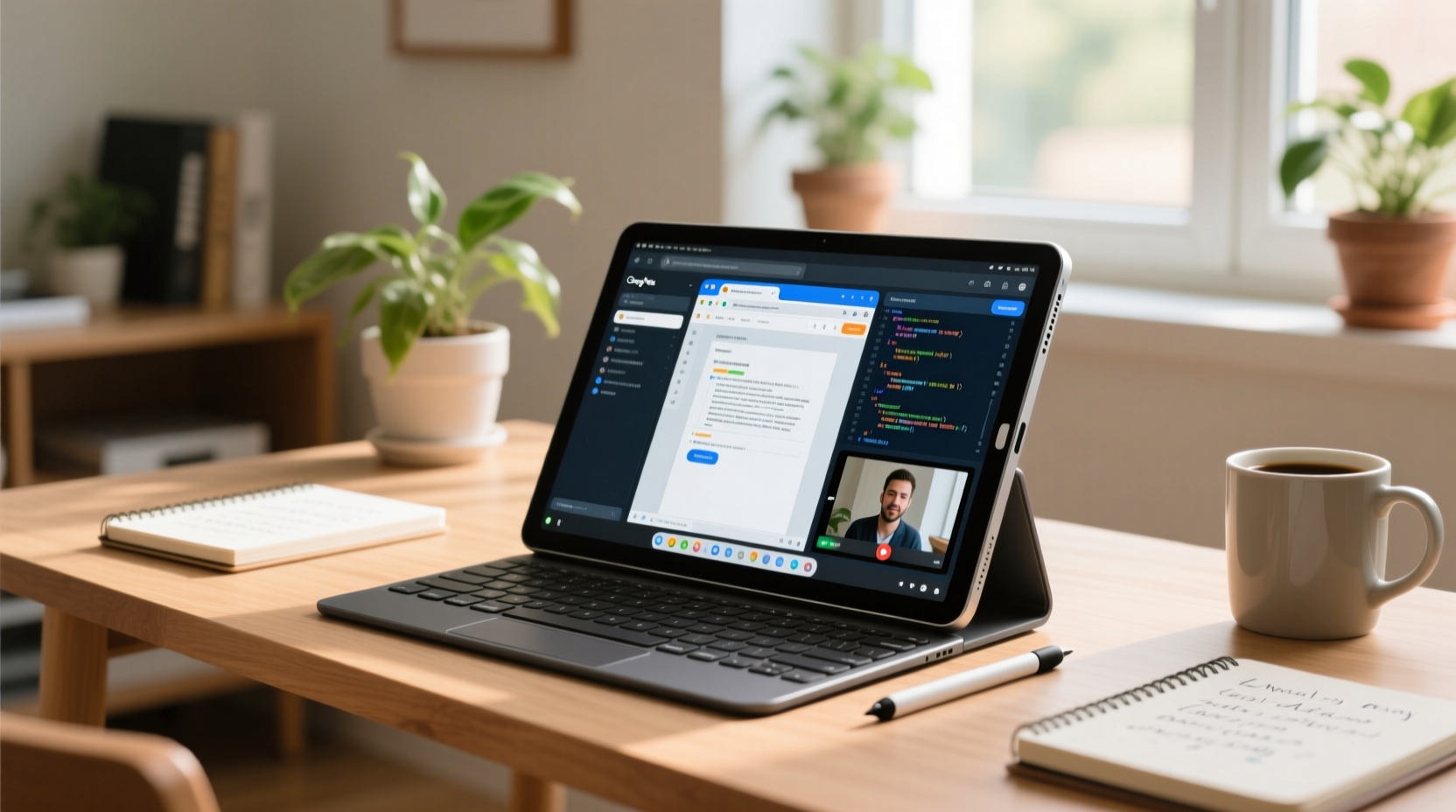
Released in 2023, the Google Pixel Tablet runs on the Tensor G2 chip—the same processor found in the Pixel 7 series. This gives it solid computational power, especially for AI-driven features like voice transcription, on-device language processing, and smooth Google Assistant integration. Paired with 8GB of RAM and available in 128GB or 256GB storage variants, it’s built more like a premium smartphone than a budget tablet.
Its standout feature? The optional speaker dock transforms it into a smart display for your home, but that doesn’t detract from its portability when used standalone. With an 11-inch LCD at 2560x1600 resolution, colors are vibrant, text is crisp, and the 60Hz refresh rate—while not class-leading—is sufficient for reading documents, browsing, and video calls.
Running Android 13 (upgradable to newer versions), the OS has matured significantly in supporting larger screens. Apps like Gmail, Google Docs, Sheets, Meet, and Zoom now offer tablet-optimized layouts. Samsung and Lenovo have led the way in Android productivity, but Google is catching up by ensuring its own apps perform well across form factors.
When It Can Replace Your Laptop—And When It Can’t
The real question isn’t whether the Pixel Tablet *can* replace a laptop, but under what conditions it *should*. Let’s examine common productivity tasks and assess feasibility:
| Task | Possible on Pixel Tablet? | Notes |
|---|---|---|
| Email & Calendar Management | ✅ Yes | Gmail and Google Calendar are fully optimized; notifications sync instantly. |
| Document Editing (Word, PDFs) | ✅ Yes | Google Docs works flawlessly; Adobe Acrobat offers solid PDF support. |
| Spreadsheet Work | 🟡 Limited | Sheets handles basic formulas and formatting; complex macros require a laptop. |
| Video Conferencing | ✅ Yes | Front-facing stereo speakers and dual mics deliver clear audio in Meet/Zoom. |
| Web Research & Browsing | ✅ Yes | Chrome supports multiple tabs, bookmarks, and password sync. |
| Content Creation (Writing, Blogging) | ✅ Yes | With a Bluetooth keyboard, long-form writing is comfortable. |
| Photo Editing | 🟡 Limited | Google Photos and Snapseed handle basic edits; no Lightroom or Photoshop. |
| Programming / Development | ❌ No | No terminal access, IDEs, or local server environments. |
| File Management & Cloud Sync | ✅ Yes | Google Drive integrates seamlessly; third-party cloud apps work well. |
This breakdown shows the Pixel Tablet excels in communication, organization, and light content creation—but hits limits with heavy data manipulation, advanced software, or multi-app workflows requiring true windowed multitasking.
“Tablets are no longer just consumption devices. For knowledge workers handling emails, meetings, and collaborative docs, they’re becoming legitimate primary tools.” — Dr. Lena Patel, UX Researcher at MIT Media Lab
Maximizing Productivity: A Step-by-Step Setup Guide
To use the Pixel Tablet effectively as a laptop substitute—even part-time—you need the right setup. Here’s how to configure it for maximum efficiency:
- Pair a Bluetooth Keyboard and Trackpad
Add a compact wireless keyboard like the Logitech K380 or Anker Foldable Keyboard. For precision, pair a trackpad (Android 12+ supports external pointing devices). This mimics a traditional laptop layout and drastically improves navigation. - Install Essential Productivity Apps
Download Microsoft 365 (if you use Word/Excel), Slack, Notion, Trello, Dropbox, and any industry-specific tools. Test each for tablet optimization before relying on them. - Enable Desktop Mode in Chrome
Go to Chrome Settings > Desktop site > toggle on. This forces websites to load full versions instead of mobile ones, improving usability on platforms like LinkedIn, banking portals, or CMS dashboards. - Set Up Split-Screen Multitasking
Long-press the overview button to enter split-screen mode. Use Gmail alongside Docs, or Chrome next to Keep for note-taking during research. - Sync Across Devices
Ensure your phone, tablet, and any other devices use the same Google account. Notifications, clipboard, and passwords sync via Google’s ecosystem, reducing friction.
Real-World Example: A Freelancer’s Weekend Workflow
Sophie, a freelance copywriter based in Portland, uses her Pixel Tablet every weekend to catch up on client drafts, invoices, and planning. She leaves her MacBook at home to avoid burnout and relies solely on the tablet for 6–8 hours of focused work.
Her routine: She docks the tablet on a portable stand, connects her K380 keyboard and MX Anywhere 3 mouse, opens Notion for task tracking, and uses Google Docs for writing. She conducts two Zoom calls using the front camera and speaker system, which colleagues say sound “clearer than most laptops.”
When she needs to send contracts, she uses Adobe Fill & Sign—a free app that handles PDF annotations perfectly. At the end of the day, she backs everything to Google Drive and reviews her calendar for the week ahead.
“It’s not about doing everything,” she says. “It’s about doing the right things without dragging my whole setup everywhere. The Pixel Tablet lets me stay productive without feeling chained to my desk.”
Checklist: Is the Pixel Tablet Right for Your Laptop Replacement Needs?
Before making the switch—even temporarily—ask yourself these questions:
- Do I spend most of my time in web browsers, email, or document editors?
- Am I comfortable using touch-first interfaces with occasional keyboard input?
- Do I rely heavily on specialized desktop software (e.g., CAD, video editing, coding)?
- Can I complete core tasks using cloud-based tools like Google Workspace or Microsoft 365?
- Am I willing to carry a separate keyboard if needed?
- Do I value portability and battery life over raw processing power?
- Will I use this primarily at home, in cafes, or while traveling short-term?
If you answered “yes” to most of the first, fourth, sixth, and seventh questions—and “no” to heavy reliance on niche software—you’re in the ideal user group for the Pixel Tablet as a situational laptop replacement.
Limitations You Shouldn’t Ignore
No device is perfect, and the Pixel Tablet has notable constraints:
- Limited Multitasking: While split-screen exists, true overlapping windows or resizable app views aren’t supported. Switching between three or more apps becomes cumbersome.
- No Expandable Storage: With no microSD slot, you’re locked into 128GB or 256GB. Heavy media creators may find this limiting.
- Battery Life Under Load: While rated for up to 12 hours, sustained productivity work (video calls, browser tabs, keyboard use) drains it faster—closer to 6–7 hours.
- File System Access: Android’s file management remains fragmented. Moving files between apps often requires workarounds or third-party managers.
- Peripheral Support: Unlike Windows or macOS, USB accessories (like external monitors or hard drives) aren’t plug-and-play. Compatibility is spotty.
These limitations matter most for power users. If your job demands constant context-switching or deep file manipulation, the Pixel Tablet should remain a secondary device.
Frequently Asked Questions
Can I connect a monitor to the Google Pixel Tablet?
Not officially. Android does not support desktop mode or HDMI output on the Pixel Tablet. Some third-party apps claim screen mirroring via wireless displays, but performance is inconsistent and not suitable for productivity.
Does the Pixel Tablet support a stylus?
No, it does not come with or support the Pixel Pen or any active stylus. Passive capacitive styluses work for basic note-taking, but lack pressure sensitivity or palm rejection.
How does it compare to the iPad for productivity?
The iPad, especially with an M-series chip and Magic Keyboard, offers superior multitasking (Stage Manager), broader app support, and better accessory integration. However, the Pixel Tablet integrates more deeply with Google services and costs less upfront. For Android-centric users, the Pixel often feels more cohesive.
Final Verdict: A Smart Companion, Not a Full Replacement
The Google Pixel Tablet isn’t designed to kill the laptop. But for specific use cases—weekend work sessions, travel days, café productivity bursts, or digital minimalism—it performs admirably. Its strength lies in simplicity, speed, and seamless integration with the Google ecosystem.
For students drafting essays, consultants managing client communications, bloggers writing posts, or remote workers handling meetings and emails, the Pixel Tablet can absolutely serve as a temporary laptop substitute. Add a $50 keyboard, organize your apps, and optimize your workflow, and you’ll find it covers 70–80% of typical productivity needs.
Where it falls short—advanced software, complex file handling, peripheral expansion—reminds us that specialization still matters. But as hybrid work evolves, so do our tools. The future of productivity isn’t one device ruling all, but knowing which tool fits each moment.




 浙公网安备
33010002000092号
浙公网安备
33010002000092号 浙B2-20120091-4
Comments
No comments yet. Why don't you start the discussion?