
The iPad 9th generation, released in 2021, may no longer be Apple’s latest model, but its relevance persists—especially for users with specific, focused needs. For those who primarily read digital books, annotate PDFs, take handwritten notes, or journal digitally, the question isn’t about raw power or gaming performance. It’s about functionality, longevity, and value. In this context, the iPad 9th Gen remains a compelling device. Despite newer models offering faster processors and better displays, the core experience for reading and note-taking hasn’t changed dramatically across generations. This article breaks down whether the iPad 9th Gen still holds up as a dedicated tool for these essential tasks.
Performance and Longevity: Still Fit for Purpose
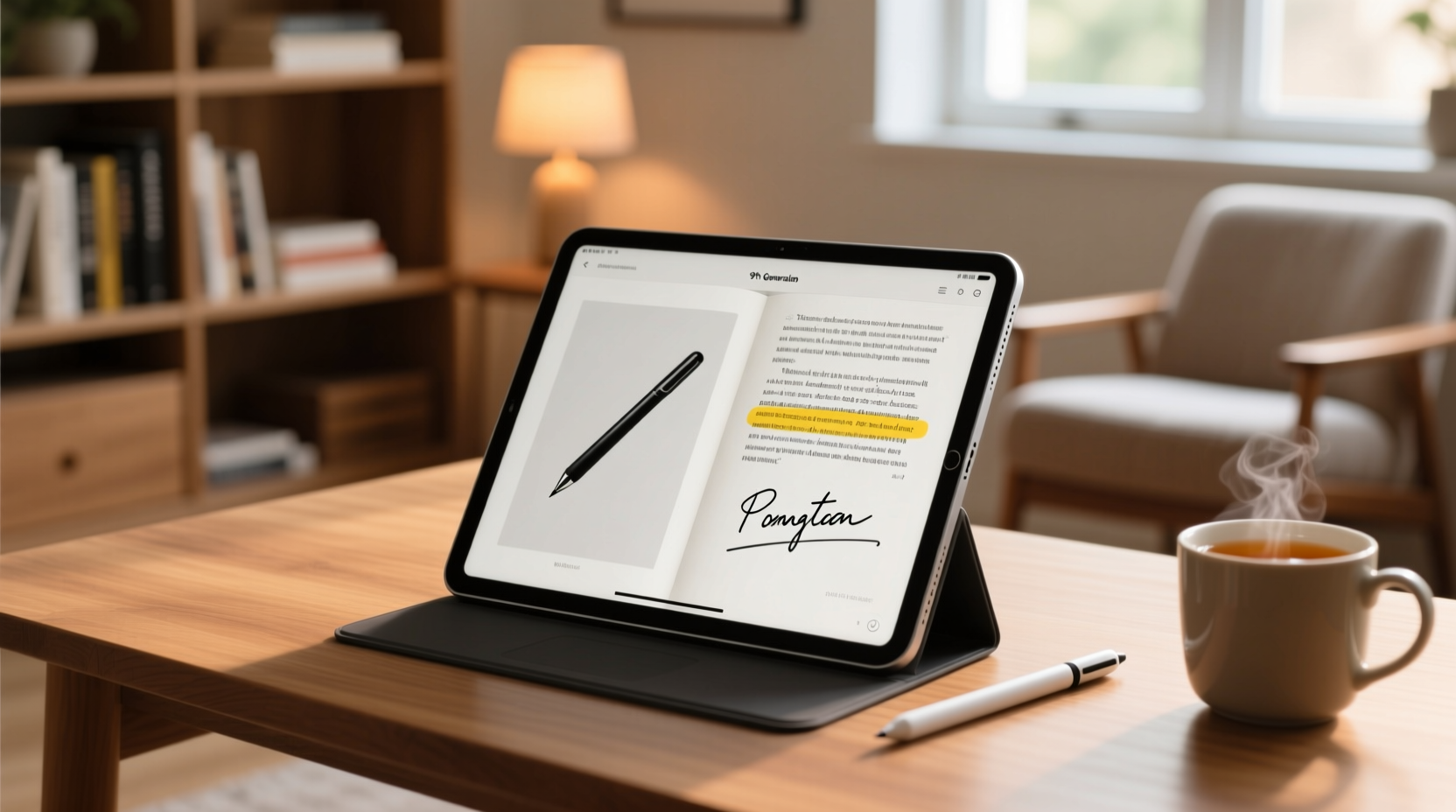
At its core, the iPad 9th Gen is powered by the A13 Bionic chip—the same processor found in the iPhone 11. While not the fastest chip available today, it handles everyday productivity tasks with ease. For reading apps like Kindle, Apple Books, or PDF expert tools such as LiquidText and PDF Expert, the A13 delivers smooth page turns, fast search functions, and responsive annotation features. Similarly, note-taking applications including GoodNotes, Notability, and Apple Notes run fluidly, even when dealing with large notebooks or complex handwriting recognition.
Apple’s software optimization ensures that older hardware continues to receive updates. The iPad 9th Gen supports iPadOS 17 and is expected to remain compatible with future versions through at least 2025. This means security patches, feature improvements, and app compatibility will likely continue for another year or two, making it a safe investment for long-term light use.
Display and Eye Comfort: What You Need to Know
The 10.2-inch Retina display on the iPad 9th Gen has a resolution of 2160 x 1620 pixels, which offers sharp text and clear visuals—ideal for prolonged reading. However, it lacks some features now standard on higher-end iPads, such as True Tone, anti-reflective coating, and high refresh rate (ProMotion). True Tone adjusts the white balance based on ambient lighting, reducing eye strain in different environments. Its absence means the screen can appear overly cool or warm under certain lighting conditions unless manually adjusted.
Glare can also be an issue in bright sunlight or near windows, especially since the screen doesn’t have an oleophobic coating resistant to fingerprints and smudges. Using a matte screen protector can mitigate glare and improve tactile feedback when writing with a stylus.
“Even without ProMotion or True Tone, the base iPad’s display is more than sufficient for comfortable reading and basic annotation work.” — David Lin, Digital Productivity Consultant
Compatibility with Accessories: Pencil and Keyboard Support
One of the strongest arguments in favor of the iPad 9th Gen is its compatibility with the first-generation Apple Pencil. At around $99, the Pencil transforms the device into a powerful note-taking machine. Whether sketching diagrams, highlighting textbooks, or writing meeting notes, the Pencil provides excellent pressure sensitivity and minimal lag—crucial for natural-feeling handwriting.
The iPad also supports Bluetooth keyboards, including the compact Smart Keyboard Folio (designed specifically for this model) and third-party options. While full typing might not be your primary use case, having keyboard support expands versatility—for example, when drafting longer summaries or organizing research notes.
However, charging the Apple Pencil requires plugging it directly into the iPad’s Lightning port, which interrupts device usage. This contrasts with second-gen Pencils that magnetically attach and charge wirelessly on newer iPads. For frequent users, this small inconvenience can become noticeable over time.
Total Cost of Ownership: Value Breakdown
Priced at $329 at launch and now often available refurbished or used for under $250, the iPad 9th Gen stands out for affordability. When combined with a first-gen Apple Pencil ($99) and a basic protective case ($30), the total setup cost remains under $400—a fraction of what newer iPad Air or Pro models demand.
Compare this to the iPad 10th Gen ($449), which includes a USB-C port and slightly brighter display but still uses a similar A14 chip and lacks major functional upgrades for readers and note-takers. The incremental benefits may not justify the nearly $150 price jump for minimalist users.
| Feature | iPad 9th Gen | iPad 10th Gen | Relevance for Reading/Notes |
|---|---|---|---|
| Processor | A13 Bionic | A14 Bionic | Negligible difference in daily use |
| Display Size | 10.2” | 10.9” | Slightly larger, but not critical |
| Port | Lightning | USB-C | USB-C preferred, but manageable |
| Apple Pencil | Gen 1 supported | Gen 1 via adapter or Gen 2 via USB-C | More flexible on 10th Gen |
| Front Camera | 1.2MP, top-facing | 12MP, landscape-oriented | Better for video calls, less relevant |
| Price (Starting) | $329 | $449 | Significant savings on 9th Gen |
User Experience Case Study: Academic Use Over a Semester
Consider Maria, a graduate student in literature who transitioned from paper notebooks and printed articles to a fully digital workflow using her iPad 9th Gen. She purchased the device used for $220, added a $25 case, and bought a refurbished Apple Pencil for $70. Her typical day involves downloading academic papers via Zotero, annotating them in PDF Expert, and compiling insights into GoodNotes.
Over a six-month period, she reported no performance issues—even with notebooks exceeding 200 pages. Battery life lasted through full class days (about 8–10 hours of mixed use). The lack of True Tone was occasionally bothersome under fluorescent lighting, but enabling Night Shift reduced discomfort. The main frustration was losing pencil sync after iOS updates, requiring re-pairing—but this occurred only twice.
When asked if she’d upgrade, she said: “I see people with iPad Pros drawing intricate designs or editing videos, but for my needs, this does everything. I saved over $500 compared to a Pro setup, and that went toward textbooks and conference travel.” Her experience underscores how function-specific usage diminishes the need for premium specs.
Optimizing Your Setup: Step-by-Step Guide
To get the most out of your iPad 9th Gen for reading and note-taking, follow this optimization sequence:
- Update to the latest iPadOS version – Ensures access to the newest features and security fixes.
- Install essential apps – Recommended: Apple Books, Kindle, GoodNotes, Notability, or OneNote for notes; PDF Expert or LiquidText for academic work.
- Pair your Apple Pencil – Go to Settings > Bluetooth and hold the Pencil near the iPad until prompted.
- Adjust display settings – Enable Night Shift (Settings > Display & Brightness) to reduce blue light during evening reading.
- Organize files with iCloud or third-party cloud storage – Sync documents across devices using iCloud Drive, Dropbox, or Google Drive.
- Use folders and naming conventions – Keep readings and notes categorized by course, project, or date for quick retrieval.
- Enable automatic backups – Connect to Wi-Fi regularly so iCloud backs up your data automatically.
Common Pitfalls to Avoid
- Ignoring storage limits: The base model offers only 64GB, which fills quickly with annotated PDFs and scanned documents. Regularly offload files to cloud storage or a computer.
- Not calibrating the Apple Pencil: If handwriting feels imprecise, try recalibrating in Settings > Apple Pencil.
- Using outdated apps: Some older note apps haven’t been updated for iPadOS gestures. Stick to actively maintained software.
- Skipping backups: Losing months of notes due to device failure is preventable with consistent iCloud or manual backups.
- Overlooking accessibility features: Features like VoiceOver, Zoom, and Larger Text can enhance readability for users with visual strain.
Frequently Asked Questions
Can the iPad 9th Gen handle heavy PDFs and textbooks?
Yes. Modern e-textbooks and scholarly PDFs open quickly in apps like PDF Expert or GoodNotes. Even multi-hundred-page documents load efficiently, though very large files (over 500MB) may take a few seconds to render initially.
Is the screen too reflective for reading in sunlight?
It can be. Without an anti-reflective coating, outdoor readability is limited. For regular outdoor use, consider a matte screen protector or seek shaded areas. Indoors, reflections are rarely problematic.
Will Apple stop supporting the iPad 9th Gen soon?
Not immediately. As of 2024, it runs iPadOS 17 and is likely to receive iPadOS 18. Given Apple’s typical 5–6 year support window, support should continue into 2026. Most reading and note apps also maintain backward compatibility.
Action Checklist: Getting Started with Your iPad 9th Gen
- ✅ Purchase essentials
- Acquire the iPad, Apple Pencil (1st gen), and a protective case.
- ✅ Set up iCloud
- Enable iCloud Drive and Backups to protect your notes and sync across devices.
- ✅ Download key apps
- Install at least one note-taking app and one PDF reader optimized for iPad.
- ✅ Configure display settings
- Turn on Night Shift, adjust brightness, and consider enabling Bold Text for clarity.
- ✅ Organize your digital library
- Create folders for subjects, semesters, or projects to avoid clutter.
- ✅ Test pencil responsiveness
- Write a sample page and check for lag or inaccuracy; recalibrate if needed.
- ✅ Schedule monthly maintenance
- Review storage, delete unused files, and ensure backups are current.
Final Verdict: Who Should Buy It (and Who Shouldn’t)
The iPad 9th Gen is ideal for students, professionals, or lifelong learners who prioritize simplicity, reliability, and cost-efficiency. If your routine revolves around reading articles, marking up lecture slides, keeping digital journals, or managing personal knowledge, this iPad delivers all necessary functionality without excess.
However, if you plan to expand your usage—such as multitasking with multiple apps, editing videos, using advanced illustration tools, or relying heavily on cloud collaboration with real-time syncing—the newer iPad 10th Gen or iPad Air may offer better long-term flexibility. Additionally, users who frequently work outdoors or in variable lighting may find the lack of True Tone and anti-reflective coating limiting.
“The best tech isn’t always the newest—it’s the one that fits seamlessly into your routine without demanding attention.” — Sarah Kim, EdTech Reviewer
Conclusion
The iPad 9th generation proves that staying current doesn’t require chasing the latest model. For focused tasks like reading and note-taking, its combination of capable hardware, broad software support, and affordable ecosystem makes it a smart choice—even years after release. With thoughtful setup and proper maintenance, it can serve as a reliable companion for education, work, or personal growth. If your goals are clarity, consistency, and economy, the iPad 9th Gen isn’t just worth it—it’s a quietly brilliant solution.




 浙公网安备
33010002000092号
浙公网安备
33010002000092号 浙B2-20120091-4
Comments
No comments yet. Why don't you start the discussion?