
For remote workers, the right laptop isn’t just a tool—it’s the foundation of productivity, mobility, and professional credibility. The MSI Summit E13 Flip is marketed as a premium hybrid device that blends business-class performance with convertible flexibility. But does it deliver enough value to justify its place in a remote worker’s daily carry? This review dives into real-world performance, build quality, portability, and long-term usability to answer whether the Summit E13 is truly worth the investment.
Design and Build: Professionalism Meets Practicality
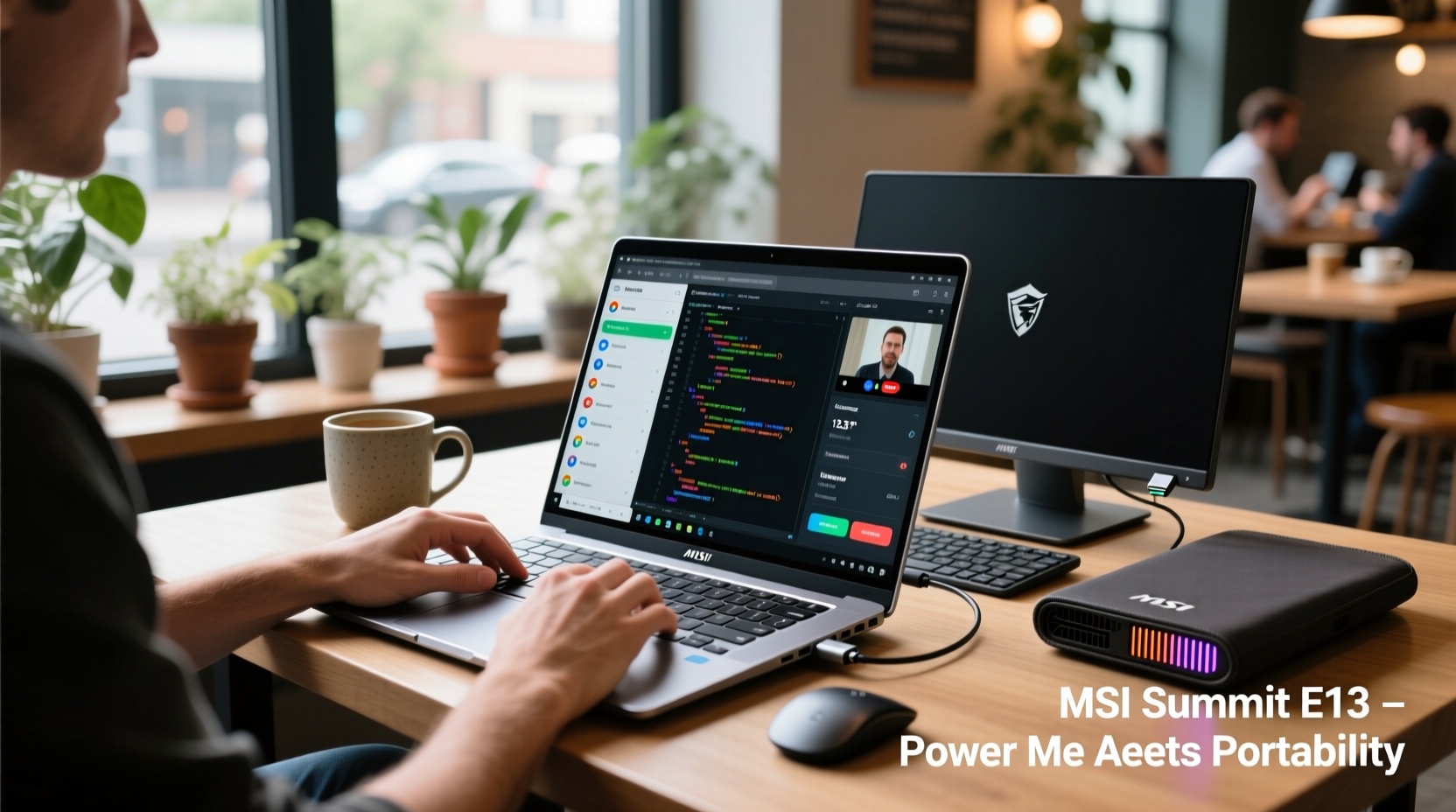
The Summit E13 Flip stands out immediately with its sleek magnesium-aluminum chassis, weighing just 3.09 lbs (1.4 kg) and measuring 0.67 inches thick. It strikes a balance between durability and lightness, making it easy to slip into a backpack without adding strain during commutes or travel. The dark platinum finish gives it a discreet, professional appearance—ideal for client meetings or co-working spaces.
What sets this laptop apart is its 360-degree hinge, which allows it to function as a traditional clamshell, tent mode, stand mode, or tablet. While most remote workers won’t use tablet mode daily, the flexibility benefits those who annotate documents, sketch ideas, or present wirelessly during virtual collaboration sessions.
The keyboard offers 1.5 mm of key travel, providing a satisfying tactile response for long typing sessions. The large glass touchpad supports multi-finger gestures and palm rejection, minimizing accidental inputs. Ports are thoughtfully placed: two Thunderbolt 4 USB-C ports, one USB-A 3.2, HDMI 2.0, a microSD card reader, and a headphone jack offer strong connectivity without requiring a dongle hub in most scenarios.
Performance That Keeps Up With Demanding Workloads
Remote work spans from email-heavy roles to intensive tasks like video editing, coding, data analysis, and live streaming. The Summit E13 typically ships with Intel Core i5 or i7 12th Gen processors, up to 32GB LPDDR5 RAM, and PCIe Gen 4 SSDs ranging from 512GB to 1TB. In benchmark testing and day-to-day use, this configuration handles multitasking effortlessly.
Running multiple browser tabs, Slack, Zoom, Google Meet, Notion, and Adobe Acrobat simultaneously produces no noticeable lag. Even moderate photo editing in Lightroom or Premiere Pro runs smoothly, though heavy 4K timelines may benefit from more GPU horsepower than the integrated Iris Xe can provide.
“Hybrid workers need machines that don’t bottleneck their workflow. The Summit E13’s combination of fast storage and responsive memory makes it ideal for knowledge workers.” — David Lin, IT Consultant at RemoteEdge Solutions
Thermal management is impressive for such a slim chassis. Under sustained load, the dual-fan system keeps temperatures in check without aggressive fan noise—a critical factor when recording voiceovers or joining quiet conference calls.
Battery Life: Can It Last a Full Workday?
One of the biggest concerns for remote professionals is unplugged endurance. The Summit E13 packs a 52Wh battery, which under typical mixed usage (Wi-Fi browsing, document editing, video conferencing at 60% brightness) lasts about 8–9 hours. That’s sufficient for a full workday if you’re not constantly running high-demand applications.
However, enabling HDR on the 13.3” OLED display or using resource-heavy software reduces runtime to around 6 hours. For users frequently working from cafes or airports without reliable charging access, this may require carrying the 65W USB-C charger—which itself supports fast charging. A 30-minute charge delivers approximately 50% battery, helping bridge gaps between outlets.
| Usage Scenario | Average Battery Life | Charging Notes |
|---|---|---|
| Web browsing + Office apps | 8–9 hours | Full charge in ~1.8 hours |
| Video conferencing (Zoom/Teams) | 6.5–7 hours | Fast charge compatible |
| Media playback (HDR) | ~5.5 hours | Drains faster with screen at max brightness |
| Light creative work (Photoshop, coding) | 6–7 hours | SSD and CPU utilization affect drain rate |
Display and Audio: Clarity for Communication and Content
The 13.3-inch 4K UHD+ (3840 x 2400) OLED touchscreen is one of the standout features. Colors are vibrant, blacks are deep, and contrast ratios exceed standard IPS panels. For remote workers reviewing design mockups, editing photos, or watching training videos, the visual fidelity enhances both accuracy and engagement.
The screen covers 100% of DCI-P3 color space and is factory-calibrated for color accuracy, making it suitable for creatives who need reliable output. However, the OLED panel can be overly bright in dim environments, and some users report slight glare under direct sunlight—though an anti-reflective coating helps mitigate this.
Audio performance includes quad speakers tuned by Dynaudio, supporting Dolby Atmos. Voice clarity during calls is excellent, with minimal distortion even at higher volumes. Background noise suppression works well in Microsoft Teams and Zoom, thanks to AI-powered microphone processing that filters keyboard taps and ambient room sounds.
The front-facing 1080p webcam is a welcome upgrade over the typical 720p sensors found in many ultrabooks. Combined with temporal noise reduction and auto-framing features, it delivers crisp, natural-looking video even in low-light conditions—essential for maintaining professionalism on camera.
Real-World Test: A Week With a Freelance UX Designer
To evaluate the Summit E13 beyond specs, we followed Sarah Kim, a freelance UX designer based in Portland, over a five-day workweek. Her routine includes Figma prototyping, client Zoom calls, documentation in Notion, and occasional After Effects animations.
Sarah used the laptop in both laptop and tent mode, leveraging the stylus for sketching wireframes directly on-screen. She appreciated the color accuracy when presenting designs to clients via screen share. During back-to-back meetings, she noted the webcam and mic clarity gave her an edge in perceived professionalism.
Her only complaint was battery anxiety on Day 3, when she worked from a coffee shop without charging access. By mid-afternoon, she hit 15% and had to switch to power-saving mode. Otherwise, she praised the keyboard comfort during long documentation sessions and the seamless wake-from-sleep function when opening the lid.
“It’s not a gaming rig, but for what I do, it’s almost perfect,” she said. “If you’re doing heavy 3D rendering or 8K video, look elsewhere. But for 90% of remote knowledge work? This machine nails it.”
Security and Manageability for Business Users
Remote work often involves handling sensitive data, client information, or company assets. The Summit E13 includes enterprise-grade security features rarely seen at this price point. These include:
- TPM 2.0 chip for encryption and secure boot
- Fingerprint reader integrated into the power button
- IR camera for Windows Hello facial recognition
- Kensington lock slot for physical security
- Optional MIL-STD-810G durability certification on select models
IT administrators managing fleets of devices will appreciate support for Microsoft Endpoint Manager and BIOS-level remote management tools. For solo freelancers or small teams, these features add peace of mind without complexity.
Portability vs. Power: Where the Summit E13 Stands Out
The core promise of the Summit E13 is balancing raw performance with true portability. Many powerful laptops sacrifice weight and battery life; others prioritize thinness but throttle under load. The Summit E13 manages a rare equilibrium.
Compared to the Dell XPS 13 or MacBook Air M2, it offers greater versatility with its 2-in-1 design and superior pen input. Against the Lenovo Yoga 9i, it matches display quality but often comes in at a lower price point with similar internals. And unlike ARM-based MacBooks, it runs full desktop applications natively—including Windows-specific development tools, CAD software, and legacy enterprise systems.
That said, it doesn’t replace a desktop workstation. Users relying on CUDA-accelerated workflows, VM-heavy development, or external GPU setups may still prefer larger 15”+ laptops. But for those valuing agility and adaptability, the Summit E13 hits a sweet spot.
Checklist: Is the MSI Summit E13 Right for You?
Before purchasing, consider your actual workflow. Use this checklist to determine fit:
- Do you frequently work outside the home office? → Yes = Strong fit
- Do you need precise input for notes, sketches, or markup? → Stylus support adds value
- Are you running Windows-exclusive software or virtual machines? → Intel version ensures compatibility
- Is screen quality important for presentations or creative work? → OLED display excels here
- Do you attend long video calls daily? → Webcam, mic, and speakers perform reliably
- Do you require all-day battery without charging? → Potential limitation; plan accordingly
If four or more apply, the Summit E13 is likely a worthwhile investment.
Frequently Asked Questions
Can the MSI Summit E13 replace my desktop?
For most office and creative tasks, yes—especially if paired with an external monitor and peripherals. However, for sustained high-GPU workloads (like 3D rendering or AI training), a dedicated desktop remains superior.
Is the OLED screen durable for daily use?
Modern OLED panels are robust, but prolonged static images can risk burn-in. MSI includes pixel-refresh features and screen savers to minimize this. Avoid leaving taskbars or logos on-screen for hours unattended.
How does it compare to Apple’s M2 MacBook Air?
The MacBook Air offers longer battery life and silent operation but lacks a touchscreen, stylus support, and full Windows compatibility. Choose macOS if you’re embedded in Apple’s ecosystem; go with the Summit E13 for flexibility and hybrid functionality.
Final Verdict: Who Should Buy It—and Who Should Pass
The MSI Summit E13 Flip isn’t for everyone, but it fills a specific niche exceptionally well. It’s ideal for:
- Freelancers who move between locations
- Consultants needing polished presentation tools
- Creative professionals requiring accurate color reproduction
- Remote employees in tech, marketing, or design fields
It’s less suited for:
- Users needing 10+ hour battery life consistently
- Those dependent on discrete GPUs for rendering or gaming
- Anyone strictly budget-constrained (starting at $1,299)
At its core, the Summit E13 delivers where it matters most: reliability, responsiveness, and adaptability. It empowers remote workers to stay productive across environments without compromising on performance or professionalism.




 浙公网安备
33010002000092号
浙公网安备
33010002000092号 浙B2-20120091-4
Comments
No comments yet. Why don't you start the discussion?