
For years, 1080p (Full HD) was the standard for computer monitors. But as technology advances, 4K resolution—also known as Ultra HD or 3840x2160 pixels—has become more accessible and affordable. With four times the pixel density of 1080p, 4K offers stunning clarity and detail. Yet, for the average user who isn’t editing video or designing graphics professionally, the upgrade may not deliver the dramatic improvements many expect. The real question is: does the leap in resolution translate into meaningful benefits for daily tasks like browsing, email, office work, and streaming?
The answer depends on several factors: your hardware, viewing distance, software compatibility, and actual usage patterns. While 4K can enhance visual experiences, it also introduces challenges such as scaling issues, higher system demands, and potential eye strain if not configured correctly. Understanding these trade-offs is essential before investing in a new display.
Understanding 4K Resolution and Pixel Density
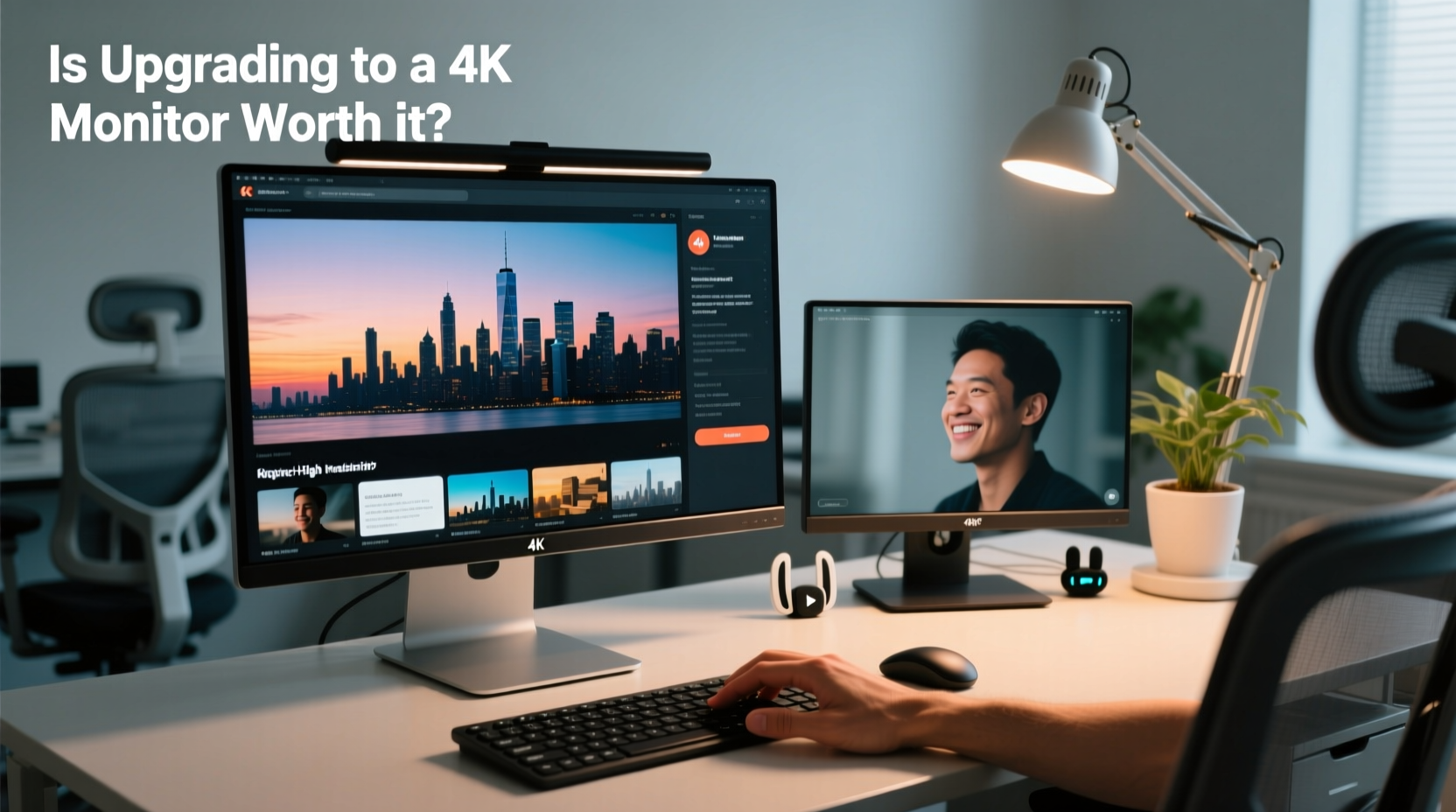
4K resolution refers to a display with approximately 4,000 horizontal pixels. In consumer monitors, this typically means 3840x2160 pixels—four times the total number found in a standard 1920x1080 Full HD screen. This increase in pixel count results in much sharper text, crisper images, and smoother curves on icons and UI elements.
However, pixel density—measured in pixels per inch (PPI)—is what truly affects perceived sharpness. A 27-inch 4K monitor has a PPI of about 163, compared to 82 PPI on a 27-inch 1080p screen. Higher PPI means finer details are visible, making everything from web pages to spreadsheets appear more refined.
That said, high pixel density only matters if you sit close enough to appreciate the detail. At typical desktop viewing distances (about 24–30 inches), the human eye may not distinguish individual pixels beyond a certain point. According to optometry research, most people cannot perceive additional sharpness beyond 300 PPI at arm’s length—well above even 4K densities on common screen sizes.
Practical Benefits for Everyday Use
Everyday computer use includes activities like checking email, managing documents, browsing social media, watching videos, and multitasking across multiple windows. How does 4K improve these experiences?
- Sharper Text and Graphics: Web pages, PDFs, and office applications benefit from cleaner edges and reduced jaggedness, especially noticeable in fonts and diagrams.
- More Screen Real Estate: 4K provides significantly more workspace. You can have two full-width browser windows side by side with room for chat apps or reference material.
- Better Media Consumption: Streaming services like Netflix, YouTube, and Disney+ offer growing 4K content libraries. Native 4K playback looks noticeably better than upscaled 1080p.
- Future-Proofing: As software and operating systems increasingly optimize for high-DPI displays, owning a 4K monitor ensures compatibility and smooth performance over time.
Still, these advantages aren't automatic. Operating systems must properly handle high-DPI scaling to prevent tiny, unreadable text. Windows and macOS have improved dramatically in this area, but inconsistencies remain—especially with older or poorly coded applications that don’t respect system-wide scaling settings.
“High-resolution displays are becoming the baseline expectation, not just for creatives but for knowledge workers who spend hours staring at screens.” — Dr. Lena Torres, Human-Computer Interaction Researcher, MIT Media Lab
Hardware and Performance Considerations
A 4K monitor places greater demands on your computer's graphics subsystem. Driving four times as many pixels requires more GPU power, especially when running multiple applications, animations, or video playback.
For integrated graphics—such as those in Intel UHD or Apple M-series chips—basic desktop navigation and web browsing are generally fine. However, complex web pages with heavy JavaScript, multiple video streams, or virtual desktop environments can cause stuttering or lag if the GPU lacks sufficient bandwidth.
Dedicated GPUs handle 4K more comfortably, but even then, connection type matters. To run a 4K display at 60Hz, you need at least HDMI 2.0 or DisplayPort 1.2. Older ports may limit refresh rates or force lower resolutions.
| Connection Type | Max 4K @ 60Hz? | Notes |
|---|---|---|
| HDMI 1.4 | No | Limited to 30Hz at 4K; unsuitable for general use |
| HDMI 2.0 | Yes | Common on mid-range GPUs and newer laptops |
| DisplayPort 1.2+ | Yes | Best for multi-monitor setups and high refresh rates |
| USB-C (with DP Alt Mode) | Depends | Must support DisplayPort 1.2 or higher |
Real-World Example: Sarah’s Office Upgrade
Sarah, a project manager at a mid-sized tech firm, used a 24-inch 1080p monitor for three years. Her workflow involved juggling calendars, Slack, Google Docs, Excel sheets, and Zoom calls throughout the day. After upgrading to a 27-inch 4K monitor, she noticed immediate differences.
Initially, everything appeared too small. After adjusting Windows scaling from 100% to 150%, the interface became readable while still offering far more visible content than before. She could now keep her task list, timeline Gantt chart, and messaging app open simultaneously without constant window switching.
She also found video conferences looked clearer, particularly when sharing presentations. However, some legacy internal tools rendered blurry due to poor high-DPI support. Over time, IT updated the software stack, resolving most issues.
After six months, Sarah reported increased productivity and reduced eye fatigue, attributing both to the crisper visuals and better ergonomics enabled by the larger, higher-resolution screen.
When 4K Makes Sense—and When It Doesn’t
Not every user will benefit equally from a 4K monitor. Below is a checklist to help determine whether the upgrade aligns with your needs.
✅ Do consider a 4K monitor if:
- You frequently work with detailed documents, spreadsheets, or coding environments.
- You watch a lot of 4K video content (YouTube, streaming platforms).
- You use multiple applications at once and value screen real estate.
- Your computer has a modern GPU and sufficient port support.
- You plan to keep the monitor for 4+ years and want future-proofing.
❌ Reconsider if:
- You primarily use older software that doesn’t scale well on high-DPI screens.
- Your PC relies on outdated integrated graphics or lacks proper video outputs.
- You sit farther than 30 inches from the screen—diminishing returns on sharpness.
- You’re using a screen smaller than 27 inches, where text may become uncomfortably small.
- Budget is tight—4K monitors cost more, and so do compatible cables and peripherals.
Step-by-Step Guide to Evaluating a 4K Upgrade
Before buying, follow this practical evaluation process:
- Assess Your Current Setup: Check your PC or laptop’s graphics capabilities and available video outputs (HDMI version, DisplayPort, USB-C).
- Determine Screen Size Preference: Choose 27 inches or larger for 4K to avoid excessive pixel density.
- Test Scaling Settings: On Windows, go to Settings > System > Display and simulate scaling options. On Mac, check “Displays” in System Settings.
- Review Common Applications: Open your daily-use programs (email, browser, office suite) and imagine them at higher resolution. Will extra space improve workflow?
- Check Content Usage: How often do you consume native 4K content? If rarely, the visual payoff may be limited.
- Compare Total Cost: Factor in potential upgrades to GPU, cables, or docking stations if needed.
- Try Before You Buy: Visit a retailer with 4K displays on demo to see how text and interfaces look in person.
Frequently Asked Questions
Does 4K reduce eye strain?
It can—but only if properly configured. Crisper text and smoother lines reduce visual noise, which helps during long sessions. However, overly bright screens, incorrect scaling, or glare can negate these benefits. Pair 4K with proper lighting, anti-glare settings, and ergonomic positioning for best results.
Can my old PC run a 4K monitor?
Possibly, but with limitations. Basic desktop navigation works on most machines made after 2015, but performance degrades with multitasking or media-heavy use. If your system uses HDMI 1.4 or older graphics, expect restricted refresh rates (30Hz), making the experience feel sluggish. Upgrading the GPU or using DisplayPort improves compatibility.
Do I need special cables for 4K?
Yes. For 4K at 60Hz, use HDMI 2.0 or higher, or DisplayPort 1.2 and above. Standard HDMI 1.4 cables max out at 30Hz for 4K, which is impractical for regular use. Always check cable specifications—even if they fit, not all \"HDMI\" cables support full 4K bandwidth.
Conclusion: Making the Right Choice for Your Workflow
Upgrading to a 4K monitor isn’t universally worthwhile for everyday users—but for many, it’s a smart investment. The enhanced clarity, expanded workspace, and improved media experience can lead to tangible gains in comfort and efficiency. However, the benefits hinge on correct setup, compatible hardware, and realistic expectations.
If you're still using a 1080p monitor from the early 2010s, moving to 4K represents one of the most perceptible quality-of-life improvements in computing. But if your current display meets your needs and your system isn’t ready for the jump, waiting may be the wiser choice.
Technology should serve you—not complicate your life. Evaluate your actual usage, test configurations when possible, and prioritize usability over specs. A 4K monitor can elevate your digital experience, but only if it fits seamlessly into your routine.




 浙公网安备
33010002000092号
浙公网安备
33010002000092号 浙B2-20120091-4
Comments
No comments yet. Why don't you start the discussion?