
As screen technology advances, more professionals are considering whether stepping up to a 4K monitor makes sense for their daily office tasks. With sharper text, crisper images, and more on-screen real estate, 4K displays promise an elevated digital workspace. But is that upgrade truly beneficial—or just an expensive indulgence—for someone handling emails, spreadsheets, documents, and video calls?
The answer isn’t universal. For some users, 4K delivers a transformative improvement in comfort and productivity. For others, the jump offers minimal benefit at a steep cost. Understanding your workflow, hardware capabilities, and ergonomic needs is key to making a smart decision.
Understanding 4K: What It Actually Means
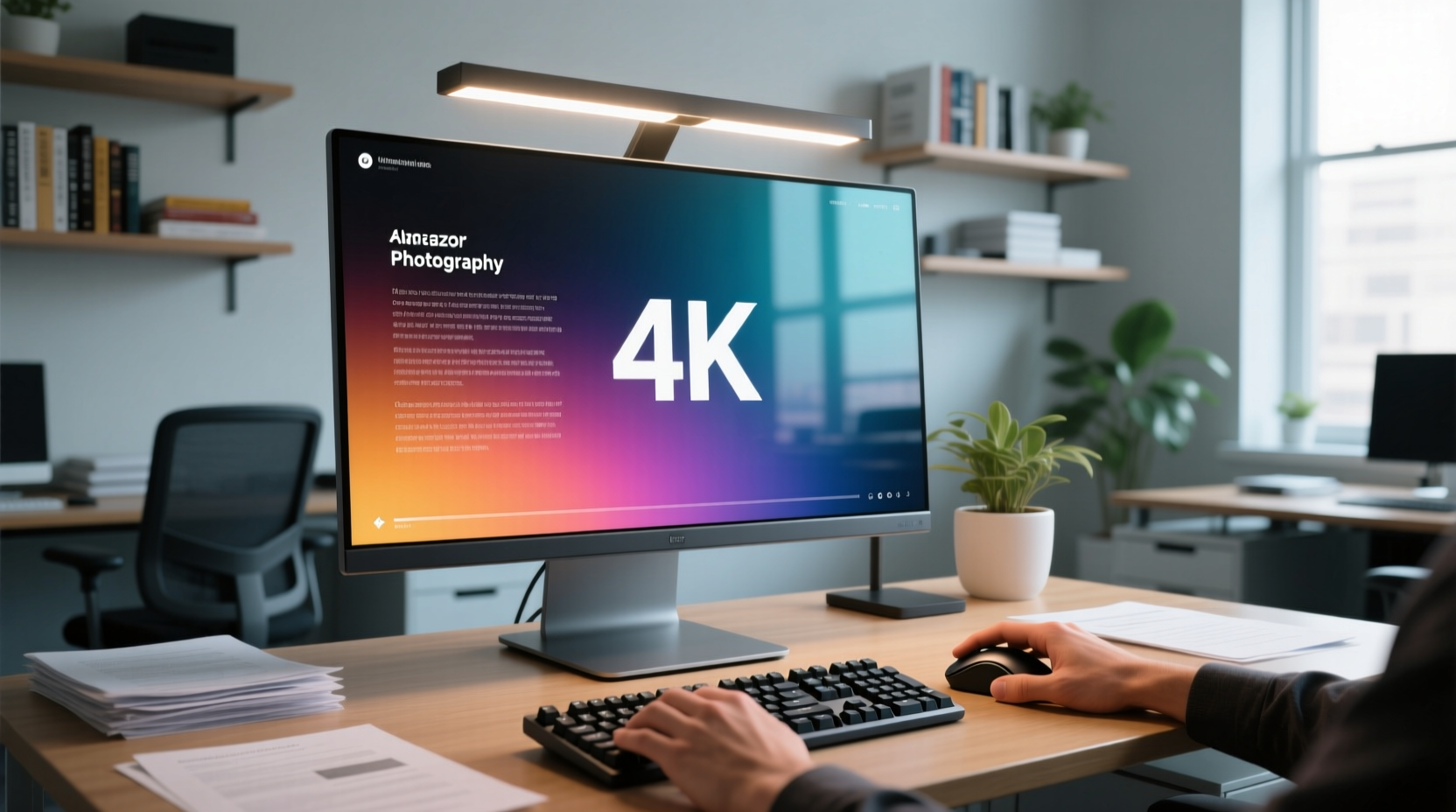
“4K” refers to a resolution of approximately 3840 x 2160 pixels—four times the number of pixels found in a standard 1080p (Full HD) display. This increase means significantly finer detail, smoother text edges, and more space to organize windows side by side without overlapping.
In practical terms, a 4K monitor can display roughly four full 1080p screens within its canvas. That’s useful when working with multiple applications—say, a spreadsheet on one side, a research document in another quadrant, email open in a small window, and a video call tucked into the corner.
However, higher resolution doesn't automatically mean better usability. Operating systems and software must scale content appropriately, or text and icons become too small to read comfortably. Modern Windows and macOS versions handle scaling well, but inconsistencies still arise—especially with older or poorly optimized applications.
“Pixel density matters more than raw resolution. A 4K screen on a 27-inch monitor provides excellent clarity, but the same resolution on a 32-inch might require aggressive scaling, which can introduce blurriness.” — Daniel Lin, Display Technology Analyst at TechInsight Labs
Advantages of a 4K Monitor for Office Use
For many knowledge workers, the shift to 4K brings tangible improvements:
- Enhanced multitasking: More screen space allows for seamless side-by-side application use without constant tab switching.
- Sharper text rendering: High pixel density improves readability, especially for long reading sessions or detailed editing.
- Reduced eye strain: Crisp visuals and consistent font rendering reduce visual fatigue during extended work hours.
- Future-proofing: As software and web content increasingly support high-resolution assets, having a 4K display ensures compatibility and performance headroom.
- Better video conferencing experience: When hosting or viewing multi-participant calls, seeing everyone clearly in a tiled layout enhances communication.
Potential Drawbacks and Hidden Costs
Despite the advantages, several factors can diminish the value of a 4K upgrade for general office work:
Hardware demands: Driving 4K resolution requires more from your computer’s graphics system. Older laptops or budget desktops may struggle with smooth window animations or even basic responsiveness if they lack modern integrated or dedicated GPUs.
Software compatibility issues: Some legacy business applications don’t scale properly at high DPI settings, resulting in blurry text or misaligned interface elements. Microsoft Office generally handles scaling well, but niche enterprise tools may not.
Cost premium: A quality 4K IPS monitor typically starts around $350–$500, compared to $150–$250 for a reliable 1080p model. That’s a significant investment for marginal gains if your work doesn’t leverage the extra resolution.
Larger isn’t always better: Many 4K monitors are sold in 27-inch or larger sizes. While this maximizes usable space, it may require you to turn your head frequently unless positioned correctly, potentially causing neck strain.
When 4K Might Not Be Worth It
If your typical day involves only web browsing, word processing, and light data entry on a single application at a time, the benefits of 4K are likely negligible. You won’t fully utilize the screen real estate, and the financial return on investment becomes harder to justify.
Additionally, if you're using a laptop primarily in clamshell mode with occasional external monitor use, ensure your device supports 4K output at 60Hz over HDMI or DisplayPort. Many ultrabooks limit external display performance to conserve battery or due to port limitations.
Who Benefits Most from a 4K Office Setup?
Certain roles and workflows gain substantially from higher-resolution displays:
- Data analysts and financial planners: Viewing large spreadsheets across multiple sheets simultaneously reduces scrolling and mental context-switching.
- Content writers and editors: Having source material, drafts, and reference guides visible at once streamlines research and writing.
- Project managers: Juggling timelines, task boards, communication tools, and documentation benefits from expansive layouts.
- Legal and academic professionals: Reading dense legal texts or academic papers is less taxing with sharp, scalable fonts and split-screen comparison views.
- Hybrid workers: Those splitting time between remote and office setups often rely heavily on virtual desktops and multitasking—areas where 4K shines.
“I switched to a 27-inch 4K monitor after years on 1080p, and the difference in focus and efficiency was immediate. I stopped minimizing windows constantly and could finally keep all my case files open while drafting motions.” — Sarah Nguyen, Corporate Paralegal
Mini Case Study: The Remote Accountant’s Upgrade
Mark Reynolds, a freelance accountant based in Portland, worked for years on a 24-inch 1080p monitor. His workflow involved managing client books in QuickBooks, cross-referencing tax forms in PDFs, responding to emails, and joining Zoom calls—all throughout the day.
Frequent window toggling led to mistakes: entering data into the wrong client file, missing messages during calls, and spending extra time reorienting himself after each switch.
He upgraded to a 27-inch 4K monitor and adjusted his scaling to 150%. He arranged his workspace with QuickBooks on the left half, PDFs on the right, a narrow email panel on the far right, and Zoom floating in the top-left corner.
Within two weeks, Mark reported a noticeable reduction in errors and faster completion of monthly closings. He estimated saving about three hours per week in navigation and recovery time. Though the monitor cost $420, he viewed it as a productivity tool that paid for itself within months.
Checklist: Is a 4K Monitor Right for You?
Before purchasing, ask yourself the following questions:
- Do I regularly use more than two applications at once?
- Does my current monitor feel cramped or force excessive scrolling/minimizing?
- Is my computer capable of driving a 4K display at 60Hz?
- Am I using a monitor 27 inches or larger? (4K is less impactful below this size.)
- Can I afford the price difference without compromising other essentials?
- Will I use the monitor for non-office tasks like photo viewing or streaming?
If you answered “yes” to three or more, a 4K upgrade is likely worthwhile. If most answers are “no,” consider sticking with 1080p or exploring 1440p (QHD) as a balanced middle ground.
4K vs. Alternatives: A Practical Comparison
| Feature | 1080p (FHD) | 1440p (QHD) | 4K (UHD) |
|---|---|---|---|
| Typical Screen Size | 22–24\" | 27\" | 27–32\" |
| Pixel Density (PPI) at 27\" | ~82 PPI | ~109 PPI | ~163 PPI |
| Text Clarity | Adequate | Very Good | Excellent |
| Multitasking Capacity | Limited | Good | Outstanding |
| GPU Requirements | Low | Moderate | High |
| Average Price (IPS Panel) | $150–$250 | $250–$350 | $350–$600 |
| Best For | Casual use, tight budgets | Balanced performance and clarity | Power users, multitaskers |
Note: 1440p offers a compelling compromise—significantly sharper than 1080p without the hardware demands or cost of 4K. On a 27-inch screen, QHD delivers excellent clarity and ample workspace, making it ideal for many office professionals who want an upgrade without going all-in.
Step-by-Step: How to Test a 4K Monitor Before Buying
You don’t need to commit financially before knowing how 4K feels. Follow these steps to evaluate its usefulness:
- Visit a retail store: Go to an electronics retailer with a display floor. Look for 4K monitors showing office-like content—documents, spreadsheets, web browsers.
- Simulate your workflow: Mentally arrange your usual apps across the screen. Can you see everything clearly without leaning in?
- Check scaling: Ask staff if the demo unit uses default or custom scaling. Poorly scaled interfaces can misrepresent the actual experience.
- Test readability: Read paragraph text from your typical viewing distance (about 24–30 inches). Does it feel comfortable?
- Research online reviews: Focus on user feedback about long-term comfort, color accuracy, and build quality—not just specs.
- Rent or borrow first: Some tech rental services offer short-term access to high-end monitors. Try one at home for a few days under real conditions.
FAQ: Common Questions About 4K for Office Work
Does 4K make text easier to read?
Yes, when paired with proper scaling. High pixel density eliminates jagged edges on fonts, producing smoother, more legible characters. However, if scaling is set too low, text may appear tiny and difficult to read.
Will a 4K monitor speed up my work?
Not directly—but it can improve efficiency. By reducing the need to minimize/maximize windows and enabling better organization, you save time on task-switching and maintain focus longer.
Can my laptop handle a 4K external monitor?
Most laptops from the last five years can support 4K output, but check your ports. HDMI 2.0 or DisplayPort 1.2+ is required for 4K at 60Hz. Older HDMI 1.4 ports limit refresh rate to 30Hz, which causes lag and is unsuitable for office work.
Final Verdict: Making the Smart Choice
Upgrading to a 4K monitor for everyday office work is worth it—if your workflow demands it. For multitaskers, information-heavy roles, or anyone spending eight or more hours daily in front of a screen, the clarity, space, and reduced cognitive load deliver measurable benefits.
But if you’re on a tight budget, use basic applications, or work primarily on a smaller screen, the leap may not justify the cost. In those cases, investing in better ergonomics—like an adjustable stand, anti-glare coating, or ambient lighting—might yield greater comfort gains than higher resolution alone.
Consider also that monitor quality extends beyond resolution. Look for features like flicker-free backlighting, blue light filters, wide viewing angles (IPS panels), and USB-C connectivity with power delivery—these often matter more in daily use than pixel count.




 浙公网安备
33010002000092号
浙公网安备
33010002000092号 浙B2-20120091-4
Comments
No comments yet. Why don't you start the discussion?