
For many people, daily computer use revolves around web browsing, checking emails, and managing online accounts. These tasks are relatively lightweight compared to video editing or gaming, which raises an important question: is investing in a 4K monitor justified when your routine doesn’t demand high graphical performance? The answer isn’t a simple yes or no—it depends on your setup, preferences, and long-term goals.
While 4K resolution (3840 x 2160 pixels) offers four times the pixel density of Full HD (1920 x 1080), that extra clarity comes with trade-offs in cost, compatibility, and usability. Understanding how these factors affect everyday digital tasks helps determine whether a 4K upgrade delivers meaningful value—or just unnecessary complexity.
Understanding 4K Resolution in Everyday Use
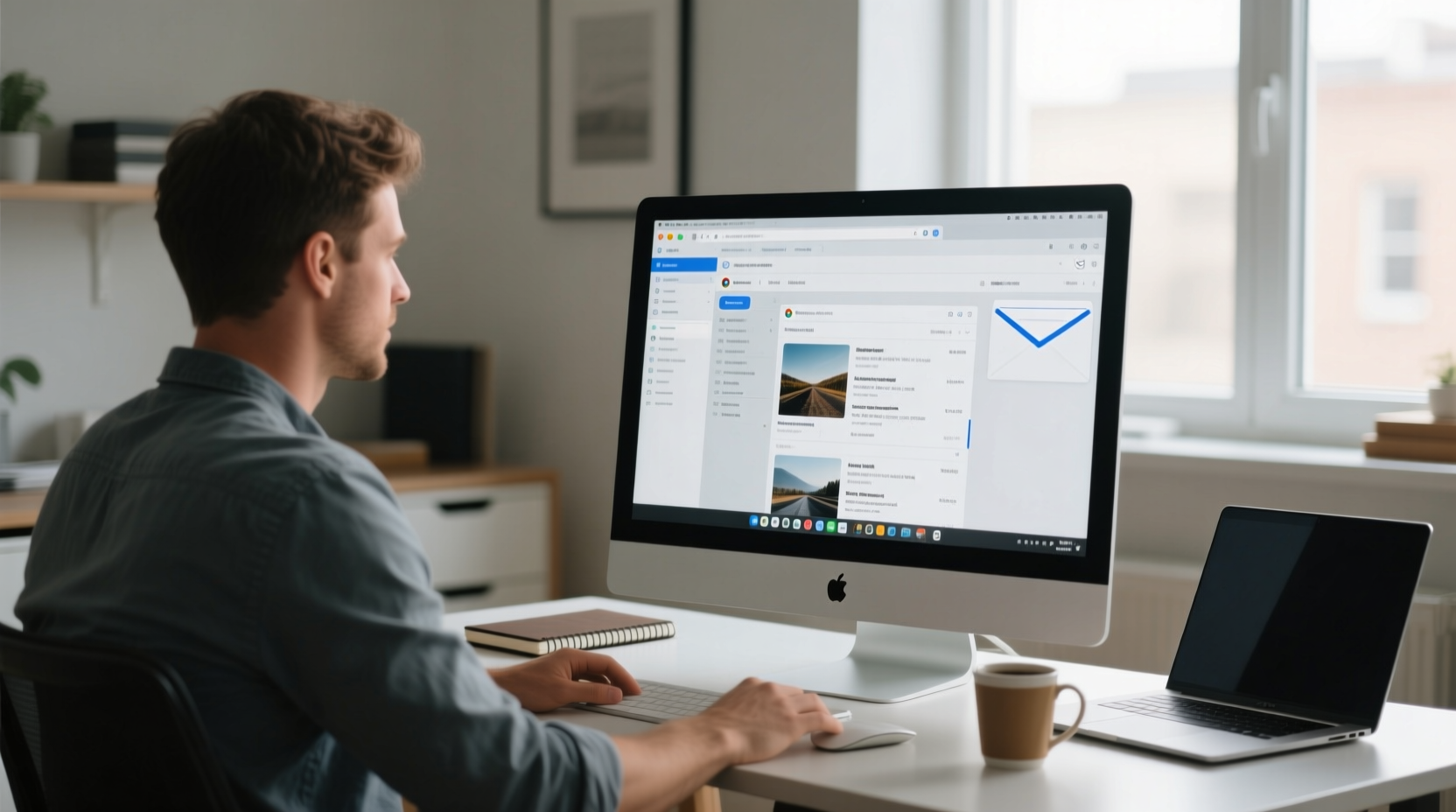
At its core, 4K means more pixels packed into the same screen space. This results in sharper text, crisper icons, and smoother lines across websites and applications. For someone who spends hours reading articles, scanning news feeds, or composing emails, visual clarity can significantly influence comfort and readability.
However, higher resolution doesn’t automatically translate to better experience. Operating systems and software must scale content properly to avoid rendering text and UI elements too small. On Windows and macOS, scaling settings allow users to adjust interface size, but inconsistent app support can lead to blurry fonts or misaligned layouts—especially with older programs.
Another consideration is screen size. A 4K resolution on a 24-inch monitor produces extremely fine detail, but may require zooming or scaling to make text legible. Conversely, on a 27-inch or larger display, 4K provides noticeable improvements in smoothness and sharpness without sacrificing usability.
Performance and System Requirements
Even for basic tasks like browsing and email, a 4K monitor places greater demands on your system. While modern CPUs and integrated graphics can handle 4K output, older machines may struggle with multiple browser tabs, video embeds, or complex web apps at high resolution.
The GPU plays a key role in driving high-resolution displays. Integrated graphics from Intel UHD or AMD Radeon Vega series typically support 4K at 60Hz via DisplayPort or HDMI 2.0, but performance varies based on workload. Systems with dedicated GPUs have no issue, but budget laptops or office desktops might experience lag during scrolling or window resizing.
Additionally, bandwidth matters. Older HDMI 1.4 ports cap 4K at 30Hz, resulting in choppy motion unsuitable for fluid browsing. To get smooth 60Hz performance at 4K, ensure your PC and cable support HDMI 2.0 or DisplayPort 1.2 and above.
“High resolution alone won’t improve productivity unless your system can deliver consistent responsiveness.” — David Lin, Display Technology Analyst at TechInsight Labs
Real-World Benefits vs. Diminishing Returns
Let’s examine what actually improves when switching from Full HD to 4K for typical non-intensive use:
- Text clarity: Web pages, emails, and documents appear noticeably sharper, reducing eye strain over long sessions.
- Screen real estate: More content fits vertically and horizontally, allowing side-by-side email and calendar views without constant tab switching.
- Future-proofing: As websites adopt higher-resolution assets and responsive design, 4K ensures compatibility and optimal rendering.
Yet, these benefits plateau quickly. Once text is crisp and readable, further increases in resolution offer marginal gains. Human eyes perceive diminishing returns beyond certain pixel densities—especially at standard viewing distances of 20–30 inches.
A practical example illustrates this well:
Mini Case Study: Sarah, Remote Administrative Assistant
Sarah works remotely, managing schedules, client emails, and documentation using a 5-year-old laptop connected to a 24-inch Full HD monitor. She considered upgrading to a 4K model after seeing colleagues praise their new displays.
She tested a 27-inch 4K monitor at a local electronics store. While impressed by the clarity of text in her email client and Google Docs, she noticed two issues: some legacy internal tools used by her company appeared fuzzy due to poor scaling, and her laptop fan spun up more frequently during normal use.
After consulting IT, she learned her machine lacked full 4K optimization. Instead of upgrading her monitor, she opted for a high-quality 27-inch QHD (1440p) display—a compromise offering improved sharpness over 1080p without taxing her hardware. Her productivity increased slightly due to better ergonomics and screen space, but not because of raw resolution alone.
Cost-Benefit Comparison: When 4K Makes Sense
To help evaluate whether a 4K upgrade aligns with your needs, consider the following comparison table:
| Factor | Full HD (1080p) | 4K (2160p) |
|---|---|---|
| Typical Price (27\") | $120–$180 | $250–$400+ |
| Text Clarity | Good for most users | Excellent, especially at 27\"+ |
| System Demand | Low – runs on nearly any device | Moderate – requires capable GPU and ports |
| Scaling Consistency | Fully matured across OS and apps | Generally good, but legacy app issues possible |
| Ease of Setup | HDMI 1.4 sufficient | Requires HDMI 2.0 / DP 1.2+ |
| Best For | Budget setups, older systems, compact desks | Larger screens, future-facing workflows, multitaskers |
This breakdown shows that while 4K excels in image quality, it introduces cost and compatibility layers that aren’t always necessary for light usage.
Step-by-Step Guide: Deciding Whether to Upgrade
If you're still unsure whether a 4K monitor suits your browsing-and-email workflow, follow this decision framework:
- Assess your current monitor size and distance. If you’re using a 24-inch or smaller screen and sit within 24 inches, 1080p is likely sufficient. If you’re moving to 27 inches or larger, 4K becomes more justifiable.
- Check your computer’s video outputs. Look for HDMI 2.0, DisplayPort 1.2, or Thunderbolt 3/4. Without these, you won’t achieve 4K at 60Hz.
- Evaluate your system’s graphics capability. Modern integrated graphics (Intel Iris Xe, AMD Radeon 700M) handle 4K browsing fine, but older GPUs may lag.
- Test scaling behavior. Try adjusting DPI settings on your current system. If text looks too small or blurry when scaled, similar issues may arise with 4K.
- Consider total cost. Factor in potential need for new cables, adapters, or even a system upgrade to fully utilize 4K.
- Determine secondary uses. Do you occasionally watch 4K videos, edit photos, or plan to do more intensive work later? If so, 4K adds incremental value.
- Try before you buy. Visit a retailer to view 4K content side-by-side with 1080p. Personal perception matters more than specs.
Common Misconceptions About 4K for Basic Tasks
Several myths persist about upgrading to 4K for everyday computing:
- Myth: 4K always looks dramatically better. Reality: On small screens or at typical distances, differences are subtle. Only when sitting closer or using large monitors does the improvement become obvious.
- Myth: All websites look sharper in 4K. Reality: Many sites still serve low-resolution images or don’t optimize for high-DPI displays. You won’t see full benefit unless content supports it.
- Myth: 4K reduces eye strain. Reality: Eye comfort depends more on brightness, contrast, blue light levels, and viewing angles than resolution. A well-calibrated 1080p panel can be easier on the eyes than a poorly adjusted 4K one.
Resolution is just one component of visual comfort. Features like flicker-free backlighting, matte anti-glare coatings, and adjustable stands often contribute more to long-term usability than pixel count.
FAQ: Your Questions Answered
Can I use a 4K monitor with an older computer?
Yes, but with caveats. Your PC must have a compatible video output (HDMI 2.0 or DisplayPort 1.2+) and adequate graphics power. Older systems may only support 4K at 30Hz, which feels sluggish for dynamic content like scrolling web pages.
Will I notice a difference between 1080p and 4K for reading emails?
You might—especially on a 27-inch or larger screen. Text edges will appear smoother and less jagged. However, if your current display is already clear and comfortable, the upgrade may feel underwhelming.
Do browsers run slower on 4K monitors?
Not inherently, but rendering more pixels requires more GPU resources. With multiple high-resolution tabs open—especially those with embedded media or animations—you may see slightly higher resource usage. Most modern systems handle this without issue.
Final Checklist Before Upgrading
Before purchasing a 4K monitor for browsing and email, verify the following:
- ✅ Your computer supports 4K @ 60Hz via HDMI 2.0 or DisplayPort
- ✅ You’re using a screen 27 inches or larger (recommended for optimal effect)
- ✅ Your operating system handles scaling well (test with current display settings)
- ✅ You’ve ruled out cheaper alternatives like QHD (1440p), which balances clarity and performance
- ✅ You don’t rely heavily on legacy software with known scaling issues
Conclusion: Is It Worth It?
Upgrading to a 4K monitor purely for browsing and email isn't essential—but it can be worthwhile under the right conditions. If you're using a large display (27 inches or more), have a modern computer with proper video outputs, and value crisp visuals and multitasking flexibility, then 4K offers tangible, lasting benefits.
However, if you’re on an older system, use a smaller screen, or prioritize budget and simplicity, sticking with Full HD—or stepping up to QHD—is a smarter move. In most day-to-day scenarios, the difference in actual productivity between 1080p and 4K for basic tasks is minimal. What matters more is overall comfort, system responsiveness, and proper ergonomics.
Technology should serve your lifestyle, not complicate it. A 4K monitor isn’t inherently better—it’s only better if it fits your specific needs. Evaluate your setup honestly, test when possible, and invest where it truly enhances your experience.




 浙公网安备
33010002000092号
浙公网安备
33010002000092号 浙B2-20120091-4
Comments
No comments yet. Why don't you start the discussion?