
For many computer users, daily activity revolves around web browsing, email, social media, and streaming video content. These tasks are not traditionally considered demanding on hardware. Yet, as 4K monitors become more affordable and widely available, the question arises: is making the jump from 1080p or 1440p to 4K truly beneficial when your screen time consists mostly of passive consumption?
The answer isn’t a simple yes or no. While 4K resolution offers undeniable visual improvements in sharpness and clarity, its value depends on several factors — including screen size, viewing distance, content quality, and personal sensitivity to image detail. For those who don’t edit photos, play high-end games, or work with creative software, the upgrade may seem like overkill. But under the right conditions, even casual users can experience a meaningful improvement in their digital experience.
Understanding 4K: What It Actually Offers
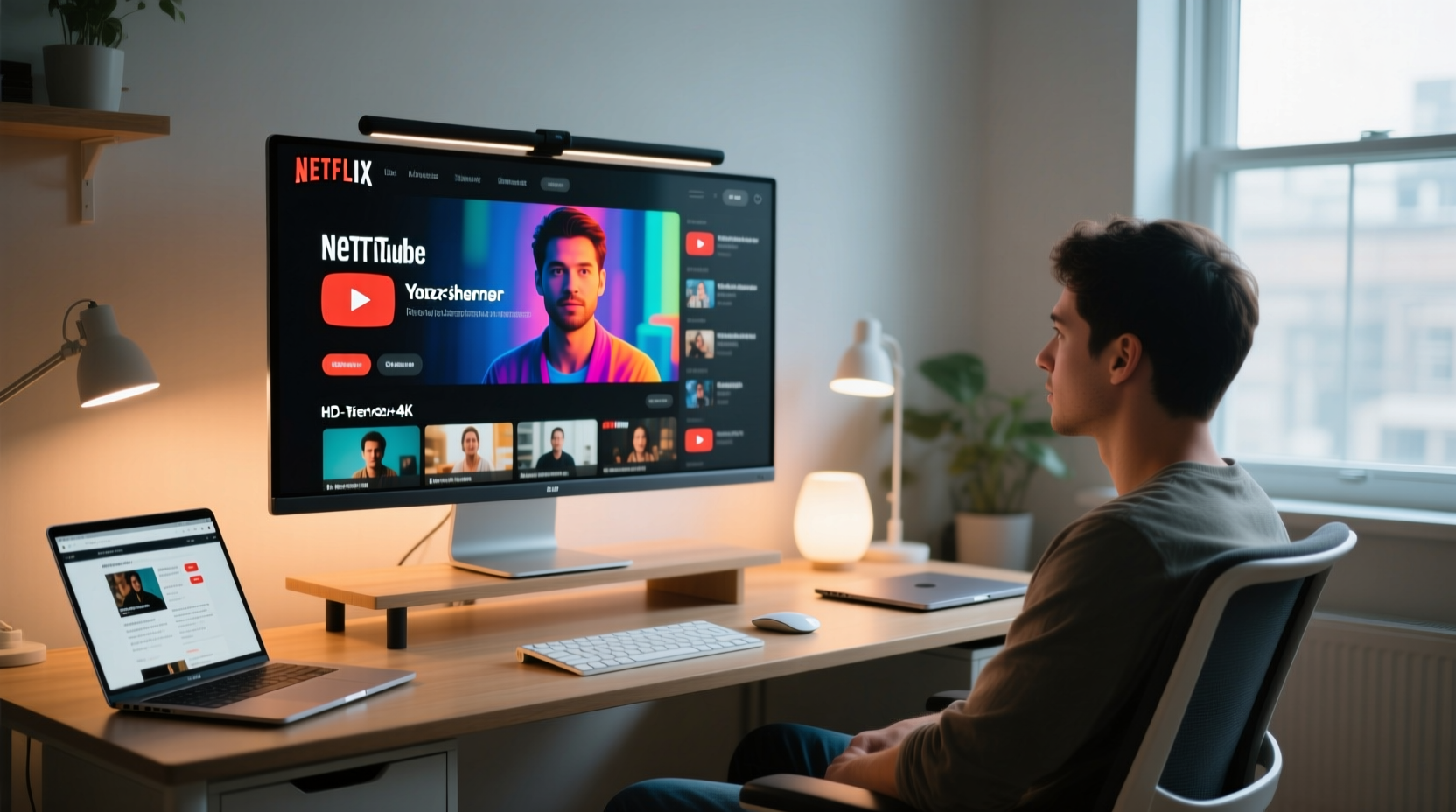
4K, also known as Ultra HD (UHD), refers to a resolution of 3840 x 2160 pixels — four times the number of pixels found in a standard 1080p Full HD display (1920 x 1080). This increase means text appears crisper, images look more detailed, and fine lines in web design or video thumbnails are rendered with greater precision.
The human eye doesn’t perceive resolution in isolation; it interacts with screen size and viewing distance. A 27-inch 4K monitor viewed from about 24–30 inches away will appear significantly sharper than a 1080p display of the same size. However, on a smaller 24-inch screen at the same distance, the difference may be subtle — especially for non-technical users.
Another key factor is pixel density, measured in pixels per inch (PPI). Higher PPI results in smoother edges and less visible pixelation. A 27-inch 4K monitor has a PPI of approximately 163, compared to 82 for a 27-inch 1080p screen. This doubling of pixel density is where the real visual benefit lies — particularly for reading text online, which makes up a large portion of browsing.
“Even for general use, higher resolution reduces eye strain over long sessions due to improved clarity and reduced need for zooming.” — Dr. Alan Reyes, Vision Ergonomics Researcher, University of Michigan
Real-World Benefits for Browsing and Video Watching
At first glance, web pages haven’t been universally optimized for 4K. Most websites still render responsively for 1080p and below, meaning that while the layout scales, the source images and fonts may not fully exploit the extra resolution. However, modern browsers handle scaling well, and operating systems like Windows and macOS support high-DPI rendering, allowing text and UI elements to remain sharp without appearing tiny.
For reading-heavy activities — such as researching articles, comparing products, or managing emails — the increased clarity of a 4K display can make extended sessions more comfortable. Subtle improvements in font rendering, especially with anti-aliasing and sub-pixel smoothing, reduce eye fatigue. Users who wear glasses or have mild vision issues often report better readability without needing to increase browser zoom levels.
When it comes to video content, the advantage of 4K depends heavily on the source material. Streaming platforms like YouTube, Netflix, and Disney+ offer a growing library of 4K content. If you frequently watch nature documentaries, cinematic films, or high-production series, a 4K monitor allows you to see those details — finer textures in clothing, clearer facial expressions, richer environmental depth — that simply aren’t present in lower resolutions.
However, not all “4K” content is created equal. Many videos labeled as 4K are upscaled from lower-resolution sources, offering minimal real-world improvement. True native 4K footage, shot with high-end cameras, delivers the clearest gains. Similarly, older movies or user-generated content rarely take full advantage of the resolution.
Factors That Determine Value
Whether a 4K upgrade is worthwhile hinges on three main variables: screen size, viewing distance, and current setup.
Screen Size Matters
On displays smaller than 27 inches, the pixel density becomes so high that individual pixels are nearly indistinguishable at normal distances. For example, a 24-inch 4K monitor forces the OS to apply aggressive scaling (often 125% or 150%) to keep text readable, which can lead to slight blurriness if not properly configured. In contrast, a 32-inch or larger screen makes the extra pixels more impactful, spreading out the interface in a way that feels spacious rather than cramped.
Viewing Distance
The closer you sit, the more you’ll notice the difference. Gamers and designers often sit within 24 inches of their screens, maximizing immersion and detail perception. Office workers or casual users who sit farther back — say, 36 inches or more — may not perceive the jump from 1080p to 4K as dramatically. As a rule of thumb, if you’re sitting more than three feet away, consider a larger screen or accept that the resolution benefit will be modest.
Your Current Monitor
If you're still using a 1080p monitor larger than 27 inches, upgrading to 4K will feel like a significant leap. Text will appear much cleaner, and video content will look noticeably sharper. But if you already have a high-quality 1440p (QHD) display, the incremental gain from moving to 4K is smaller — especially on similarly sized screens.
“For average users, the jump from 1080p to 1440p often provides the best balance of clarity and usability. 4K shines when paired with larger screens or multitasking needs.” — Lisa Tran, Display Technology Analyst at TechInsight Labs
Practical Considerations and Potential Downsides
Before investing in a 4K monitor, consider the following:
- Graphics card capability: While modern integrated graphics (like Intel Iris Xe or Apple M-series chips) can drive 4K displays, older or budget GPUs may struggle with smooth desktop performance, especially if multiple applications are open.
- Scaling issues: Some older software doesn’t handle high-DPI scaling well, leading to blurry or misaligned interfaces. This is increasingly rare but still occurs with niche or legacy programs.
- Cable requirements: To run 4K at 60Hz, you’ll need at least an HDMI 2.0 or DisplayPort 1.2 cable. Older cables may limit refresh rate or force lower resolutions.
- Cost vs. benefit: 4K monitors are no longer prohibitively expensive, but they still cost 20–50% more than comparable 1080p models. Ask yourself whether the visual refinement justifies the premium.
Comparison: 1080p vs. 1440p vs. 4K for Casual Use
| Feature | 1080p (FHD) | 1440p (QHD) | 4K (UHD) |
|---|---|---|---|
| Ideal Screen Size | 24–27 inches | 27–32 inches | 27 inches and above |
| Text Clarity | Good | Very Good | Excellent |
| Video Quality (Native 4K) | Upscaled, soft | Sharper upscale | Full detail preserved |
| System Requirements | Low | Moderate | Moderate to High |
| Value for Browsing/Video | High | Very High | Situational |
A Real-World Example: Sarah’s Upgrade Experience
Sarah, a freelance writer and avid streamer, used a 24-inch 1080p monitor for five years. She spent most of her day reading articles, writing in Google Docs, and watching TV shows in the evening. After receiving a bonus, she considered upgrading to a 32-inch 4K monitor.
Initially hesitant, she worried the change would be negligible. But after switching, she noticed immediate differences. Her browser tabs felt less cluttered, thanks to the extra horizontal space. Text in long-form journalism appeared smoother, reducing the need to squint. When watching nature documentaries on Netflix, she remarked how tree bark and animal fur looked startlingly real.
She did encounter one issue: some older web apps rendered slightly blurry until she adjusted Windows scaling to 125%. Once set, the problem disappeared. Now, six months later, she says going back to 1080p would feel like “reading a book printed on low-quality paper.”
Step-by-Step Guide: Deciding If 4K Is Right for You
- Evaluate your current monitor: Is it smaller than 24 inches or larger than 27 inches at 1080p? The latter is a strong indicator that 4K will help.
- Measure your viewing distance: Sit in your usual spot and measure from your eyes to the screen. Under 30 inches? 4K will be more noticeable.
- Check your GPU: Ensure your system supports 4K output at 60Hz. Most laptops and desktops from the last five years do.
- Assess your content habits: Do you regularly watch 4K videos? Do you read long texts online? Answering yes increases the value.
- Test before buying: Visit an electronics store and compare a 4K display side-by-side with your current one. Look at text, video playback, and website rendering.
- Consider future-proofing: Even if you don’t need 4K today, having the option for higher-resolution content tomorrow adds long-term value.
FAQ
Do I need a special HDMI cable for 4K?
Yes. For 4K at 60Hz, use an HDMI 2.0 or newer cable (often labeled “High Speed”). Older HDMI 1.4 cables support 4K but only at 30Hz, which can cause lag and stutter during video playback.
Will 4K make my computer slower?
Not significantly for browsing and video. Modern CPUs and integrated graphics handle 4K desktop environments efficiently. However, very old systems (pre-2015) might experience minor sluggishness due to higher pixel processing demands.
Can I use a 4K monitor for dual-purpose (work and entertainment)?
Absolutely. Many users find that a single 4K monitor improves both productivity and leisure. The extra screen real estate helps with multitasking, while the visual fidelity enhances movie nights or streaming sessions.
Conclusion: Is It Worth It?
Upgrading to a 4K monitor for browsing and video watching can be worth it — but only under the right circumstances. If you use a large screen (27 inches or more), sit relatively close, consume high-resolution content, or spend hours reading online, the enhanced clarity and immersive experience justify the investment. The improvement in text rendering alone can make daily computing more comfortable and enjoyable.
However, if you have a small desk, sit far from your monitor, or primarily use low-resolution websites and videos, the upgrade may offer diminishing returns. In such cases, a high-quality 1440p display or even a well-calibrated 1080p panel might serve you just as well — and save you money.
The decision ultimately comes down to personal preference and environment. Technology should enhance your life, not complicate it. A 4K monitor isn’t essential for basic tasks, but when matched with the right setup, it can transform an ordinary screen into a window of remarkable clarity.




 浙公网安备
33010002000092号
浙公网安备
33010002000092号 浙B2-20120091-4
Comments
No comments yet. Why don't you start the discussion?