
In an age where digital workflows define professional output, the tools we use shape not only our efficiency but also the quality of our ideas. Among the most common upgrades in modern workspaces is the shift from single to dual-monitor setups. While many adopt this change for practical reasons—more screen space, easier multitasking—the deeper question remains: does using two monitors actually enhance creativity? And more specifically, can a side-by-side monitor configuration foster a more fluid, innovative workflow?
This article explores the nuanced relationship between dual monitors and creative performance. Drawing on cognitive science, ergonomic research, and real-world case studies, we analyze whether two screens truly unlock new levels of creative potential or simply offer the illusion of productivity.
The Cognitive Impact of Screen Real Estate
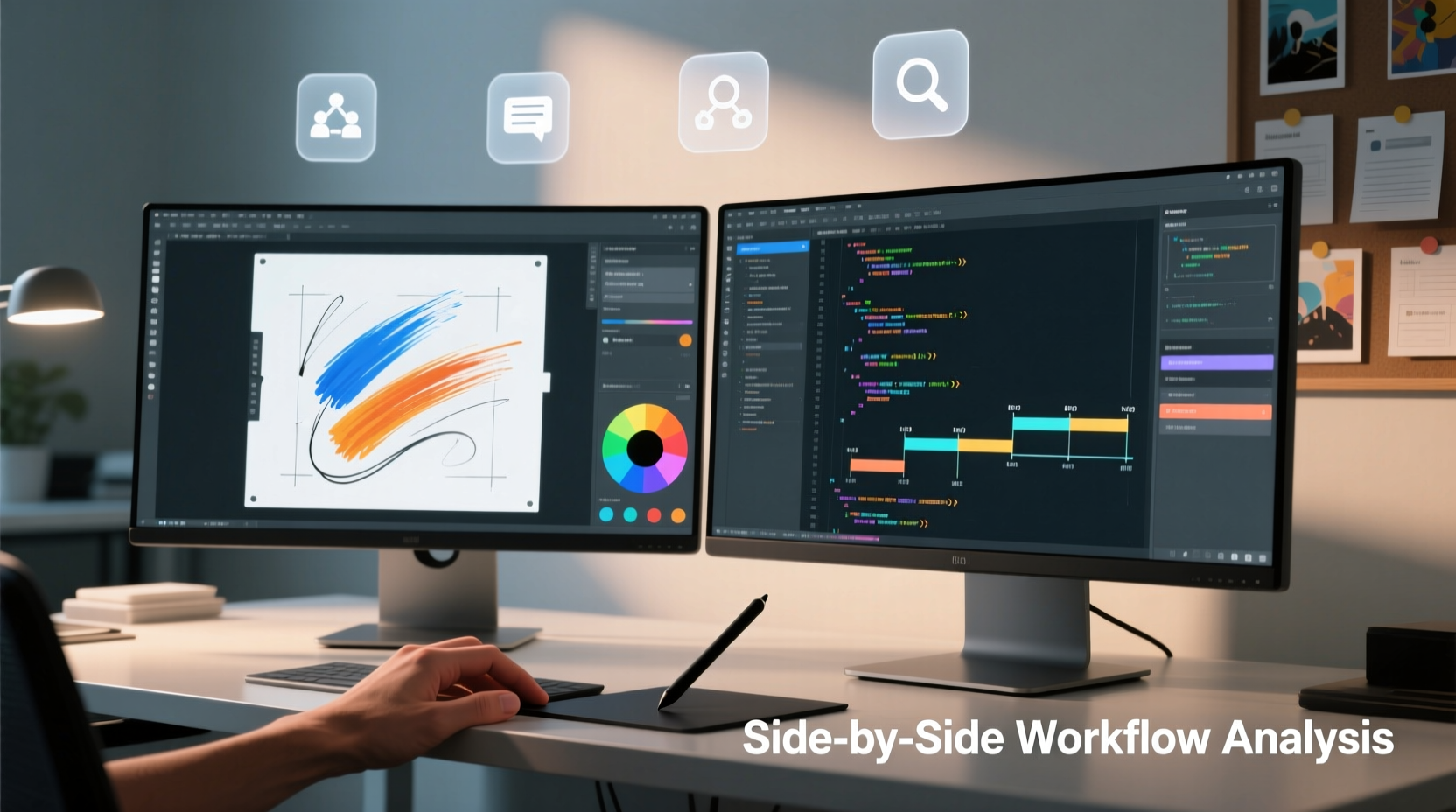
Creativity doesn’t emerge in a vacuum. It thrives on context, cross-referencing, and the ability to see multiple elements simultaneously. A single monitor often forces users into a serial mode of operation: switch tabs, minimize windows, toggle between applications. This constant context switching imposes a cognitive load that disrupts flow—a state essential for deep creative work.
Dual monitors reduce this friction by enabling parallel information processing. Designers can keep their reference images open alongside Photoshop. Writers can draft on one screen while viewing research on the other. Video editors preview timelines while adjusting audio tracks. This spatial continuity supports what cognitive scientists call “external cognition”—using physical space to offload mental effort.
“Visual working memory is limited. When you spread your thinking across two screens, you're effectively expanding your cognitive workspace.” — Dr. Linda Rising, cognitive psychologist and author of *The Pattern Almanac*
Studies from the University of Utah have shown that increasing display area can improve task performance by up to 42% in data-intensive roles. While these studies focused on productivity, the implications for creative work are significant. More visual real estate allows creators to maintain a broader perspective, reducing tunnel vision and encouraging associative thinking—the foundation of innovation.
Workflow Advantages in Creative Professions
Different creative disciplines benefit uniquely from dual-monitor configurations. Let’s examine three major fields:
Graphic Design & Visual Arts
For graphic designers, the primary canvas often resides on the main screen, while the secondary monitor hosts palettes, layers, color swatches, or client feedback. This separation reduces clutter and maintains focus. Adobe Creative Cloud users, for example, report smoother transitions between Illustrator, Photoshop, and InDesign when assets and references remain visible without tabbing out.
Writing & Content Creation
Writers juggle outlines, research sources, grammar tools, and drafts. A second monitor allows them to keep source material open while drafting, minimizing interruptions. Bloggers and scriptwriters often use one screen for narrative development and another for fact-checking or SEO tools like Hemingway or Grammarly.
Music Production & Video Editing
Audio engineers frequently run DAWs (Digital Audio Workstations) across two screens—one for the timeline, another for plugin controls or mixing boards. Similarly, video editors in DaVinci Resolve or Premiere Pro use extended displays to separate editing panels from preview windows, drastically cutting down navigation time.
The key advantage isn’t just convenience—it’s continuity. Creativity often depends on momentum. Every window minimized or tab switched breaks that rhythm. Dual monitors preserve it.
When Two Monitors Can Hinder Creativity
Despite the benefits, dual monitors aren’t universally advantageous. Poor implementation can lead to distraction, disorganization, or even reduced creative output.
One common issue is overloading the peripheral screen with non-essential applications—email, Slack, social media—that fragment attention. The brain struggles to filter irrelevant stimuli, especially when they’re within direct line of sight. Instead of enhancing focus, the second monitor becomes a vortex of interruption.
Additionally, mismatched monitor specs—differences in resolution, brightness, or color calibration—can distort perception. A designer reviewing a brand palette across two screens with inconsistent color rendering may make inaccurate decisions, undermining the creative intent.
Ergonomics also play a role. If monitors are poorly aligned—too far apart, angled incorrectly, or at uneven heights—users experience neck strain and visual fatigue, both of which impair cognitive function over time.
Do’s and Don’ts of Dual-Monitor Setup
| Do’s | Don’ts |
|---|---|
| Align monitors at eye level with minimal gap | Place monitors too far apart (>2 inches) |
| Use identical models for consistent color/output | Mix different resolutions without scaling adjustments |
| Assign functional zones (e.g., research vs. creation) | Clutter secondary screen with notifications |
| Take breaks using the 20-20-20 rule | Stare continuously across wide angles |
Mini Case Study: From Burnout to Breakthrough
Jamal Reed, a freelance motion graphics artist based in Portland, spent months struggling with project delays and creative blocks. Working on a single 13-inch laptop screen, he found himself constantly resizing windows, losing track of timelines, and feeling mentally drained by midday.
After investing in a second 24-inch 4K monitor, he restructured his workflow: the primary screen hosted After Effects, while the secondary displayed stock footage libraries, client emails, and music playlists. Within two weeks, his project completion rate increased by 35%. More importantly, he reported a noticeable improvement in idea generation.
“I used to close everything except the current layer,” Jamal said. “Now I leave inspiration boards open all day. Seeing colors, animations, and notes side-by-side sparked connections I never made before. It’s like my brain got more room to breathe.”
This anecdote aligns with findings from a 2022 Stanford study on environmental influence in creative tasks, which concluded that “spatial expansion of digital workspace correlates with increased divergent thinking scores in visual design professionals.”
Optimizing Your Dual-Screen Workflow: A Step-by-Step Guide
Simply adding a second monitor isn’t enough. To maximize creative gains, follow this structured setup process:
- Assess Your Primary Tasks: Identify your core creative activities—writing, designing, coding, editing. Determine which tools and references you use most.
- Select Compatible Hardware: Choose monitors with matching resolution (ideally 1080p or higher), color accuracy (sRGB ≥ 99%), and response time. Consider ultrawide alternatives if desk space is limited.
- Position Strategically: Place the main monitor directly in front of you. Angle the secondary monitor inward at 30 degrees to reduce neck rotation. Top edges should align with your eye level.
- Define Functional Zones: Assign roles to each screen. Example: Main = active creation; Secondary = references, communication, asset library.
- Customize Software Settings: Extend—not duplicate—your desktop. Adjust scaling so text appears uniform. Disable notifications on the primary screen.
- Test and Iterate: Use the setup for a full week. Track focus duration, errors, and idea frequency. Adjust positioning or roles as needed.
This method ensures that the dual-monitor system serves your creative process rather than complicating it.
Expert Insight: Balancing Technology and Mindset
While hardware plays a role, experts emphasize that tools alone don’t drive creativity. The environment must support intentional work.
“The best setup is the one that disappears. If you’re constantly managing windows or squinting at mismatched colors, you’re fighting your tools instead of creating. Technology should recede into the background.” — Dr. Naomi Sato, Human-Computer Interaction Researcher at MIT Media Lab
This principle underscores a critical point: dual monitors are not a magic bullet. Their value emerges only when integrated into a disciplined, purposeful workflow. Creativity flourishes not from screen count, but from uninterrupted time, clear goals, and accessible resources—all of which dual monitors can facilitate when used wisely.
Frequently Asked Questions
Does having two monitors increase creativity directly?
No single factor “increases” creativity outright. However, dual monitors can remove friction from the creative process by allowing simultaneous access to tools, references, and outputs. This reduction in cognitive load creates conditions more conducive to creative thinking.
Can a single ultrawide monitor replace two separate screens?
Yes, for many users. Ultrawide monitors (e.g., 29” or 34”) offer similar horizontal space and can be partitioned virtually using OS features like macOS Stage Manager or Windows Snap Layouts. They eliminate bezel gaps and simplify cable management. However, they lack the flexibility of independent resolution or orientation settings per screen.
Is dual-monitor usage recommended for brainstorming sessions?
It depends on the method. For solo ideation with digital mood boards or mind maps, yes—having visuals and notes side-by-side helps. But for freeform brainstorming, pen-and-paper or whiteboard sessions often yield better results initially. Dual monitors are best suited for execution, not early-stage ideation.
Checklist: Building a Creativity-Optimized Dual-Monitor Setup
- ☑ Evaluate your primary creative software and workflow bottlenecks
- ☑ Purchase two monitors with matching resolution and color profiles
- ☑ Position screens to minimize head movement and glare
- ☑ Assign dedicated functions to each monitor (creation vs. reference)
- ☑ Disable distracting apps and notifications on both screens
- ☑ Calibrate brightness and color settings for consistency
- ☑ Test the setup over a full workweek and adjust as needed
- ☑ Schedule regular breaks to prevent visual fatigue
Conclusion: Tools That Think With You
The question isn’t whether two monitors are inherently better for creativity, but whether they’re better for your creativity. For professionals who rely on constant context-switching, visual referencing, and layered digital tools, a well-configured dual-monitor setup can significantly enhance workflow fluidity and cognitive ease.
But technology is only the scaffold. True creative advancement comes from aligning your tools with your thinking patterns. When monitors become silent partners in the process—holding your thoughts, sources, and drafts in plain view—they stop being mere devices and start functioning as extensions of your mind.




 浙公网安备
33010002000092号
浙公网安备
33010002000092号 浙B2-20120091-4
Comments
No comments yet. Why don't you start the discussion?