
In the era of remote and hybrid work, professionals are constantly seeking ways to improve focus, reduce fatigue, and maximize productivity. One of the most common upgrades adopted by remote workers is the dual-monitor setup. But is it truly worth it? For many, the answer lies not in hype but in measurable improvements in workflow, multitasking ability, and mental clarity. This article examines the real impact of using two monitors on remote work efficiency, backed by research, user experiences, and practical implementation strategies.
The Cognitive Case for Dual Monitors
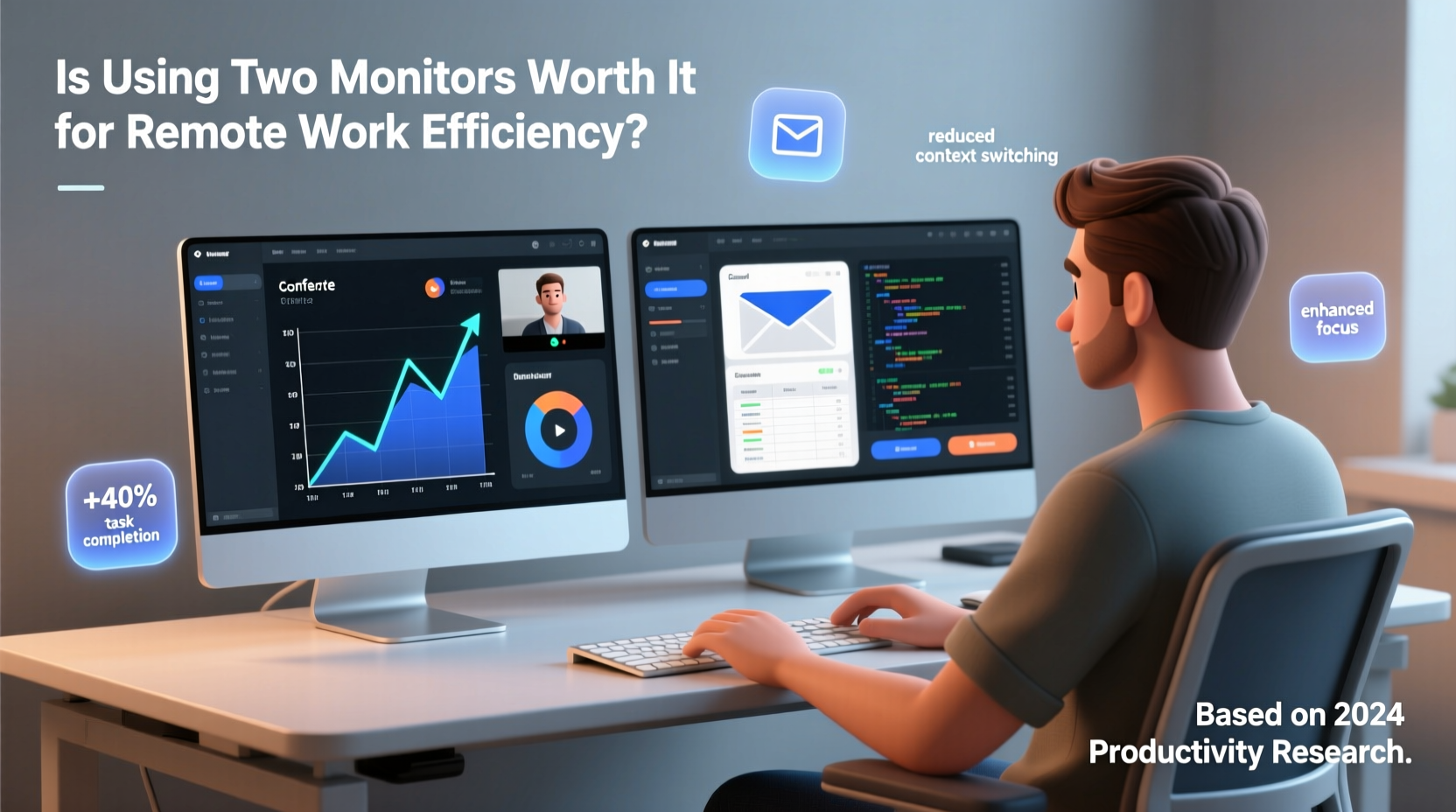
Our brains are wired to process spatial information efficiently. When we interact with digital interfaces, spreading tasks across physical space—such as two separate screens—can reduce cognitive load. A study conducted by the University of Utah and funded by NEC found that users with dual monitors were up to 30% more productive than those using a single screen. The improvement stemmed from reduced window-switching, faster access to reference material, and better visual organization.
For remote workers juggling video calls, spreadsheets, messaging apps, and documentation, minimizing context switching is crucial. With only one monitor, toggling between applications forces attention shifts that degrade concentration. In contrast, a second monitor allows persistent placement of frequently used tools—like email or chat—on one side while reserving the primary screen for deep work.
“Spatial memory plays a significant role in how quickly we locate and process information. Dual monitors leverage this by giving each task a fixed location.” — Dr. Linda Zhang, Cognitive Ergonomics Researcher at MIT
Real-World Benefits Across Professions
The value of a second monitor varies by job function, but across multiple fields, the consensus leans toward tangible gains:
- Software Developers: Code on one screen, documentation or terminal output on the other. Reduces debugging time and improves code quality.
- Financial Analysts: View live market data alongside Excel models without constant tabbing back and forth.
- Content Creators: Edit video or copy on one screen while referencing scripts, feedback, or social media analytics on the second.
- Customer Support Agents: Keep CRM open on one monitor and communication platforms (Slack, Teams) on the other, improving response speed.
- Project Managers: Track timelines in Asana or Jira on one screen while attending meetings or drafting reports on the other.
Mini Case Study: Sarah, Remote UX Designer
Sarah transitioned to full-time remote work in 2021. Initially using a 13-inch laptop, she struggled with managing Figma files, client feedback threads, and Zoom critiques simultaneously. After adding a 24-inch external monitor, her workflow transformed. She placed Figma on the main screen and kept Slack, email, and design references on the secondary display. Within two weeks, she reported a 40% reduction in task-switching errors and completed mockups 25% faster. “It’s like having an extra desk,” she said. “I don’t lose my train of thought anymore.”
Setting Up for Success: Key Considerations
Simply adding a second monitor isn’t enough. Poor ergonomics or mismatched hardware can negate benefits and even cause discomfort. Here’s how to set up effectively:
Monitor Placement and Ergonomics
The ideal dual-monitor configuration places both screens at arm’s length, with the top of the monitors at or slightly below eye level. If using different sizes, align the bottoms so your gaze doesn’t jump unevenly. The center point between both monitors should be directly in front of you, reducing excessive head turning.
Hardware Compatibility
Ensure your laptop or desktop supports dual displays. Most modern machines do, but older models may require a USB-to-HDMI adapter or docking station. Also, match resolution and refresh rates where possible to avoid visual inconsistency when dragging windows between screens.
Software Optimization
Leverage operating system features to enhance usability:
- Windows: Use Snap Layouts to organize windows across monitors with keyboard shortcuts (Win + Left/Right).
- macOS: Assign Spaces or Mission Control to manage virtual desktops per monitor.
- Third-party Tools: Apps like DisplayFusion (Windows) or Moom (macOS) offer advanced window management and hotkeys.
Do’s and Don’ts of Dual-Monitor Usage
| Do’s | Don’ts |
|---|---|
| Use one monitor for active work, the other for passive references (email, calendar, chat) | Clutter both screens with too many open windows |
| Align monitors to reduce neck strain | Place monitors at drastically different heights or angles |
| Match brightness and color temperature for visual consistency | Use mismatched panels (e.g., glossy and matte) side by side |
| Take advantage of extended desktop mode instead of mirroring | Mirror displays—this defeats the purpose of added screen real estate |
| Regularly reassess layout based on current projects | Set it and forget it—your needs may evolve over time |
When Two Monitors Might Not Be Worth It
Despite the advantages, a dual-monitor setup isn’t universally beneficial. Certain scenarios may diminish returns:
- Space Constraints: Small desks or awkward layouts can make dual monitors impractical or uncomfortable.
- Infrequent Multitasking: Roles focused on linear tasks (e.g., transcription, reading-heavy research) may not benefit significantly.
- Budget Limitations: High-quality monitors, mounts, and adapters add cost. For some, investing in a larger single screen may be more effective.
- Visual Overload: Some users report increased distraction when secondary screens display dynamic content like notifications or live feeds.
A 2022 survey by FlexJobs found that while 68% of remote workers using dual monitors reported higher productivity, 22% noted no change, and 10% felt overwhelmed by the additional stimuli. The key differentiator was intentional use: those who designated specific functions to each screen saw gains, while others treating both as general-purpose zones often experienced clutter.
Step-by-Step Guide to Implementing a Dual-Monitor Setup
If you're considering making the switch, follow this sequence to ensure optimal results:
- Assess Your Workflow: Identify which applications you use concurrently. Are you constantly resizing or minimizing windows?
- Evaluate Desk Space: Measure available surface area. You’ll need at least 48 inches of width for two 24-inch monitors comfortably.
- Choose Compatible Hardware: Select a monitor that matches your primary in resolution (ideally 1080p or higher) and panel type. Consider VESA mounts for flexibility.
- Connect and Configure: Use HDMI, DisplayPort, or USB-C to connect. On Windows, press Win+P to select \"Extend.\" On Mac, go to System Settings > Displays > Arrangement.
- Assign Functional Zones: Designate your main screen for core tasks (writing, designing, coding). Use the second for auxiliary tools (calendar, chat, reference docs).
- Test and Adjust: Work for three days with the setup. Note any discomfort or inefficiency. Fine-tune positioning and software settings accordingly.
- Review Productivity Metrics: Compare time spent on common tasks pre- and post-setup. Track error rates, meeting punctuality, and focus duration.
Cost vs. Return: Is the Investment Justified?
A basic external monitor ranges from $120 to $300. Add a stand or mount ($30–$80), and possibly a cable or adapter ($15–$50). Total investment: roughly $170–$400. Compare this to potential gains:
- Reduced time spent switching tasks = more hours available for high-value work.
- Fewer mistakes due to misread data or overlooked messages.
- Improved comfort leading to longer sustainable focus periods.
For freelancers or consultants billing hourly, even a 10% efficiency gain can recoup the cost within months. For employees, the ROI may be less direct but still meaningful in career advancement, workload management, and job satisfaction.
FAQ
Can I use a TV as a second monitor?
Yes, if it has HDMI input and supports PC signal modes (look for \"PC Mode\" or \"Low Input Lag\" setting). However, TVs often have lower pixel density and slower response times than monitors, which may affect text clarity and performance.
Does screen size matter in a dual setup?
Yes. While matching sizes is ideal, a common effective combo is a 27-inch primary with a 24-inch secondary. Avoid pairing very small (under 22-inch) screens unless used strictly for monitoring.
Is ultrawide better than two monitors?
An ultrawide monitor (e.g., 34-inch 21:9) offers seamless workspace and fewer bezel interruptions. However, it lacks the physical separation that helps some users mentally compartmentalize tasks. Test both if possible—many prefer dual screens for multitasking, ultrawide for immersive work like video editing.
Final Verdict: Yes, But Only If Used Intentionally
The evidence overwhelmingly supports dual monitors as a tool for enhancing remote work efficiency—but with a critical caveat: they must be used strategically. Simply doubling screen space without thoughtful organization can lead to distraction, fatigue, and diminished returns.
The most effective setups assign clear roles to each monitor, maintain ergonomic alignment, and adapt to evolving workflows. When implemented correctly, the dual-monitor configuration reduces friction in daily tasks, preserves mental energy, and supports deeper concentration. For knowledge workers, creatives, and technical professionals, the upgrade often pays for itself in saved time and improved output quality.
Remote work is not just about being online from home—it’s about optimizing the environment to perform at your best. A second monitor isn't a luxury; for many, it's becoming a necessity in the modern digital workspace.




 浙公网安备
33010002000092号
浙公网安备
33010002000092号 浙B2-20120091-4
Comments
No comments yet. Why don't you start the discussion?