
In the shift toward remote and hybrid work models, professionals are rethinking their home office setups. One of the most debated upgrades is adding a second monitor. While some swear by the productivity boost, others find it overwhelming or unnecessary. The truth lies somewhere in between—context matters. For certain roles and workflows, dual monitors can be transformative. For others, they may simply add visual clutter without meaningful benefit.
This article examines the tangible advantages and potential distractions of using two monitors during remote work. We’ll look at who benefits most, how to set up an effective dual-display environment, and when a single screen might actually be the smarter choice.
Productivity Gains: What the Research Says
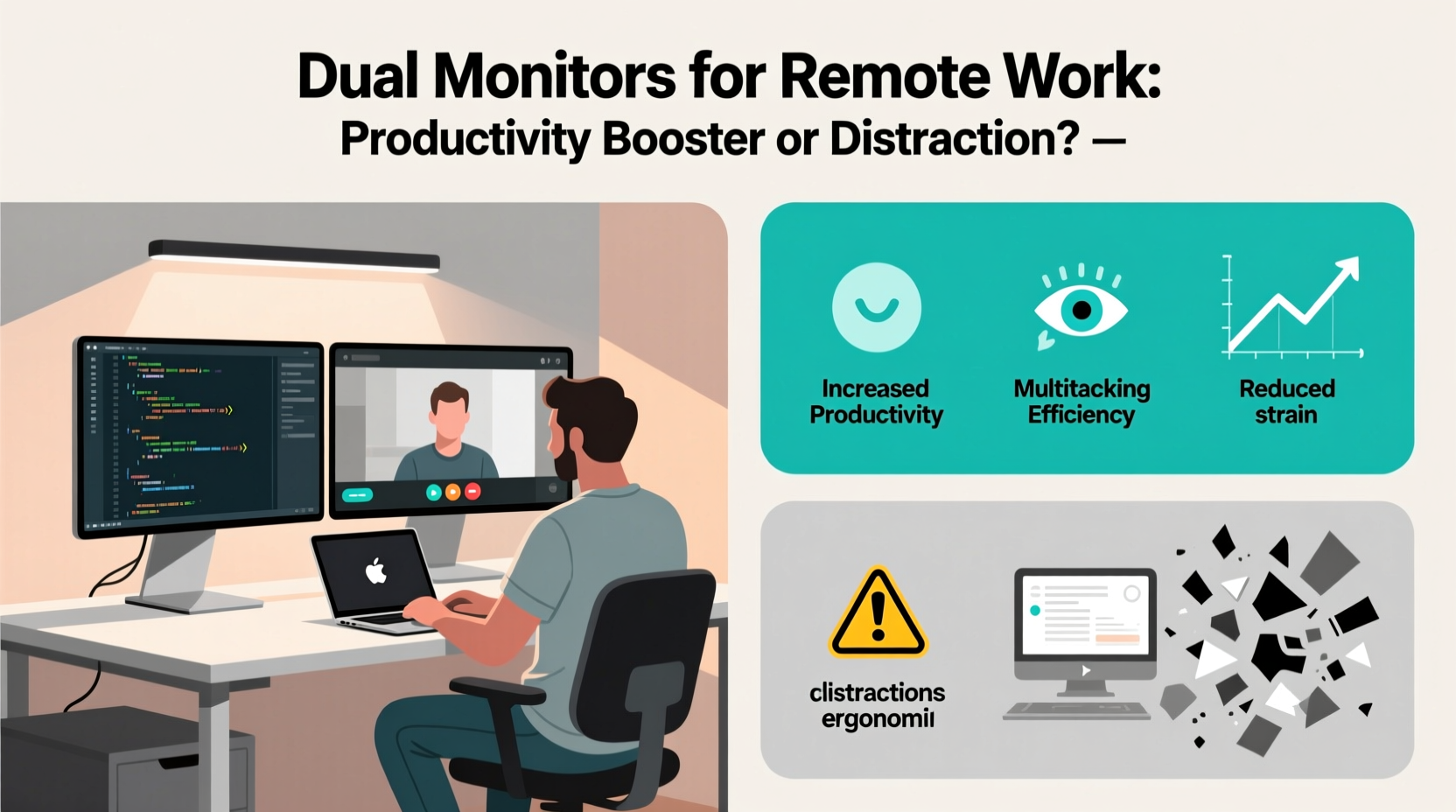
Multiple studies have shown that using two monitors can improve efficiency. A 2008 study by the University of Utah, commissioned by NEC, found that users with dual monitors were 30% more productive than those with a single display when performing common office tasks like data entry, email management, and document comparison. More recent research from the University of Mississippi supports this, showing reduced task-switching time and improved multitasking accuracy with extended desktops.
The logic is straightforward: having more screen real estate allows you to keep multiple applications open simultaneously. You can view a spreadsheet on one screen while referencing an email on the other, or code on the left while testing on the right. This eliminates constant window toggling, which fragments focus and slows down workflow.
However, productivity isn’t guaranteed just because you’ve added a second screen. How you use the space determines whether it enhances or hinders performance.
Who Benefits Most from Dual Monitors?
Not all remote workers gain equal value from a second monitor. The usefulness depends largely on job function and daily tasks.
- Software developers often benefit significantly. They can keep code editors, terminals, documentation, and debug consoles open across screens, minimizing context switching.
- Graphic designers and video editors use one screen for tools and timelines, and another for previews or asset libraries.
- Data analysts and financial professionals frequently compare spreadsheets, dashboards, or reports side-by-side.
- Writers and researchers may keep reference material on one screen and their draft on the other.
- Customer support agents can manage helpdesk software, knowledge bases, and live chat windows simultaneously.
On the flip side, roles that involve primarily linear tasks—like reading long documents, writing focused content, or making phone calls—may not see substantial gains. For these users, a second monitor could become a source of distraction rather than assistance.
“Dual monitors aren’t inherently better—they’re tools. Like any tool, their effectiveness depends on how well they’re matched to the task.” — Dr. Linda Nguyen, Human Factors Psychologist at MIT Media Lab
Dual Monitor Setup: Best Practices to Maximize Value
If you decide to go dual-monitor, proper configuration is essential. Poor placement or mismatched specs can negate any potential benefits.
Step-by-Step Guide to Setting Up Dual Monitors
- Choose compatible monitors: Match resolution, refresh rate, and panel type where possible. Mismatched screens can cause visual fatigue.
- Select the right size: 24–27 inches is ideal for most desk setups. Larger screens may require more head movement, increasing strain.
- Position correctly: Align the top of both monitors with your eye level. Angle them slightly inward to form a gentle curve around your field of vision.
- Configure display settings: In Windows or macOS, set one monitor as primary (for main applications) and extend the desktop to the second.
- Assign consistent roles: Dedicate one screen to communication apps (email, Slack, calendar), and the other to core work (writing, coding, design).
- Use keyboard shortcuts: Learn shortcuts like Win + Left/Right (Windows) or Cmd + Option + Arrow (macOS) to move windows efficiently.
Common Mistakes to Avoid
| Mistake | Why It’s Problematic | Better Approach |
|---|---|---|
| Placing monitors too far apart | Forces excessive head turning, leading to neck strain | Keep monitors adjacent, forming a continuous visual plane |
| Using mismatched resolutions | Causes inconsistent scaling and blurry text | Use identical or closely matched models |
| Overloading the second screen | Creates visual noise and cognitive overload | Use it for passive references, not active multitasking |
| Ignoring cable management | Tangled wires reduce focus and pose tripping hazards | Use clips, sleeves, or under-desk trays |
When Dual Monitors Become a Distraction
More screen space doesn’t automatically mean better focus. In fact, it can encourage poor habits. With two monitors, it’s easier to leave social media, news sites, or personal email open “just in case.” These background tabs create what psychologists call “attention residue”—mental clutter from unfinished tasks or lingering stimuli.
A 2021 study published in the Journal of Applied Psychology found that workers with dual monitors spent 15% more time on non-work-related browsing than single-monitor users, especially when the second screen wasn’t assigned a clear purpose.
The key is intentionality. A second monitor should serve a defined function—not act as a dumping ground for every open app. Without discipline, it becomes a digital junk drawer.
Mini Case Study: Sarah, Remote Marketing Manager
Sarah upgraded to dual monitors after months of juggling Zoom calls, campaign dashboards, and content calendars. Initially excited, she soon found herself constantly distracted. Her second screen hosted Slack, Gmail, Twitter, and a live analytics feed—all updating in real time. She felt busier but less productive.
After consulting an ergonomics coach, she restructured her setup. She kept her main monitor for active work: drafting emails, creating presentations, and editing content. The second monitor was reserved exclusively for video calls and shared screens during meetings. Notifications were disabled outside working hours.
The result? A 22% reduction in task-switching time and improved focus during deep work blocks. Sarah realized that the hardware wasn’t the issue—it was how she used it.
Single Monitor vs. Dual Monitor: A Balanced Comparison
Let’s break down the trade-offs objectively.
| Factor | Single Monitor | Dual Monitor |
|---|---|---|
| Cost | Lower upfront and maintenance cost | Higher investment in hardware and cables |
| Space Requirements | Fits compact desks; ideal for small spaces | Requires wider desk (at least 55 inches recommended) |
| Multitasking Efficiency | Slower window switching; limited visibility | Faster access to multiple apps; better context retention |
| Cognitive Load | Lower risk of distraction; simpler interface | Potential for overload if not managed well |
| Ease of Setup | Plug-and-play simplicity | May require driver updates or calibration |
| Lifespan & Flexibility | Easy to replace or upgrade individually | Harder to match specs when replacing one unit |
The decision ultimately hinges on workflow demands and personal discipline. If your day involves frequent cross-referencing, managing multiple data streams, or presenting while working, dual monitors likely offer a net positive. If your work is sequential and requires sustained concentration, a single high-resolution screen may be superior.
FAQ
Can I use a laptop and external monitor instead of two full monitors?
Yes—and many do. Using a laptop as the primary screen with an external monitor extended to the side is a popular and cost-effective alternative. Just close the laptop lid and use it in clamshell mode with an external keyboard and mouse for optimal ergonomics.
Does screen size matter more than having two monitors?
In some cases, yes. A single 32-inch 4K monitor can provide more usable space than two 24-inch 1080p displays. However, physical separation still offers advantages for spatial memory—your brain remembers where you placed a window, reducing search time.
Are ultrawide monitors a good alternative to dual screens?
Absolutely. Ultrawide monitors (21:9 aspect ratio) offer panoramic workspace without bezel interruption. They’re excellent for video editing, coding, and financial modeling. However, they can complicate window snapping and may require software adjustments for optimal layout.
Checklist: Is a Second Monitor Right for You?
- ✅ Do you regularly work with multiple applications at once?
- ✅ Do you spend significant time comparing documents or data sets?
- ✅ Is your desk wide enough to accommodate two screens comfortably?
- ✅ Can you commit to organizing each monitor with a specific purpose?
- ✅ Are you willing to invest $150–$400 in additional hardware?
- ❌ Do you struggle with digital distractions already?
- ❌ Is your current monitor large or high-resolution (e.g., 27” 4K)?
If you answered “yes” to most of the first five and “no” to the last two, a dual-monitor setup is likely worth trying.
Conclusion: Intentionality Over Equipment
Using two monitors for remote work isn’t universally beneficial—it’s situational. For technical, analytical, or creative roles that demand simultaneous access to multiple tools, the investment often pays off in time saved and reduced mental fatigue. But for roles centered on deep thinking, writing, or focused problem-solving, a second screen may do more harm than good if not used deliberately.
The real question isn’t whether two monitors are worth it—it’s whether you’ll use them wisely. Technology amplifies existing habits. If you’re prone to distraction, adding more screens will likely amplify that tendency. But if you approach the setup with clarity and structure, dual monitors can become a powerful extension of your workflow.




 浙公网安备
33010002000092号
浙公网安备
33010002000092号 浙B2-20120091-4
Comments
No comments yet. Why don't you start the discussion?