
Remote work has redefined how we interact with our digital environments. As professionals adapt to home offices, one question keeps surfacing: does adding a second monitor truly improve productivity? For many, the answer is not just yes—it's transformative. But it’s not a universal upgrade. The value of dual monitors depends on your workflow, software use, and personal habits. This article explores the tangible benefits, limitations, and best practices of using two monitors while working remotely, helping you decide if the investment pays off.
The Cognitive Advantage of Screen Real Estate
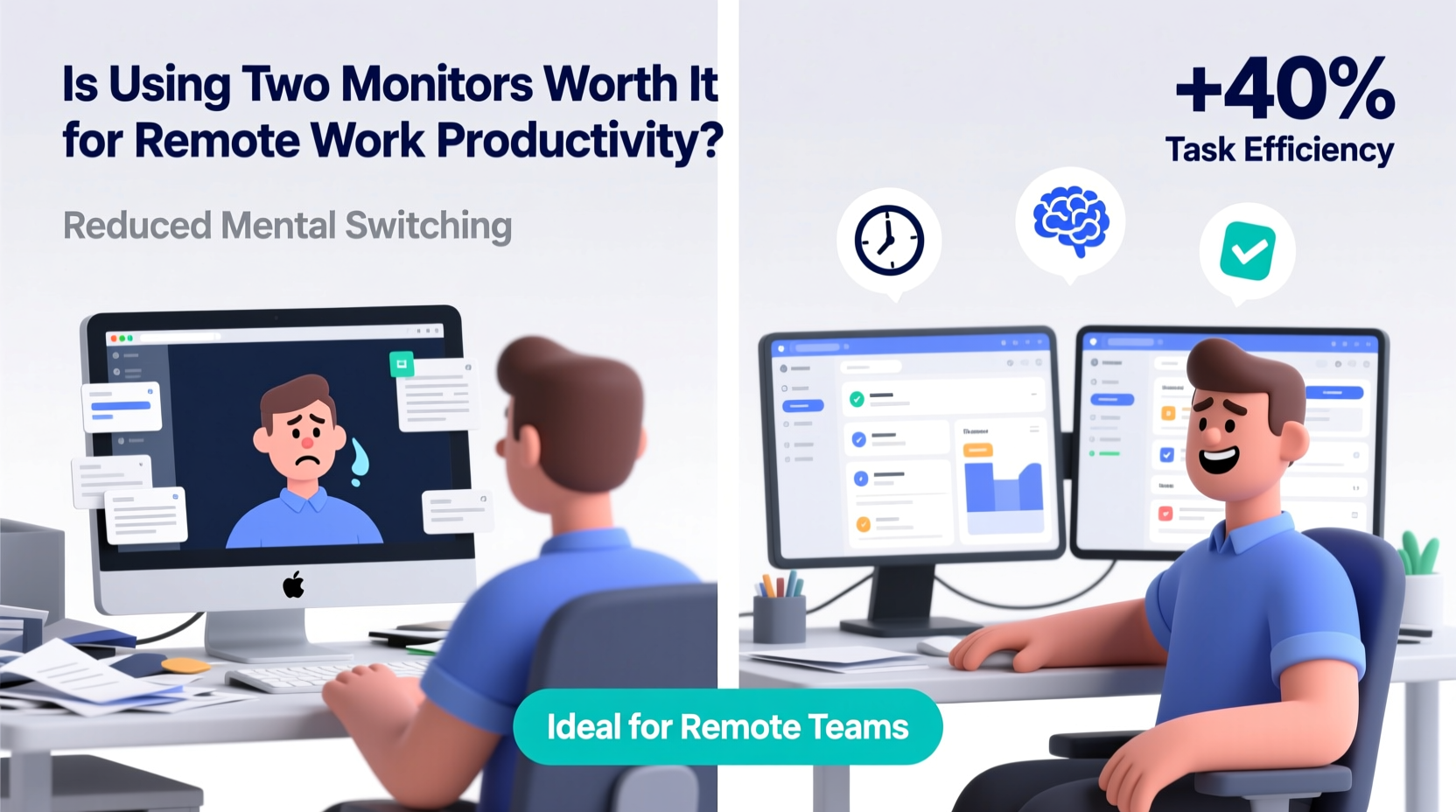
Our brains process visual information more efficiently when it’s spatially organized. A single monitor forces constant window switching, tab juggling, and mental reloading—each action consuming cognitive resources. Dual monitors reduce this \"context-switching tax\" by allowing simultaneous visibility of multiple applications. For example, keeping email open on one screen while drafting a report on the other eliminates the need to alt-tab repeatedly.
Research from the University of Utah, commissioned by NEC in the early 2000s, found that workers using dual monitors were up to 42% more productive in tasks involving data comparison and multitasking. More recent studies, including those from the Journal of Applied Psychology, reaffirm that increased screen space leads to faster task completion and fewer errors—especially in knowledge-based roles.
“Expanding visual workspace reduces cognitive load and supports sustained attention.” — Dr. Sarah Lin, Human Factors Researcher at MIT
This isn’t just about convenience. It’s about reducing mental fatigue over long workdays, which is critical in remote settings where breaks are often shorter and distractions more frequent.
Professions That Benefit Most from Dual Monitors
Not all jobs gain equal value from extra screens. The benefit is most pronounced in fields requiring constant cross-referencing, parallel workflows, or real-time monitoring.
| Profession | Primary Use Case | Productivity Gain (Estimated) |
|---|---|---|
| Software Developers | Code editor + terminal/docs/debugger | 30–50% |
| Data Analysts | Spreadsheet + visualization tool/query console | 35–45% |
| Graphic Designers | Design canvas + asset library/communication tools | 25–40% |
| Writers & Editors | Draft + research/reference materials | 20–30% |
| Customer Support Agents | Ticket system + knowledge base/chat interface | 15–25% |
For these roles, the second monitor acts as a dedicated space for auxiliary tools, reducing interruptions and streamlining focus. In contrast, roles centered around single-application use—such as transcriptionists or phone-based sales reps—may see minimal improvement.
Real-World Example: From Cluttered Tabs to Focused Flow
Consider Maria, a freelance financial analyst who transitioned to remote work in 2020. Initially using a 13-inch laptop, she struggled with managing Excel models, client emails, Zoom calls, and reference PDFs—all within a cramped screen. After upgrading to a dual-monitor setup (a 24-inch main display and a 22-inch secondary), her workflow changed dramatically.
She now dedicates her left screen to live financial dashboards and data sources, her primary screen to modeling and reporting, and uses a third virtual desktop (cycled via keyboard shortcuts) for communication. Within three weeks, she reported a 30% reduction in time spent on client reports and fewer instances of missing critical updates buried in tabs.
\"It’s like having a bigger desk,\" she said. \"I can spread out my tools without losing sight of what matters.\"
Setting Up Your Dual-Monitor System Effectively
Purchasing two monitors is only half the battle. How you configure them determines their impact on productivity. Follow this step-by-step guide to optimize your setup:
- Assess your primary tasks: Identify which applications you use simultaneously. Group them into primary (core work) and secondary (support tools).
- Choose compatible monitors: Match resolution and size where possible. A mismatched pair (e.g., 1080p and 4K) can cause scaling issues and visual discomfort.
- Position ergonomically: Place the main monitor straight ahead, aligned with your line of sight. The secondary should be adjacent, angled slightly inward. Top edges should align horizontally.
- Extend, don’t duplicate: In your OS display settings, select “Extend” so each screen shows different content.
- Assign roles: Reserve one screen for deep work (writing, coding, designing) and the other for communication, references, or monitoring.
- Use keyboard shortcuts: Master shortcuts like Win + Left/Right (Windows) or Ctrl + Left/Right (Mac) to move windows between screens instantly.
- Adjust brightness and color: Calibrate both monitors to match tone and luminance to avoid eye strain when glancing between them.
A poorly arranged dual setup can lead to neck strain or inefficient glances across screens. The goal is seamless integration—not just more pixels, but smarter ones.
Common Pitfalls and How to Avoid Them
Even with the right hardware, mistakes in usage can negate the benefits. Here are frequent missteps:
- Using both screens for distractions: Placing social media, news feeds, or video streaming on the second monitor turns it into a productivity sink.
- Overcrowding: Opening too many windows defeats the purpose. Use virtual desktops to compartmentalize tasks.
- Neglecting cable management: Tangled cords create visual clutter and increase frustration. Use clips or sleeves to organize.
- Ignoring software optimization: Some apps don’t scale well across high-DPI displays. Update graphics drivers and application settings regularly.
“More screens mean more responsibility. Discipline is key to turning space into efficiency.” — James Reed, Remote Work Consultant
Cost vs. Return: Is the Investment Justified?
A decent 24-inch IPS monitor costs between $150 and $250. For under $500, you can build a professional-grade dual-monitor station. Compare that to the average hourly wage of knowledge workers—$30 to $70+—and even a 10% productivity gain pays for the setup in weeks.
Additionally, dual monitors can reduce digital fatigue. Less scrolling, fewer tabs, and reduced memory load contribute to longer, more focused work sessions. Over months, this translates into better work quality, lower stress, and improved work-life balance—a crucial factor in sustainable remote work.
Some employers offer home office stipends. If yours does, prioritize monitors over aesthetic upgrades. They deliver measurable ROI.
Checklist: Optimizing Your Dual-Monitor Workflow
Before finalizing your setup, run through this checklist:
- ✅ Monitors are same or compatible resolution and refresh rate
- ✅ Primary screen is centered and at eye level
- ✅ Secondary screen is angled for comfortable viewing
- ✅ Display mode set to “Extend” (not duplicate)
- ✅ Critical apps assigned to fixed screens (e.g., email always on right)
- ✅ Keyboard shortcuts memorized for window movement
- ✅ Brightness and color temperature matched across screens
- ✅ Cable clutter minimized with organizers
- ✅ Virtual desktops used to separate projects or tasks
- ✅ Regular breaks scheduled to avoid screen fatigue
Frequently Asked Questions
Can I use a laptop and an external monitor instead of two full monitors?
Absolutely. Many remote workers use their laptop as the primary screen and connect a larger external monitor as the secondary. Close the laptop lid and use a stand with cooling to maintain ergonomics. This hybrid approach offers flexibility and saves desk space.
Do ultrawide monitors replace the need for two screens?
In some cases, yes. A 34-inch ultrawide with 21:9 aspect ratio provides similar horizontal space to two 16:9 monitors. However, they lack the physical separation that helps some users mentally compartmentalize tasks. Also, splitting an ultrawide into two virtual screens may result in awkward window proportions for certain applications.
Is dual monitoring beneficial for video conferencing?
Yes. You can keep the meeting window on one screen and presentation materials, notes, or chat on the other. This prevents presenters from accidentally sharing the wrong screen and allows smoother interaction during calls.
Conclusion: Making the Right Call for Your Workflow
Using two monitors for remote work isn’t automatically worth it—but for most knowledge workers, it comes remarkably close. The evidence points to meaningful gains in speed, accuracy, and mental endurance. When configured thoughtfully, dual monitors transform your digital workspace from a constrained portal into an expansive command center.
The decision ultimately hinges on how you work. If your day involves juggling documents, data, communication, and creative tools, the upgrade is likely justified. If you primarily use one application at a time, the return may be modest. But even then, experimenting with a second screen—even temporarily—can reveal hidden inefficiencies in your current setup.




 浙公网安备
33010002000092号
浙公网安备
33010002000092号 浙B2-20120091-4
Comments
No comments yet. Why don't you start the discussion?