
Remote work has reshaped how we think about productivity, workspace design, and digital efficiency. One of the most common upgrades professionals consider is adding a second monitor to their home office setup. But is the investment truly justified? For many, the answer is a resounding yes—but only when implemented thoughtfully. The decision isn’t just about screen real estate; it’s about workflow optimization, mental focus, and long-term comfort.
Dual monitors can transform how remote workers manage tasks, collaborate across platforms, and maintain energy throughout the day. However, like any tool, its value depends on how it's used. This article explores the tangible benefits, potential drawbacks, and best practices for integrating a second display into your remote work environment—so you can decide if it’s worth it for your unique situation.
The Productivity Advantage of Dual Monitors
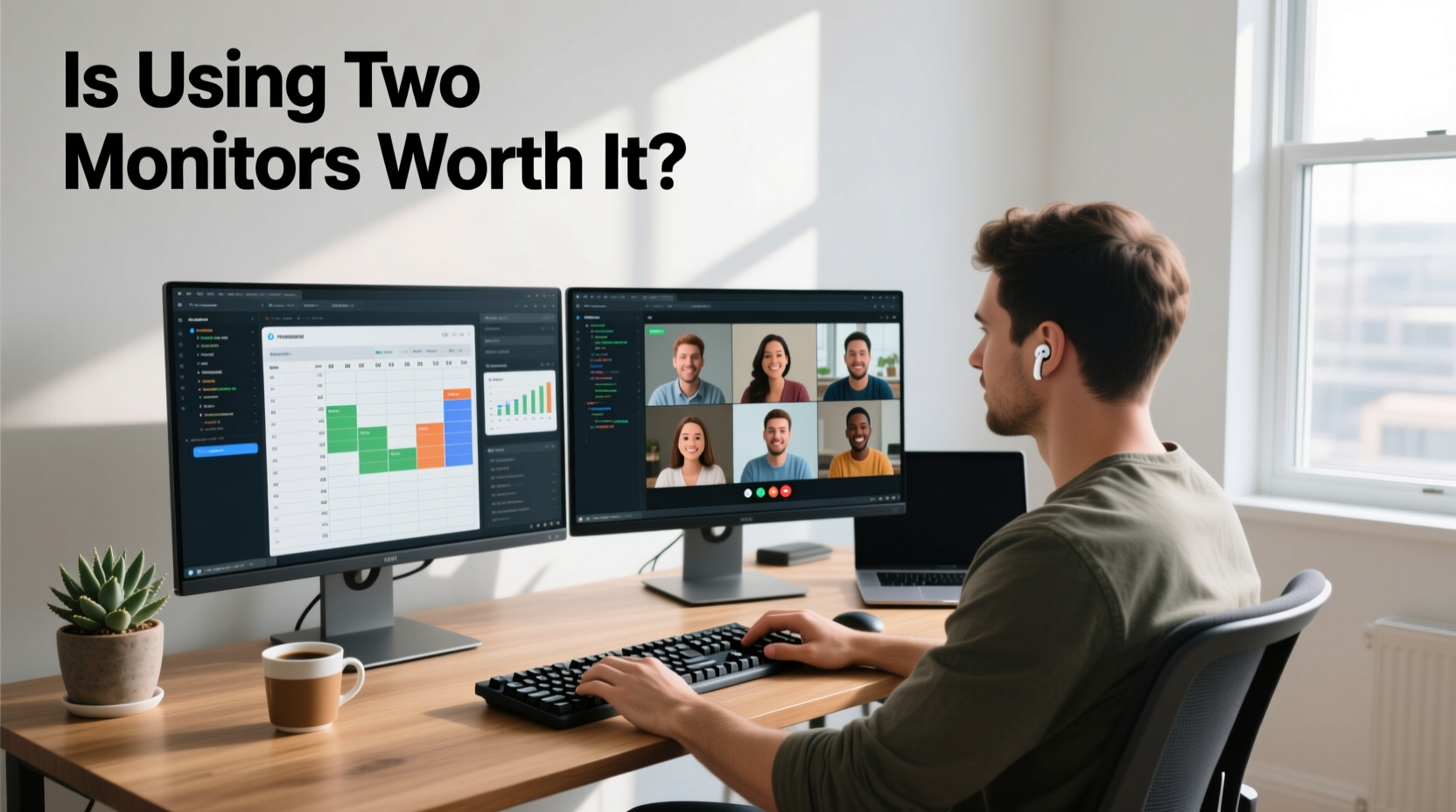
Multiple studies have shown that using two monitors can increase productivity by 20% to 30%. A landmark study by the University of Utah, commissioned by Samsung, found that participants completed tasks up to 44% faster with dual displays compared to single-screen setups. The reason? Reduced context switching.
When you’re constantly toggling between applications—email, calendar, spreadsheets, video conferencing, or code editors—your brain spends cognitive resources reloading information each time. With a second monitor, you can keep essential tools open and visible, minimizing interruptions and maintaining flow.
For example, a financial analyst might keep Excel models on one screen and reference data or reports on the other. A writer can draft on the primary monitor while keeping research, style guides, or editorial feedback open beside them. This spatial continuity supports deeper concentration and reduces fatigue.
Who Benefits Most from a Second Monitor?
Not every remote worker will experience the same return on investment. The advantages are most pronounced for roles that require multitasking across multiple data sources or creative tools. Here’s a breakdown of professions where dual monitors deliver the highest impact:
- Software Developers: Code on one screen, documentation or debugging tools on the other.
- Data Analysts & Accountants: Run complex spreadsheets alongside dashboards or source databases.
- Graphic Designers & Video Editors: Use one screen for timeline editing and the other for preview or asset libraries.
- Customer Support & Project Managers: Keep communication platforms (Slack, Teams) open while navigating helpdesk software or project timelines.
- Writers & Researchers: Draft content while referencing articles, notes, or fact-checking tabs without losing focus.
In contrast, those whose work revolves around linear tasks—such as reading long documents or making phone calls—may find less immediate benefit. Still, even in these cases, having a secondary screen for calendar alerts, music controls, or quick-reference materials can contribute to smoother workflows over time.
Setting Up Your Dual-Monitor System: A Step-by-Step Guide
Simply plugging in a second monitor won’t guarantee better performance. To maximize effectiveness, follow this structured approach:
- Assess Your Needs: Identify which applications you use simultaneously. Prioritize pairing frequently used tools across screens.
- Choose Compatible Hardware: Match resolution and refresh rate where possible. Mismatched specs can cause visual jarring and reduce comfort.
- Position Correctly: Place the primary monitor directly in front of you. Angle the secondary slightly inward so both fall within natural peripheral vision.
- Configure Display Settings: In Windows or macOS, set the correct arrangement under display preferences. Ensure the mouse moves smoothly between screens.
- Optimize Workspace Layout: Use keyboard shortcuts (e.g., Win + Left/Right Arrow) to snap windows efficiently. Customize virtual desktops if needed.
- Test and Adjust: Spend a few days experimenting with different layouts. Track task completion speed and mental fatigue levels.
This process ensures that your dual-monitor setup enhances—not hinders—your daily operations.
Real-World Example: How Sarah Doubled Her Output as a Remote Marketer
Sarah, a digital marketing strategist based in Portland, worked remotely for a mid-sized SaaS company. Initially skeptical about upgrading her laptop-only setup, she began experiencing burnout from constant tab-switching during campaign launches.
After investing in an affordable 24-inch IPS panel, she restructured her workflow: her laptop displayed Google Ads and analytics dashboards, while the external monitor hosted her content calendar, email client, and Slack. Within two weeks, she reported completing weekly reporting 50% faster and felt significantly less mentally drained at the end of the day.
\"It’s not magic,\" she said. \"But seeing everything at once instead of hunting through minimized windows changed how I plan my mornings. I start focused and stay there.\"
“Dual monitors don’t make you more productive by default—they make sustained focus easier. And in knowledge work, that’s half the battle.” — Dr. Lena Torres, Human Factors Researcher at MIT Media Lab
Common Pitfalls and How to Avoid Them
While dual monitors offer clear advantages, poor implementation can lead to frustration or physical discomfort. Below are frequent issues and practical solutions:
| Issue | Why It Happens | Solution |
|---|---|---|
| Neck and eye strain | Monitors placed too far apart or at incorrect heights | Align top edges with eye level; center primary screen directly ahead |
| Cluttered workspace | Too many windows open across both screens | Use window management tools like FancyZones (Windows) or Magnet (Mac) |
| Underutilized second screen | Lack of intentional app placement | Assign specific functions (e.g., communications only) to the secondary monitor |
| Cable mess and power overload | Multiple devices drawing from one outlet | Use a surge protector with USB hubs; consider wireless peripherals |
A well-organized dual-monitor station should feel intuitive, not overwhelming. The goal is clarity, not clutter.
Tips for Maximizing Value Without Breaking the Bank
You don’t need high-end equipment to benefit from dual monitors. Many remote workers successfully use older desktop monitors, refurbished units, or even repurposed tablets via Duet Display or similar apps.
Additionally, leverage built-in operating system features:
- Use “Focus Assist” (Windows) or “Do Not Disturb” (macOS) to minimize distractions on the secondary screen.
- Enable dark mode across both displays to reduce eye strain during extended sessions.
- Create custom keyboard shortcuts for moving windows between monitors quickly.
Frequently Asked Questions
Can I use a TV as a second monitor?
Yes, provided it has HDMI input and supports low input lag. However, TVs often have larger bezels and lower pixel density than monitors, which may affect text clarity. Best suited for presentations or media-heavy tasks rather than detailed document work.
Does screen size matter for productivity?
Size matters less than resolution and positioning. A 24-inch 1080p monitor is generally sufficient for most remote tasks. Larger screens (27-inch+) are ideal for graphic design or multi-column spreadsheets but require more desk space and proper distance to avoid eye fatigue.
Is a dual-monitor setup better than a single ultrawide screen?
Both have merits. Ultrawide monitors eliminate the bezel gap and provide seamless panoramic views, excellent for video editing or financial trading. However, they lack true independent window management—you can’t drag a window behind another as easily. Dual monitors offer greater flexibility in application separation and physical adjustability.
Action Plan: Is a Second Monitor Right for You?
Before purchasing, conduct a simple self-audit over three workdays:
- Note how often you switch between critical applications.
- Track instances where you lose focus due to window hunting or alt-tabbing.
- Measure time spent on repetitive layout adjustments (resizing, scrolling, etc.).
- Evaluate current desk space and power access.
- Research compatible monitors under your budget range.
If you find yourself switching contexts more than 10 times per hour or spending over 15 minutes daily just organizing windows, a second monitor is likely a worthwhile investment.
Conclusion: Elevate Your Remote Work Experience
Using two monitors isn’t a luxury reserved for tech enthusiasts—it’s a strategic upgrade accessible to nearly every remote worker. When aligned with your actual workflow, it reduces friction, preserves mental energy, and supports consistent output. The key lies in intentionality: knowing what to display, where to place it, and how to maintain ergonomic balance.
Whether you're analyzing data, managing teams, or crafting content, a dual-monitor setup can be the difference between surviving your workday and thriving in it. If you’ve been on the fence, take the next step: test a borrowed display, explore budget options, or simulate the layout using free window-splitting software. Small changes can yield significant returns when they compound over time.




 浙公网安备
33010002000092号
浙公网安备
33010002000092号 浙B2-20120091-4
Comments
No comments yet. Why don't you start the discussion?