
Nothing disrupts productivity like a keyboard that refuses to cooperate. Whether you're typing an urgent email, coding, or gaming, unresponsive keys can be both frustrating and costly in terms of time. The good news is that most keyboard issues have straightforward causes—and even simpler solutions. From software glitches to physical debris, understanding the root cause is the first step toward a quick fix. This guide breaks down the most common reasons behind malfunctioning keys and provides actionable steps to get your keyboard back in working order—fast.
Common Causes of Non-Responsive Keyboard Keys
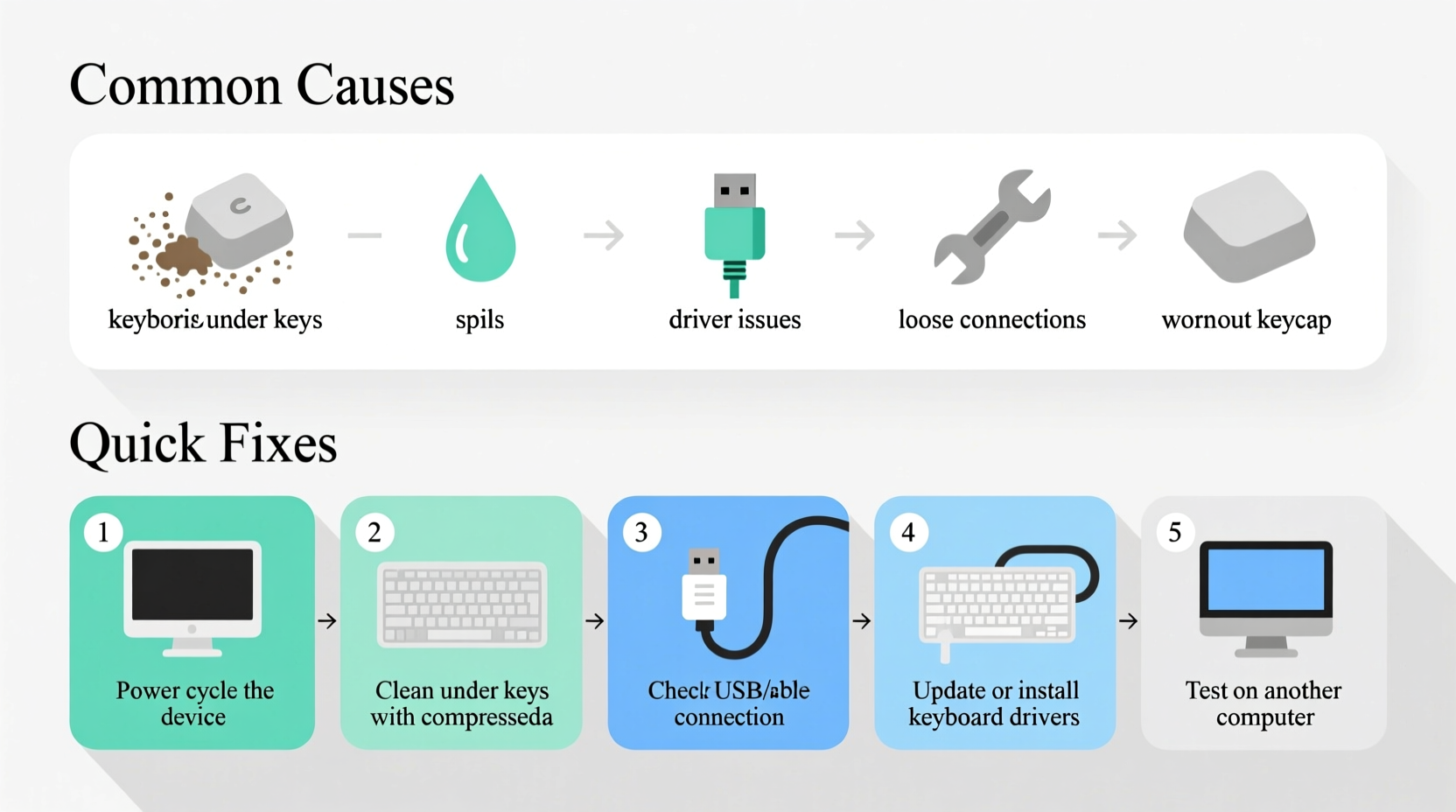
Before jumping into fixes, it’s essential to identify what might be causing the issue. Key failures rarely happen without reason. Some problems are mechanical, others stem from software misconfigurations, and some result from environmental factors.
- Debris buildup: Crumbs, dust, or pet hair trapped under keys can prevent proper actuation.
- Spills and moisture: Liquid damage can short circuits or corrode contacts over time.
- Driver issues: Outdated, corrupted, or missing drivers can disable certain keys or the entire keyboard.
- Hardware failure: Worn-out switches (especially on mechanical keyboards) or internal circuit damage.
- Stuck function modes: Accidentally enabled filters like Filter Keys or Sticky Keys can mimic key failure.
- Connection problems: Loose USB connections or Bluetooth pairing errors for wireless models.
- Operating system bugs: Temporary glitches in Windows, macOS, or Linux may interfere with input devices.
Step-by-Step Troubleshooting Guide
Follow this logical sequence to isolate and fix the problem efficiently. Start simple and escalate only if needed.
- Test the keyboard on another device. Plug it into a different computer or use a phone adapter (OTG). If keys work elsewhere, the issue lies with your original system.
- Check physical connections. Ensure USB cables are fully inserted. For wireless keyboards, replace batteries and re-pair the device.
- Restart your computer. A reboot clears temporary memory conflicts that may affect hardware recognition.
- Inspect for visible debris. Tilt the keyboard and gently shake to dislodge particles. Use compressed air for deeper cleaning.
- Verify keyboard layout settings. Incorrect language or regional settings can make keys appear non-functional (e.g., pressing “Q” outputs “A”).
- Update or reinstall drivers. Access Device Manager (Windows) or System Information (macOS) to check driver status.
- Run the built-in keyboard troubleshooter. On Windows, go to Settings > System > Troubleshoot > Other troubleshooters > Keyboard.
Do’s and Don’ts When Fixing Keyboard Issues
| Do’s | Don’ts |
|---|---|
| Use compressed air to clean under keys safely | Use water or liquid cleaners directly on circuits |
| Back up data before making system changes | Forcefully pry off keys without checking attachment type |
| Update operating system and drivers regularly | Ignore recurring issues—early intervention prevents total failure |
| Test individual keys using online keyboard testers | Assume it’s hardware-related without ruling out software first |
When to Clean vs. When to Replace
Cleaning can revive many keyboards, especially membrane types prone to dust accumulation. However, mechanical keyboards with individual switches may require more targeted maintenance. If only one or two keys fail and they feel sticky or mushy, cleaning is likely sufficient. If multiple unrelated keys stop responding simultaneously, the issue may be electrical or firmware-based.
For laptop keyboards, replacement is often more complex and costly. If cleaning and driver resets don’t help, consult a technician—internal ribbon cables can loosen over time.
“Over 60% of reported keyboard failures are resolved with basic cleaning or driver updates. Users often overlook simple fixes in favor of replacement.” — David Lin, Peripheral Hardware Engineer at TechInput Solutions
Mini Case Study: Recovering a Spilled-On Keyboard
Sarah, a freelance writer, accidentally knocked over her coffee onto her mechanical keyboard. Immediately, several central keys stopped responding. Instead of replacing it, she powered down her PC, unplugged the keyboard, and tilted it sideways to drain excess liquid. After letting it dry for 48 hours in a well-ventilated area, she used compressed air to clear residue. She then tested each key using an online tool and found all but one were functional. A light tap beneath the remaining key restored contact. Total cost: $0. Time saved: two days of missed deadlines avoided.
Quick Fixes Checklist
- ✅ Restart your computer
- ✅ Unplug and replug the keyboard (or reconnect Bluetooth)
- ✅ Test keys on another device
- ✅ Blow out debris with compressed air
- ✅ Check for stuck modifier keys (Ctrl, Alt, Shift)
- ✅ Disable Filter Keys (Settings > Accessibility > Keyboard)
- ✅ Update or roll back keyboard drivers
- ✅ Run OS-specific hardware diagnostic tool
Frequently Asked Questions
Why do some keys work while others don’t?
This usually indicates localized damage—such as debris under specific keys, partial liquid exposure, or wear on individual switches. It’s less likely to be a system-wide software issue unless the pattern matches a keyboard layout mismatch.
Can I fix a broken key without replacing the whole keyboard?
Yes, especially on mechanical keyboards. Individual switches can be desoldered and replaced. For membrane keyboards, replacement keycaps can sometimes be purchased, though success depends on availability and access to internal layers.
How do I know if my keyboard needs repair or replacement?
If cleaning, driver updates, and testing on multiple devices fail to restore function, and multiple keys across different rows/columns are dead, internal circuitry may be damaged. At that point, replacement is usually more cost-effective than professional repair.
Conclusion: Act Fast, Save Time and Money
Keyboard keys failing doesn’t always mean it’s time to buy a new one. Most issues stem from easily correctable causes like dust, outdated drivers, or accidental settings changes. By methodically testing and applying the right fix, you can save money and avoid unnecessary downtime. Whether you're using a budget membrane model or a high-end mechanical board, regular maintenance and prompt troubleshooting extend its lifespan significantly.




 浙公网安备
33010002000092号
浙公网安备
33010002000092号 浙B2-20120091-4
Comments
No comments yet. Why don't you start the discussion?