
The keyboard on your laptop or desktop may seem like a random collection of letters, but every key has a place shaped by history, engineering, and human behavior. Despite decades of technological advancement, most people still type on variations of a design over 140 years old. Why hasn’t it changed? And what purpose does the current layout actually serve? Understanding the reasoning behind keyboard layouts reveals a fascinating intersection of mechanical limitations, cognitive science, and user adaptation.
The Origins of QWERTY
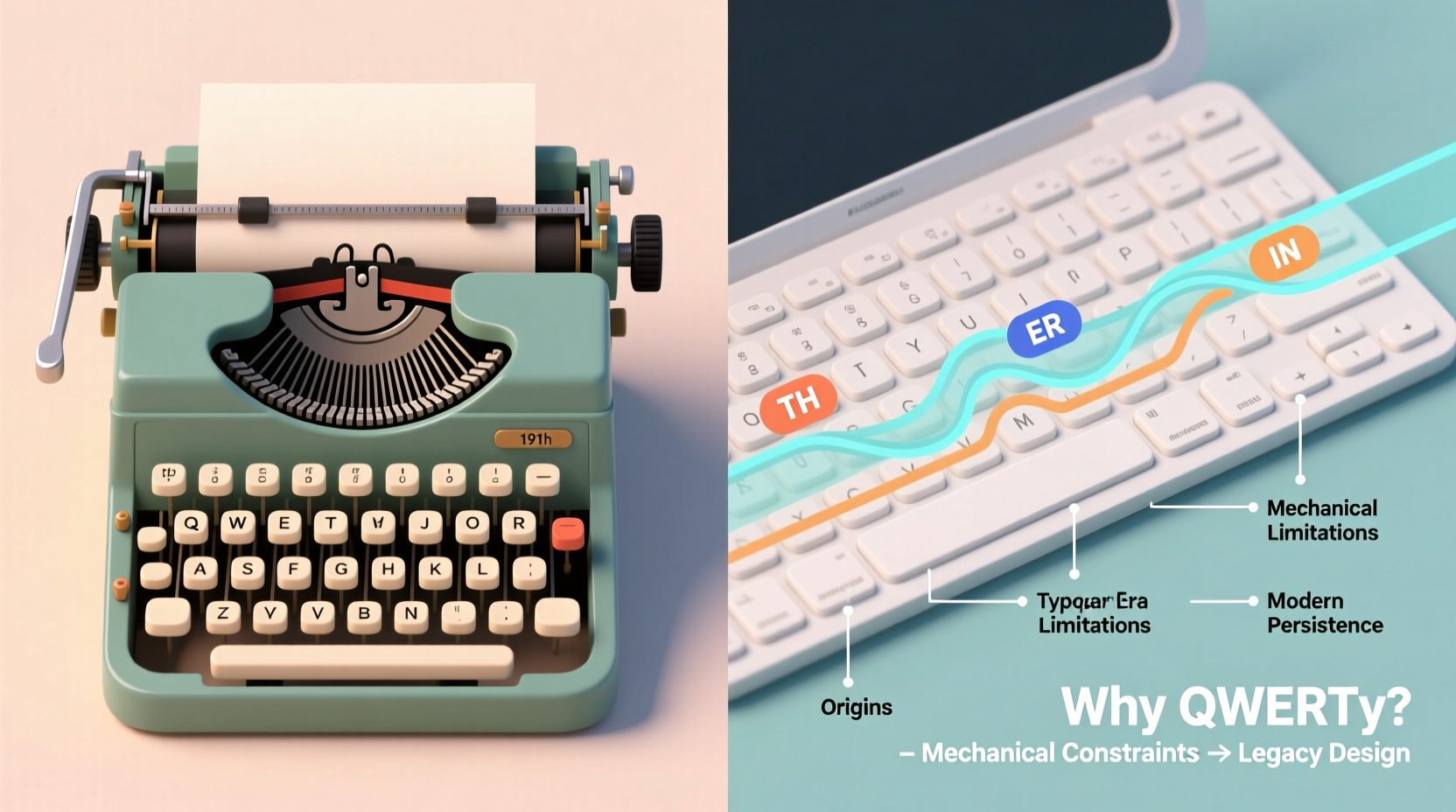
The dominant keyboard layout today—QWERTY—was developed in the early 1870s by Christopher Latham Sholes, a newspaper editor and inventor. His goal wasn’t to create the most efficient typing system, but to solve a mechanical problem: jamming keys on early typewriters. When adjacent keys were struck rapidly in succession, their metal arms would collide and lock.
To reduce jams, Sholes rearranged the most commonly used letter pairs so they were not next to each other. This slowed typists down just enough to keep the machine functioning. The result was the QWERTY layout, named after the first six letters on the top-left row. By spacing out frequent combinations like “TH” and “HE,” the layout minimized mechanical interference.
“QWERTY was never about speed—it was about preventing failure in a fragile mechanical system.” — Dr. Alan Kay, Human-Computer Interaction Historian
When Remington began mass-producing the Sholes & Glidden typewriter in 1874, QWERTY became standardized. As typists learned this layout and manufacturers adopted it, a de facto standard emerged—not because it was optimal, but because it was already widespread.
Alternatives to QWERTY: Efficiency vs. Adoption
If QWERTY was designed to slow typists down, wouldn’t a faster, more logical layout be better? Several alternatives have been proposed, with varying degrees of success.
The most famous is Dvorak Simplified Keyboard, patented in 1936 by Dr. August Dvorak and his brother-in-law William Dealey. Designed using principles of ergonomics and letter frequency analysis, Dvorak places the most common English letters (like A, O, E, I, D, H, T, N) on the home row, where fingers rest naturally. The idea was to minimize finger movement, increase typing speed, and reduce fatigue.
Studies in the 1940s suggested Dvorak could improve typing efficiency by up to 20%. Yet despite its advantages, Dvorak never gained mainstream traction. The cost of retraining millions of typists, combined with entrenched manufacturing standards, made widespread adoption impractical.
Keyboard Layout Comparison: QWERTY vs. Dvorak vs. Colemak
| Layout | Home Row Letters | Designed For | Adoption Rate |
|---|---|---|---|
| QWERTY | A S D F J K L ; | Mechanical reliability | ~95% global use |
| Dvorak | A O E U H T N S | Ergonomic efficiency | <1% |
| Colemak | A R S D H T N E | Modern touch typing | ~2% (growing) |
Colemak, introduced in 2006, attempts a middle ground—retaining many QWERTY positions (especially for non-letter keys) while optimizing for reduced finger motion. It’s popular among programmers and ergonomic enthusiasts due to its balance of efficiency and learnability.
Global Variations and Language-Specific Designs
While QWERTY dominates English-speaking countries, keyboard layouts vary significantly around the world to accommodate different alphabets and linguistic patterns.
- AZERTY – Used in France and Belgium, swaps Q/W for A/Z and repositions several punctuation keys. However, it suffers from poor ergonomics and high typo rates, especially for accented characters.
- QWERTZ – Common in Germany and Central Europe, replaces the Y and Z positions to reflect German spelling needs.
- JIS – Japan’s keyboard standard includes additional keys for switching between hiragana, katakana, and Roman input, reflecting the complexity of Japanese writing systems.
These adaptations show that no single layout fits all languages. The challenge lies in balancing phonetic logic, cultural familiarity, and technical constraints. Even within a country, multilingual users often switch between layouts depending on context.
Modern Challenges and Ergonomic Evolution
In the digital age, mechanical jams are no longer an issue, yet QWERTY persists. Touch typing habits, software compatibility, and the ubiquity of mobile keyboards reinforce its dominance. However, new challenges have emerged: repetitive strain injuries (RSI), wrist posture, and prolonged screen time.
This has led to innovations in keyboard design:
- Split keyboards – Separate left and right halves allow hands to remain in a natural, shoulder-width position.
- Ortholinear layouts – Keys aligned in straight columns reduce lateral finger stretching.
- Columnar staggered designs – Mimic the natural arc of fingers for less strain.
- Thumb clusters – Dedicated keys accessible by thumbs improve efficiency on compact boards.
Programmable firmware like QMK enables users to remap keys, create layers, and customize behavior—ushering in a new era of personalization. Still, even the most advanced hardware usually defaults to QWERTY unless manually changed.
Mini Case Study: A Developer’s Shift to Colemak
Julia, a software engineer in Toronto, began experiencing wrist pain after years of coding on a standard keyboard. After researching ergonomic solutions, she switched to a split ortholinear keyboard running Colemak. The first month was frustrating—typing emails felt like starting over. But by week six, her speed returned, and her discomfort faded. She now types 15% faster on average and rarely experiences fatigue during long debugging sessions. Her experience highlights how layout and form factor together influence long-term usability.
Step-by-Step Guide to Trying a New Keyboard Layout
Interested in exploring beyond QWERTY? Follow this timeline to transition smoothly:
- Week 1: Enable your chosen layout in system settings. Use online typing tutors (e.g., keybr.com, TypingClub) for 15 minutes daily.
- Week 2–3: Type all personal messages and notes in the new layout. Accept slower speeds and frequent errors.
- Week 4: Begin incorporating it into work tasks. Keep QWERTY as a fallback for shared devices.
- Week 5–6: Assess progress. If typing feels natural at 60+ WPM, consider investing in a compatible physical keyboard.
- Ongoing: Refine muscle memory with drills focused on weak key transitions.
Frequently Asked Questions
Why hasn't QWERTY been replaced if it's inefficient?
QWERTY benefits from massive network effects. Retraining billions of users, redesigning software interfaces, and retooling manufacturing lines would incur enormous costs for marginal gains in most real-world scenarios. Familiarity outweighs theoretical inefficiency.
Does keyboard layout affect typing speed?
For trained typists, differences in peak speed between QWERTY and optimized layouts like Dvorak or Colemak are typically small—around 5–10 WPM under ideal conditions. However, reduced finger travel can decrease fatigue during extended use, which matters more than raw speed for professionals.
Can I use alternative layouts on smartphones?
Yes. Most mobile operating systems support third-party keyboards with Dvorak, Colemak, and even custom layouts. Apps like Gboard (Android) and Fleksy (iOS) offer these options in their settings, though touchscreen typing relies more on prediction than finger placement.
Conclusion: The Future of Keyboards
The persistence of QWERTY is a powerful reminder that technology doesn’t always follow the path of maximum efficiency. Sometimes, inertia, compatibility, and learned behavior shape design more than innovation. Yet as remote work grows and health awareness increases, ergonomic alternatives are gaining quiet momentum.
Whether you stick with QWERTY or explore a new layout, understanding the history and mechanics behind your keyboard empowers smarter choices. Small adjustments—better posture, intentional breaks, or customized key mappings—can make a lasting difference in comfort and productivity.




 浙公网安备
33010002000092号
浙公网安备
33010002000092号 浙B2-20120091-4
Comments
No comments yet. Why don't you start the discussion?